


Fritz!Box: remove the confirmation for making backups, exporting support information or
Posted by jpluimers on 2025/12/15
Most of my Fritz!Boxes are configured as switches, have a unique and strong password, are hung up in hard to reach spaces, do not have phone handsets attached or Fritz app connected. Which means that every time you want to do something sensitive operations (like backing up your data or generating support information from a URL like 192.168.178.1/support.lua) you get a nag screen, so this escape is golden to remove that nag-screen:
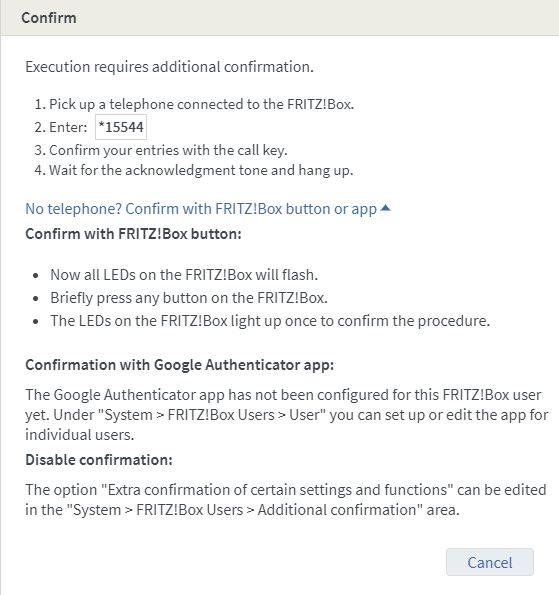
FRITZ!Box Users > User” you can set up or edit the app for individual users. Disable confirmation: The option “Extra confirmation of certain settings and functions” can be edited in the “System > FRITZ!Box Users > Additional confirmation” area.” class=”size-full” /> Confirm Execution requires additional confirmation. Pick up a telephone connected to the FRITZ!Box. Enter:*15544 Confirm your entries with the call key. Wait for the acknowledgment tone and hang up. No telephone? Confirm with FRITZ!Box button or app Confirm with FRITZ!Box button: Now all LEDs on the FRITZ!Box will flash. Briefly press any button on the FRITZ!Box. The LEDs on the FRITZ!Box light up once to confirm the procedure. Confirmation with Google Authenticator app: The Google Authenticator app has not been configured for this FRITZ!Box user yet. Under “System > FRITZ!Box Users > User” you can set up or edit the app for individual users. Disable confirmation: The option “Extra confirmation of certain settings and functions” can be edited in the “System > FRITZ!Box Users > Additional confirmation” area.
ConfirmExecution requires additional confirmation.
- Pick up a telephone connected to the FRITZ!Box.
- Enter:*11781
- Confirm your entries with the call key.
- Wait for the acknowledgment tone and hang up.
No telephone? Confirm with FRITZ!Box button or app
Confirm with FRITZ!Box button:
- Now all LEDs on the FRITZ!Box will flash.
- Briefly press any button on the FRITZ!Box.
- The LEDs on the FRITZ!Box light up once to confirm the procedure.
Confirmation with Google Authenticator app:
The Google Authenticator app has not been configured for this FRITZ!Box user yet. Under “System > FRITZ!Box Users > User” you can set up or edit the app for individual users.
Disable confirmation:
The option “Extra confirmation of certain settings and functions” can be edited in the “System > FRITZ!Box Users > Additional confirmation” area.
Oh: the support.lua link is via:
- old blog post Fritz!Box LUA links on my research list
- [Wayback/Archive] fritzbox export mac addresses – Google Search (since I needed to switch all connected devices to a different place and wanted to port the static DHCP allocations which are based on MAC address):

 The Wiert Corner - irregular stream of stuff
Leave a comment