The Wiert Corner – irregular stream of stuff

Jeroen W. Pluimers on .NET, C#, Delphi, databases, and personal interests

  • My badges

  • Twitter Updates

  • My Flickr Stream

  • Pages

  • All categories

  • Enter your email address to subscribe to this blog and receive notifications of new posts by email.

    Join 1,854 other subscribers

Archive for the ‘Excel’ Category

Get Formatted Value of Cell in Excel – Stack Overflow

Posted by jpluimers on 2022/01/18

It’s odd, but facing a potentially lot shorter life expectancy, I need to prepare to become more expendable in personal life.

This means that I need to document or/and automate a lot of duties.

In this case, it is administrative work as custodian for my brother that is based on scripts, Excel sheets and manual steps.

In order to lessen these steps, I wanted to get the formatted value of certain Excel WorkSheet cells so I could concatenate them in other places.

It appears that neither the CONCATENATE function (nor the more recently introduced CONCAT function) nor  & concatenation operator just take the unformatted value of the cell and put that in as text.

Note that the TEXTJOIN function is basically a CONCATENATE function with an extra delimiter parameter, so it does not format text.

One format I needed was YYYY-MM-DD, basically the ISO-8601 date format.

The Excel format string for this is yyyy-mm-dd;@, and the corresponding formula to apply it on cell L5 is =TEXT(J5, "yyyy-mm-dd;@")

Based on [Wayback] Get Formatted Value of Cell in Excel – Stack Overflow:

Use the TEXT() function:
TEXT(value, format_text)
So if the value is 23.5 and you pass =TEXT(A1, "$0.00") it will return $23.50
Source: http://office.microsoft.com/en-us/excel-help/text-function-HP010062580.aspx

At a later stage, I will look into the actual format strings.

References:

–jeroen

Posted in Development, Excel, Office, Power User, Software Development | Leave a Comment »

Infusion pump and PCA (patient-controlled analgesia) calculation

Posted by jpluimers on 2021/11/09

This is a great PCA calculator: [Archive.is] CADD calculator 0.5BETA END USER Google Docs – Google Sheets

Via:

Related:

–jeroen

Read the rest of this entry »

Posted in Development, Excel, Google, GoogleDocs, GoogleSheets, Office, Office Automation, Office VBA, Power User, Scripting, Software Development | Leave a Comment »

How to count the number of days / workdays / weekends between two dates in Excel?

Posted by jpluimers on 2021/03/09

For my link archive as the Excel functions WORKDAY [WayBack] and NETWORKDAYS [WayBack] helped me finding the working days in a month a while ago: [WayBack] How to count the number of days / workdays / weekends between two dates in Excel?.

Note:

–jeroen

Posted in Development, Excel, Office, Power User, Software Development | Leave a Comment »

How to quickly add hours/minutes/second to date and time in Excel?

Posted by jpluimers on 2020/11/11

Excel date times are almost identical to OLE/COM automation date times (that used in many Windows applications).

Which means that dates are 1 unit apart, and:

  • Weeks = 7
  • Days = 1
  • Hours = 1/24
  • Minutes = 1/(24*60) or 1/1440
  • Seconds = 1/(24*60*60) or 1/86400

That way you can easily add one hour to a date/time value by adding 1/24.

Source: How to quickly add hours/minutes/second to date and time in Excel?

Related:

–jeroen

Posted in Development, Excel, LifeHacker, Office, Power User, Software Development | Leave a Comment »

macOS and Windows Excel Shortcut: Toggle absolute and relative references | Exceljet

Posted by jpluimers on 2020/04/20

Since I tend to forget the Mac shortcut (the Windows one feels like it is in my autonomic nervous system):

  • F4    Windows shortcut
  • ⌘T   Mac shortcut 
While editing a formula, this shortcut toggles cell references from relative to absolute, to partially absolute, back to relative again: A1 –> $A$1 –> A$1— > $A1 — > A1 It’s much faster and easier than typing $ characters manually.
To convert an existing formula, enter cell edit mode, place the cursor in or next to the reference you’d like to convert, then use the shortcut.
Note: in Excel 2016 for the Mac, you can also use fn + F4. 

Source: Excel Shortcut: Toggle absolute and relative references | Exceljet

–jeroen

Posted in Excel, Office, Office 2011 for Mac, Power User | Leave a Comment »

Quickly See All the Formulas in Excel with This Shortcut

Posted by jpluimers on 2020/04/13

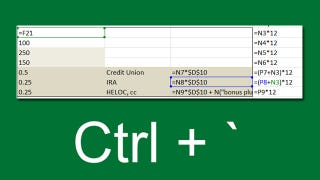
Toggle between regular view and view all formulas in a worksheet via [WayBack] Quickly See All the Formulas in Excel with This Shortcut which I wish I had known years ago:

  • Windows: Ctrl + ` (the acute accent key, found next to the number 1 on your keyboard).
  • MacOS: Cmd + `

Found using image search macos excel show all formulas – Google Search

–jeroen

Read the rest of this entry »

Posted in Apple, Excel, Mac, Mac OS X / OS X / MacOS, MacBook, MacBook Retina, MacBook-Air, MacBook-Pro, macOS 10.12 Sierra, macOS 10.13 High Sierra, Office, Office 2011 for Mac, Power User | Leave a Comment »

Hightlight active row/column in Excel without using VBA? – Stack Overflow

Posted by jpluimers on 2020/04/02

According to [WayBack] Hightlight active row/column in Excel without using VBA? – Stack Overflow: no, but you do not need much code.

On my list of things to try is to combine both answers there into one.

–jeroen

Posted in Development, Excel, Office, Power User, Software Development | Leave a Comment »

Excel formula: SUMIFS with multiple criteria and OR logic | Exceljet

Posted by jpluimers on 2020/03/31

As I need this one day:

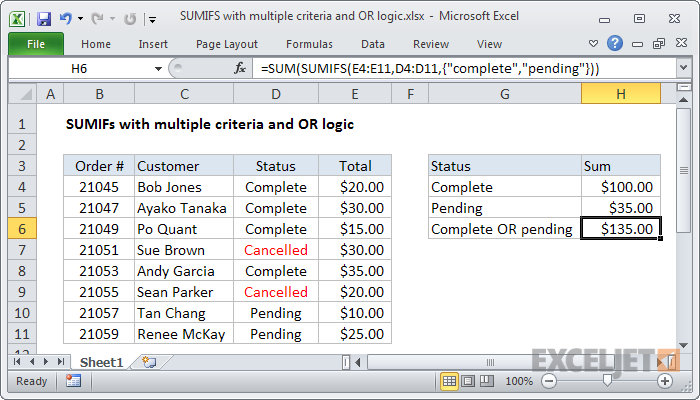
To sum based on multiple criteria using OR logic, you can use the SUMIFS function with an array constant. In the example shown, the formula in H6 is:

=SUM(SUMIFS(E4:E11,D4:D11,{"complete","pending"}))

Source: [WayBackExcel formula: SUMIFS with multiple criteria and OR logic | Exceljet

–jeroen

Posted in Development, Excel, Office, Office 2011 for Mac, Office 2013, Office 2016, Power User, Software Development | Leave a Comment »

Display the relationships between formulas and cells – Excel

Posted by jpluimers on 2020/03/18

The “Formulas” tab has to buttons that help to Display the relationships between formulas and cells – Excel [WayBack]:

  • Precedent cells —   cells that are referred to by a formula in another cell. For example, if cell D10 contains the formula =B5, then cell B5 is a precedent to cell D10.
  • Dependent cells —    these cells contain formulas that refer to other cells. For example, if cell D10 contains the formula =B5, cell D10 is a dependent of cell B5.

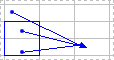
To assist you in checking your formulas, you can use the Trace Precedents and Trace Dependentscommands to graphically display and trace the relationships between these cells and formulas with tracer arrows, as shown in this figure.

Worksheet with tracer arrows

Related:

–jeroen

Posted in Development, Excel, Office, Power User, Software Development | Leave a Comment »

worksheet function – How to add or subtract to, or increment, column letters in Excel? – Super User

Posted by jpluimers on 2020/03/13

[WayBack] worksheet function – How to add or subtract to, or increment, column letters in Excel? – Super User:

Here’s the best I’ve found so far: =SUBSTITUTE(ADDRESS(1,( COLUMN() + 1 ),4),1,"")The part in the middle marked in bold is the only part that changes. In this example, it’s taking the current column and adding 1, so returning B if it’s in column A and AA if it’s in column Z.

It is related to the question and answer [WayBack] Formula to return just the Column Letter in excel – Super User:

FYI on your original formula you don’t actually need to call the CELL formula to get row and column you can use:

=ADDRESS(ROW(),COLUMN())

Then as an extension of that you can use MID & SEARCH to find the $ and trim down the output so you are just left with the letter:

=MID(ADDRESS(ROW(),COLUMN()),SEARCH("$",ADDRESS(ROW(),COLUMN()))+1,SEARCH("$",ADDRESS(ROW(),COLUMN()),SEARCH("$",ADDRESS(ROW(),COLUMN()))+1)-2)

edit You can even simplify this further:

=MID(ADDRESS(ROW(),COLUMN()),2,SEARCH("$",ADDRESS(ROW(),COLUMN()),2)-2)

And it is part of a much more elaborate answer

Read the rest of this entry »

Posted in Development, Excel, Office, Power User, Software Development | Leave a Comment »