


MS Excel 2011 for Mac: How to Change Data Source for a Pivot Table
Posted by jpluimers on 2018/08/24
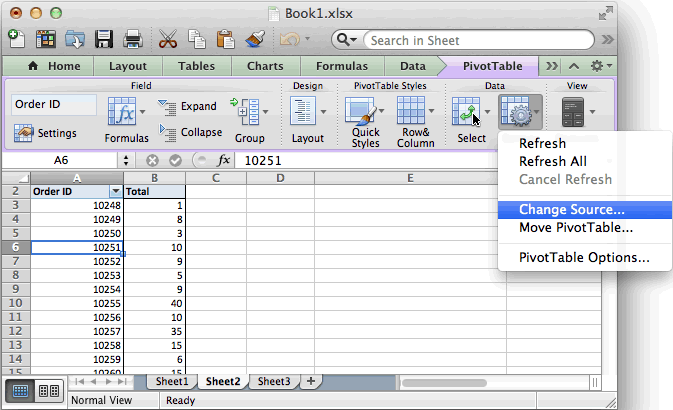 Based on [WayBack] MS Excel 2011 for Mac: How to Change Data Source for a Pivot Table:
- Refreshing the data is in the “PivotTable” toolbar under “Data”: either
- “Refresh” for the current PivotTable or
- “Refresh All” for all PivotTables in the spreadsheet
- Setting the range of source data is “Change Source” in the “PivotTable” toolbar under “Data”
- If your data is on a sheet by itself, it’s better to select the range using column only notation than using column:row notation, compare these:
- ‘FRITZ!Box_CallList.csv’!$A:$S
- ‘FRITZ!Box_CallList.csv’!$A$1:$S$401
- If your data is on a sheet by itself, it’s better to select the range using column only notation than using column:row notation, compare these:
The last trick makes it way easier to add newer data from an external CSV file into an existing workbook with various PivotTable analysis worksheets:
- Append the CSV data to the source
- Copy over any formulas needed to make pivot life easier
- “Refresh All”
On a 1920×1200 screen, the PivotTable toolbar looks like this:

Excel 2011 for Mac PivotTable toolbar
–jeroen

 The Wiert Corner - irregular stream of stuff
Leave a comment