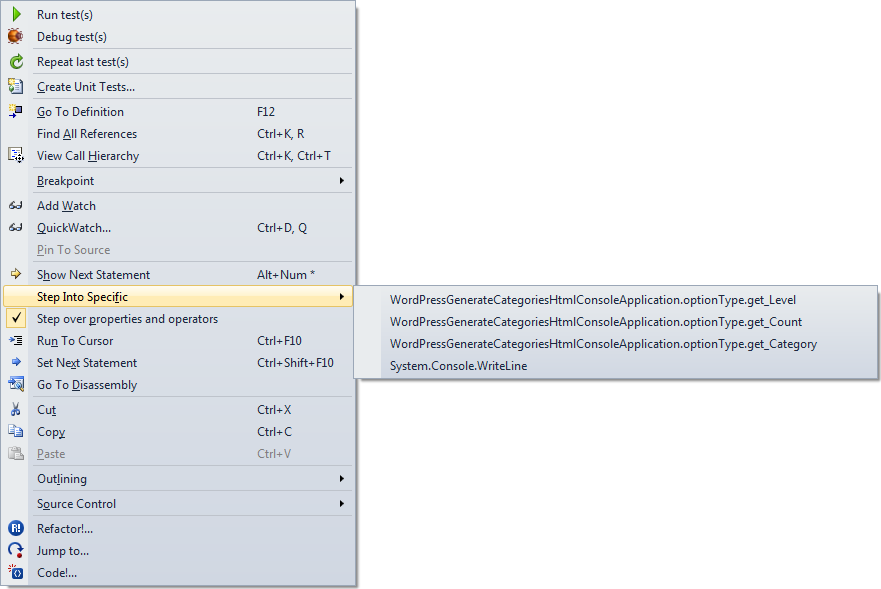
Boy I wish Visual Studio had a “Step into first property or operator” command. You can only do this through the context menu, and that is awfully cumbersome to use.
Just look at the context menu at the end of the post to see why.
Luckily, the option below it is “Step over properties and operators”, which you can easily disable. I usually have it disabled, so for me it is the way to temporarily enable it when I want to skip properties and operators.
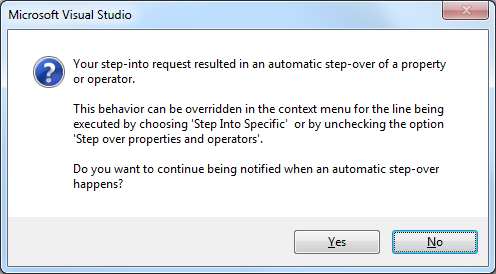
If you don’t then you get this message when tracing into properties (or operators):
[Microsoft Visual Studio]

Your step-into request resulted in an automatic step-over of a property or operator.

This behavior can be overridden in the context menu for the line being executed by choosing 'Step Into Specific' or by unchecking the option 'Step over properties and operators'.

Do you want to continue being notified when an automatic step-over happens?

[Yes] [No]
There are features you rarely use. I once screwed up my Visual Studio desktop. Resetting to the default is easy, if you remember it is in the import/export settings dialog, which I didn’t (:
On the Tools menu, click Import and Export Settings.
On the Welcome to the Import and Export Settings Wizard page, click Reset all settings and then click Next.
If you want to save your current settings combination, click Yes, save my current settings, specify a file name, and then click Next.
—or—
If you want to delete your current settings combination, choose No, just reset settings, overwriting my current settings, and then click Next. This option does not delete default settings, which will still be available the next time you use the wizard.
In Which collection of settings do you want to reset to, select a settings collection from the list.
Click Finish.
The Reset Complete page alerts you to any problems encountered during the reset.
Didn’t need it until now, as now I wrote my first unit test on an internal class, with the unit test in a separate assembly.
Visual Studio 2010 suggested adding the InternalsVisibleTo Attribute to the assembly containing the internal class specifying that the unit test assembly would have access to it.
For me that felt up-side-down, but thinking again it is logical, but still doesn’t feel well.
This is what it does:
The InternalVisibleToAttribute was added in .Net 2.0 and most people seem to be using it in order expose internal methods to external unit test classes. However, there is nothing to prevent you from using it in non-testing situations., although I have not seen a good reason other then unit testing to use it.
One of the clients has tightened up their web proxy so much that Visual Studio 2010 does not want to connect to the HTTP 8080 port on the external TFS server (yes, I will switch to HTTPS if the workaround appears stable enough).
The problem is that Visual Studio often just tells you it cannot connect. No further error details.
Well, after you get most things working, you get this error every now and then:
[Microsoft Visual Studio]

Error

Team Foundation services are not available from server tfs.some-domain\PREFIX.

Technical information (for administrator):

HTTP code 407: Proxy Authentication Required

[OK]
There are a few problems involved:
Visual Studio does not allow you to enter credentials for the Proxy server.
Visual Studio doesn’t fully use the proxy settings from Internet Explorer either.
Visual Studio (unlike Internet Explorer) seems to loose the proxy session and or proxy authentication for that session over time.
All in all, it is fishy, even editing the devenv.exe.config proxy settings didn’t work (maybe I haven’t found the right combination of settings yet: that’s part of the research I need to do).
Workaround
So far, these are the current workaround steps (I will post a new entry when I found the solution or shortened the steps).
The workaround includes HTTP Fiddler, and sometimes doesn’t work without. HTTP Fiddler helps anyway as it shows the HTTP traffic (including error messages from the proxy server) between Visual Studio and TFS. Read the rest of this entry »
Recently I was asked to investigate a performance problem with a certain .NET application.
The first error I got when getting the app to build in Visual Studio 2010, and then run it was like this:
System.ComponentModel.InvalidAsynchronousStateException was caught
  Message=An error occurred invoking the method.  The destination thread no longer exists.
  Source=System.Windows.Forms
  StackTrace:
       at System.Windows.Forms.Control.WaitForWaitHandle(WaitHandle waitHandle)
       at System.Windows.Forms.Control.MarshaledInvoke(Control caller, Delegate method, Object[] args, Boolean synchronous)
       at System.Windows.Forms.Control.Invoke(Delegate method, Object[] args)
       at UI.Splash.SetStatus(String status) in C:\...\Splash.cs:line 395
       at UI.Menu.Main() in C:\...\Menu.cs:line 4275
  InnerException:
Someone built their own splash logic with multi-threading.
That sounds like a Delphi link too, but the subtitle “‘Ways to get into avoidable trouble with threads, V1.2′” hints the essence: it is a post that describes in an environment-agnostic way how to avoid multi-threading problems.
Recommended reading!
Anyway: Building multi-threaded code is hard. Even harder fleshing out all the corner cases and potential error conditions.
No matter what kind of programming environment: If you have not done lots of multi-threaded programming, then please don’t do it yourself: go ask someone that does know how to do it. Or better, try to avoid it.
I try to let libraries to the handling of multi-threading for me, if I use multi-threading at all, as others are far better at this than I am.
For some version management features, I needed to find the attribute values of loaded assemblies. Googling around, I didn’t find many nice solutions. In fact the solutions I found didn’t work well (AssemblyName is not an Attribute!), and/or contained lots of duplicate code, or uses RegEx and other string comparisons (lesson: if you can do it with either string comparison or proper type checking, use the latter). Below is the code; here some explanation:
The RunOnAssemblyAttribute generic method takes a T parameter of type Attribute, then runs the Action<T> action if that attribute is found in the Assembly assembly. It retreived the attribute using the Assembly.GetCustomAttributes method.
When a null parameter is passed, it gets the information from the executing assembly (if you want it to be another one, just change the code if you want it to)
An alternative way of getting the executable name is at the very bottom: you need it when your assembly is loaded from an unmanaged application (GetEntryAssembly then returns null)
The constructor runs it on all known assembly related attributes in the System.Reflection namespace, calling RunOnAssemblyAttribute with an action that fills the property for each existing attribute (you wish all those attributes would have a Value property, but their property names are specific for each attribute). For non existing attributes, the default property values are used (which incidently are the default values for those attributes anyway).
There are a couple of casts (for instance AssemblyNameFlags) as the underlying attribute contains a constructor with that parameter (in this case AssemblyFlagsAttribute), but stores it in an integer without providing a cast property. Maybe there should be proper type checking; that is left as an exercise…
The constructor also fills a couple of non attribute properties – AssemblyName – LinkerTimestamp
The Name property is derived from the AssemblyName.Name property if it exists
I’m a keyboard fan, so recently I have put up a new Keyboards and Keyboard Shortcuts category and tried to add all old relevant posts to it (staying organized is time consuming, but in the end it pays back by being able to find back stuff faster).
At conferences, presentations, and clients people often wonder “how do you get to such-and-such IDE feature so quickly” and the answer usually is: be sure you know your keyboard shortcuts. Which isn’t easy, as documentation for them is often spread out, and to find the information: you have to know how the underlying actions are called.
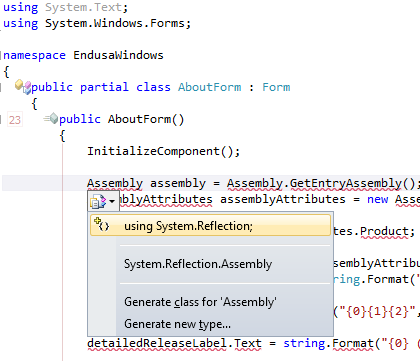
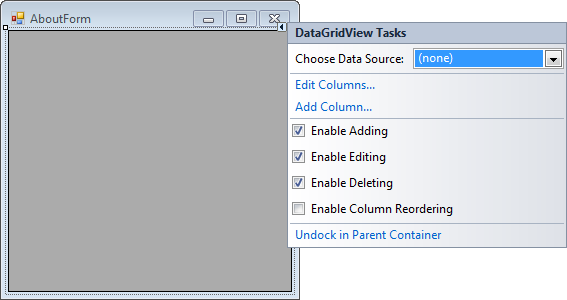
A long time ago (I think it was in version 2005) Visual Studio introduced Smart Tags. Most posts talk only about one kind of Smart Tags, but the Visual Studio IDE has two kinds:
A tiny triangle in the designer
A combobox drop-down button like control in the code editor
Shift-Alt-F10
The shortcut is called View.ShowSmartTag, View.ObjectBrowserGoToSearchCombo
Ctrl-. (yes, the . is a period)
The shortcut seems to be called Edit.Generate
The pictures below show the Smart Tag in action.
Oh BTW: the red squiggly lines and some of the other adornments in the screenshot are from CodeRush, one of the most keyboard-centric additions to Visual Studio I know.


 :
:



 The Wiert Corner - irregular stream of stuff