Just in case I ever need it for historic reasons:
[Wayback/Archive] WinWorld: Microsoft Office 95
Because back in the days various Office products had localised VBA (at least German and French products had; I’m not sure about other languages)
Via:
Posted by jpluimers on 2025/10/29
Just in case I ever need it for historic reasons:
[Wayback/Archive] WinWorld: Microsoft Office 95
Because back in the days various Office products had localised VBA (at least German and French products had; I’m not sure about other languages)
Via:
Posted in Delphi, Development, History, LifeHacker, Office, Office 95, Office Automation, Office Development, Power User, Software Development, Windows, Windows 95 | Leave a Comment »
Posted by jpluimers on 2022/01/25
In Get Formatted Value of Cell in Excel – Stack Overflow, I focused on the =TEXT function, then indicated I would look into Excel format strings later.
Below are just a few links and a very short description as hopefully later I will have more time to dig into this.
The basic format is this (where all bits other than Format1 are optional):
[Locale]Format1;Format2;Format3;Format4
For now this is for my link archive:
HA001034635 link has disappeared, which is a pity as it explains the localisation; luckily two forms of the URL have been saved where [Locale] is constructed like this example (all Locale digits are hexadecimal):
[$-24050412]m/d/yyIn the preceding example:
24is the numeral shape component (Korean 1).
05is the calendar type component (Korean (Tangun era)).
0412is the locale and language designation component (Korean).
[Locale] information is explained in [Wayback] What does the 130000 in Excel locale code [$-130000] mean? – Stack Overflow by [Wayback] User IrwinAllen13 – Stack Overflow and has more calendar formats than the above Microsoft links.@ is for: the content of the cell.First the base:
When you create custom number formats, you can specify up to four sections of format code. These sections of code define the formats for
- positive numbers,
- negative numbers,
- zero values, and
- text,
in that order. The sections of code must be separated by semicolons (
;).The following example shows the four types of format code sections.
Format for positive numbers
Format for negative numbers
Format for zeros
Format for text
Then on on specifying less than 4 sections:
- If you specify only one section of format code, the code in that section is used for all numbers.
- If you specify two sections of format code, the first section of code is used for positive numbers and zeros, and the second section of code is used for negative numbers.
- When you skip code sections in your number format, you must include a semicolon for each of the missing sections of code.
- You can use the ampersand (&) text operator to join, or concatenate, two values.
Then on the
@sign (which is under “Text and spacing”):To create a number format that includes text that is typed in a cell, insert an “at” sign (@) in the text section of the number format code section at the point where you want the typed text to be displayed in the cell.
…
For example, to include text before the text that’s typed in the cell, enter “gross receipts for “@ in the text section of the number format code.
Finally it explains how to colorise the formatting or hide particular values under “Decimal places, spaces, colors, and conditions”:
The color code must be the first item in the code section.
[Black] [Blue] [Cyan] [Green] [Magenta] [Red] [White] [Yellow]…
Hiding various values:
To hide Use this code Zero values 0;–0;;@All values ;;;(three semicolons)
Office Open XML file formats – This Standard defines Office Open XML’s vocabularies and document representation and packaging
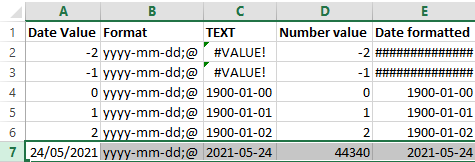
Below a few screenshots while experimenting.
The first one shows the formulas, the second one the content. The Date value cells shows the values when entered as shown; the Date formatted cells are all formatted with yyyy-mm-dd;@ formatting.
I still need to figure out why using a =TEXT function shows #VALUE! whereas using cell formatting just a bunch of ############### (15 times a #, not sure if that is always the same number).

–jeroen
Posted in Development, Excel, Office, Office Development, Power User, Software Development | Leave a Comment »