The Wiert Corner – irregular stream of stuff

Jeroen W. Pluimers on .NET, C#, Delphi, databases, and personal interests

  • My badges

  • Twitter Updates

  • My Flickr Stream

  • Pages

  • All categories

  • Enter your email address to subscribe to this blog and receive notifications of new posts by email.

    Join 1,854 other subscribers

Archive for the ‘Excel’ Category

Excel: Set the printing order of worksheet pages; printing row/coumn headings

Posted by jpluimers on 2015/08/21

I keep forgetting these two settings, most likely because I hardly use spreadsheets that are both wide and tall.

First the print order

Basically there are two orders:

  • Prefer horizontal over vertical (Excel calls this “Over, then down”) so it prints columns first, then rows
  • Prefer top to bottom (Excel calls this “Down, then over”) so it prints rows first, then columns

Here is how to do it in Excel 2007 and up:

  1. Ensure your worksheet is active.
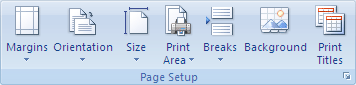
  2. Click the “Page Layout” tab.
  3. In the “Page Setup” group, click the “Dialog Box Launcher” on the bottom right of the group (this tiny icon: Dialog box launcher).
  4. In the “Page Setup” dialog that appears, click on the “Sheet” tab.
  5. Under “Page order”, select either of these two options (the preview will change, see the images below).
    1. Down, then over
    2. Over, then down
  6. Click OK to close the “Page order” dialog.

Then the row/colum headings

This is actually much easier, and also works this way from Excel 2007 and up:

  1. Ensure your worksheet is active.
  2. Click the “Page Layout” tab.
  3. In the “Sheet Options” group, under “Headings”, select the “Print” check box.

–jeroen

via:

Image thanks to Microsoft:

Down, then over.

Down, then over.

Over, then down.

Over, then down.


Printing row/column headings

Posted in Excel, Office, Office 2007, Office 2010, Office 2013, Power User | Leave a Comment »

Locate and reset the last cell on a worksheet

Posted by jpluimers on 2015/08/19

The trick:

When you open the workbook again, the last cell of the data should be the last cell on the worksheet.

Which means that the “Last cell” only changes after a reload.

–jeroen

via Locate and reset the last cell on a worksheet.

Posted in Excel, Office, Power User | Leave a Comment »

Excel: replace function is named SUBSTITUTE – via: Stack Overflow

Posted by jpluimers on 2015/08/03

Thanks DarkAjax for answering this:

what you’re looking for is

=SUBSTITUTE(A2,"Author","Authoring")

Will substitute Author for Authoring without messing with everything else.

I always forget that SUBSTITUTE is a synonym for replace.

There are REPLACE and REPLACEB, but these replace content of a cell, not of a string.

–jeroen

via Excel: replace part of cell’s string value – Stack Overflow.

Posted in Excel, Office, Office 2003, Office 2007, Office 2010, Office 2013, Power User | Leave a Comment »

Download link for Office 2013 Language Pack Options

Posted by jpluimers on 2015/07/20

In case I need to re-download some language related Office 2013 things again: Office 2013 Language Pack Options.

–jeroen

Posted in Excel, Office, Office 2013, Outlook, Power Point, Power User, Word | Leave a Comment »

Multiple office versions on one computer: it is possible, but you should not do it

Posted by jpluimers on 2014/08/01

Wow, I didn’t even know this was possible, but I recently came across a few people that had actually done this: run multiple versions of Office on one computer.

Microsoft even has a couple of knowledge base articles on it and indicate it is not recommended (wow!), installation/update orders, and potential issues you will face.

I’ve added the respective office version ranges for each link:

–jeroen

Posted in Excel, Office, Office 2003, Office 2007, Office 2010, Office 2013, Outlook, Power Point, Power User, Word | Leave a Comment »

Excel worksheet function – How do I get the weekday name of a date?

Posted by jpluimers on 2014/07/04

At first sight you’d think that getting the weekday name of a date in Excel is as easy as this simple example using the [Wayback/Archive] WEEKDAY function as an intermediate:

A1 cell: 1/8/2009
B1 cell: =TEXT(WEEKDAY(A1),"dddd")

This will, for the given date, print the corresponding day.

The outcome for the 1st of August 2009 (we do dd/mm/yyyy over here) is Saturday, and you might think it is the right way to do it.

Well, as [Wayback/Archive] AdamV explains in [Wayback/Archive] it is not: the outcome is OK on certain systems, but not OK on other systems.

The actual solution is even simpler, but before we go there, lets first explain what is potentially wrong with the above code:

  • A1 has a date value
  • =WEEKDAY(A1)
    obtains an integer value
    in this case: 7
  • =TEXT(7, "dddd")
    obtains the weekday name of the integer value 7
    in this case: SATURDAY
  • The latter is only because of two things:
    • First the way TEXT operates:
      =TEXT(B1,"dddd, yyyy-mm-dd")
      returns this full date:
      Saturday, 1900-01-07
      Which means that if you don’t fill in a month or year, it uses January of 1900.
    • Second:
      Excel thinks the 1st of January 1900 is a Sunday (actually, it is Monday)
      so for Excel, the 7th of January 1900 is a Saturday.

Excel has a [Wayback/Archive] bug where weekdays before the 1st of March 1900 are wrong (it is the famous 1900 problem, which somewhat is the inverse of the – also famous – [Wayback/Archive] 2000 is not a leap year problem) which won’t get fixed as [Wayback/Archive] Excel wants to stay compatible with Lotus-1-2-3 which also has the bug.

So it is by luck that Excel gets the above way right.

To make sure it is always right, just format your date as "dddd" as AdamV suggests:

=TEXT(A1,"dddd")

This is much shorter than the first example, and always works well.

--jeroen

PS – via: worksheet function – How do I get the day name into a cell in Excel? – Super User.

Posted in Excel, Office, Power User | Leave a Comment »

A few Excel printing tips I always forget

Posted by jpluimers on 2014/05/30

With most software, most of the time you don’t use the majority of the features.

So when you need a part of that majority, it is always hard to find.

For Excel, most of my printing is standard (if I print at all), so these two are particularly hard to remember:

–jeroen

Posted in Excel, Office, Office 2007, Office 2010, Office 2013, Power User | Leave a Comment »

Classic Menu for Office 2010 and 2013 Programs

Posted by jpluimers on 2013/11/04

As with Office 2007 and up, quite a few features – including menus and keyboard shortcuts – have been removed or changed.

Microsoft has many posts on them, some of which are here:

The menu part can be remedied with ease: Bring Back Classic Menus and Toolbars to Outlook 2010 and 2013 [WayBack].

Works like a charm, and you can purchase for individual Office programs, or for 3 suite combinations [WayBack].

–jeroen

Posted in Excel, Keyboards and Keyboard Shortcuts, Office, Power Point, Power User, Word | 1 Comment »

excel “not enough storage is available to complete this operation (exception from hresult: 0x8007000e (e_outofmemory))” – Google Search

Posted by jpluimers on 2013/04/16

So I won’t forget to research this:

excel “not enough storage is available to complete this operation (exception from hresult: 0x8007000e (e_outofmemory))” – Google Search.

Somehow this occurs with Excel and the .NET app only having a few dozen megabytes of memory in use, so the cause must be something a lot more simple than “out of memory”.

It is a complex export, but I might just be able to get this going using ADO.NET, and make sure it is not a 60+k rows or 60+k characters issue.

–jeroen

Posted in .NET, .NET 4.0, C#, C# 4.0, Development, Excel, Office, Power User, Software Development, Visual Studio 2010, WinForms | Leave a Comment »

How do you make Excel print those cell lines? – AfterDawn: Forums

Posted by jpluimers on 2013/03/04

Question: How do you make Excel print those cell lines?

Thanks seb32:

I’m assuming you want to print the grid…

  1. File menu,
  2. Page Setup,
  3. go to the Sheet tab,
  4. On that page, under Print, there’s a checkbox called “Gridlines”.

Note: the above is for Excel 2003; Print Gridlines in Excel shows that Excel 2007 and 2010 have slightly different settings.

–jeroen

via:

Posted in Excel, Office, Power User | Leave a Comment »