Archive for the ‘Excel’ Category
Posted by jpluimers on 2022/03/31
Usually, I work in a single worsheet and workbook at a time.
Sometimes I use multiple worksheets or workbooks, and I never knew about the below feature.
The really cool aspect which is not in the below documentation: if you re-open a worksheet, it remembers the views and positions!
Learned a new thing and discovered a new thing (:
[WayBack] View multiple panes, sheets, or workbooks – Excel for Mac:
In Excel for Mac, you can split a sheet in to panes, view multiple sheets in one workbook, or view multiple workbooks at a time.
View multiple sheets in one workbook
- Open the workbook that you want to view.
- On the Window menu, click New Window.
- Switch to the new window, and then click the tab for the sheet that you want to view.Repeat steps 2 and 3 for each sheet that you want to view.
- On the Window menu, click Arrange.
- Do one of the following:
| To arrange windows |
So that they appear like this |
Click |
| As equally sized, tiled squares |
 |
Tiled |
| Horizontally from top to bottom |
 |
Horizontal |
| Vertically from right to left |
 |
Vertical |
| In an overlapping cascade from top to bottom |
 |
Cascade |
- Select the Windows of active workbook check box.
View multiple workbooks
- Open all the workbooks that you want to view.
- On the Window menu, click Arrange.
- Do one of the following:
| To arrange windows |
So that they appear like this |
Click |
| As equally sized, tiled squares |
|
Tiled |
| Horizontally from top to bottom |
|
Horizontal |
| Vertically from right to left |
|
Vertical |
| In an overlapping cascade from top to bottom |
|
Cascade |
–jeroen
Posted in Excel, Office, Office 2011 for Mac, Power User | Leave a Comment »
Posted by jpluimers on 2022/03/01
Sometimes, you figure out Excel functionality you have never needed before, but has been there for decades.
A while ago, I had a very complex with formulas referencing full columns back and forth when suddenly I got into something strange: when reloading the spreadsheet, values would not appear because of recursion errors. Before saving this was fine, so it was hard to track back where I want wrong.
So I was happy to find out that Excel has two cool features for this:
- Trace Precedents
- Trace Dependents
Heck, looking at the icons I had a feel these features had been there for a long time. Boy, was I surprised to find them in [Wayback] Excel 2000 – Student Edition – Complete (a great book by the way), as you can see in this picture:
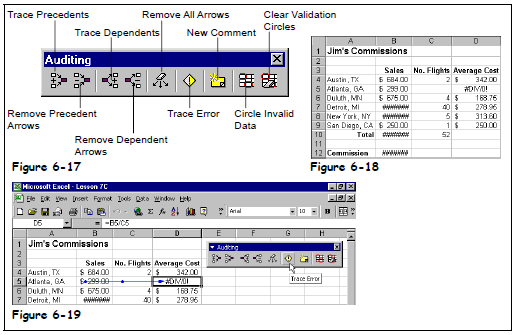
Excel 2000 – Student Edition – Complete – Trace precedents, dependents, error
As others can explain this feature so much better than I can, here are some links:
–jeroen
Posted in Excel, Office, Office 2000, Office 2003, Office 2007, Office 2010, Office 2011 for Mac, Office 2013, Office 2016, Power User | Leave a Comment »
Posted by jpluimers on 2022/01/25
In Get Formatted Value of Cell in Excel – Stack Overflow, I focused on the =TEXT function, then indicated I would look into Excel format strings later.
Below are just a few links and a very short description as hopefully later I will have more time to dig into this.
The basic format is this (where all bits other than Format1 are optional):
[Locale]Format1;Format2;Format3;Format4
For now this is for my link archive:
- [Wayback] Excel number format strings (e.g. “@”, “$-409]d-mmm-yy;@”) – Complete reference availability? – Stack Overflow has two answers of which the second one is deleted, but very useful:
- Here’s a list of the Number Format Codes for Excel.
- Second option for link: Ecma-376 4th Edition Part 1, Section 18.8.31
- If you are looking for the international number codes try at http://office.microsoft.com/en-gb/excel-help/creating-international-number-formats-HA001034635.aspx
- The
HA001034635 link has disappeared, which is a pity as it explains the localisation; luckily two forms of the URL have been saved where [Locale] is constructed like this example (all Locale digits are hexadecimal):
[$-24050412]m/d/yy
In the preceding example:
24 is the numeral shape component (Korean 1).
05 is the calendar type component (Korean (Tangun era)).
0412 is the locale and language designation component (Korean).
- [Wayback] Archive.is: Creating international number formats – Excel … HA001034635.aspx
- [Wayback] Archive.is: Creating international number formats – Excel – Office.com … HA001034635.aspx?redir=0
- More
[Locale] information is explained in [Wayback] What does the 130000 in Excel locale code [$-130000] mean? – Stack Overflow by [Wayback] User IrwinAllen13 – Stack Overflow and has more calendar formats than the above Microsoft links.
- [Wayback] Number format codes – Excel for Mac has the base and sort of explains what the
@ is for: the content of the cell.
First the base:
When you create custom number formats, you can specify up to four sections of format code. These sections of code define the formats for
- positive numbers,
- negative numbers,
- zero values, and
- text,
in that order. The sections of code must be separated by semicolons (;).
The following example shows the four types of format code sections.

 Format for positive numbers
 Format for negative numbers
 Format for zeros
 Format for text
Then on on specifying less than 4 sections:
- If you specify only one section of format code, the code in that section is used for all numbers.
- If you specify two sections of format code, the first section of code is used for positive numbers and zeros, and the second section of code is used for negative numbers.
- When you skip code sections in your number format, you must include a semicolon for each of the missing sections of code.
- You can use the ampersand (&) text operator to join, or concatenate, two values.
Then on the @ sign (which is under “Text and spacing”):
To create a number format that includes text that is typed in a cell, insert an “at” sign (@) in the text section of the number format code section at the point where you want the typed text to be displayed in the cell.
…
For example, to include text before the text that’s typed in the cell, enter “gross receipts for “@ in the text section of the number format code.
Finally it explains how to colorise the formatting or hide particular values under “Decimal places, spaces, colors, and conditions”:
The color code must be the first item in the code section.
[Black] [Blue] [Cyan] [Green] [Magenta] [Red] [White] [Yellow]
…
Hiding various values:
| To hide |
Use this code |
| Zero values |
0;–0;;@ |
| All values |
;;; (three semicolons) |
- [Wayback] ECMA-376 – Ecma International where Ecma-376 4th Edition Part 1, Section 18.8.31 is supposed to have format strings (will dig into this later)
Office Open XML file formats – This Standard defines Office Open XML’s vocabularies and document representation and packaging
- [Wayback] ECMA-376, Part 1
- Not sure where Part 2 is
- [Wayback] ECMA-376, Part 3
- [Wayback] ECMA-376, Part 4
- Not sure where Part 5 is
Below a few screenshots while experimenting.
The first one shows the formulas, the second one the content. The Date value cells shows the values when entered as shown; the Date formatted cells are all formatted with yyyy-mm-dd;@ formatting.
I still need to figure out why using a =TEXT function shows #VALUE! whereas using cell formatting just a bunch of ############### (15 times a #, not sure if that is always the same number).

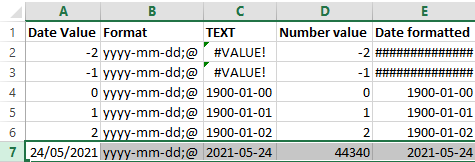
–jeroen
Posted in Development, Excel, Office, Office Development, Power User, Software Development | Leave a Comment »
Posted by jpluimers on 2022/01/18
It’s odd, but facing a potentially lot shorter life expectancy, I need to prepare to become more expendable in personal life.
This means that I need to document or/and automate a lot of duties.
In this case, it is administrative work as custodian for my brother that is based on scripts, Excel sheets and manual steps.
In order to lessen these steps, I wanted to get the formatted value of certain Excel WorkSheet cells so I could concatenate them in other places.
It appears that neither the CONCATENATE function (nor the more recently introduced CONCAT function) nor & concatenation operator just take the unformatted value of the cell and put that in as text.
Note that the TEXTJOIN function is basically a CONCATENATE function with an extra delimiter parameter, so it does not format text.
One format I needed was YYYY-MM-DD, basically the ISO-8601 date format.
The Excel format string for this is yyyy-mm-dd;@, and the corresponding formula to apply it on cell L5 is =TEXT(J5, "yyyy-mm-dd;@")
Based on [Wayback] Get Formatted Value of Cell in Excel – Stack Overflow:
Use the TEXT() function:
TEXT(value, format_text)
So if the value is 23.5 and you pass =TEXT(A1, "$0.00") it will return $23.50
Source: http://office.microsoft.com/en-us/excel-help/text-function-HP010062580.aspx
At a later stage, I will look into the actual format strings.
References:
–jeroen
Posted in Development, Excel, Office, Power User, Software Development | Leave a Comment »
Posted by jpluimers on 2021/11/09
Posted in Development, Excel, Google, GoogleDocs, GoogleSheets, Office, Office Automation, Office VBA, Power User, Scripting, Software Development | Leave a Comment »
Posted by jpluimers on 2020/11/11
Excel date times are almost identical to OLE/COM automation date times (that used in many Windows applications).
Which means that dates are 1 unit apart, and:
- Weeks = 7
- Days = 1
- Hours = 1/24
- Minutes = 1/(24*60) or 1/1440
- Seconds = 1/(24*60*60) or 1/86400
That way you can easily add one hour to a date/time value by adding 1/24.
Source: How to quickly add hours/minutes/second to date and time in Excel?
Related:
–jeroen
Posted in Development, Excel, LifeHacker, Office, Power User, Software Development | Leave a Comment »
Posted by jpluimers on 2020/04/20
Since I tend to forget the Mac shortcut (the Windows one feels like it is in my autonomic nervous system):
F4 Windows shortcut-
⌘T Mac shortcut
While editing a formula, this shortcut toggles cell references from relative to absolute, to partially absolute, back to relative again: A1 –> $A$1 –> A$1— > $A1 — > A1 It’s much faster and easier than typing $ characters manually.
To convert an existing formula, enter cell edit mode, place the cursor in or next to the reference you’d like to convert, then use the shortcut.
Note: in Excel 2016 for the Mac, you can also use fn + F4.
Source: Excel Shortcut: Toggle absolute and relative references | Exceljet
–jeroen
Posted in Excel, Office, Office 2011 for Mac, Power User | Leave a Comment »
Posted by jpluimers on 2020/04/13
Toggle between regular view and view all formulas in a worksheet via [WayBack] Quickly See All the Formulas in Excel with This Shortcut which I wish I had known years ago:
- Windows:
Ctrl + ` (the acute accent key, found next to the number 1 on your keyboard).
- MacOS:
Cmd + `
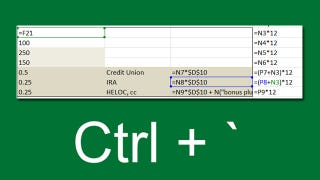
Found using image search macos excel show all formulas – Google Search
–jeroen
Read the rest of this entry »
Posted in Apple, Excel, Mac, Mac OS X / OS X / MacOS, MacBook, MacBook Retina, MacBook-Air, MacBook-Pro, macOS 10.12 Sierra, macOS 10.13 High Sierra, Office, Office 2011 for Mac, Power User | Leave a Comment »




 The Wiert Corner - irregular stream of stuff