Archive for the ‘Excel’ Category
Posted by jpluimers on 2019/08/16
Since I always get confused by the differences in Excel versions (not just between Mac OS X and Windows):
In Excel for Mac, you can adjust where automatic page breaks occur, add your own page breaks manually, and remove manual page breaks.
Source: [WayBack] Insert, move, or delete page breaks in a sheet.
–jeroen
Read the rest of this entry »
Posted in Excel, Office, Office 2011 for Mac, Power User | Leave a Comment »
Posted by jpluimers on 2019/06/28
I hardly print with Excel, so I always forget these two:
–jeroen
Posted in Excel, Office, Office 2011 for Mac, Office 2013, Power User | Leave a Comment »
Posted by jpluimers on 2019/06/10
Via [WayBack] ms office – Keyboard shortcut to select all text in a cell in Excel – Ask Different a few keyboard tips.
Lets start with the shortest one:
- Put the focus on the cell (click, use arrow keys, etc)
- Press space
- Press
Command–Z or Control–Z to undo the change
This probably is unintended, but works great: all text is now selected, so you can copy/cut with Command-C/Command–X.
Now the “official” way:
- Put the focus on the cell (click, use arrow keys, etc)
- Press
Control–U or F2 to edit the cell (the cursor is now at the end)
- Press
Shift–Alt–Home or Shift–Control–Home (to select all text)
note: Home can also be Fn–Left.
Other selections you can make while the cell is in edit mode:
- Press
Shift–Alt–End or Shift–Control–End (to select to the end of the cell)
note: End can also be Fn–Right.
- Press
Shift–Alt–Right or Shift–Control–Right (to select one word to the right)
- Press
Shift–Alt–Left or Shift–Control–Left (to select one word to the left)
- Press
Shift–Alt–Down or Shift–Control–Down (to select to the same position on the line below)
- Press
Shift–Alt–Up or Shift–Control–Up (to select to the same position on the line up)
Keyboard symbols (more at [WayBack] Command, Option, & Shift Symbols in Unicode):
⇧ – Shift^ – Control⌥ – Alt which is the same as Option⌘ – CommandFn – Function
–jeroen
Posted in Apple, Excel, Mac, Mac OS X / OS X / MacOS, MacBook, MacBook Retina, MacBook-Air, MacBook-Pro, MacMini, macOS 10.12 Sierra, Office, Office 2011 for Mac, Power User | Leave a Comment »
Posted by jpluimers on 2019/06/03
What key combination do I have to press to create a line break in a cell in Excel for Mac 2011? The Windows combination of Alt+Enter does not work on the Mac.
Source: [WayBack] keyboard – How to add a line break in a cell in Excel for Mac – Ask Different
The answer depends on the Excel for Mac OS X version you are using.
Excel 2015 is simple (thanks esham): use Option+Enter.
In older Excel <= 2011 (thanks nwinkler), use Command+Option+Enter or Control+Option+Enter.
Some users report the also need the Fn key in addition to the above modifiers.
–jeroen
PS: Later I found out that [WayBack] Beckism.com: Use a linebreak in Excel on Mac also shows the Excel <= 2011 solution Control+Option+Return (note that Return is the same key as Enter).
Posted in Apple, Excel, Mac, Mac OS X / OS X / MacOS, MacBook, MacBook Retina, MacBook-Air, MacBook-Pro, macOS 10.12 Sierra, Office, Office 2011 for Mac, Power User | Leave a Comment »
Posted by jpluimers on 2018/08/10
Because I tend to forget how to use this:
Excel VLOOKUP tutorial with an example spreadsheet & video. The article shows how to lookup the values from one column to use in another worksheet column.
Source: [Archive.is] VLOOKUP Example Spreadsheet & Tutorial | Productivity Portfolio
–jeroen
Read the rest of this entry »
Posted in Excel, Office, Power User | Leave a Comment »
Posted by jpluimers on 2017/01/09
To match dd/mm/yyyy and mm/dd/yyyy column values in columns C (Date1) and N (Date2), I used these formulas in row 2:
| Meaning: |
Column: |
Formula: |
Explanation: |
| Date1Text |
I |
=TEXT(C2,”dd/mm/yyyy”) |
Interpret date text of the original text no matter the Excel settings |
| Date1Value |
J |
=DATE(RIGHT(I2,4),MID(I2,4,2),LEFT(I2,2)) |
Encode the date text to an actual date: dd#mm#yyyy format where # is any separator |
| DatesEqual |
K |
=J2=L2 |
Are the encoded dates equal? |
| Date2Value |
L |
=DATE(RIGHT(M2,4),LEFT(M2,2),MID(M2,4,2)) |
Encode the date text to an actual date: mm#dd#yyyy format where # is any separator |
| Date2Text |
M |
=TEXT(N2,”mm/dd/yyyy”) |
Interpret date text of the original text no matter the Excel settings |
Learn how to convert text values into dates in Excel. This lesson covers a range of different scenarios to help you. The comments have even more examples.
Source: Convert a text value into a date in Excel. Learn Microsoft Excel | Five Minute Lessons
Posted in Excel, Office, Office 2007, Office 2010, Office 2013, Power User | 1 Comment »
Posted by jpluimers on 2016/10/14
Easy, but I always forget:
= (ROUND((A1 * 1440) / 15, 0) * 15) / 1440
Thanks David for answering.
–jeroen
via datetime – Round time to nearest 15min interval in Excel – Stack Overflow.
Posted in Excel, Office, Power User | Leave a Comment »
Posted by jpluimers on 2016/10/10
Sometimes you don’t recognize how easy it is until you see it:
Add a column that is of type date with value =FLOOR(A2,1) .Then Insert -> Pivot Table. Then drag the date column on the right into the Rows box, and also drag it into values box. Done.
Thanks David d C e Freitas!
via How to group by date in excel? – Super User.
Posted in Excel, Office, Power User | Leave a Comment »
Posted by jpluimers on 2015/11/19
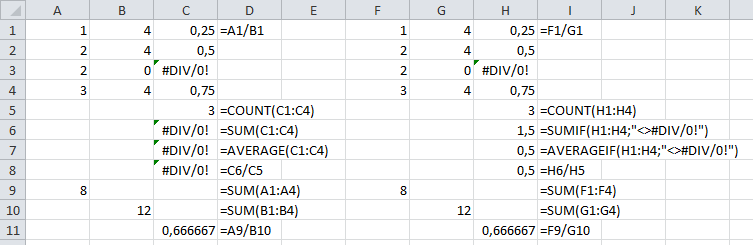
I bumped into a #DIV/0! result for average functions when processing large sets of data.
It is actually very easy to spot the error in small results, sets, but hard in big ones, as you cannot see the #DIV/0!
So there are average functions that can ignore certain outcomes. COUNT already does that (there is no COUNTIF), the others have a *IF equivalent, but not in all Excel versions:
Note there is a small SUMIF/SUMIFS/AVERAGEIF/AVERAGEIFS in Excel 2010 (not in 2007, and maybe not in 2013) glitch when the criteria are in a different sheet.
The seemingly easy workaround of summing columns A and B, then doing the division fails: it returns different results as it forgets to ignore faulty rows:
SUM/AVERAGE versus SUMIF/AVERAGEIF (click to enlarge)
Leermomentje (techable moment comes close)…
–jeroen
via:
Posted in Development, Excel, Office, Office 2003, Office 2007, Office 2010, Office 2013, Power User, Software Development | 2 Comments »



 The Wiert Corner - irregular stream of stuff