Archive for the ‘Office 2003’ Category
Posted by jpluimers on 2026/03/23
Over the last decades, I hardly needed to upgrade Excel. For a very long time I stayed at Excel 2003, as the ribbon interface introduced with Office 2007 (version 12) was horrible (it still is, especially since 19:10 monitors are gone and the ribbon takes too much vertical screen estate).
After that, I needed newer features so I upgraded to Excel 2013 (version 15) mainly because it ditched Multiple-document interface (MDI) and I like SDI over MDI a lot, and Office 2013 was largely compatible with Office for Mac 2011 (version 14).
Mostly recovered from my cancer treatments, I noticed that MacOS ditched 32-bit support in MacOS 11 Big Sur, which meant I could not use Office 2011 any more (it was 32-bit x86 only) so in 2022 I upgraded all my office installations to Office 2021 (up in the version 16.* range as starting with Office 2016 the major version number stayed 16.minor).
I might actually upgrade to Office 2024 (version 16.many) soon despite the major version 16, finally Excel has started sped up new development of new functions and features, of which the ones below are very interesting: they will make my largest spreadsheets a lot simpler and therefore easier to maintain:
Read the rest of this entry »
Posted in Power User, Office, Excel, Office 2013, Office 2003, Office 2011 for Mac, Office 2021 | Leave a Comment »
Posted by jpluimers on 2022/03/01
Sometimes, you figure out Excel functionality you have never needed before, but has been there for decades.
A while ago, I had a very complex with formulas referencing full columns back and forth when suddenly I got into something strange: when reloading the spreadsheet, values would not appear because of recursion errors. Before saving this was fine, so it was hard to track back where I want wrong.
So I was happy to find out that Excel has two cool features for this:
- Trace Precedents
- Trace Dependents
Heck, looking at the icons I had a feel these features had been there for a long time. Boy, was I surprised to find them in [Wayback] Excel 2000 – Student Edition – Complete (a great book by the way), as you can see in this picture:
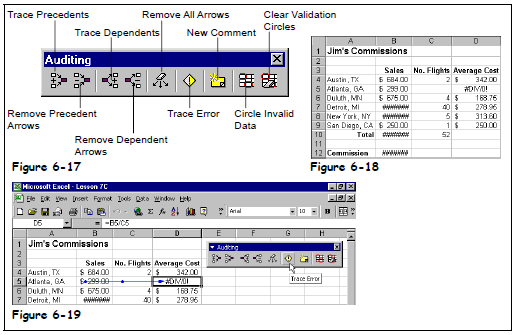
Excel 2000 – Student Edition – Complete – Trace precedents, dependents, error
As others can explain this feature so much better than I can, here are some links:
–jeroen
Posted in Excel, Office, Office 2000, Office 2003, Office 2007, Office 2010, Office 2011 for Mac, Office 2013, Office 2016, Power User | Leave a Comment »
Posted by jpluimers on 2021/06/07
Choices:
=lorem(...): Ramdom Lorem Ipsum text paragraphs.
- The sentences are roughly between 0.25 and 1.0 document widths in length.
=rand(...): Random English help text like paragraphs.
- The sentences are roughly between 0.5 and 1.5 document width in length.
=rand.old(...): “The quick brown fox jumps over the lazy dog.” paragraphs (up until Word 2003, this was what rand(...) returned).
- The sentences are always the same length.
(...) parameters:
(x,y): x paragraphs of y sentences of text(y): y paragraphs of 3 sentences of text (lorem more towards 1, rand more towards 3)(): depends on the function:
=lorem(): 5 paragraphs of 3 sentences of text=rand(): 5 paragraphs of 3 sentences of text=rand.old(): 3 paragraphs of 3 sentences of text
Note:
- There is no way to specify x paragraphs of random number lines of text.
- They need to have “Replace text as you type” enabled (see menu option “File” -> “Options” -> “Proofing” -> “Autocorrect Options”)
- Word 2003 and lower only have
=rand(...)
Based on:
Related: [WayBack] 10 awesome Lorem Ipsum alternatives – Justinmind via [WayBack] rand () in word – Microsoft Tech Community – 325554
For a random document demo, I usually do this:
=lorem(100,1) to get 100 paragraphs of 1 line of text- About every 10 paragraphs, I mark a paragraph with a relevant Heading style
- Inside the remaining text, I combine some paragraphs to get longer ones
–jeroen
Posted in Office, Office 2003, Office 2007, Office 2010, Office 2013, Office 2016, Power User, Word | Leave a Comment »
Posted by jpluimers on 2015/12/07
Showing message headers and source used to be easy in early Outlook versions.
But as of Outlook 2007 they hid the internet message headers even further away than in Outlook 2003.
Steps for Outlook 2007+:
- Start Outlook.
- Double-click the message for which you want to view full internet headers.
- Click Options (2007) or Tags (2010/2013).
- The Message Options dialog box is displayed. You are after the Internet headers field at the bottom of the dialog box.
Same for the message source:
- Start Outlook
- Double-click the message for which you want to view full internet headers.
- In the Move section of the Ribbon, click on Actions
- Click Other Actions
- Click View Source
- Notepad (or the program associated with html source files) opens with a file email.txt containing the message source.
–jeroen
via:
Posted in Office, Office 2003, Office 2007, Office 2010, Office 2013, Outlook, Power User | Leave a Comment »
Posted by jpluimers on 2015/11/19
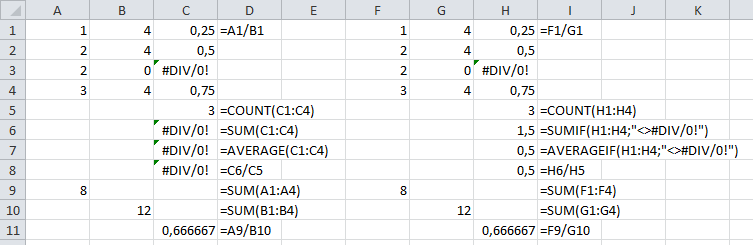
I bumped into a #DIV/0! result for average functions when processing large sets of data.
It is actually very easy to spot the error in small results, sets, but hard in big ones, as you cannot see the #DIV/0!
So there are average functions that can ignore certain outcomes. COUNT already does that (there is no COUNTIF), the others have a *IF equivalent, but not in all Excel versions:
Note there is a small SUMIF/SUMIFS/AVERAGEIF/AVERAGEIFS in Excel 2010 (not in 2007, and maybe not in 2013) glitch when the criteria are in a different sheet.
The seemingly easy workaround of summing columns A and B, then doing the division fails: it returns different results as it forgets to ignore faulty rows:
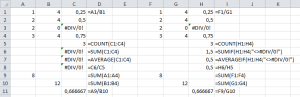
SUM/AVERAGE versus SUMIF/AVERAGEIF (click to enlarge)
Leermomentje (techable moment comes close)…
–jeroen
via:
Posted in Development, Excel, Office, Office 2003, Office 2007, Office 2010, Office 2013, Power User, Software Development | 2 Comments »
Posted by jpluimers on 2015/08/28
Even though MDI files have been abandoned for a while (you can only install it for Office XP, 2003 and 2007), sometimes I need to do some editing of TextBox annotations.
This is not intuitive: you have to right-click the textbox in order to edit it.
Printing in Office 2003 also was non-intuitive: Ctrl-P would crash the Microsoft Office Document Imaging MDI editor with a Microsoft Crash Report. But mouse-clicking the print-icon works. I remember having sending dozens of these reports to Microsoft around 10 years ago, but it never got fixed.
–jeroen
Posted in Microsoft Document Imaging, Office, Office 2000, Office 2003, Office 2007, Power User | Leave a Comment »
Posted by jpluimers on 2015/08/28
A while ago, I needed to do calculations on partially absolute cell references: for some number of rows, the cells needed to be fixed to the top row of each row group.
For a pure absolute cell reference, you’d prepend a dollar sign to the row or column of a cell. So A1 would become $A1 (to make column A absolute), A$1 (to make row 1 absolute) or $A$1 (to make both column A and row 1 absolute).
There is a nice short cut function key F4 to do this.
Excel does not have a built-in partially absolute cell reference solution.
To solve this, I used these addressing functions: ADDRESS, INDIRECT, COLUMN, ROW.
For all these functions, the ROW and COLUMN numbering starts at 1 (one) not 0 (zero).
The way I solved it was to added the below columns (first the reference:heading, then the formula).
The values in the formulas are for ROW 2 (cells A2..XFD2).
- AF: Calculation
- =IF(D2=”*”;INDIRECT(AG2)&X2;””)
- AG: ZLookup
- =ADDRESS($AH2;COLUMN(Z2))
- AH: Row
- =2+12*TRUNC((ROW()-2)/12)
Column AH
Calculates the fixed row of the row group. There are 12 rows per group. ROW numbers start at 1, and there is one heading row, hence the 2+ and the -2.
Without TRUNC, the ROW result would be rounded (that is the default floating point to integer conversion that Excel uses).
There is no need to reference a specific row when calling ROW: if you leave it out, it will return the number of the current row.
Column AG
returns the address of the calculated ROW (from AH) combined with the
Column AF
Depending on the value of the D column, it calculates the outcome by combining
–jeroen
via:
Posted in Algorithms, Development, Excel, Floating point handling, Office, Office 2003, Office 2007, Office 2010, Office 2013, Power User, Software Development | 2 Comments »
Posted by jpluimers on 2015/08/03
Thanks DarkAjax for answering this:
what you’re looking for is
=SUBSTITUTE(A2,"Author","Authoring")
Will substitute Author for Authoring without messing with everything else.
I always forget that SUBSTITUTE is a synonym for replace.
There are REPLACE and REPLACEB, but these replace content of a cell, not of a string.
–jeroen
via Excel: replace part of cell’s string value – Stack Overflow.
Posted in Excel, Office, Office 2003, Office 2007, Office 2010, Office 2013, Power User | Leave a Comment »
Posted by jpluimers on 2014/08/27
Though I’ve done this automation in Delphi, this applies to automation from any development platform. In this particular project, the documents used Bookmarks. Those have changed over time, so has the Word support for it.
From Word 2000 until Word you could disable the showing of Bookmarks by setting the ShowBookmarks property to False like this:
<br />ActiveDocument.ActiveWindow.View.ShowBookmarks := False;<br />
Well, when doing this, Office 2013 can throw an error like this:
EOleException: The ShowBookmarks method or property is not available because this command is not available for reading

ErrorCode: 0x800A11FD

Source: Microsoft Word

HelpFile: wdmain11.chm
The full error message does not give any useful search results. But a partial search finds a Word 2013 issue towards the top of the results:
sometimes Words opens the document in Reading layout. Reading layout does not allow all operations in Word 2013.
If a document is protected, and you try to change something you should not, you get an error message like this:
This method or property is not available because the document is a protected document.
Usually, Cindy Meister is very accurate. However this time here code
...ActiveWindow.View = wdPrintView
should have been like
...ActiveWindow.View.Type = wdPrintView
Of course you also have to save/restore this property while you are enabling the ShowBookmarks property.
Read the rest of this entry »
Posted in Delphi, Delphi XE2, Delphi XE3, Delphi XE4, Development, Office, Office 2000, Office 2003, Office 2007, Office 2010, Office 2013, Office Automation, Power User, Software Development, Word | Leave a Comment »
Posted by jpluimers on 2014/08/26
Though I’ve done this automation in Delphi, this applies to automation from any development platform. In this particular project, I had to update Word documents. That is fine, unless your documents are protected. You can find out if a document is protected by probing the ProtectionType property of a Document object.
If a document is protected, and you try to change something you should not, you get an error message like this:
This method or property is not available because the document is a protected document.
If you have control of the documents or templates involved, then you can take the recommended steps from Document Handling with protected Microsoft Office Word Template:
Microsoft Office Word offers the possibility to enable document protection only to certain sections of a document. So you can place Bookmarks used by Dynamics AX in a section that is kept unprotected and the Form Controls in a section where Document Protection is enabled.
If you don’t, then you have to check for protection, unprotect, do the modifications, then re-protect the document. Read the rest of this entry »
Posted in Delphi, Delphi XE2, Delphi XE3, Delphi XE4, Development, Office, Office 2000, Office 2003, Office 2007, Office 2010, Office 2013, Office Automation, Power User, Software Development, Word | Leave a Comment »





 The Wiert Corner - irregular stream of stuff