The Wiert Corner – irregular stream of stuff

Jeroen W. Pluimers on .NET, C#, Delphi, databases, and personal interests

  • My badges

  • Twitter Updates

  • My Flickr Stream

  • Pages

  • All categories

  • Enter your email address to subscribe to this blog and receive notifications of new posts by email.

    Join 1,860 other subscribers

Archive for the ‘Office 2007’ Category

how to open vsdx files with visio 2010 – via: Microsoft Community

Posted by jpluimers on 2015/11/09

Easy if you know how

VSDX files can be opened easily in Visio 2010:

  1. Install Visio 2010 Sp2 from http://support.microsoft.com/kb/2687468/en-us
  2. Install “Compatibility Pack” from http://www.microsoft.com/en-us/download/details.aspx?id=39640

VSDX files will then be recognized as Visio Files by Visio 2010.

Direct downloads at the time of writing:

Description of Visio 2010 SP2:

Download Service Pack 2 for Microsoft Visio 2010 (KB2687468) 32-Bit Edition from Official Microsoft Download Center.

Download Service Pack 2 for Microsoft Visio 2010 (KB2687468) 64-Bit Edition from Official Microsoft Download Center.

Download Microsoft Visio Compatibility Pack from Official Microsoft Download Center.

–jeroen

via: how to open vsdx files with visio 2010? – Microsoft Community.

Posted in Office, Office 2007, Office 2010, Power User, Visio | Leave a Comment »

Changing a TextBox annotation in an MDI file

Posted by jpluimers on 2015/08/28

Even though MDI files have been abandoned for a while (you can only install it for Office XP, 2003 and 2007), sometimes I need to do some editing of TextBox annotations.

This is not intuitive: you have to right-click the textbox in order to edit it.

Printing in Office 2003 also was non-intuitive: Ctrl-P would crash the Microsoft Office Document Imaging MDI editor with a Microsoft Crash Report. But mouse-clicking the print-icon works. I remember having sending dozens of these reports to Microsoft around 10 years ago, but it never got fixed.

–jeroen

Posted in Microsoft Document Imaging, Office, Office 2000, Office 2003, Office 2007, Power User | Leave a Comment »

Excel: get content of a cell given the row and column numbers (ADDRESS, INDIRECT, ROW, COLUMN)

Posted by jpluimers on 2015/08/28

A while ago, I needed to do calculations on partially absolute cell references: for some number of rows, the cells needed to be fixed to the top row of each row group.

For a pure absolute cell reference, you’d prepend a dollar sign to the row or column of a cell. So A1 would become $A1 (to make column A absolute), A$1 (to make row 1 absolute) or $A$1 (to make both column A and row 1 absolute).

There is a nice short cut function key F4 to do this.

Excel does not have a built-in partially absolute cell reference solution.

To solve this, I used these addressing functions: ADDRESSINDIRECTCOLUMNROW.

For all these functions, the ROW and COLUMN numbering starts at 1 (one) not 0 (zero).

The way I solved it was to added the below columns (first the reference:heading, then the formula).

The values in the formulas are for ROW 2 (cells A2..XFD2).

  1. AF: Calculation
    • =IF(D2=”*”;INDIRECT(AG2)&X2;””)
  2. AG: ZLookup
    • =ADDRESS($AH2;COLUMN(Z2))
  3. AH: Row
    • =2+12*TRUNC((ROW()-2)/12)

Column AH

Calculates the fixed row of the row group. There are 12 rows per group. ROW numbers start at 1, and there is one heading row, hence the 2+ and the -2.

Without TRUNC, the ROW result would be rounded (that is the default floating point to integer conversion that Excel uses).

There is no need to reference a specific row when calling ROW: if you leave it out, it will return the number of the current row.

Column AG

returns the address of the calculated ROW (from AH) combined with the

Column AF

Depending on the value of the D column, it calculates the outcome by combining

–jeroen

via:

Posted in Algorithms, Development, Excel, Floating point handling, Office, Office 2003, Office 2007, Office 2010, Office 2013, Power User, Software Development | 2 Comments »

Excel: Set the printing order of worksheet pages; printing row/coumn headings

Posted by jpluimers on 2015/08/21

I keep forgetting these two settings, most likely because I hardly use spreadsheets that are both wide and tall.

First the print order

Basically there are two orders:

  • Prefer horizontal over vertical (Excel calls this “Over, then down”) so it prints columns first, then rows
  • Prefer top to bottom (Excel calls this “Down, then over”) so it prints rows first, then columns

Here is how to do it in Excel 2007 and up:

  1. Ensure your worksheet is active.
  2. Click the “Page Layout” tab.
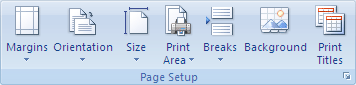
  3. In the “Page Setup” group, click the “Dialog Box Launcher” on the bottom right of the group (this tiny icon: Dialog box launcher).
  4. In the “Page Setup” dialog that appears, click on the “Sheet” tab.
  5. Under “Page order”, select either of these two options (the preview will change, see the images below).
    1. Down, then over
    2. Over, then down
  6. Click OK to close the “Page order” dialog.

Then the row/colum headings

This is actually much easier, and also works this way from Excel 2007 and up:

  1. Ensure your worksheet is active.
  2. Click the “Page Layout” tab.
  3. In the “Sheet Options” group, under “Headings”, select the “Print” check box.

–jeroen

via:

Image thanks to Microsoft:

Down, then over.

Down, then over.

Over, then down.

Over, then down.


Printing row/column headings

Posted in Excel, Office, Office 2007, Office 2010, Office 2013, Power User | Leave a Comment »

Excel: replace function is named SUBSTITUTE – via: Stack Overflow

Posted by jpluimers on 2015/08/03

Thanks DarkAjax for answering this:

what you’re looking for is

=SUBSTITUTE(A2,"Author","Authoring")

Will substitute Author for Authoring without messing with everything else.

I always forget that SUBSTITUTE is a synonym for replace.

There are REPLACE and REPLACEB, but these replace content of a cell, not of a string.

–jeroen

via Excel: replace part of cell’s string value – Stack Overflow.

Posted in Excel, Office, Office 2003, Office 2007, Office 2010, Office 2013, Power User | Leave a Comment »

Some notes on Word automation and showing Bookmarks

Posted by jpluimers on 2014/08/27

Though I’ve done this automation in Delphi, this applies to automation from any development platform. In this particular project, the documents used Bookmarks. Those have changed over time, so has the Word support for it.

From Word 2000 until Word you could disable the showing of Bookmarks by setting the ShowBookmarks property to False like this:

<br />ActiveDocument.ActiveWindow.View.ShowBookmarks := False;<br />

Well, when doing this, Office 2013 can throw an error like this:

EOleException: The ShowBookmarks method or property is not available because this command is not available for reading
ErrorCode: 0x800A11FD
Source: Microsoft Word
HelpFile: wdmain11.chm

The full error message does not give any useful search results. But a partial search finds a Word 2013 issue towards the top of the results:

sometimes Words opens the document in Reading layout. Reading layout does not allow all operations in Word 2013.

If a document is protected, and you try to change something you should not, you get an error message like this:

This method or property is not available because the document is a protected document.

Usually, Cindy Meister is very accurate. However this time here code

...ActiveWindow.View = wdPrintView

should have been like

...ActiveWindow.View.Type = wdPrintView

Of course you also have to save/restore this property while you are enabling the ShowBookmarks property.

Read the rest of this entry »

Posted in Delphi, Delphi XE2, Delphi XE3, Delphi XE4, Development, Office, Office 2000, Office 2003, Office 2007, Office 2010, Office 2013, Office Automation, Power User, Software Development, Word | Leave a Comment »

Some notes on Word automation and protected documents

Posted by jpluimers on 2014/08/26

Though I’ve done this automation in Delphi, this applies to automation from any development platform. In this particular project, I had to update Word documents. That is fine, unless your documents are protected. You can find out if a document is protected by probing the ProtectionType property of a Document object.

If a document is protected, and you try to change something you should not, you get an error message like this:

This method or property is not available because the document is a protected document.

If you have control of the documents or templates involved, then you can take the recommended steps from Document Handling with protected Microsoft Office Word Template:

Microsoft Office Word offers the possibility to enable document protection only to certain sections of a document. So you can place Bookmarks used by Dynamics AX in a section that is kept unprotected and the Form Controls in a section where Document Protection is enabled.

If you don’t, then you have to check for protection, unprotect, do the modifications, then re-protect the document. Read the rest of this entry »

Posted in Delphi, Delphi XE2, Delphi XE3, Delphi XE4, Development, Office, Office 2000, Office 2003, Office 2007, Office 2010, Office 2013, Office Automation, Power User, Software Development, Word | Leave a Comment »

Word API Documents collection documentation: moved and changes with the introduction of Word 2013

Posted by jpluimers on 2014/08/05

I’ve done a bit of WinWord automation and came across different locations for the API:

New Style:

Old Style:

Fun fact: there is no Old Style Word 2007 documentation any more. You might expect it at http://msdn.microsoft.com/en-us/library/ms263641(v=office.12) but it is not there.

Not so fun fact (and the reason I was looking for the Documents documentation), is because of this big bug ONLY in Office 2010 (it does not occur in Office 2000 .. 2007, and is fixed in 2013): The WordMeister » Bug Word 2010: Documents collection is not correctly maintained.

The only workaround is to run an Office Add-in, or VBA Macro. Both not feasible for external clients.

–jeroen

Posted in Delphi, Delphi XE, Delphi XE2, Delphi XE3, Delphi XE4, Development, Office, Office 2007, Office 2010, Office 2013, Office Automation, Office VBA, Power User, Scripting, Software Development, VBScript | Leave a Comment »

Multiple office versions on one computer: it is possible, but you should not do it

Posted by jpluimers on 2014/08/01

Wow, I didn’t even know this was possible, but I recently came across a few people that had actually done this: run multiple versions of Office on one computer.

Microsoft even has a couple of knowledge base articles on it and indicate it is not recommended (wow!), installation/update orders, and potential issues you will face.

I’ve added the respective office version ranges for each link:

–jeroen

Posted in Excel, Office, Office 2003, Office 2007, Office 2010, Office 2013, Outlook, Power Point, Power User, Word | Leave a Comment »

.NET/C#: Interesting DocX library to create OOXML documents for Word

Posted by jpluimers on 2014/07/10

In case I need to export DocX in .NET again: DocX – Home which is also at github.com/WordDocX/DocX

(I did it both with Word Automation and OOXML, they were a pain).

–jeroen

Posted in .NET, .NET 4.0, .NET 4.5, C#, C# 4.0, C# 5.0, Development, Office, Office 2007, Office 2010, Office 2013, Office PIA, Software Development | Leave a Comment »