Archive for the ‘Office 2011 for Mac’ Category
Posted by jpluimers on 2026/03/23
Over the last decades, I hardly needed to upgrade Excel. For a very long time I stayed at Excel 2003, as the ribbon interface introduced with Office 2007 (version 12) was horrible (it still is, especially since 19:10 monitors are gone and the ribbon takes too much vertical screen estate).
After that, I needed newer features so I upgraded to Excel 2013 (version 15) mainly because it ditched Multiple-document interface (MDI) and I like SDI over MDI a lot, and Office 2013 was largely compatible with Office for Mac 2011 (version 14).
Mostly recovered from my cancer treatments, I noticed that MacOS ditched 32-bit support in MacOS 11 Big Sur, which meant I could not use Office 2011 any more (it was 32-bit x86 only) so in 2022 I upgraded all my office installations to Office 2021 (up in the version 16.* range as starting with Office 2016 the major version number stayed 16.minor).
I might actually upgrade to Office 2024 (version 16.many) soon despite the major version 16, finally Excel has started sped up new development of new functions and features, of which the ones below are very interesting: they will make my largest spreadsheets a lot simpler and therefore easier to maintain:
Read the rest of this entry »
Posted in Power User, Office, Excel, Office 2013, Office 2003, Office 2011 for Mac, Office 2021 | Leave a Comment »
Posted by jpluimers on 2024/04/22
Needed these (in retrospect) simple steps because someone made a form with so much whitespace under the fields on a document that had to be printed for a physical signatures that otherwise too many trees would die.
[Wayback/Archive] Unprotect a Word Doc on Mac – YouTube.
Via [Wayback/Archive] word 2011 macos unprotect document – Recherche Google.
- In the menu, choose “File” -> “Save As…”
- Click “Options…”
- Click “Show All”
- Click “Security”
- Click “Unprotect Document…”
- Click “OK”
- Click “Save”
–jeroen
Read the rest of this entry »
Posted in Apple, Mac OS X / OS X / MacOS, Office, Office 2011 for Mac, Power User | Leave a Comment »
Posted by jpluimers on 2024/02/14
Calculating an ISO-8601 based WEEKNUM
From [Wayback/Archive] ISOWEEKNUM Function – How to Get the Week Number in Excel:
- If we are using an older version of MS Excel, we can use the function
WEEKNUM. By default, the WEEKNUM function uses an arrangement where Week 1 begins on January 1, and Week 2 begins on the next Sunday (when the return_type argument is omitted, or supplied as 1).
However, with MS Excel 2010 for Windows and MS Excel 2011 for Mac, we can generate an ISO week number using 21 as the return_type: =WEEKNUM(date,21).
- There is no built-in worksheet function for ISO weeks before MS Excel 2010.
I tested that ISO-8601 week number calculation in with Excel 2011 on MacOS and Excel 2010 on Windows: the workaround works well for the dates mentioned in ISO week date – Wikipedia.
Read the rest of this entry »
Posted in Excel, Office, Office 2010, Office 2011 for Mac, Power User | Leave a Comment »
Posted by jpluimers on 2023/09/19
Boy, two extra modifier keys: [Wayback/Archive] How to Strip Formatting When You Copy and Paste Text: 5 Ways
To paste as plain text on a Mac, you can use the somewhat cumbersome shortcut Option+Cmd+Shift+V to paste without formatting. This is a system-wide shortcut, so unlike Windows, it should work everywhere. Technically, the shortcuts pastes and matches the formatting, but this has the same effect of removing the original formatting.
Via [Wayback/Archive] macos word microsoft office paste without formatting – Google Search.
Paste without formatting is an issue on Windows as well. The default should be “paste without formatting” instead of the current “paste with source formatting”. See for instance these tweets:
Read the rest of this entry »
Posted in Apple, Classic editor, Development, Gutenberg editor, Mac OS X / OS X / MacOS, Office, Office 2011 for Mac, Power User, Software Development, Web Development, WordPress | Leave a Comment »
Posted by jpluimers on 2022/03/31
Usually, I work in a single worsheet and workbook at a time.
Sometimes I use multiple worksheets or workbooks, and I never knew about the below feature.
The really cool aspect which is not in the below documentation: if you re-open a worksheet, it remembers the views and positions!
Learned a new thing and discovered a new thing (:
[WayBack] View multiple panes, sheets, or workbooks – Excel for Mac:
In Excel for Mac, you can split a sheet in to panes, view multiple sheets in one workbook, or view multiple workbooks at a time.
View multiple sheets in one workbook
- Open the workbook that you want to view.
- On the Window menu, click New Window.
- Switch to the new window, and then click the tab for the sheet that you want to view.Repeat steps 2 and 3 for each sheet that you want to view.
- On the Window menu, click Arrange.
- Do one of the following:
| To arrange windows |
So that they appear like this |
Click |
| As equally sized, tiled squares |
 |
Tiled |
| Horizontally from top to bottom |
 |
Horizontal |
| Vertically from right to left |
 |
Vertical |
| In an overlapping cascade from top to bottom |
 |
Cascade |
- Select the Windows of active workbook check box.
View multiple workbooks
- Open all the workbooks that you want to view.
- On the Window menu, click Arrange.
- Do one of the following:
| To arrange windows |
So that they appear like this |
Click |
| As equally sized, tiled squares |
|
Tiled |
| Horizontally from top to bottom |
|
Horizontal |
| Vertically from right to left |
|
Vertical |
| In an overlapping cascade from top to bottom |
|
Cascade |
–jeroen
Posted in Excel, Office, Office 2011 for Mac, Power User | Leave a Comment »
Posted by jpluimers on 2022/03/01
Sometimes, you figure out Excel functionality you have never needed before, but has been there for decades.
A while ago, I had a very complex with formulas referencing full columns back and forth when suddenly I got into something strange: when reloading the spreadsheet, values would not appear because of recursion errors. Before saving this was fine, so it was hard to track back where I want wrong.
So I was happy to find out that Excel has two cool features for this:
- Trace Precedents
- Trace Dependents
Heck, looking at the icons I had a feel these features had been there for a long time. Boy, was I surprised to find them in [Wayback] Excel 2000 – Student Edition – Complete (a great book by the way), as you can see in this picture:
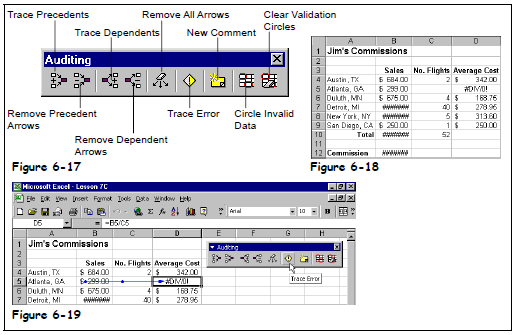
Excel 2000 – Student Edition – Complete – Trace precedents, dependents, error
As others can explain this feature so much better than I can, here are some links:
–jeroen
Posted in Excel, Office, Office 2000, Office 2003, Office 2007, Office 2010, Office 2011 for Mac, Office 2013, Office 2016, Power User | Leave a Comment »
Posted by jpluimers on 2021/10/01
Every now and then, for instance with a document including other documents, like in a homework assignment, you might want to exclude part of your Heading 1 (or Heading 2/Heading 3) entries from the table of contents.
Since presence in the Table of Contents is a ToC feature, not a style feature, you have to set the correct options in the ToC.
This is how you do it:
- Create new styles for the headings you do not want in the ToC (I call them “Heading 1, no ToC”; “Heading 2, no ToC”; etcetera) and base each on the corresponding style “Heading 1” or “Heading 2”
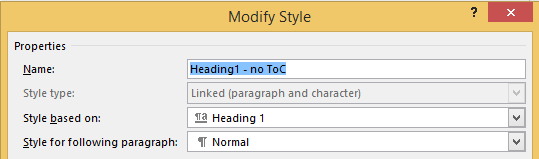
- Modify your Table of Contents to exclude these new styles (as they are automatically included)
This is contrary to many advices to use the “Reference” toolbar, then “Add Text” marked “Do Not Show In Table Of Contents”. That advice will remove the heading formatting completely and remove it from the navigation pane, so do not follow [WayBack] Quick Tip: How to exclude headings from the Table of Contents in Microsoft Word – jeffreykusters.nl.
The above solution both keeps the formatting, and the appearance in the navigation pane. It only disappears from the Table of Contents.
It is based on:
Following the above steps, you get styles like this:
Read the rest of this entry »
Posted in Office, Office 2010, Office 2011 for Mac, Office 2013, Office 2016, Power User, Word | Leave a Comment »
Posted by jpluimers on 2020/04/20
Since I tend to forget the Mac shortcut (the Windows one feels like it is in my autonomic nervous system):
F4 Windows shortcut-
⌘T Mac shortcut
While editing a formula, this shortcut toggles cell references from relative to absolute, to partially absolute, back to relative again: A1 –> $A$1 –> A$1— > $A1 — > A1 It’s much faster and easier than typing $ characters manually.
To convert an existing formula, enter cell edit mode, place the cursor in or next to the reference you’d like to convert, then use the shortcut.
Note: in Excel 2016 for the Mac, you can also use fn + F4.
Source: Excel Shortcut: Toggle absolute and relative references | Exceljet
–jeroen
Posted in Excel, Office, Office 2011 for Mac, Power User | Leave a Comment »





 The Wiert Corner - irregular stream of stuff