


Some Windows 8.1 Update (KB2919355) notes
Posted by jpluimers on 2014/04/17
 Windows 8.1 Update has the search icon and power off button at the top right side on the home screen.After the interesting piece at Microsoft Abandons Windows 8.1: Take Immediate Action Or Be Cut Off Like Windows XP I decided to make sure it is installed on all my Windows 8.x systems. That wasn’t so easy as “apply this update”.
There are various reasons the update can fail (at least one is even lying, see below) and there is no obviously automated way to check it has been applied.
First of all, two checks to see if Windows 8.1 Update is installed. From my question Batch file: how to check if Windows 8.1 update is installed – Super User I learned this simple statement:
reg query "HKLM\SOFTWARE\Microsoft\Windows NT\CurrentVersion" /v BuildLabEx
If it returns a value of 17031 or higher, then Windows 8.1 Update is installed. The second and third scripts at How to differentiate Windows 8.1 Update 1 from Windows 8.1? are elaborating on that version number.
But for the average user it is even easier: on the home screen, check if the search icon (magnification glass) is visible. See the image on the right.
Potential error messages
Quite a few users get error messages when installing the update. Some of them are these:
- Windows 8.1 Update Cannot Be Installed, Returns Error Code 80073712.
- Windows 8.1 Update Installation Fails with Error Code 80070020.
- Windows 8.1 Update 1 Failing to Install with errors 80070020, 80073712 – Microsoft Community.
- How to Fix Errors 80070020, 80073712, and 0x800f081f on Windows 8.1 Update.
- Windows 8.1 Update 1 installation problems continue | bit-tech.net.
Potentially fake error message
My first install (on an otherwise fully up-to-date Windows 8.1 Enterprise system) gave an error message. After rebooting I found out the error was bogus:
- Error 80246007 maybe fake: just reboot and check if your system has Windows 8.1 Update installed. If it is, you see the search icon and power off icon on the home screen in the top right.
See the images below for more details.
Manual install
After a manual Download Windows 8.1 Update (KB2919355) from Official Microsoft Download Center, follow these steps:
- KB2919442 is a prerequisite for Windows 8.1 Update and should be installed before attempting to install KB2919355
- These KB’s must be installed in the following order: KB2919442, KB2919355, KB2932046, KB2959977, KB2937592, KB2938439, and KB2934018.
(note there are download links for x64, x86 and ARM, see How to download and install Windows 8.1 Update 1 for free (right now) | ExtremeTech or Windows 8.1 Update Officially Launched, Download Links Now Available.
Future new installations
You can either get yourself updated media, or create them yourself based on your existing Windows 8.1 media: How to slipstream Windows 8.1 Update into a custom installation ISO.
–jeroen
Bogus 80246007 failure message
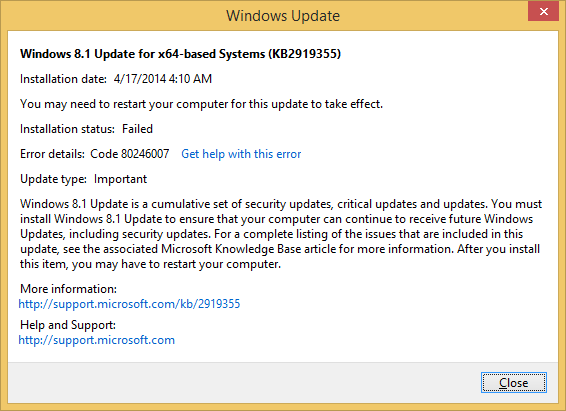
If KB2919355 shows you error 80246007, it is probably a bogus failure message. Just reboot and see if Windows 8.1 Update got in fact installed.

Of course the help would not find anything. It hasn’t found useful info about installation problems for years, so why would it now…
When Windows 8.1 Update installation has succeeded

Windows 8.1 Update has the search icon on the home screen.

 The Wiert Corner - irregular stream of stuff
Leave a comment