


I was today years old when I found there is a shortcut to switch to the Terminal tab in Visual Studio Code
Posted by jpluimers on 2025/03/12
Boy, I always to the Ctrl+Shift+Space on Microsoft Windows (or on MacOS Command+Shift+Space) detour to switch to the Terminal tab in Visual Studio Code
So I was amazed to find the shortcut inside the first bullet in the Google Search quote of the first result at [Wayback/Archive] vscode terminal open new terminal – Recherche Google:
Terminal Basics
- Use the Ctrl+` keyboard shortcut with the backtick character.
- Use the View > Terminal menu command.
- From the Command Palette (Ctrl+Shift+P), use the View: Toggle Terminal command.
- You can create a new terminal via the Terminal menu with Terminal > New Terminal.
How cool is that combination?!
Then the real kicker is that this Ctrl+` (backtick) combination is the same for Windows and MacOS!
The quote is directly from the first search result which has a slightly better formatting:
[Wayback/Archive] Integrated Terminal in Visual Studio Code
To open the terminal:
- Use the Ctrl+` keyboard shortcut with the backtick character.
- Use the View > Terminal menu command.
- From the Command Palette (Ctrl+Shift+P), use the View: Toggle Terminal command.
- You can create a new terminal via the Terminal menu with Terminal > New Terminal.
What I also did not know was mentioned in a comment on [Wayback/Archive] How to open a shell command prompt inside Visual Studio Code? – Stack Overflow (thanks [Wayback/Archive] Dan Sorensen for asking, [Wayback/Archive] InfiniteStack for commenting and [Wayback/Archive] brady321 for answering):
It’s actually a lot easier than that. Just go to Terminal > New Terminal on main navigation bar. On the right hand side, between + and trashcan button, select drop down to choose between Bash, PowerShell, CommandPrompt (cmd.exe), basically it’ll automatically display any of the shells you have actually installed on your system.
On my system the drown down has more choices showing vscode automatically updates itself from available terminals:
zzzzzzzzzzzzzzzzzzzzzzzzzzzzzzzzzzzzzzzzzzzzzzzzzzzzzzzzzzzzzzzzzzzzzzzzzzzzzzzzzzzzzzzzzzzzzzzzzzzzzzzzzzzzzzzzzzzzzzzzzzzzzzzzzzzzzzzzzzzz
Later I fixed the link in the answer to point to the Wayback machine as by now the URL only has history for ~2 years so the old 2016 information got removed.
[Wayback/Archive] Visual Studio Code May 2016 1.2: 1.2.0 May release > Workbench > Terminal (live URL is outdated; archived URLs are OK)
[Wayback/Archive] Visual Studio Code May 2016 1.2: 1.2.0 May release > Workbench > Terminal (both live and archived URLs are OK)
With the May release, we are rolling out the initial version of an integrated terminal. You can open the terminal using Ctrl+`, from the View | Toggle Integrated Terminal menu, or from the View > Toggle Integrated Terminal command in the Command Palette.The shell that is used defaults to
$SHELLon Linux and OS X, and%COMSPEC%on Windows. These can be overridden manually by settingterminal.integrated.shell.*in settings. It should act just like the terminal you’re familiar with….Note: The Toggle Terminal key binding Ctrl+` had previously been bound to the Cycle Between Open Editors command. You can customize the key bindings and change the behavior back if desired.
Even later, I found out the old versions are not in the index on the left any more, but are browseable by URL. Since the naming scheme has changed, it is hard to find pre 1.5 versions unless you use the Wayback machine or Archive.is.
Here are 1.71 (August 2022), 1.5 (August 2016) and May 2016 showing that switching naming schemes imposes trouble:
- [Wayback/Archive] Visual Studio Code August 2022
code.visualstudio.com/updates/v1_71 - [Wayback/Archive] Visual Studio Code August 2016 1.5
code.visualstudio.com/updates/v1_5 - [Wayback/Archive] Visual Studio Code May 2016 1.2
code.visualstudio.com/updates/May_2016
Back to the introduction of the Terminal feature in Visual Studio: it all got initiated from this November 2015 feature request: [Wayback/Archive] Request feature “Integrated terminal” · Issue #143 · microsoft/vscode.
Besides the very interesting thread of comments in that feature request, it is cool to see that such a major feature got implemented in about half a year.
Back to the Stack Overflow entry, there is [Wayback/Archive] another answer by [Wayback/Archive] equiman which explains more details on how to find they keyboard shortcut when your keyboard is in a different locale, and some tips on customising the keyboard shortcuts. Recommended reading!
The answer links to [Wayback/Archive] Visual Studio Code Key Bindings:
Note: This section relates only to key bindings, not to typing in the editor.
The keys above are string representations for virtual keys and do not necessarily relate to the produced character when they are pressed. More precisely:
- Reference: Virtual-Key Codes (Windows)
- tab for
VK_TAB(0x09)- ; for
VK_OEM_1(0xBA)- = for
VK_OEM_PLUS(0xBB)- , for
VK_OEM_COMMA(0xBC)- – for
VK_OEM_MINUS(0xBD)- . for
VK_OEM_PERIOD(0xBE)- / for
VK_OEM_2(0xBF)- ` for
VK_OEM_3(0xC0)- [ for
VK_OEM_4(0xDB)- \ for
VK_OEM_5(0xDC)- ] for
VK_OEM_6(0xDD)- ‘ for
VK_OEM_7(0xDE)- etc.
Different keyboard layouts usually reposition the above virtual keys or change the characters produced when they are pressed. When using a different keyboard layout than the standard US, Visual Studio Code does the following:
All the key bindings are rendered in the UI using the current system’s keyboard layout. For example,
Split Editorwhen using a French (France) keyboard layout is now rendered as Ctrl+*:
When editing
keybindings.json, VS Code highlights misleading key bindings, those that are represented in the file with the character produced under the standard US keyboard layout, but that need pressing keys with different labels under the current system’s keyboard layout. For example, here is how the Default Keyboard Shortcuts rules look like when using a French (France) keyboard layout:
There is also a widget that helps input the key binding rule when editing
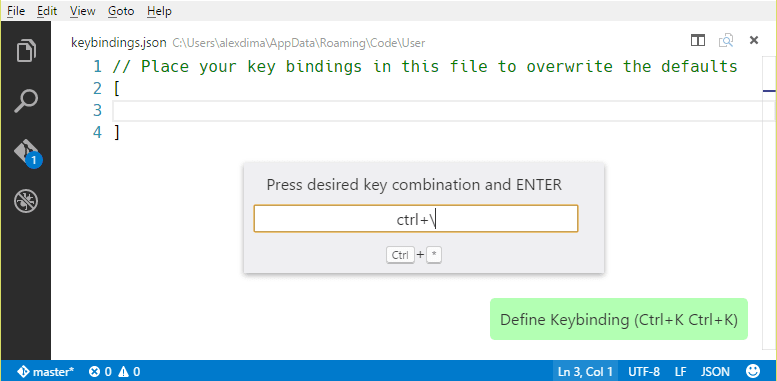
keybindings.json. To launch the Define Keybinding widget, press Ctrl+K Ctrl+K. The widget listens for key presses and renders the serialized JSON representation in the text box and below it, the keys that VS Code has detected under your current keyboard layout. Once you’ve typed the key combination you want, you can press Enter and a rule snippet will be inserted.
Note: On Linux, Visual Studio Code detects your current keyboard layout on start-up and then caches this information. For a good experience, we recommend restarting VS Code if you change your keyboard layout.


zzzzzzzzzzzzzzzzzzzzzzzzzzzzzzzzzzzzzzzzzzzzzzzzzzzzzzzzzzzzzzzzzzz
--jeroen

 The Wiert Corner - irregular stream of stuff
Leave a comment