Archive for the ‘OS X 10.11 El Capitan’ Category
Posted by jpluimers on 2017/12/25
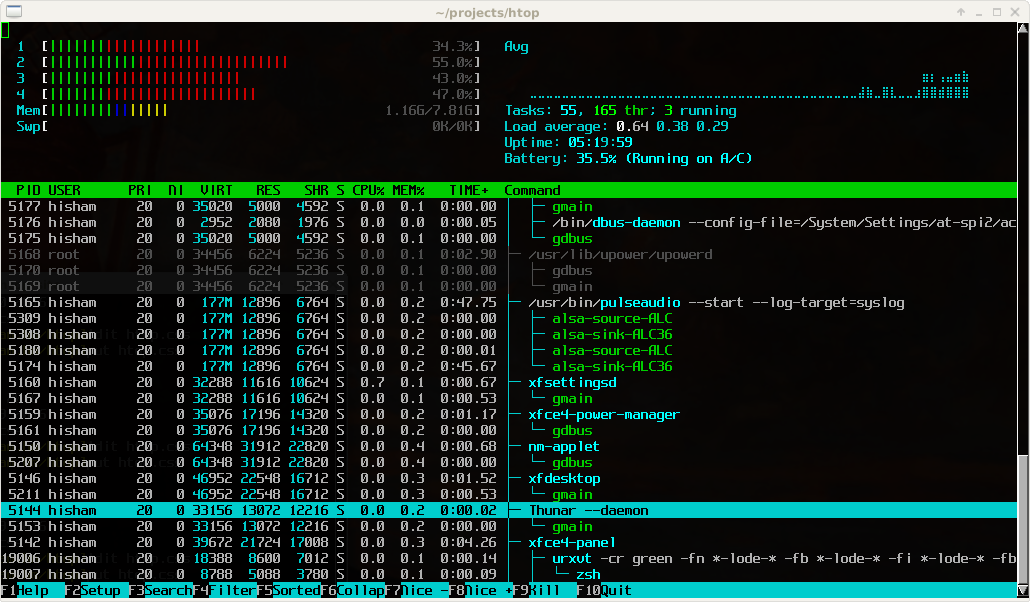
Great tool: [WayBack] htop – an interactive process viewer for Unix because it’s both interactive and supports a wide range of OSes: Linux, FreeBSD, OpenBSD and Mac OS X.
Thanks to Warren Postma who suggested it in his comment at [WayBack] 18 Useful Commands to Get Hardware Information on Linux – Linuxslaves.
Note that on OS X you get this warning after brew install htop :
htop requires root privileges to correctly display all running processes,

so you will need to run `sudo htop`.

You should be certain that you trust any software you grant root privileges.
On Linux you don’t get this message as there you have the /proc file system providing enough information as explained at [WayBack] osx – Why does htop on Mac OS X require root privileges to see data for all processes, but on Linux it runs without root – Super User.
A workaround (involving the setuid bit) is at [WayBack] Running htop on Mac OS X needs root. Why?! | Blog | JoeNyland.me or by running visudo ensuring you don’t need a password for it at [WayBack] osx – htop isn’t returning CPU or memory usage!? – Super User
–jeroen
Posted in *nix, *nix-tools, Apple, BSD, Linux, Mac OS X / OS X / MacOS, macOS 10.12 Sierra, OS X 10.11 El Capitan, OS X 10.9 Mavericks, Power User | Leave a Comment »
Posted by jpluimers on 2017/12/01
Free and – unlike the also free [WayBack] dupeGuru – finds duplicate files – hasn’t crashed on my system yet or fails to add folders:
Read reviews, compare customer ratings, see screenshots, and learn more about Duplicate File Finder for files & folders. Download Duplicate File Finder for files & folders for Mac OS X 10.9 or later and enjoy it on your Mac.
[WayBack] Duplicate File Finder for files & folders on the Mac App Store
–jeroen
Posted in Apple, iMac, Mac, Mac OS X / OS X / MacOS, MacBook, MacBook Retina, MacBook-Air, MacBook-Pro, MacMini, OS X 10.10 Yosemite, OS X 10.11 El Capitan, OS X 10.9 Mavericks, Power User | Leave a Comment »
Posted by jpluimers on 2017/12/01
cd /Volumes/Backup/Backups.backupdb/Joshua\ Priddle’s\ MacBook\ Pro/Latest/Macintosh\ HD/Users/priddle
tmutil restore -v secret_docs.txt ~/
Learned from [WayBack] Restoring files from OS X Time Machine with Terminal.app:
- do not use
cp as it will give you wrong permissions
- do use
tmutil
More elaborate steps (including finding the backup in the first place) is at [WayBack] Commandline restoration of a file in Time Machine on OS X | Hacks for Macs
–jeroen
Posted in Apple, iMac, Mac, Mac OS X / OS X / MacOS, Mac OS X 10.4 Tiger, Mac OS X 10.5 Leopard, Mac OS X 10.6 Snow Leopard, Mac OS X 10.7 Lion, MacBook, MacBook Retina, MacBook-Air, MacBook-Pro, MacMini, macOS 10.12 Sierra, OS X 10.10 Yosemite, OS X 10.11 El Capitan, OS X 10.8 Mountain Lion, OS X 10.9 Mavericks, Power User | Leave a Comment »
Posted by jpluimers on 2017/11/17
The first trick works for WinBox 3.7 on Mac [download], the second doesn’t.
First trick:
To override your security settings and open the app anyway:
-
In the Finder, locate the app you want to open.
Don’t use Launchpad to do this. Launchpad doesn’t allow you to access the shortcut menu.
-
Press the Control key and click the app icon, then choose Open from the shortcut menu.
-
Click Open.
The app is saved as an exception to your security settings, and you can open it in the future by double-clicking it just as you can any registered app.
Second trick:
Note: Another way to grant an exception for a blocked app is to click the “Open Anyway” button on the Security pane of System Preferences. This button is available for about an hour after you try to open the app.
To open this pane, choose Apple menu > System Preferences, then click Security & Privacy.
Both from [WayBack] OS X El Capitan: Open an app from an unidentified developer
–jeroen
Posted in Apple, iMac, Mac, Mac OS X / OS X / MacOS, MacBook, MacBook Retina, MacBook-Air, MacBook-Pro, MacMini, OS X 10.11 El Capitan, Power User | Leave a Comment »
Posted by jpluimers on 2017/11/17
I have the Atom editor and was wondering how you can open a file or folder from the terminal in Atom. I am using a Mac. I am looking for a way to do this: atom . (opens folder) atom file.js (
The answer to it isn’t any good any more (since then, Atom has evolved), but this comment works splendid:
I solved the issue by choosing “Install Shell Commands” under the “Atom” menu.
It will add a script in /usr/local/bin/atom that starts Atom with the parameters you entered.
Thanks [WayBack] rxgx!
[WayBack] github – Open Atom editor from command line – Stack Overflow
–jeroen
PS: Reminder to self to add a screenshot.
Posted in Apple, atom editor, Mac, Mac OS X / OS X / MacOS, MacBook, MacBook Retina, MacBook-Air, MacBook-Pro, MacMini, macOS 10.12 Sierra, OS X 10.11 El Capitan, Power User, Text Editors | Leave a Comment »
Posted by jpluimers on 2017/10/27
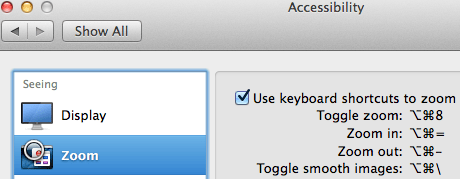
Accessibiity -> Zoom -> enable checkbox” class=”size-medium” /> Preferences -> Accessibiity -> Zoom -> enable checkbox
I didn’t know this was built-in since Mountain Lion and up, but it is, is startable from the keyboard and it’s tremendously convenient when presenting: [WayBack]: OS X Mountain Lion: Zoom content on the screen.
TL;DR:
- System Prefrecences
- Accesibility
- Zoom
- Checkbox
–jeroen
Posted in Apple, iMac, Keyboards and Keyboard Shortcuts, Mac, Mac OS X / OS X / MacOS, MacBook, MacBook Retina, MacBook-Air, MacBook-Pro, MacMini, macOS 10.12 Sierra, OS X 10.10 Yosemite, OS X 10.11 El Capitan, OS X 10.8 Mountain Lion, OS X 10.9 Mavericks, Power User | Leave a Comment »
Posted by jpluimers on 2017/10/13
Just in case you have this driver installed:
$ kextstat -kl | awk '!/com\.apple/{printf "%s %s\n", $6, $7}'

com.bresink.driver.BRESINKx86Monitoring (9.0)
[WayBack] Hardware Monitor Help shows how to remove it:
- Ensure you are logged in as user with administrative rights.
- Use the Finder to open the folder Library at the topmost level of your system volume, and inside it, the folder StartupItems. If the driver is still installed, you will see the folder BRESINKx86Monitoring at this location.
- Drag the folder BRESINKx86Monitoring to the Trash. OS X may ask for your administrator password.
–jeroen
Posted in Apple, Mac, Mac OS X / OS X / MacOS, MacBook, MacBook Retina, MacBook-Air, macOS 10.12 Sierra, OS X 10.10 Yosemite, OS X 10.11 El Capitan, OS X 10.9 Mavericks, Power User | Leave a Comment »
Posted by jpluimers on 2017/08/28

CompuLab 4K Display Emulator (fit-Headless 4K)
The MacMini is a bit dumb as it won’t enable the GPU when there is no display attached. Which means headless operation is cumbersome as display rendering is very slow.
There are a few tricks of which the off-the-shelve HDMI solutions work best.
You can buy them at Amazon:

CompuLab Display Emulator (fit-Headless)
Sources:
Basically the trick to simulate a monitor with a dummy load works for other display connectors as well (most of them work fine with 75 ohm resistors, usually a bit lower or higher works just as well):
Read the rest of this entry »
Posted in Apple, Mac, Mac OS X / OS X / MacOS, MacMini, OS X 10.10 Yosemite, OS X 10.11 El Capitan, OS X 10.9 Mavericks, Power User | Leave a Comment »
Posted by jpluimers on 2017/08/11
Posted in Apple, iMac, Mac, Mac OS X / OS X / MacOS, Mac OS X 10.5 Leopard, Mac OS X 10.6 Snow Leopard, Mac OS X 10.7 Lion, MacBook, MacBook Retina, MacBook-Air, MacBook-Pro, MacMini, OS X 10.10 Yosemite, OS X 10.11 El Capitan, OS X 10.8 Mountain Lion, OS X 10.9 Mavericks | Leave a Comment »
Posted by jpluimers on 2017/07/19
I’ve not tracked down the cause yet, but these seem to be related:
- The Mac OS X build of Atom IO
- WinBox v 3.4 WineBottle version from Winbox for Mac in an embedded Wine environment – Joshaven.com
- pbcopy / pbpaste that allow command-line copy/pasting
- none of these being able to copy/paste any more and return error level 1 like terminal – pbcopy exits code 1, no error message – Ask Different but not even running tmux or screen which means this solution does not apply: ChrisJohnsen/tmux-MacOSX-pasteboard: Notes and workarounds for accessing the Mac OS X pasteboard in tmux sessions.
- I didn’t have Mouse Keys turned on
- Other applications (Chrome, FireFox, TextEdit, Finder, etc) still being able to copy/paste between each other
I’ve “fixed” 4. by doing this as recommended at osx – Copy and Cut sometimes don’t work – Ask Different:
launchctl list | grep com.apple.pboard
If the pboard daemon is running, then stop and start it. If it’s not running, start it:
launchctl stop com.apple.pboard
launchctl start com.apple.pboard
Now 4. works again if I restart each application, 6. still works, but these applications still cannot copy/paste to 1. 2. and 3.
What does work is a full reboot, but that takes a while (especially Chrome re-loading lots of Windows: I need to get more organised here).
It might be that I need to restart each application in 6.
Grrr…..
–jeroen
Posted in *nix, *nix-tools, Apple, atom editor, Hardware, iMac, Internet, Mac, Mac OS X / OS X / MacOS, MacBook, MacBook Retina, MacBook-Air, MacBook-Pro, MikroTik, Network-and-equipment, OS X 10.10 Yosemite, OS X 10.11 El Capitan, OS X 10.9 Mavericks, Power User, routers, Text Editors, tmux | 4 Comments »


 The Wiert Corner - irregular stream of stuff