The Wiert Corner – irregular stream of stuff

Jeroen W. Pluimers on .NET, C#, Delphi, databases, and personal interests

  • My badges

  • Twitter Updates

  • My Flickr Stream

  • Pages

  • All categories

  • Enter your email address to subscribe to this blog and receive notifications of new posts by email.

    Join 1,861 other subscribers

Archive for the ‘Virtualization’ Category

On my research list: “ESXi 7” “kickstart” – Google Search

Posted by jpluimers on 2022/01/04

On my research list [Wayback] “ESXi 7” “kickstart” – Google Search.

Some links from it:

–jeroen

Posted in ESXi7, Power User, Virtualization, VMware, VMware ESXi | Leave a Comment »

Some notes on ESXi `smartinfo` throwing `error Cannot open device`

Posted by jpluimers on 2021/12/29

I wrote about the built-in smartinfo command before at NVMe and SATA health data on ESXi: some links to investigate.

It is at /usr/lib/vmware/vm-support/bin/smartinfo, which is not in the path. I used it recently after having trouble with some 2.5-inch SSD devices, of one which is listed below.

Some note on this error what smartinfo from ESXi throwed on some devices over time on various ESXi machines:

Failed to get SMART stats for t10.ATA_____Samsung_SSD_860_EVO_500GB_______________S3Z2NB0M529545P_____ error Cannot open device 
----------------------------------------------------- 

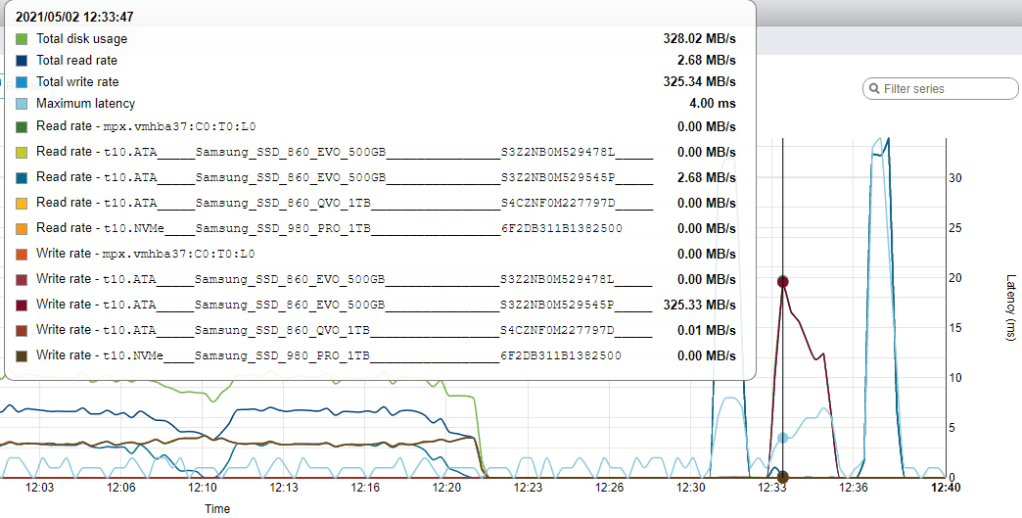
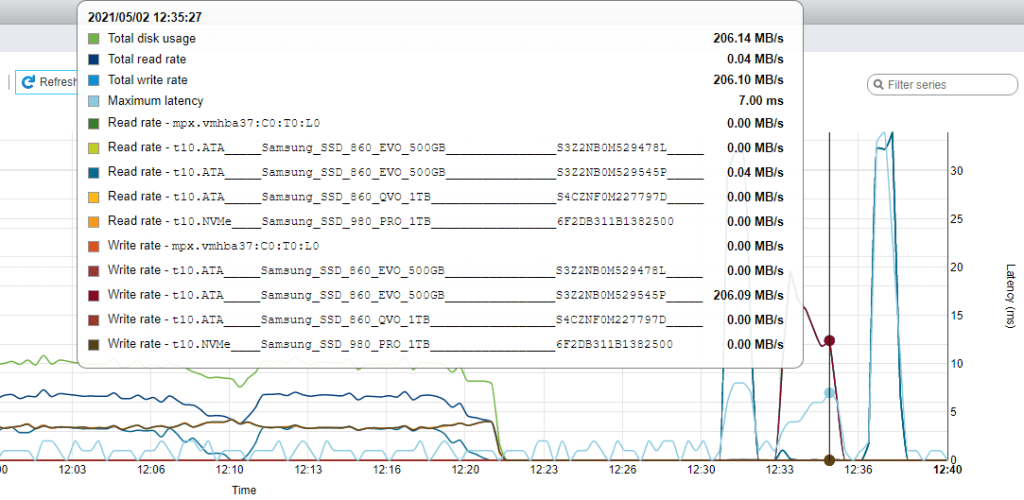
The same SSD sometimes had very big latency times:

2021-05-01T16:23:20.306Z cpu7:2097783)WARNING: ScsiDeviceIO: 1564: Device t10.ATA_____Samsung_SSD_860_EVO_500GB_______________S3Z2NB0M529545P_____ performance has deteriorated. I/O latency increased from average value of 59147
2021-05-01T16:23:20.306Z cpu7:2097783)WARNING: microseconds to 1274466 microseconds.
2021-05-01T16:23:20.306Z cpu7:2097783)WARNING: ScsiDeviceIO: 1564: Device t10.ATA_____Samsung_SSD_860_EVO_500GB_______________S3Z2NB0M529545P_____ performance has deteriorated. I/O latency increased from average value of 59150
2021-05-01T16:23:20.306Z cpu7:2097783)WARNING: microseconds to 2664445 microseconds.
2021-05-01T16:23:20.847Z cpu7:2097190)ScsiDeviceIO: 1530: Device t10.ATA_____Samsung_SSD_860_EVO_500GB_______________S3Z2NB0M529545P_____ performance has improved. I/O latency reduced from 2664445 microseconds to 526814 microseconds.
2021-05-01T16:23:38.477Z cpu5:2097783)ScsiDeviceIO: 1530: Device t10.ATA_____Samsung_SSD_860_EVO_500GB_______________S3Z2NB0M529545P_____ performance has improved. I/O latency reduced from 526814 microseconds to 116553 microseconds.
2021-05-01T16:24:01.380Z cpu9:2097674)NMP: nmp_ResetDeviceLogThrottling:3586: last error status from device t10.ATA_____Samsung_SSD_860_EVO_500GB_______________S3Z2NB0M529545P_____ repeated 1 times

[Wayback] “smartinfo” “error Cannot open device” – Google Search delivered mainly results around the old smartinfo.sh tool that is now replaced by the smartinfo binary:

[Wayback] “ESXi” “smart” “error Cannot open device” – Google Search returned no relevant results.

I think an 860 EVO 2.5-inch SSD is not on par running half a dozen Windows VM’s that have regular write actions, but I will later give this a try, though I doubt it will help as this is on a VMware 6.7 update 3 based system which should not have the vmw_ahci driver slowness:

[Wayback] NVMe SSD Fast, but SATA SSD slow ! – VMware Technology Network VMTN (hyphen fixes mine):

I have done the esxcli system module set --enabled=false --module=vmw_ahci and rebooted, and I got a small performance increase.  But still not what I thought.

It refers these other posts:

The system with this behaviour is on these versions:

# esxcli software vib list | grep ahci
sata-ahci                      3.0-26vmw.670.0.0.8169922             VMW     VMwareCertified   2021-04-03
vmw-ahci                       2.0.7-2vmw.670.3.143.17700523         VMW     VMwareCertified   2021-04-04

–jeroen

Posted in ESXi6, ESXi6.5, ESXi6.7, ESXi7, Power User, Virtualization, VMware, VMware ESXi | Leave a Comment »

ESXi: editing /etc/vmware/hostd/vmInventory.xml to fix the datastore UUID for unavailable VMs

Posted by jpluimers on 2021/12/23

In case I ever need this on ESXi:

  1. Put first ESX host into maintenance mode, or disable automatic DRS.
  2. Migrate functioning VMs onto other hosts.
  3. SSH into ESX service console.
  4. cd /vmfs/volumes
  5. ls -l:
    [root@esx1 volumes]# ls -l
    drwxrwxrwt    1 root        1260 Nov 27 11:58 474c4a74-b4cc8c53-6e29-000423c3e840
    drwxrwxrwt    1 root         980 Nov 27 08:49 474c4aa2-772bdc66-e441-000423c3e840
    drwxrwxrwt    1 root        1260 Nov 27 11:58 474c955b-527b5a13-1417-000423c3e840
    lrwxr-xr-x    1 root          35 Nov 29 13:36 snap-00000002-VMFS11 -> 474c955b-527b5a13-1417-000423c3e840
    lrwxr-xr-x    1 root          35 Nov 29 13:36 VMFS11 -> 474c4a74-b4cc8c53-6e29-000423c3e840
    lrwxr-xr-x    1 root          35 Nov 29 13:36 VMFS13 -> 474c4aa2-772bdc66-e441-000423c3e840
  6. Note (or copy) the new UUID(s) of the datastore(s) on which the inaccessible VMs live.  You may need to look in the VMFS themselves to be sure which VMs live where.
  7. cd /etc/vmware/hostd
  8. cp vmInventory.xml vmInventory.xml-save
  9. Edit vmInventory.xml and change the UUID for the inaccessible VMs to the correct UUID for their datastores.  (If unsure which VMs are in which datastore, look in each datastore to ensure you have the right UUID for each VM).
  10. Save vmInventory.xml and exit the editor.
  11. To make ESX re-read vmInventory.xml:
    [root@esx1 hostd]# service mgmt-vmware restart
    Stopping VMware ESX Server Management services:
    VMware ESX Server Host Agent Watchdog [ OK ]
    VMware ESX Server Host Agent [ OK ]
    Starting VMware ESX Server Management services:
    VMware ESX Server Host Agent (background) [ OK ]
    Availability report startup (background) [ OK ]
  12. Verify all VMs are properly accessible.
  13. Bring the ESX host out of maintenance mode and/or return DRS to original settings.

Sample vmInventory.xml file with UUID paths for VMs in an NFS and a VMFS datastore:

[root@esx1 hostd]# more vmInventory.xml
<ConfigRoot>
  <ConfigEntry id="0006">
    <objID>112</objID>
    <vmxCfgPath>/vmfs/volumes/9f801592-14465f39/WinNFS8/WinNFS8.vmx</vmxCfgPath>
  </ConfigEntry>
  <ConfigEntry id="0027">
    <objID>608</objID>
    <vmxCfgPath>/vmfs/volumes/46e5a3bf-2d233fa0-1546-0014220f1381/houwin2003sp2-8/houwin2003sp2-8.vmx</vmxCfgPath>
  </ConfigEntry>
</ConfigRoot>

Note about restarting the VMware Management stack through service mgmt-vmware restart:

little addition: You can also use the dcui via ssh.

Just enter dcui in your ssh session. Then you can restart the management agents like on the local console.

To quit hit Ctrl+C

Running VMs won’t be affected

  • For troubleshooting ESXi connectivity issue, restart the management agents on your ESXi host. Warning: If LACP is configured on the vSAN network, do not restart[Wayback] Restarting the Management agents in ESXi (1003490)

    Restart Management agents in ESXi Using Direct Console User Interface (DCUI):

    1. Connect to the console of your ESXi host.
    2. Press F2 to customize the system.
    3. Log in as root.
    4. Use the Up/Down arrows to navigate to Troubleshooting Options > Restart Management Agents.
    5. Press Enter.
    6. Press F11 to restart the services.
    7. When the service restarts, press Enter.
    8. Press Esc to log out.

    Note: You can also restart services using the Host Client. In Host Client, select Host >> Manage >> Services and select the service to restart.

    Restart Management agents in ESXi Using ESXi Shell or Secure Shell (SSH):
    1. Log in to ESXi Shell or SSH as root.For Enabling ESXi Shell or SSH, see Using ESXi Shell in ESXi 5.x and 6.x (2004746).
    2. Restart the ESXi host daemon and vCenter Agent services using these commands:/etc/init.d/hostd restart/etc/init.d/vpxa restart
    Alternatively:
    • To reset the management network on a specific VMkernel interface, by default vmk0, run the command:esxcli network ip interface set -e false -i vmk0; esxcli network ip interface set -e true -i vmk0Note: Using a semicolon (;) between the two commands ensures the VMkernel interface is disabled and then re-enabled in succession. If the management interface is not running on vmk0, change the above command according to the VMkernel interface used.
    • To restart all management agents on the host, run the command:services.sh restart
    Caution:
    • If LACP is enabled and configured, do not restart management services using services.sh command. Instead restart independent services using the /etc/init.d/module restart command.
    • If the issue is not resolved, and you are restarting all the services that are a part of the services.sh script, take a downtime before proceeding to the script.
    • If NSX is configured in the environment, do not run the /sbin/services.sh restart command because this will restart all services on the ESXi host. If you need to restart the management agents on the ESXi host, restart vpxa, host.d, and fdm individually. If you also need to run the /sbin/services.sh restart command because restarting each management agent does not work, then migrate all the VMs off the ESXi host and put the host in maintenance mode if possible.
    • If you are unsure that NSX for vSphere is installed on an ESXi host, run this command to verify:
    esxcli software vib list –rebooting-image | grep esx-*
    Look for the following VIBs to determine if NSX is installed on the ESX host:
    vsip-esx
    esx-vxlan
    • If using shared graphics in a View environment (VGPU, vDGA, vSGA), do not use services.sh. This will shut down the xorg service which is responsible for graphics at the guest OS level. By ripping the graphics out of the guest OS you will in term cause the crash of your VDI workload using the shared graphics. Ensure you are using shared graphics to only restart hostd, and vpxa if you are not in maintenance mode.

When editing the inventory fails

If all else fails and all VMs need to be re-registered: [Wayback] Virtual machines appear as unknown in Inventory on host and invalid in vCenter Server (1031605)

 Symptoms
  • vSphere Client direct to host show virtual machine(s) as unknown.
  • The vSphere Client connected to vCenter Server shows virtual machine(s) as invalid.
  • No errors on storage or on vmkwarning.
  • All the virtual machines on the host are functional and responding.
 Resolution
To resolve this issue:
For ESXi 3.5, 4.x, 5.x, 6.x
  1. Log in to the VMware ESX/ESXi host as the root user. For more information on VMware ESXi 4.1 and ESXi 5.x Technical Support Mode, see Using Tech Support Mode in ESXi 4.1 and ESXi 5.x (1017910)
  2. To list all running virtual machines and their corresponding VMIDs, run these commands:vim-cmd vmsvc/getallvms
    cd /etc/vmware/hostd/
  3. Make a copy of vmInventory.xml file by running this command:cp vmInventory.xml vmInventory.xml.bak
  4. Stop the vpxa and hostd services by running these commands:/etc/init.d/vpxa stop
    /etc/init.d/hostd stop
  5. Rename the vmInventory.xml file by running this command:Note: This action unregisters all virtual machines from the host.mv vmInventory.xml vmInventory_xml.bak
  6. Start the vpxa and hostd services by running these commands:/etc/init.d/vpxa start
    /etc/init.d/hostd start
  7. Log in to vSphere Client and verify that the virtual machine Inventory is now displayed as blank.
  8. Use this command to register every virtual machine back to Inventory on the host:vim-cmd solo/registervm full_path_of_VMXFor Example: vim-cmd solo/registervm /vmfs/volumes/datastore_name/VM_directory/VM_name.vmx

–jeroen

Posted in ESXi6, ESXi6.5, ESXi6.7, ESXi7, Power User, Virtualization, VMware, VMware ESXi | Leave a Comment »

Some ESXi 7.x notes

Posted by jpluimers on 2021/12/16

Yes, I know this is late in the game, but I’m still catching up with some of the things after from autumn 2019 to spring 2021 spending most of my time on rectum cancer treatment and other core things.

So here are some links on ESXi 7.x so I know what to expect to upgrade existing ESXi 6.x installations and get some new ones up. This will hopefully make some software development easier too, as I plan to have a build-rig some day.

But first of all a surprise for me:

ESXi 7 on ARM

I had not expected ESXi 7 to be available on ARM in 2020 yet, but it’s there and certified to run on Raspberry Pi 4. So here are some links:

ESXi 7 on x64

The bulk of the links:

–jeroen

Read the rest of this entry »

Posted in ESXi6, ESXi6.5, ESXi6.7, Power User, Virtualization, VMware, VMware ESXi | Leave a Comment »

VFrontDe/ESXi-Customizer-PS: PowerCLI script that greatly simplifies and automates the process of creating fully patched and customized VMware ESXi installation images

Posted by jpluimers on 2021/11/30

On my list of things to try, as it allows me to have an ISO at hand in case I ever need to quickly re-install a machine to the current patch level (for instance when the USB boot stick breaks down: these things happen in reality): [Wayback] VFrontDe/ESXi-Customizer-PS: PowerCLI script that greatly simplifies and automates the process of creating fully patched and customized VMware ESXi installation images

ESXi-Customizer-PS is a Powershell script that greatly simplifies and automates the process of creating fully patched and customized ESXi 5.x and 6.x installation ISOs using the VMware PowerCLI ImageBuilder module/snapin.

Requirements

  • A Windows computer (XP or newer) with Powershell 2.0 or newer
  • VMware PowerCLI version 5.1 or newer

You can get the code from [Wayback] ESXi-Customizer-PS/ESXi-Customizer-PS.ps1 at master · VFrontDe/ESXi-Customizer-PS.

The old site (which still has most of the documentation) can be reached at two places:

A video showing how to use it is below the signature.

The above links via [Wayback] Custom ESXi ISO with ne1000 driver for install on Intel NUC Frost Canyon – seanwalsh.dev.


Oh: you can check if you have a PXE, USB or HDD installation of ESXi via the steps here: Determining the ESXi installation type (2014558) | VMware KB.

More on a failing USB stick later…


–jeroen


Read the rest of this entry »

Posted in CommandLine, Development, ESXi6, ESXi6.5, ESXi6.7, ESXi7, Power User, PowerCLI, PowerShell, PowerShell, Software Development, Virtualization, VMware, VMware ESXi | Leave a Comment »

Some bash parameter propagation links that hopefully will work with ash/dash too

Posted by jpluimers on 2021/10/27

For my link archive; I started with [Wayback] dash get all parameters quoted – Google Search:

–jeroen

Posted in *nix, *nix-tools, ash/dash, ash/dash development, bash, bash, Development, ESXi6, ESXi6.5, ESXi6.7, ESXi7, Power User, Scripting, Software Development, Virtualization, VMware, VMware ESXi | Leave a Comment »

ESXi: listing virtual machines with their IP addresses

Posted by jpluimers on 2021/10/26

This is sort of a follow-up on VMware ESXi console: viewing all VMs, suspending and waking them up: part 4 which already gave part of the configuration details of all the configured VMs.

Back then, we ended with this:

List the vmid values, power status and name of all VMs

Back to the listing script vim-cmd-list-all-VMs.sh:

#!/bin/sh
# https://wiert.me/2021/04/29/vmware-esxi-console-viewing-all-vms-suspending-and-waking-them-up-part-4/
vmids=`vim-cmd vmsvc/getallvms | sed -n -E -e "s/^([[:digit:]]+)\s+((\S.+\S)?)\s+(\[\S+\])\s+(.+\.vmx)\s+(\S+)\s+(vmx-[[:digit:]]+)\s*?((\S.+)?)$/\1/p"`
for vmid in ${vmids} ; do
    powerState=`vim-cmd vmsvc/power.getstate ${vmid} | sed '1d'`
    name=`vim-cmd vmsvc/get.config ${vmid} | sed -n -E -e '/\(vim.vm.ConfigInfo\) \{/,/files = \(vim.vm.FileInfo\) \{/ s/^ +name = "(.*)",.*?/\1/p'`
    vmPathName=`vim-cmd vmsvc/get.config ${vmid} | sed -n -E -e '/files = \(vim.vm.FileInfo\) \{/,/tools = \(vim.vm.ToolsConfigInfo\) \{/ s/^ +vmPathName = "(.*)",.*?/\1/p'`
    echo "VM with id ${vmid} has power state ${powerState} (name = ${name}; vmPathName = ${vmPathName})."
done

It uses vim-cmd vmsvc/getallvms, vim-cmd vmsvc/power.getstate and vim-cmd vmsvc/get.config with some sed and a for loop from dash to generate a nice list of information.

A long time ago, I already figured out that vim-cmd vmsvc/get.guest # gives all guest information including network information for a running VM that has either VMware Tools or open-vm-tools running (see VMware ESXi console: viewing all VMs, suspending and waking them up: part 3 for the difference between these two tools).

A full output of a sample VM is below the signature.

There are a few places that have the LAN ipAddress. For now, I choose to use only the IPv4 main address from ipAddress, which is in between (vim.vm.GuestInfo) { and net = (vim.vm.GuestInfo.NicInfo) [.

I modified the above script to become this:

Read the rest of this entry »

Posted in *nix, *nix-tools, ash/dash, ash/dash development, Development, ESXi6, ESXi6.5, ESXi6.7, ESXi7, find, Power User, Scripting, sed, sed script, Software Development, Virtualization, VMware, VMware ESXi | Leave a Comment »

ESXi shell: appending the parent directory of a script to the path and starting a new shell, even if the script is symlinked

Posted by jpluimers on 2021/10/26

I needed a way to append the directory of a script to the path as all my tool scripts are in there, and I did not want to modify any profile scripts as these might be modified during ESXi upgrade.

First you need the full script filename through readlink then toe parent directory name through dirname:

Note there might be dragons with more symlinks or different shells:

I created the script below. It is not perfect, but for my situation it gets the job done.

If you do not start a new shell, then the export is lost as a new dash shell process is started for each script that runs from the terminal or console.

# cat /opt/bin/append-script-directory-to-path-and-start-new-shell.sh
#!/bin/sh
# Absolute path to this script, e.g. /home/user/bin/foo.sh
# echo "'$0'"
SCRIPT=$(readlink -f "$0")
# Absolute path this script is in, thus /home/user/bin
SCRIPTPATH=$(dirname "$SCRIPT")
# echo Appending to $PATH: $SCRIPTPATH
export PATH=$PATH:$SCRIPTPATH
sh

–jeroen

Posted in *nix, *nix-tools, ash/dash, ash/dash development, Development, ESXi6, ESXi6.5, ESXi6.7, ESXi7, Power User, Scripting, Software Development, Virtualization, VMware, VMware ESXi | Leave a Comment »

VMware ESXi has 2 bootbanks; with some luck the second contains your old ESXi version

Posted by jpluimers on 2021/10/19

Just in case I ever need this again:

  • [Wayback] VMware Knowledge Base: Reverting to a previous version of ESXi (1033604)
    1. In the console screen of the ESXi host, press Ctrl+Alt+F2 to see the Direct Console User Interface (DCUI) screen.
    2. Press F12 to view the shutdown options for the ESXi host.
    3. Press F11 to reboot.
    4. When the Hypervisor progress bar starts loading, press Shift+R. You will see the warning:
      Current hypervisor will permanently be replaced
      with build: X.X.X-XXXXXX. Are you sure? [y/n]
    5. Press Y to roll back the build.
    6. Press Enter to boot.
  • [Wayback] Downgrade ESXi 6.5 from update 3 to update 2 – VMware Technology Network VMTN; when out of luck:
    • This is not my case.As I mentioned, I don’t have altbootbank with update 2. This is because after update 3, I also installed the latest patch.So both bootbanks now have update 3.Is there any other option for me. Can I just install update 2 again so it will overwrite everything? Or it is impossible?
    • Backup ESXi configurations and reinstall it without overwriting VMFS.

Via: [Wayback/Archive.is] downgrade esxi 6.5 u3 to u2 – Google Search

–jeroen

Posted in ESXi6, ESXi6.5, ESXi6.7, ESXi7, Power User, Virtualization, VMware, VMware ESXi | Leave a Comment »

Some links to post about ESXi 6 and ESXi 7 storage and storage speed issues

Posted by jpluimers on 2021/09/09

For my link archive (most via [Wayback] sata very slow after ESXi 6.7 update – Google Search):

Two takeaways already:

–jeroen

Posted in ESXi6, ESXi6.5, ESXi6.7, ESXi7, Power User, Virtualization, VMware, VMware ESXi | Leave a Comment »