The Wiert Corner – irregular stream of stuff

Jeroen W. Pluimers on .NET, C#, Delphi, databases, and personal interests

  • My badges

  • Twitter Updates

  • My Flickr Stream

  • Pages

  • All categories

  • Enter your email address to subscribe to this blog and receive notifications of new posts by email.

    Join 1,862 other subscribers

Archive for the ‘VMware ESXi’ Category

“FIPS mode initialized” when you ssh out of an ESXi box

Posted by jpluimers on 2021/05/28

The once per console/shell logon output of FIPS mode initialized to stderr when you ssh out of an ESXi box seems to be something new since ESXi 6.7.

Since I hardly do this, it took a while to reproduce and track back the version where it was introduced and to realise why it is on stderr.

stderr in retrospect is logical: if you need to parse stdout of a job running across an ssh channel, you do not want it to get interfered with “side channel” output, hence stderr.

For a longer explanation see, for instance [WayBack] ssh “FIPS mode initialized” message to stderr – Why? – Unix and Linux | DSLReports Forums:

Keep in mind that “ssh” is used to transport a stream, as with “rsync”. What you put on “stdout” becomes part of the stream. That’s why this sort of informational message needs to go to “stderr”.

Parsing is hard, so bugs like [WayBack] Git fetcher fails on machine with FIPS enabled machines · Issue #3664 · inspec/inspec · GitHub got [WayBack] fixed in [WayBack] pull request like [WayBack] not parsing stderr, but checking for exitstatus.

Stock OpenSSH portable does not contain FIPS support

Finding back when and how FIPS support for OpenSSH was introduced provide a bit harder than I hoped for.

It appears that stock [WayBack] OpenSSH: Portable Release does not support FIPS. But there are patches on top of these files:

Many (most?) Linux distributions include a patched version like [WayBack] ssh.c in openssh located at /openssh-5.9p1 (git://pkgs.fedoraproject.org/openssh).

They integrate the patches like [WayBack] File openssh.spec of Package openssh – openSUSE Build Service.

Patches for instance look like [WayBack] openssh/openssh-5.3p1-fips.patch at master · gooselinux/openssh · GitHub which is more than a decade old (see the 2009 message [WayBack] rpms/openssh/devel openssh-5.3p1-fips.patch, NONE, 1.1 openssh-5.3p1-mls.patch, NONE, 1.1 openssh-5.3p1-nss-keys.patch, NONE, 1.1 openssh-5.3p1-selabel.patch, NONE, 1.1 openssh-5.3p1-skip-initial.patch, NONE, 1.1 .cvsignore, 1.24, 1.25 openssh.spec, 1.170, 1.171 sources, 1.24, 1.25 openssh-3.8.1p1-krb5-config.patch, 1.1, NONE openssh-4.7p1-audit.patch, 1.2, NONE openssh-5.1p1-mls.patch, 1.1, NONE openssh-5.1p1-skip-initial.patch, 1.1, NONE openssh-5.2p1-fips.patch, 1.6, NONE openssh-5.2p1-nss-keys.patch, 1.3, NONE openssh-5.2p1-selabel.patch, 1.2, NONE).

The patches seem to originate at the (now defunct) WayBack Index of /export/openssh of http://openssl.com/export/openssh/ .

In the end I found [WayBack] Mailing List Archive: OpenSSH FIPS 140-2 support using OpenSSL FIPS modules? having these quotes:

vanilla OpenSSH doesn’t support running OpenSSL in FIPS-140 mode. Some
downstream providers patch OpenSSH they deliver with their distributions
with changes to enable FIPS-140 mode.

[WayBack] Secure Shell and FIPS 140-2 – Managing Secure Shell Access in Oracle® Solaris 11.4 explains a bit of background of them.

ESXi 6.7

Binary searching for the version where this was introduced could have been a lot shorter if I had done a “FIPS mode initialized” “ESXi” – Google Search, resulting in for instance:

The final two links made me discover XSIBackup

They see be one of the few (only one?!) free backup solutions for the bare ESXi:

In addition, they have a binary for rsync version 3.1.0: [WayBack] 33HOPS | Rsync for VMWare Backup, so lees need to go to Source: ESXi 5.1 and rsync – damiendebin.net

jeroen

Posted in *nix, *nix-tools, ESXi6.5, ESXi6.7, Power User, ssh/sshd, Virtualization, VMware, VMware ESXi | Leave a Comment »

Forgot the ESXi root password? No problems, here are 4 ways to reset it! – VMWARE BLOG

Posted by jpluimers on 2021/05/24

I only needed one of the standalone ways for the many ways in [WayBack] Forgot the ESXi root password? No problems, here are 4 ways to reset it! – VMWARE BLOG

Passwords are the things people tend to forget. Well, ESXi root passwords are not an exception either! Without the root password, you lose control over your hosts, so it’s good to know how to reset it. Well, resetting an ESXi host password is the thing I gonna talk about in this article.

Resetting root password on the standalone ESXi hosts

Now, as we know how to reset the password with vCenter, let’s look at some tough cases. Let’s say, you don’t have vCenter installed on the host. Once again, I do not want to re-install the server OS as VMware says. Seriously, that’s not fun! Let’s look at something more interesting instead. Well, let’s say, what about changing the password right on the node itself?

Before I start, I’d like to mention that you won’t be able to trick ESXi security and change the root password on the node without shutting it down. This means that you, like it or not, do need to shut down each VM from the inside! If you screw things up, you won’t be able to start VMs without ESXi re-installation.

Also, you need the boot the CD image. I used Ubuntu GNOME in this article. Find out how to create a boot CD and download Ubuntu GNOME here. You also need Rufus to write the boot CD image on the flash drive.
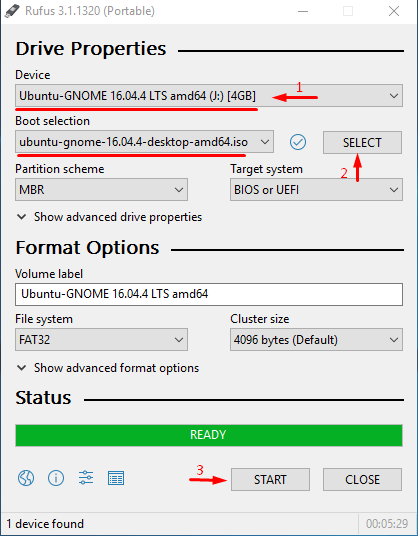
C:\21a983d22b51938355d6c52e7f69741e

So, you need to boot from the flash disk, mount the required ESXi datastore, unpack the archive, and edit the file with passwords. Next, you upload the file back into the initial directory, and, after rebooting the host, you can access the it without the password.

Editing the “shadow” file

What’s “shadow” is?

For safety concerns, ESXi keeps passwords encrypted in some file… whatever, here’s how you still can reset the password. According to some unofficial sources, this file is called “shadow”. You can find it in one of those booting volumes in the /etc directory. Before the host boots, /etc is in the local.tgz archive. Here’s the path: /etc => local.tgz => state.tgz. You can find it in one of those booting volumes in the /etcdirectory. Before the host boots, /etc is in the local.tgz archive. Here’s the path: state.tgz => local.tgz => /etc.

Here’s how the disk is formatted in ESXi 6.0 or higher:

Volume name What it is for? Volume size in my case
/dev/sda1 Starts the system 4 MB
/dev/sda2: /scratch: System volume that is created while installing ESXi on the over-5 GB disk. 4 GB
/dev/sda3: VMFS datastore: Represents all the remaining disk space
/dev/sda5: /bootbank: The ESXi image 250 MB
/dev/sda6: /altrbootbank: The older system version image. You’ll see it as an empty volume if you have never updated the system 250 MB
/dev/sda7: vmkDiagnostic (the first volume) Keeps the core dump 110 MB
/dev/sda8: /store VMware Tools image 286 MB
/dev/sda9: vmkDiagnostic (the second volume) Keeps all the information connected with vSAN diagnostics. You can observe this volume only in over-8 GB datastores 2.5 GB

Among of all those volumes, we need only the /bootbank one as it keeps the ESXi archive. In this way, “shadow” should be somewhere there.

Chasing the “shadow”

So, let’s boot the host from the flash disk first and start the terminal.

Run the following cmdlet to acquire root privileges:

# sudo su

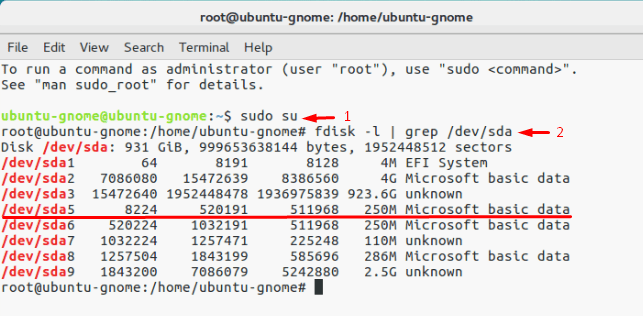
Next, deploy the command below to look through the sda directory.

# fdisk –l | grep /dev/sda*
C:\c7eb70e4332b280e897bc91da2843eb5

Well, it seems that we need that 250 MB /dev/sda5 directory. Create the mnt directory.

# mkdir /mnt/sda5

Create the directory for the temporary files now.

# mkdir /temp

And, mount the /dev/sda5 directory using the cmdlet below.

# mount /dev/sda5 /mnt/sda5

Now, look for that state.tgz archive I was talking above.

# ls -l /mnt/sda5/state.tgz

Extract both state.tgz and local.tgz. Here are the commands you can use for that purpose:

# tar -xf /mnt/sda5/state.tgz –C /temp/

# tar -xf /temp/local.tgz –C /temp/

Once you are done with unpacking, get rid of those old archives with the cmdlet below:

# rm /temp/local.tgz

Now, you are ready to do some magic with “shadow”. Open the file, edit it, and close it. As simple as it! To double-check the changes, open the file one more time.

# vi /temp/etc/shadow

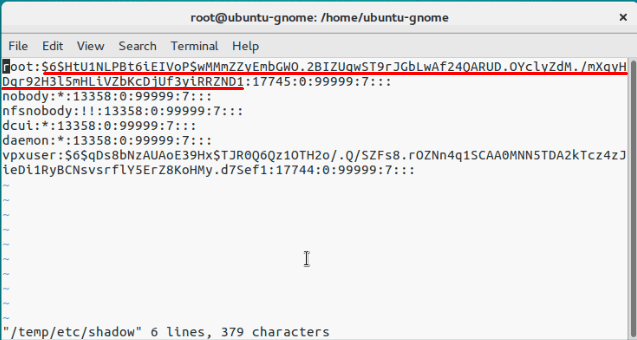
Actually, here’s how “shadow” looks like inside. See, it contains all users’ passwords.
C:\5cfa53db6df27f3419c38304e61a1937

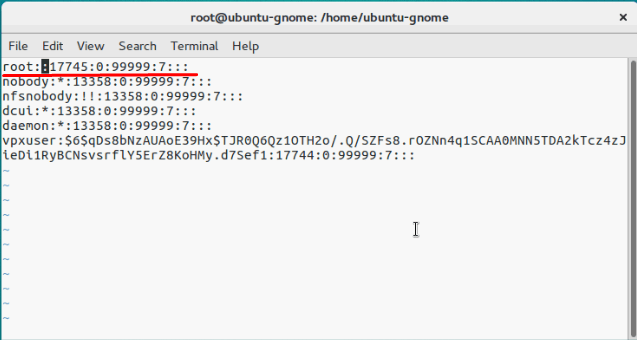
To reset the password, just delete everything between the double colons. Remember, everything is encrypted? That’s why passwords look that weird.
C:\569ce0a0bd6088cfe538f3b76c1872b3

# vi /temp/etc/shadow

Next, go to the work directory.

# cd /temp

Now, add the “shadow” back to the archive.

# tar -czf local.tgz etc

# tar -czf state.tgz local.tgz

Move the new archive to the initial directory.

# mv state.tgz /mnt/sda5/

Unmount the /sda5 disk with the cmdlet below:

# umount /mnt/sda5

And, eventually reboot the host.

# reboot

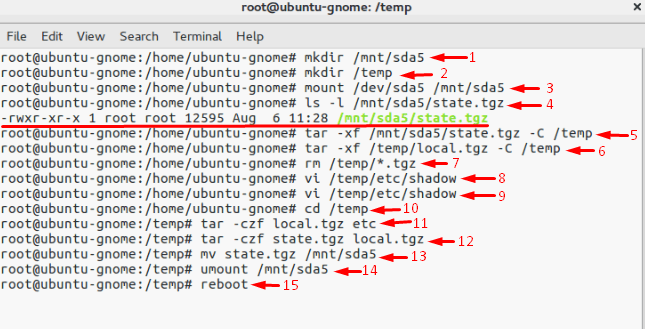
Well, to make the stuff I’ve just written above more reader-friendly, here’re all commands you need to deploy step-by-step.
C:\786a70bf9387ec447bd86ea06e01bd12

Well, you are almost there. Reboot the server now, and try accessing the host without any password. Well, check out what I’ve got.
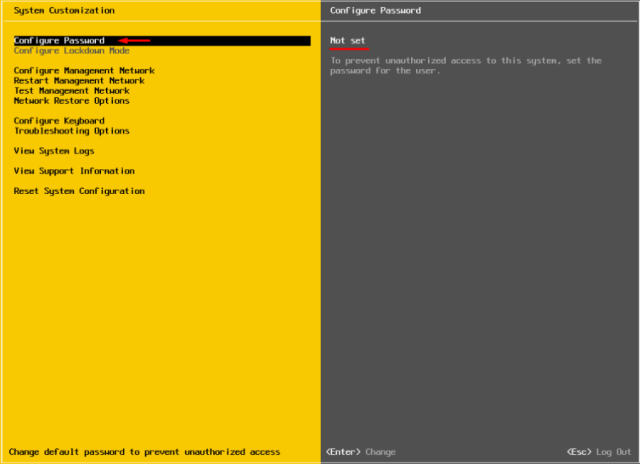
C:\67ddfd5b95a9399d71561e4f7e82fe71

Now, select Configure Password, and type a new password in the self-titled field.
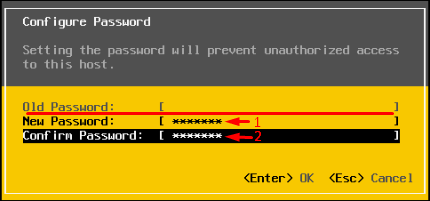
C:\659a2f378848ab4f9e11135e321968d9

Ok, this time, please write the root password, or just try no to forget it!

Replace one “shadow” with another

There’s another way to reset the ESXi root password using “shadow”. Actually, that’s nothing more than a variation of the method I described above.

So, another thing you can do to reset the ESXi password is just using another host “shadow” file! Yes, you can just copy the “shadow” file from another host with the known root password to the one more flask disk. To get the file with passwords from another host, you need WinSCP. The utility is available here. The nice thing is that you can retrieve that file from the host with the unknown ESXi root password without even shutting it down.
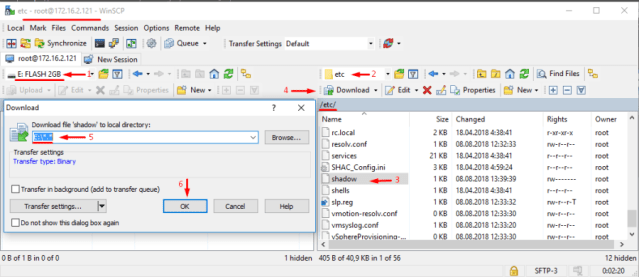
C:\c538c5686ddc4ba551ea1f5237280e1b

Next, call the terminal with the Ubuntu GNOME and reset the password.

Update user privileges to root first. You can run the following command for that purpose:

# sudo su

Now, let’s see what you have on the disk.

# fdisk –l | grep sd 

Create two temporary volumes afterward.

# mkdir /mnt/sda5

# mkdir /mnt/sdb1

Mount the ESXi disk and flash disk where the “shadow” resides using the following cmdlet.

# mount /dev/sda5 /mnt/sda5

# mount /dev/sdb1 /mnt/sdb1

Now, create the temporary volume for further work with archives.

# mkdir /temp

Create the volume where you are going to keep the state.tgz copy just in case something goes wrong.

# mkdir /mnt/sdb1/save

Find the necessary file in the archive.

# ls -l /mnt/sda5/state.tgz

Copy the archive.

# cp /mnt/sda5/state.tgz /mnt/sdb1/save

Run the following command to double-check whether the file has been copied:

# ls -l /mnt/sdb1/save

Extract state.tgz using the cmdlet below:

# tar -xf /mnt/sda5/state.tgz –C /temp/

Find the temp file.

# ls –l /temp

Extract local.tgz.

# tar -xf /temp/local.tgz –C /temp/

Make sure that you extracted the /etc directory.

# ls –l /temp
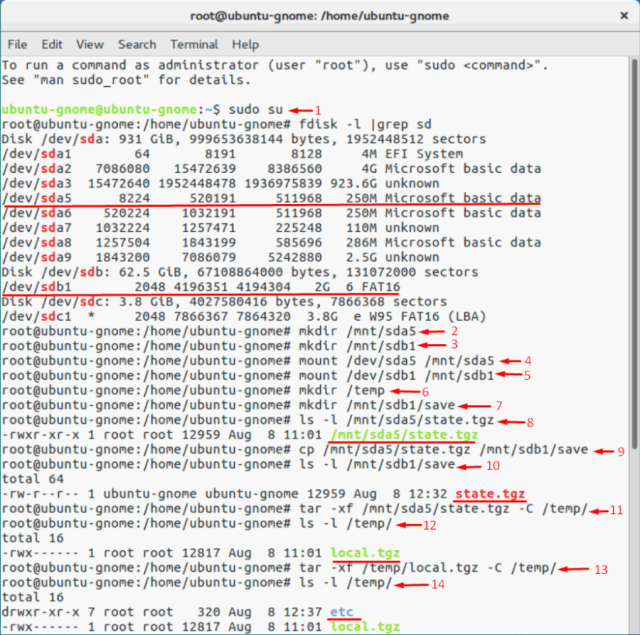
C:\8b102fd08f266e9fca099d664a77e2c6

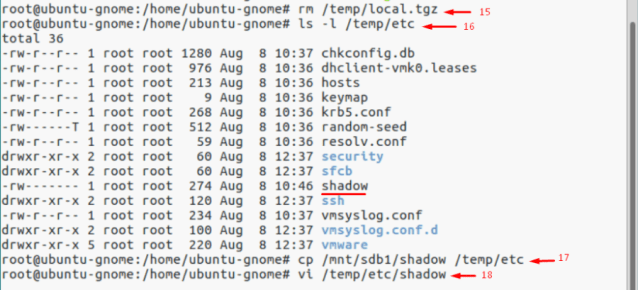
Now, delete the local.tgz volume to ensure that it won’t be included into the new archive by accident.

# rm /temp/local.tgz

Find “shadow” in the /etc directory.

# ls -l /temp/etc

Replace the original “shadow” with the one from the host with known root password. Type the following cmdlet:

# cp /mnt/sdb1/shadow /temp/etc
C:\8045c097389c9a0cbc8a78ed1e5805fe

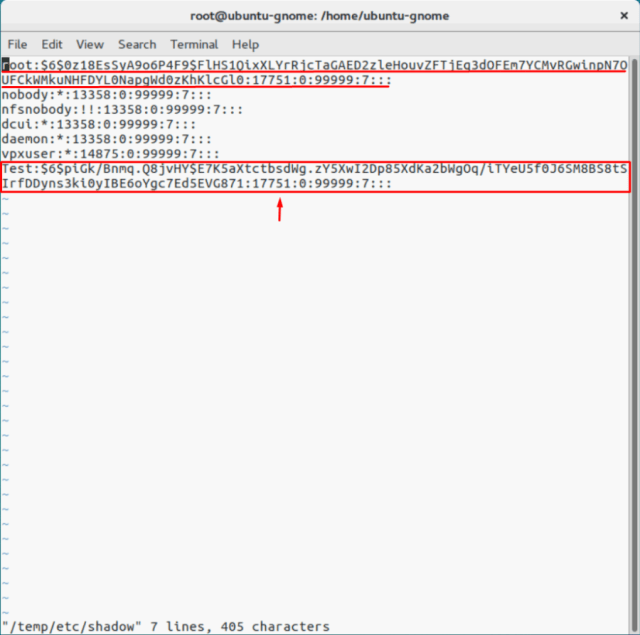
Now, deploy the following command to open the file and look through the saved credentials.

# vi /temp/etc/shadow

If you do not want some users to access the host, go ahead and just remove them from the listing! Here, I removed Test from the users that can access the host. Wait, why did I delete only Test? At this point, I’d like to warn you against deleting any users you are not familiar with. In my case, all users except Test are system ones. If you delete any of those guys, you may destabilize the OS!
C:\91a5a7a5552948a084c9c8bbbd4c4d1c

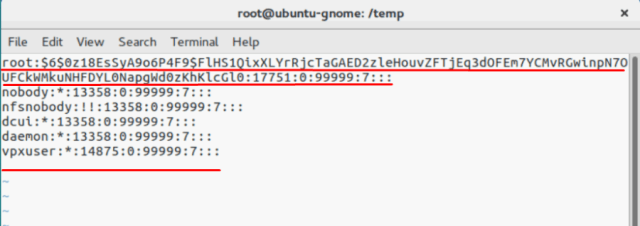
Here’s how the “shadow”: file looks like once the unnecessary user.
C:\601a3512f8477b298365221f92dcfed7

Check whether all changes have been applied.

# vi /temp/etc/shadow

Type the following line to navigate to the /temp directory.

# cd /temp

Archive the /etc directory.

# tar -czf local.tgz etc

Check whether archiving has run smoothly.

# ls -l /temp/

Now, create the state.tgz volume.

# tar -czf state.tgz local.tgz

Again, check whether the volume has been created.

# ls -l /temp/

Move the archive to the working ESXi directory.

# mv state.tgz /mnt/sda5/

Check the result one more time.

# ls -l /mnt/sda5/

Unmount the sda5 directory.

# umount /mnt/sda5

Eventually, reboot the host.

# reboot

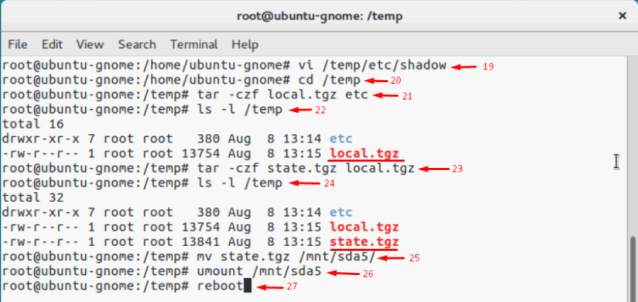
Enjoy! If everything is done right, you can access the host with the known password. Well, to make everything more or less convenient here’s the entire set of commands I used for this method.
C:\aa3e81917d7434ea1863f161d7985514

If the host starts acting weird after reboot, there’s still a copy of the initial state.tgz. Well, it should be. You can mount both /sda5 and /sdb1 and retrieve the original state.tgz using the following cmdlet… and try again!

# cp /mnt/sdb1/save/state.tgz /mnt/sda5/

–jeroen

Posted in Power User, Virtualization, VMware, VMware ESXi | Leave a Comment »

How to Copy files between ESXi hosts using SCP Command

Posted by jpluimers on 2021/05/21

Derived the bits below from [WayBack] How to Copy files between ESXi hosts using SCP Command.

Recursive copy from a remote machine to an existing local directory:

scp -rp root@192.168.71.97://vmfs/volumes/EVO860_500GB/VM1/ /vmfs/volumes/EVO860_250GB/VM2/

After this you need to edit the .vmxf files in the VM2 directory to ensure these are not duplicates.

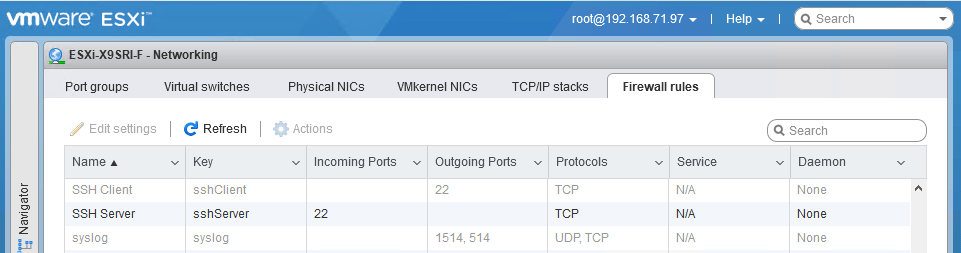
One thing to remember is that you need the current host to allow the SSH client in the firewall, which is disabled by default:

After enabling:

Be really careful with the -3 option to scp; it allows you to transfer from one remote machine to another remote machine, but when using keyboard-interactive, you have a high change to lock-out your accounts: SSH will try to keyboard-interactive to both hosts at the same time.

If you lock-out root, then you have to go through the local DCUI console (use ALT-F2 to go there), then reset the root account failure count using pam_tally2 --user root --reset.

So this can be bad:

scp -3 -rp root@192.168.71.97://vmfs/volumes/EVO860_500GB/VM1/ root@192.168.71.91://vmfs/volumes/EVO860_250GB/VM2/

This works, but assumes the SSH client is enabled from the first host:

scp -rp root@192.168.71.97://vmfs/volumes/EVO860_500GB/VM1/ root@192.168.71.91://vmfs/volumes/EVO860_250GB/VM2/

See these links:


[root@ESXi-X9SRI-F:~] esxcli network firewall get
   Default Action: DROP
   Enabled: true
   Loaded: true
[root@ESXi-X9SRI-F:~] esxcli network firewall ruleset list --ruleset-id sshClient
Name       Enabled
---------  -------
sshClient    false
[root@ESXi-X9SRI-F:~] esxcli network firewall ruleset set --ruleset-id sshClient --enabled true
[root@ESXi-X9SRI-F:~] esxcli network firewall ruleset list --ruleset-id sshClient
Name       Enabled
---------  -------
sshClient     true
[root@ESXi-X9SRI-F:~] esxcli network firewall ruleset set --ruleset-id sshClient --enabled false
[root@ESXi-X9SRI-F:~] esxcli network firewall ruleset list --ruleset-id sshClient
Name       Enabled
---------  -------
sshClient    false

–jeroen

Posted in *nix, *nix-tools, ESXi6, ESXi6.5, ESXi6.7, Power User, ssh/sshd, Virtualization, VMware, VMware ESXi | Leave a Comment »

ESXi 6.x download URL

Posted by jpluimers on 2021/05/17

Many of the ESXi download URLs get you to my-vmware in places that indicate you do not have a license.

This seems to be the only link that consistently gets you the license and downloads: my.vmware.com/en/group/vmware/evalcenter?p=free-esxi6.

For instance, the ones below with

–jeroen

Posted in ESXi6, ESXi6.5, ESXi6.7, Power User, Virtualization, VMware, VMware ESXi | Leave a Comment »

ESXi: wrong IPv4 address after moving the ESXi boot USB stick and SSD devices to an identical motherboard with different MAC addresses

Posted by jpluimers on 2021/05/17

A while ago, I wanted to move the ESXi USB stick and SSD devices to another machine with identical motherboard as it had a larger physical case more suited for expansion.

To my surprise, the management network stayed at the same IPv4 address, despite it being being from a DHCP pool, and the new MAC addresses having different IPv4 addresses assigned in the pool (I run a kind of static dynamic address system where the DHCP server has the correct mapping between MAC and IPv4 addresses).

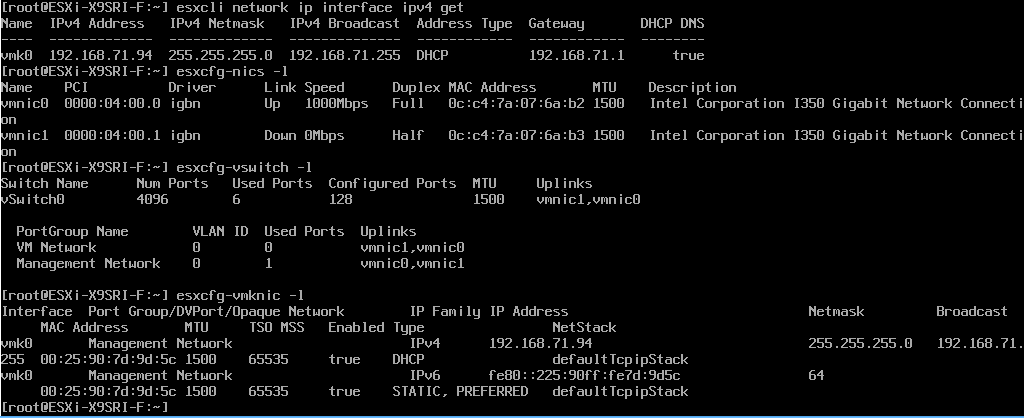
This appears to be a known issue: by default, ESXi copies the MAC address to the vmknic of the management network instead of following hardware changes. You can see this in the screenshot showing the right physical MAC, but the wrong virtual MAC:

The fix is actually quite simple:

After this, you have to perform a reboot for the new setting to take effect.

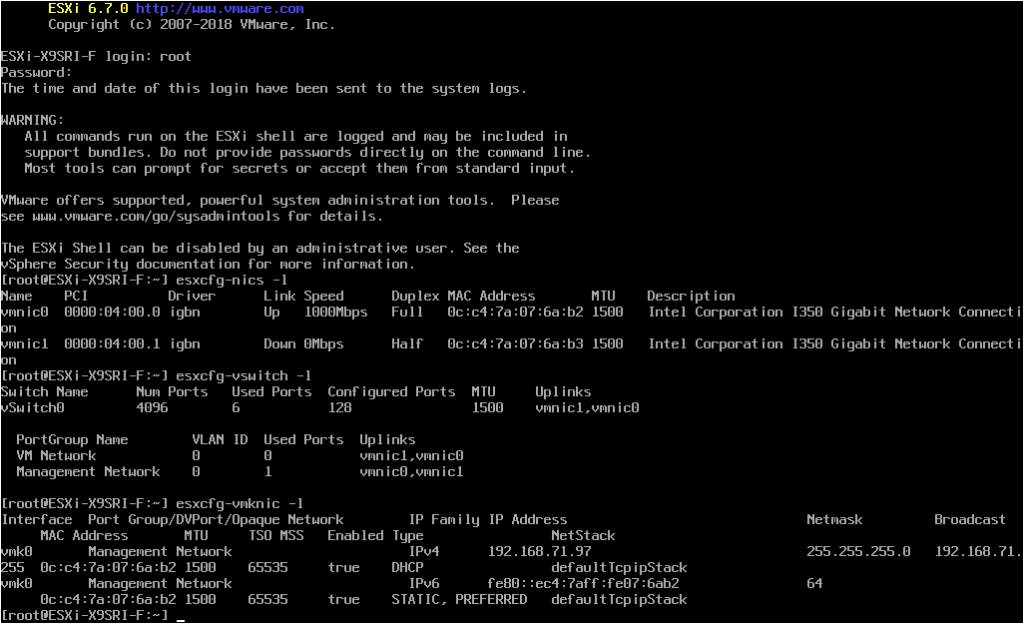
When booting is done, the virtual MAC has been copied from the physical MAC:

Note I did not have to fiddle with /etc/vmware/esx.conf as VirtuallyVTrue had to.

For more information, see these links (I copied the content of the final link below the footer as it cannot be saved in the WayBack or Archive.is archives):

–jeroen

Read the rest of this entry »

Posted in ESXi6.5, ESXi6.7, Power User, Virtualization, VMware, VMware ESXi | Leave a Comment »

VMware Standalone Converter: more recent versions do not support older operating systems

Posted by jpluimers on 2021/05/14

It pays to keep several versions of VMware Standalone Converter at hand as newer supporters do support newer operating systems and ESXi versions, but do not support older operating systems.

Hopefully the free StarWind V2V converter that does also support P2V has a broader support for older versions.

Some relevant links:

–jeroen

[WayBack] Free Tools VMware VMware vSphere goodies and freebies. VMware Monitoring tools, backup. Those tools are Free to use in production environment, no time limit

[WayBack] Cool Free VPN Server Software SoftEther VPN | ESX Virtualization

Posted in Power User, Virtualization, VMware, VMware Converter, VMware ESXi | Leave a Comment »

NFS server on Windows

Posted by jpluimers on 2021/05/14

One way to access files from ESXi is over NFS shares.

Out of the box, Windows Server is the only edition that provides NFS server capability, but desktop editions only have an NFS client.

There are some commercial and open sources implementations though, of which [WayBack] GitHub – winnfsd/winnfsd seems the best maintained open source one.

In case I ever need NFS server support, I need to check out these links:

–jeroen

Posted in *nix, Power User, Virtualization, VMware, VMware ESXi, Windows | Leave a Comment »

Solved: Very slow speed on SSD |VMware Communities (via “Building a lab with ESXI and Vagrant – DarthSidious”)

Posted by jpluimers on 2021/05/11

Via [WayBack] Building a lab with ESXI and Vagrant – DarthSidious while researching the possibility of running Vagrant (software) – Wikipedia on VMware ESXi – Wikipedia for building and distributing development environments:

[WayBack] Solved: Very slow speed on SSD |VMware Communities “solution” that seems to work for ESXi 6.5 and 6.7:

ESXi 6.5 includes a new native driver (vmw_ahci) for SATA AHCI controllers, but that introduces performance problems with a lot of controllers and/or disks.

Try to disable the native driver and revert to the older sata-ahci driver by running

esxcli system module set --enabled=false --module=vmw_ahci

in an ESXi shell.

Reboot the host to make the change effective.

which solves it for some who now get much faster results:

Your suggestion worked for me, now i am getting avg speed 250Mbps from SATA III SSD .

ssd.jpg

Hope will get the full I/Ops from SSD.

However:

One issue I still have is that my 4 port Syba PCIe controller card now vanishes after disabling vmw_ahci and I am restricted to using the SATA ports on the motherboard.

and you need backups:

WARNING: Doing this at least for me erases all the VMs on the aforementioned drive. Migrate as needed.

There was no response for a more permanent fix:

What is the permanent fix for this issue, should we expect a corrected native driver from VMware, or will this require a firmware upgrade on the part of the drive vendors?

and there seem to be other bottle-necks:

tried the command on a 6.7.

Deploying an OVA and I am getting 22.82….

I have a Samsung 860 EVO mSATA 1Tb SSD.

i re-enabled it, I got max 11.81.

Kind of crappy either way. Not SSD speeds IMO.

–jeroen


Posted in Development, ESXi6.5, ESXi6.7, Power User, Software Development, Testing, Virtualization, VMware, VMware ESXi | Leave a Comment »

Alternatives to VMware ESXi: working around “[Errno 28] No space left on device” when updating (especially when booting from USB-stick)

Posted by jpluimers on 2021/05/07

Yesterday I talked about VMware ESXi: working around “[Errno 28] No space left on device” when updating (especially when booting from USB-stick).

There are some alternative workarounds mentioned on the interwebz. Below are a the ones I found. I discuss which ones won’t work, and why I dislike others.

Alternative workarounds that failed

Configuring host-swap

This was suggested by:

Host swap was already configured, and it still failed.

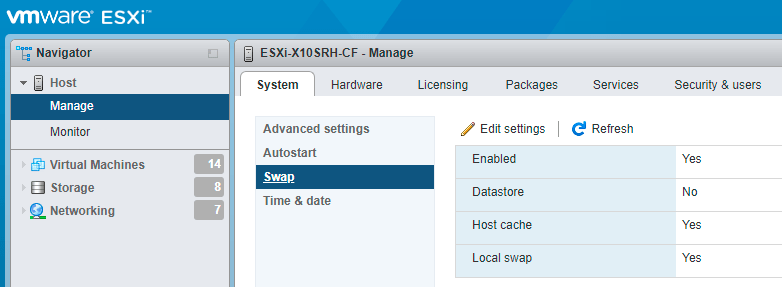
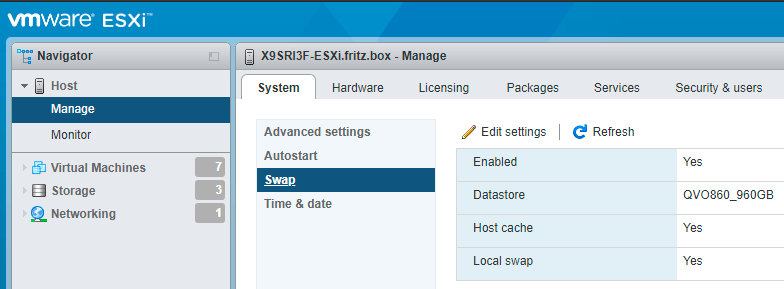
Just in case you ever want to configure host swap, it is under an URL like https://esxi67.example.org/ui/#/host/manage/system/swap and looks like this:

ESXi 6.7: configuring host swap

ESXi 6.7: configuring host swap

You get there by:

  1. logging on to the web UI
  2. clicking Host
  3. clicking Manage under Host
  4. clicking Swap under the System tab
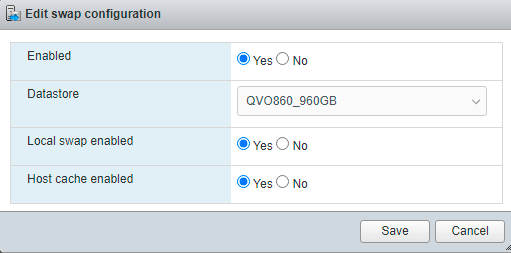
  5. clicking Edit settings when you want to change them
    ESXi 6.7: edit host swap settings

    ESXi 6.7: edit host swap settings

More information about host swap:

Alternative workarounds I like less

Below are a few alternative workarounds. I will include them as they gained me more knowledge, but I will also describe why I like them less.

  • [Wayback] ESXI 6.7 update: No space left on device | eknori.de after explaining that directing the swap space to a datastore fails, also mentions alternative this:

    Unfortunately, in this situation, host swap already was enabled.

    There is though, a workaround. You can use an image that doesn’t have the tools vib included with this command:

    esxcli software profile update -p ESXi-6.7.0-20190802001-no-tools -d https://hostupdate.vmware.com/software/VUM/PRODUCTION/main/vmw-depot-index.xml

    You can then manually install the troublesome vib (if you have a need for tools) with this command:

    esxcli software vib install -v https://hostupdate.vmware.com/software/VUM/PRODUCTION/main/esx/vmw/vib20/tools-light/VMware_locker_tools-light_10.3.10.12406962-14141615.vib

    I had to edit it as the post itself shows the filename as

    vmw-depot
     -index.xml

    Yup: bitching again, as markup issues make code unreliable. It also allows me to explain why I do not like the solution, which is because of two reasons:

    1. It doesn’t explain why this solution works and if it is future proof. Does a future upgrade that includes changed VMware_locker_tools-light also fail? If it does not fail, does it update the VMware_locker_tools-light?
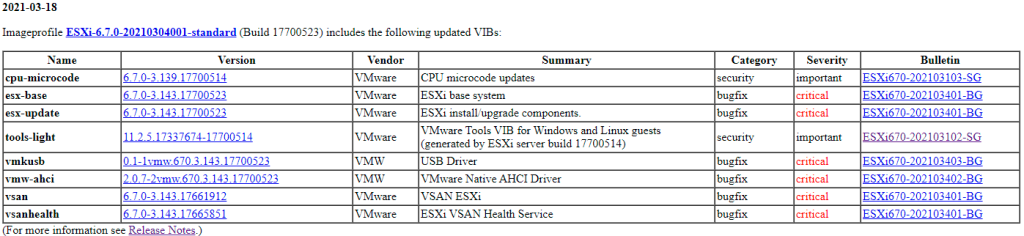
    2. It does not explain how to get the path of https://hostupdate.vmware.com/software/VUM/PRODUCTION/main/esx/vmw/vib20/tools-light/VMware_locker_tools-light_10.3.10.12406962-14141615.vib.  I did some mor research on this, and it is actually pretty straightforward: the [Wayback] VMware ESXi 6.7 Patch History has it in the table
      ESXi-6.7.0-20210304001-standard patch table

      ESXi-6.7.0-20210304001-standard patch table

      The “Version” link for “tools-light” [Wayback] 11.2.5.17337674-17700514 actually links to the VMware_locker_tools-light_11.1.1.16303738-16701467.vib file.

  • [Wayback] ESXi 6.7.0 – [Errno 28] No space left on devicevibs = VMware_locker_tools-light_11.1.1.16303738-16701467 does not explain where to get the VMware_locker_tools-light_11.1.1.16303738-16701467.vib link from, does not have the code formatted as such (so I did that below), but does actually answers part of the above questions, but not if a future upgrade will also fail. In short: re-running the upgrade after manually installing the VMware_locker_tools-light_11.1.1.16303738-16701467.vib will succeed:

    Unfortunately swap was already enabled to I had to manually install the tools-light with this command:

    esxcli software vib install -v https://hostupdate.vmware.com/software/VUM/PRODUCTION/main/esx/vmw/vib20/tools-light/VMware_locker_tools-light_11.1.1.16303738-16701467.vib

    Then re-ran the upgrade and it was successful.

  • [Wayback] ESXi 6 Update error – No Space left on device /locker which suggests to delete “find all big files in /locker and remove it”. I think that is a bad idea, as the /locker directory is maintained by your ESXi system and you should not remove any big file without knowing if it is relied upon by ESXi.
  • While updating VMware ESXi servers, VMware vSphere users may encounter the “No space left on device” error that pops up while executing “esxcli software vib update” command. Interestingly, the problem occurs even though disks are doing well and have enough free space and df -h command proves that.[Wayback] No Space Left on Device? Updating VMware ESXi | StarWind Blog has bad code markup, but explains
    • how to get disk usage with df -h where the vfat volumes usually indicate the ones on USB or SD-card media.
    • that hardly the number of inodes is a problem, and that stat -f / can help you figure out if that is the case on the volume where the upgrade files are stored
    • how to find large files not in data stores; I have changed added -h to the ls command so it becomes human readable:
      find / -path "/vmfs" -prune -o -type f -size +50000k -exec ls -lh '{}' \;
    • suggests how to put the swap space on a data store (which doesn’t work on ESXi 6.7 systems any more)
  •  

    [Wayback] Intel NUC Kit NUC5i3RYH met ESXi 6.0 updaten naar 6.7 – Gahan Zwart’s Blog

    • I like the upgrade copying the ISO to an USB stick with Rufus
    • I do not like the VMware_locker_tools-light... intermediate step, as the last step (download the full depot to a datastore, then update from there)
    • ESXi 7.0 has the same ErrNo 28 update problem as ESXi 6.7 and 6.5, so I will default to the depot download.

–jeroen

Posted in ESXi6, ESXi6.5, ESXi6.7, ESXi7, Power User, Virtualization, VMware, VMware ESXi | Leave a Comment »

VMware ESXi: working around “[Errno 28] No space left on device” when updating (especially when booting from USB-stick)

Posted by jpluimers on 2021/05/06

A while ago, I had this error while upgrading an ESXi 6.7 system:

# esxcli system maintenanceMode get
Enabled
# esxcli software profile update -p ESXi-6.7.0-20210304001-standard -d https://hostupdate.vmware.com/software/VUM/PRODUCTION/main/vmw-depot-
index.xml
 [InstallationError]
 [Errno 28] No space left on device
       vibs = VMware_locker_tools-light_11.2.5.17337674-17700514
 Please refer to the log file for more details.

This seems to be kind of a known issue, especially on systems that boot from USB sticks (see [Archive.is] “ESXi” “[Errno 28] No space left on device” – Google Search). Despites these sticks having gotten larger over time, VMware uses very little storage on them, so runs out of storage spice while processing installs from the depot.

This is kind of disappointing, and with the ever growing updates, the only workaround is to download an offline bundle, then install it.

Below I will explain how to get the offline bundle, as it involves a few more steps all aimed at this simple installation of the offline bundle file:

# esxcli system maintenanceMode get
Enabled
# esxcli software profile update -p ESXi-6.7.0-20210304001-standard -d /vmfs/volumes/EVO860_500GB/OfflineBundles/ESXi670-202103001.zip 
Update Result
   Message: The update completed successfully, but the system needs to be rebooted for the changes to be effective.
   Reboot Required: true
   VIBs Installed: VMW_bootbank_ixgben_1.7.1.16-2vmw.670.3.104.16075168, VMW_bootbank_lpfc_11.4.33.26-14vmw.670.3.104.16075168, VMW_bootbank_net-e1000_8.0.3.1-5vmw.670.3.112.16701467, VMW_bootbank_net-vmxnet3_1.1.3.0-3vmw.670.3.104.16075168, VMW_bootbank_nfnic_4.0.0.44-0vmw.670.3.104.16075168, VMW_bootbank_ntg3_4.1.5.0-0vmw.670.3.116.16713306, VMW_bootbank_nvme_1.2.2.28-4vmw.670.3.132.17167734, VMW_bootbank_qfle3f_1.0.25.0.2-15vmw.670.3.104.16075168, VMW_bootbank_sfvmk_1.0.0.1003-7vmw.670.3.104.16075168, VMW_bootbank_vmkusb_0.1-1vmw.670.3.143.17700523, VMW_bootbank_vmw-ahci_2.0.7-2vmw.670.3.143.17700523, VMware_bootbank_cpu-microcode_6.7.0-3.139.17700514, VMware_bootbank_elx-esx-libelxima.so_11.4.1184.2-3.89.15160138, VMware_bootbank_esx-base_6.7.0-3.143.17700523, VMware_bootbank_esx-ui_1.33.7-15803439, VMware_bootbank_esx-update_6.7.0-3.143.17700523, VMware_bootbank_native-misc-drivers_6.7.0-3.89.15160138, VMware_bootbank_vmware-esx-esxcli-nvme-plugin_1.2.0.36-2vmw.670.3.116.16713306, VMware_bootbank_vsan_6.7.0-3.143.17661912, VMware_bootbank_vsanhealth_6.7.0-3.143.17665851, VMware_locker_tools-light_11.2.5.17337674-17700514
   VIBs Removed: VMW_bootbank_ixgben_1.7.1.16-1vmw.670.3.73.14320388, VMW_bootbank_lpfc_11.4.33.25-14vmw.670.3.73.14320388, VMW_bootbank_net-e1000_8.0.3.1-5vmw.670.0.0.8169922, VMW_bootbank_net-vmxnet3_1.1.3.0-3vmw.670.2.48.13006603, VMW_bootbank_nfnic_4.0.0.29-0vmw.670.3.73.14320388, VMW_bootbank_ntg3_4.1.3.2-1vmw.670.1.28.10302608, VMW_bootbank_nvme_1.2.2.28-1vmw.670.3.73.14320388, VMW_bootbank_qfle3f_1.0.25.0.2-14vmw.670.0.0.8169922, VMW_bootbank_sfvmk_1.0.0.1003-6vmw.670.3.73.14320388, VMW_bootbank_vmkusb_0.1-1vmw.670.2.48.13006603, VMW_bootbank_vmw-ahci_1.2.8-1vmw.670.3.73.14320388, VMware_bootbank_cpu-microcode_6.7.0-2.69.14141615, VMware_bootbank_elx-esx-libelxima.so_11.4.1184.1-2.48.13006603, VMware_bootbank_esx-base_6.7.0-3.73.14320388, VMware_bootbank_esx-ui_1.33.4-14093553, VMware_bootbank_esx-update_6.7.0-3.73.14320388, VMware_bootbank_native-misc-drivers_6.7.0-2.48.13006603, VMware_bootbank_vmware-esx-esxcli-nvme-plugin_1.2.0.36-2.48.13006603, VMware_bootbank_vsan_6.7.0-3.73.14263135, VMware_bootbank_vsanhealth_6.7.0-3.73.14263064, VMware_locker_tools-light_10.3.10.12406962-14141615
   VIBs Skipped: VMW_bootbank_ata-libata-92_3.00.9.2-16vmw.670.0.0.8169922, VMW_bootbank_ata-pata-amd_0.3.10-3vmw.670.0.0.8169922, VMW_bootbank_ata-pata-atiixp_0.4.6-4vmw.670.0.0.8169922, VMW_bootbank_ata-pata-cmd64x_0.2.5-3vmw.670.0.0.8169922, VMW_bootbank_ata-pata-hpt3x2n_0.3.4-3vmw.670.0.0.8169922, VMW_bootbank_ata-pata-pdc2027x_1.0-3vmw.670.0.0.8169922, VMW_bootbank_ata-pata-serverworks_0.4.3-3vmw.670.0.0.8169922, VMW_bootbank_ata-pata-sil680_0.4.8-3vmw.670.0.0.8169922, VMW_bootbank_ata-pata-via_0.3.3-2vmw.670.0.0.8169922, VMW_bootbank_block-cciss_3.6.14-10vmw.670.0.0.8169922, VMW_bootbank_bnxtnet_20.6.101.7-24vmw.670.3.73.14320388, VMW_bootbank_bnxtroce_20.6.101.0-20vmw.670.1.28.10302608, VMW_bootbank_brcmfcoe_11.4.1078.25-14vmw.670.3.73.14320388, VMW_bootbank_char-random_1.0-3vmw.670.0.0.8169922, VMW_bootbank_ehci-ehci-hcd_1.0-4vmw.670.0.0.8169922, VMW_bootbank_elxiscsi_11.4.1174.0-2vmw.670.0.0.8169922, VMW_bootbank_elxnet_11.4.1097.0-5vmw.670.3.73.14320388, VMW_bootbank_hid-hid_1.0-3vmw.670.0.0.8169922, VMW_bootbank_i40en_1.8.1.9-2vmw.670.3.73.14320388, VMW_bootbank_iavmd_1.2.0.1011-2vmw.670.0.0.8169922, VMW_bootbank_igbn_0.1.1.0-5vmw.670.3.73.14320388, VMW_bootbank_ima-qla4xxx_2.02.18-1vmw.670.0.0.8169922, VMW_bootbank_ipmi-ipmi-devintf_39.1-5vmw.670.1.28.10302608, VMW_bootbank_ipmi-ipmi-msghandler_39.1-5vmw.670.1.28.10302608, VMW_bootbank_ipmi-ipmi-si-drv_39.1-5vmw.670.1.28.10302608, VMW_bootbank_iser_1.0.0.0-1vmw.670.1.28.10302608, VMW_bootbank_lpnic_11.4.59.0-1vmw.670.0.0.8169922, VMW_bootbank_lsi-mr3_7.708.07.00-3vmw.670.3.73.14320388, VMW_bootbank_lsi-msgpt2_20.00.06.00-2vmw.670.3.73.14320388, VMW_bootbank_lsi-msgpt35_09.00.00.00-5vmw.670.3.73.14320388, VMW_bootbank_lsi-msgpt3_17.00.02.00-1vmw.670.3.73.14320388, VMW_bootbank_misc-cnic-register_1.78.75.v60.7-1vmw.670.0.0.8169922, VMW_bootbank_misc-drivers_6.7.0-2.48.13006603, VMW_bootbank_mtip32xx-native_3.9.8-1vmw.670.1.28.10302608, VMW_bootbank_ne1000_0.8.4-2vmw.670.2.48.13006603, VMW_bootbank_nenic_1.0.29.0-1vmw.670.3.73.14320388, VMW_bootbank_net-bnx2_2.2.4f.v60.10-2vmw.670.0.0.8169922, VMW_bootbank_net-bnx2x_1.78.80.v60.12-2vmw.670.0.0.8169922, VMW_bootbank_net-cdc-ether_1.0-3vmw.670.0.0.8169922, VMW_bootbank_net-cnic_1.78.76.v60.13-2vmw.670.0.0.8169922, VMW_bootbank_net-e1000e_3.2.2.1-2vmw.670.0.0.8169922, VMW_bootbank_net-enic_2.1.2.38-2vmw.670.0.0.8169922, VMW_bootbank_net-fcoe_1.0.29.9.3-7vmw.670.0.0.8169922, VMW_bootbank_net-forcedeth_0.61-2vmw.670.0.0.8169922, VMW_bootbank_net-igb_5.0.5.1.1-5vmw.670.0.0.8169922, VMW_bootbank_net-ixgbe_3.7.13.7.14iov-20vmw.670.0.0.8169922, VMW_bootbank_net-libfcoe-92_1.0.24.9.4-8vmw.670.0.0.8169922, VMW_bootbank_net-mlx4-core_1.9.7.0-1vmw.670.0.0.8169922, VMW_bootbank_net-mlx4-en_1.9.7.0-1vmw.670.0.0.8169922, VMW_bootbank_net-nx-nic_5.0.621-5vmw.670.0.0.8169922, VMW_bootbank_net-tg3_3.131d.v60.4-2vmw.670.0.0.8169922, VMW_bootbank_net-usbnet_1.0-3vmw.670.0.0.8169922, VMW_bootbank_nhpsa_2.0.22-3vmw.670.1.28.10302608, VMW_bootbank_nmlx4-core_3.17.13.1-1vmw.670.2.48.13006603, VMW_bootbank_nmlx4-en_3.17.13.1-1vmw.670.2.48.13006603, VMW_bootbank_nmlx4-rdma_3.17.13.1-1vmw.670.2.48.13006603, VMW_bootbank_nmlx5-core_4.17.13.1-1vmw.670.3.73.14320388, VMW_bootbank_nmlx5-rdma_4.17.13.1-1vmw.670.2.48.13006603, VMW_bootbank_nvmxnet3-ens_2.0.0.21-1vmw.670.0.0.8169922, VMW_bootbank_nvmxnet3_2.0.0.29-1vmw.670.1.28.10302608, VMW_bootbank_ohci-usb-ohci_1.0-3vmw.670.0.0.8169922, VMW_bootbank_pvscsi_0.1-2vmw.670.0.0.8169922, VMW_bootbank_qcnic_1.0.2.0.4-1vmw.670.0.0.8169922, VMW_bootbank_qedentv_2.0.6.4-10vmw.670.1.28.10302608, VMW_bootbank_qfle3_1.0.50.11-9vmw.670.0.0.8169922, VMW_bootbank_qfle3i_1.0.2.3.9-3vmw.670.0.0.8169922, VMW_bootbank_qflge_1.1.0.11-1vmw.670.0.0.8169922, VMW_bootbank_sata-ahci_3.0-26vmw.670.0.0.8169922, VMW_bootbank_sata-ata-piix_2.12-10vmw.670.0.0.8169922, VMW_bootbank_sata-sata-nv_3.5-4vmw.670.0.0.8169922, VMW_bootbank_sata-sata-promise_2.12-3vmw.670.0.0.8169922, VMW_bootbank_sata-sata-sil24_1.1-1vmw.670.0.0.8169922, VMW_bootbank_sata-sata-sil_2.3-4vmw.670.0.0.8169922, VMW_bootbank_sata-sata-svw_2.3-3vmw.670.0.0.8169922, VMW_bootbank_scsi-aacraid_1.1.5.1-9vmw.670.0.0.8169922, VMW_bootbank_scsi-adp94xx_1.0.8.12-6vmw.670.0.0.8169922, VMW_bootbank_scsi-aic79xx_3.1-6vmw.670.0.0.8169922, VMW_bootbank_scsi-bnx2fc_1.78.78.v60.8-1vmw.670.0.0.8169922, VMW_bootbank_scsi-bnx2i_2.78.76.v60.8-1vmw.670.0.0.8169922, VMW_bootbank_scsi-fnic_1.5.0.45-3vmw.670.0.0.8169922, VMW_bootbank_scsi-hpsa_6.0.0.84-3vmw.670.0.0.8169922, VMW_bootbank_scsi-ips_7.12.05-4vmw.670.0.0.8169922, VMW_bootbank_scsi-iscsi-linux-92_1.0.0.2-3vmw.670.0.0.8169922, VMW_bootbank_scsi-libfc-92_1.0.40.9.3-5vmw.670.0.0.8169922, VMW_bootbank_scsi-megaraid-mbox_2.20.5.1-6vmw.670.0.0.8169922, VMW_bootbank_scsi-megaraid-sas_6.603.55.00-2vmw.670.0.0.8169922, VMW_bootbank_scsi-megaraid2_2.00.4-9vmw.670.0.0.8169922, VMW_bootbank_scsi-mpt2sas_19.00.00.00-2vmw.670.0.0.8169922, VMW_bootbank_scsi-mptsas_4.23.01.00-10vmw.670.0.0.8169922, VMW_bootbank_scsi-mptspi_4.23.01.00-10vmw.670.0.0.8169922, VMW_bootbank_scsi-qla4xxx_5.01.03.2-7vmw.670.0.0.8169922, VMW_bootbank_shim-iscsi-linux-9-2-1-0_6.7.0-0.0.8169922, VMW_bootbank_shim-iscsi-linux-9-2-2-0_6.7.0-0.0.8169922, VMW_bootbank_shim-libata-9-2-1-0_6.7.0-0.0.8169922, VMW_bootbank_shim-libata-9-2-2-0_6.7.0-0.0.8169922, VMW_bootbank_shim-libfc-9-2-1-0_6.7.0-0.0.8169922, VMW_bootbank_shim-libfc-9-2-2-0_6.7.0-0.0.8169922, VMW_bootbank_shim-libfcoe-9-2-1-0_6.7.0-0.0.8169922, VMW_bootbank_shim-libfcoe-9-2-2-0_6.7.0-0.0.8169922, VMW_bootbank_shim-vmklinux-9-2-1-0_6.7.0-0.0.8169922, VMW_bootbank_shim-vmklinux-9-2-2-0_6.7.0-0.0.8169922, VMW_bootbank_shim-vmklinux-9-2-3-0_6.7.0-0.0.8169922, VMW_bootbank_smartpqi_1.0.1.553-28vmw.670.3.73.14320388, VMW_bootbank_uhci-usb-uhci_1.0-3vmw.670.0.0.8169922, VMW_bootbank_usb-storage-usb-storage_1.0-3vmw.670.0.0.8169922, VMW_bootbank_usbcore-usb_1.0-3vmw.670.0.0.8169922, VMW_bootbank_vmkata_0.1-1vmw.670.0.0.8169922, VMW_bootbank_vmkfcoe_1.0.0.1-1vmw.670.1.28.10302608, VMW_bootbank_vmkplexer-vmkplexer_6.7.0-0.0.8169922, VMW_bootbank_xhci-xhci_1.0-3vmw.670.0.0.8169922, VMware_bootbank_esx-dvfilter-generic-fastpath_6.7.0-0.0.8169922, VMware_bootbank_esx-xserver_6.7.0-3.73.14320388, VMware_bootbank_lsu-hp-hpsa-plugin_2.0.0-16vmw.670.1.28.10302608, VMware_bootbank_lsu-intel-vmd-plugin_1.0.0-2vmw.670.1.28.10302608, VMware_bootbank_lsu-lsi-drivers-plugin_1.0.0-1vmw.670.2.48.13006603, VMware_bootbank_lsu-lsi-lsi-mr3-plugin_1.0.0-13vmw.670.1.28.10302608, VMware_bootbank_lsu-lsi-lsi-msgpt3-plugin_1.0.0-9vmw.670.2.48.13006603, VMware_bootbank_lsu-lsi-megaraid-sas-plugin_1.0.0-9vmw.670.0.0.8169922, VMware_bootbank_lsu-lsi-mpt2sas-plugin_2.0.0-7vmw.670.0.0.8169922, VMware_bootbank_lsu-smartpqi-plugin_1.0.0-3vmw.670.1.28.10302608, VMware_bootbank_qlnativefc_3.1.8.0-5vmw.670.3.73.14320388, VMware_bootbank_rste_2.0.2.0088-7vmw.670.0.0.8169922
# reboot

Note that I always perform a  esxcli system maintenanceMode get in order to verify the system is indeed in maintenance mode.

Steps to get the offline bundle

0. determining the profile

Actually there is a pre-step: checking which update profile is needed. I use the VMware Patch Tracker from VFrontDe, as you can subscribe through RSS (by ESXi version) Twitter (all versions) for that.

For ESXi 7, I use moved from the [Wayback] regular ESXi 6.7 patch RSS feed to the Feedly ESXi 6.7 patch RSS feed (which integrates in my daily news reading) of [Wayback] VMware ESXi 6.7 Patch History:

Keep track of VMware ESXi patches, subscribe by [Archive.is] RSS and [Archive.is] Twitter! – Brought to you by @VFrontDe

For the current (as of writing) update, it shows two out of four profiles:

  1. Imageprofile ESXi-6.7.0-20210304001-standard (Build 17700523) … (For more information see [Wayback] Release Notes.)
  2. Imageprofile ESXi-6.7.0-20210301001s-standard (Build 17700514) … (For more information see [Wayback] Release Notes.)

There can be two more “...-no-tools” profiles as described by [Wayback] VMware ESXi Image Profiles | virten.net

Example – ESXi 5.5 Patch 2 contains 4 Image Profiles:
  1. ESXi-5.5.0-20140704001-standard – Contains all patches
  2. ESXi-5.5.0-20140704001-no-tools – Contains all patches but no VMware Tools
  3. ESXi-5.5.0-20140701001s-standard – Contains security patches only
  4. ESXi-5.5.0-20140701001s-no-tools – Contains security patches only and no VMware Tools

vSphere ESXi 6.7 Image Profiles
Image Profile ESX Build Release Date
ESXi-6.7.0-20210304001-standard 17700523 2021-03-18
ESXi-6.7.0-20210304001-no-tools 17700523 2021-03-18
ESXi-6.7.0-20210301001s-standard 17700514 2021-03-18
ESXi-6.7.0-20210301001s-no-tools 17700514 2021-03-18

Given that I my environment as complete as possible (the original ESXi install contains everything, so I do want to include the “VMware Tools“, and update the full software, nut just security issues), I opt for “###...-standard” and not for “###s...-standard“.

1. determine the download

The page [Wayback] VMware ESXi 6.7 Patch History (and similar pages for other ESXi versions) contains a tiny link in the upper left hand side named “[MyVMware Patch Download]” (I saved it in the Wayback machine) which brings you a patch search page on the VMware patch site.

The big drawback is that you need to be signed on into yout VMware account to actually see this page. The VMware account validation is implemented in a “corporate” way, so often does not work (especially when you need it, which for me often is on weekends, a period in the week that corporates seem to ar less monitor their systems than during USA work-day hours). I might sound cynical, but this set me back quite some time even trying to get an ESXi 7 license.

Here are some screenshots:

VMware HomeP/roduct Patches

VMware Home/Product Patches

The site is so corporate, that when your screen is not wide enough, the selection box is drawn outside your screen area:

VMware being very corporate: drawing selection box outside the screen area.

VMware being very corporate: drawing selection box outside the screen area.

Anyway the one ending in “and Installable” is the one we want, cutting off the other part (you are a corporate or you aren’t, right?):

"ESXi (Embedded and ..." is cut off as the layout has been designed to cut off either way.

“ESXi (Embedded and …” is cut off as the layout has been designed to cut off either way.

So for ESXi 6.7.0, when writing this, the offline bundles were these:

ESXi 6.7.0 offline bundles

ESXi 6.7.0 offline bundles (unlike the YYYYMM### release name and YYYYMM### bulletin numbers, the dates are in MM/DD/YYYY format)

Release Name Release Date Build Number Bulletin Number

ESXi670-202103001

Product:ESXi (Embedded and Installable) 6.7.0

Download Size:476.7 MB

03/18/2021

ESXi670-202103102-SG

ESXi670-202103103-SG

ESXi670-202103001

ESXi670-202103101-SG

ESXi670-202103401-BG

ESXi670-202103403-BG

ESXi670-202103402-BG

Download

So, for imageprofile ESXi-6.7.0-20210304001-standard (Build 17700523), the release name is ESXi670-202103001 (as it matches Build Number [Wayback] 17700523).

From the above, we now have these links and numbers:

The two common parts above are:

  1. ESXi670-202103001 (both as identifier and as filename ESXi670-202103001.zip)
  2. https://docs.vmware.com/en/VMware-vSphere/6.7/rn/esxi670-202103001.html which contains a table like this that has both a (deprecated!) md5sum and sha1sum value:
    Download Filename: ESXi670-202103001.zip
    Build: 17700523
    Download Size: 476.7 MB
    md5sum: 26f177706bce4a0432d9e8af016a5bad
    sha1checksum: 0263a25351d003d34321a062b391d9fe5c312bd2
    Host Reboot Required: Yes
    Virtual Machine Migration or Shutdown Required: Yes


Back to the download button, where you can validate the filename of the off-line bundle:

The Download button points to a complex URL with these parts:

  • scheme:[//authority]pathhttps://download2.vmware.com/patch/software/VUM/OFFLINE/release-767-20210316-739878/ESXi670-202103001.zip
  • [?query] is of the form ?HashKey=<32-hexadecimal-digits>&params=<URI-escaped-JSON-string>&AuthKey=<10-decimal-digits>_<32-hexadecimal-digits>
  • Sample values included in params:
    • "custnumber":"ABCDEFGHIJKLMNOP==" 16-digit == padded base64 encoded customer identification
    • "sourcefilesize":"476.7+MB"
    • "dlgcode":"ESXi670-202103001"
    • "languagecode":"en"
    • "source":"PATCH"
    • "downloadtype":"manual"
    • "downloaduuid":"12345678-490a-abcd-efgh12345678" (version 4 variant 1 uuid)
    • "productname":"ESXi+(Embedded+and+Installable)"
    • "productversion":"6.7.0"

2. downloading the offline bundle file and verifying it

The steps taken until now:

  1. Find the most recent imageprofile name at [Wayback] VMware ESXi 6.7 Patch History (in my case ESXi-6.7.0-20210304001-standard)
  2. Find the “Release notes” link right under the table below it (in my case https://docs.vmware.com/en/VMware-vSphere/6.7/rn/esxi670-202103001.html#esxi-6-7-0-20210301001s-standard-resolved)
  3. Browse to the top of that page for the table with the offline bundle identifier and filename

Now

  1. search for the filename (like [Wayback/Archive.is] “ESXi670-202103001.zip” – Google Search) to download, or get the download URL from the VMware patch site (note this URL expires usually within 20 minutes).
  2. download the file using that URL:
    # wget "download-URL" -O /vmfs/volumes/EVO860_500GB/OfflineBundles/ESXi670-202103001.zip
    Connecting to download.example.org (192.0.2.0:443)
    ESXi670-202103001.zi 100% |****************************************************************************************************************|  454M  0:00:00 ETA

    Yes, that strange IP address is for documentation purposes as you can see in [Wayback] RFC 5737 – IPv4 Address Blocks Reserved for Documentation and Reserved IP addresses – Wikipedia.

  3. verify the download with the above sha1sum (which is included in the ESXi BusyBox shell)
    # sha1sum /vmfs/volumes/EVO860_500GB/OfflineBundles/ESXi670-202103001.zip 
    0263a25351d003d34321a062b391d9fe5c312bd2  /vmfs/volumes/EVO860_500GB/OfflineBundles/ESXi670-202103001.zip
  4. shutdown all the VM’s, put the machine in maintenance mode, upgrade, verify result, reboot, put the machine out of maintenance mode, start any VM’s that should be up

[Archive.is] [OSError] [Errno 28] No space left on device even … – VMware Technology Network VMTN very importantly mentions to do a dry-run before actually upgrading:

esxcli software profile update --dry-run -p ESXi-6.7.0-20201103001-standard -d /vmfs/volumes/datastore1/update/ESXi670-202011001.zip

If the dry run is successful, do the update with

esxcli software profile update -p ESXi-6.7.0-20201103001-standard -d /vmfs/volumes/datastore1/update/ESXi670-202011001.zip

jeroen

Posted in ESXi6, ESXi6.5, ESXi6.7, ESXi7, Power User, Virtualization, VMware, VMware ESXi | Leave a Comment »