


ESXi: editing /etc/vmware/hostd/vmInventory.xml to fix the datastore UUID for unavailable VMs part 2
Posted by jpluimers on 2022/02/01
I started my post ESXi: editing /etc/vmware/hostd/vmInventory.xml to fix the datastore UUID for unavailable VMs with
In case I ever need this on ESXi: Insights into the VMware inventory files (
vmAutoStart.xmlandvmInventory.xmlon ESXi;inventory.vmlson VMware Workstation/Player)
Since almost all of my blog is about things I bumped into in real life, this post was a preparation because I kind of expected this to indeed happen, and it did.
Below are the screenshots and steps I took. Of course it is an N=1 experience, so your situation might differ, but I tried to be thorough and not miss any steps.
- First of all, you always have to ensure that none of the virtual machines are running on the ESXi host (ideally they should be powered off, but hibernated/suspended usually works as well). For this, I use
vim-cmd-hibernate-running-VMs.shorvim-cmd-power-off-powered-on-VMs.shfrom VMware ESXi console: viewing all VMs, suspending and waking them up: part 5 . - Then the ESXi host needs to be in maintenance mode (I use
esxcli-maintenanceMode-show.shandesxcli-maintenanceMode-enter.shandesxcli-maintenanceMode-exit.shfrom VMware ESXi 6 and 7: checking and setting/clearing maintenance mode from the console) - After taking two of the NVMe devices out (they were about to fail, I had back-ups), the inventory looked like this:

ESXi VMs after taking out failing NVMe SSDs
None of the virtual machines are available, and the full path of their .vmx file is visible instead of the virtual machine names that normally are obtained from the .vmx files.
- Since I knew the old and new vmfs UUIDs, I could use
vito edit/etc/vmware/hostd/vmInventory.xmland perform these search and replace operations (and save+quit using:wq):
:%s/5ad4aeea-6954841c-470e-0cc47aaa9742/6097a4eb-6c6e4c76-46d3-0cc47aaa9742/g
:%s:5ad4af1b-f3ae285c-e0f4-0cc47aaa9742:6097a4eb-6c6e4c76-46d3-0cc47aaa9742/base/archiveteam:g
:%s:/archiveteam-warrior-v3-20171013 instance 2/:/archiveteam-warrior-v3-20171013.instance-2/:g
I always have to lookup the
visearch/replace phrases, as they are similar, but not identical to thesedsyntax, so I write this blog post that I use to find them back: Source: On learningvi/vim. - Now I could restart the services, which gave an error (note the
connotspelling mistake):
# /sbin/services.sh restart Errors: Invalid operation requested: This ruleset is required and connot be disabled - I inspected the below log files, and there were no anomalies: they all looked similar to what happens after a server reboot (which takes quite some time because of the thorough boot checks of the BIOS SuperMicro on the motherboard and HBA adapters):
/var/log/hostd.log,/var/log/jumpstart-stdout.log,/var/log/vmkernel.log,/var/log/vpxa.log(log files via [Wayback] Services Failing on ESXi 5.5 Host – Can’t Restart Services | [H]ard|Forum – search for “normalish” and “stableish” – and [Wayback] services.sh restart problem – This ruleset is requ… – VMware Technology Network VMTN). - After fixing
/etc/vmware/hostd/vmInventory.xmland restarting the services:
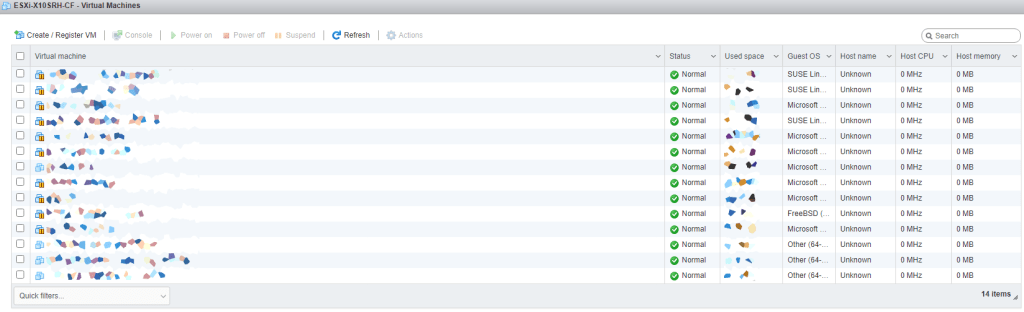
ESXi VMs after editing
/etc/vmware/hostd/vmInventory.xmlto correct vmfs UUIDs and paths.The (blurred) virtual machine names are back as well as power states, disk sizes, operating systems, etc.
- I wasn’t done yet, because since the
.vmxfiles themselves contain absolute references to at least.isoand.vswpfiles, so I needed to fix that by first getting a list of.vmxfiles from thevmInventory.xmlfile:
# sed -n -E -e "s/^ +<vmxCfgPath>(.+)<\/vmxCfgPath>$/\1/p" /etc/vmware/hostd/vmInventory.xml - This will get you the files; usually they are in entries like
ide0:0.fileName,sata0:0.fileNameandsched.swap.derivedName:
# sed -n -E -e "s/^ +<vmxCfgPath>(.+)<\/vmxCfgPath>$/\1/p" /etc/vmware/hostd/vmInventory.xml | xargs -n 1 -I {} grep "vmfs" {} - Appending
| sed -n -E -e "s#^.+? = (\"/.*\")#\1#p" | sort | uniq | xargs ls -Alhwill list the files in unique sorted order:
# sed -n -E -e "s/^ +<vmxCfgPath>(.+)<\/vmxCfgPath>$/\1/p" /etc/vmware/hostd/vmInventory.xml | xargs -n 1 -I {} grep "vmfs" {} | sed -n -E -e "s#^.+? = (\"/.*\")#\1#p" | sort | uniq | xargs ls -AlhNote that the backslash
\escaped double quotes"are inside the parenthesis()because filenames can contain spaces. - For me the list was like this:

Valid and invalid files referenced from
.vmxfiles - This gave me the volume UUIDs that I had to replace, of which the first bunch until
xwere all.isodisk images referenced by disconnected optical devices and the last ones available.isodisk images. The remaining ones corresponded to replace operations I already had done on thevmInventory.xmlfile, so I could repeat that exercise, open each file inviand repeat the search operations. This is the statement to open each.vmxfile invi:
# sed -n -E -e "s/^ +<vmxCfgPath>(.+)<\/vmxCfgPath>$/\1/p" /etc/vmware/hostd/vmInventory.xml | xargs -n 1 -I {} grep -l "vmfs" {} | xargs -n 1 -I [] echo "vi \"[]\""Note that the double quotes
"because filenames can contain spaces, and the same search and replace operations I used on the/etc/vmware/hostd/vmInventory.xmlfile::%s/5ad4aeea-6954841c-470e-0cc47aaa9742/6097a4eb-6c6e4c76-46d3-0cc47aaa9742/g :%s:5ad4af1b-f3ae285c-e0f4-0cc47aaa9742:6097a4eb-6c6e4c76-46d3-0cc47aaa9742/base/archiveteam:g :%s:/archiveteam-warrior-v3-20171013 instance 2/:/archiveteam-warrior-v3-20171013.instance-2/:g - Now the ESXi host needs to get out of maintenance mode (I use
esxcli-maintenanceMode-show.shandesxcli-maintenanceMode-exit.shfrom VMware ESXi 6 and 7: checking and setting/clearing maintenance mode from the console) immediately followed by the next step (otherwise someone else could start a virtual machine with the old.vmxinformation) - Reloading all the
vmxconfigurations can be done withvim-cmd-reload-all-VM-vmx-configurations.shas I described yesterday in Source: ESXi: reloading all virtual machines from their (potentially) vmx files. - Note that when powering on virtual machines, you need to answer a question like this for each virtual machine:
This virtual machine might have been moved or copied. In order to configure certain management and networking features, VMware ESX needs to know if this virtual machine was moved or copied. If you don’t know, answer “I Copied It”.
- I Moved It
- I Copied It
One more thing
A final note: I need to check out if .vswp files need to be there at all, as my ESXi servers have plenty of physical memory in order not to swap out to disk. More on that in a future blog post.

 The Wiert Corner - irregular stream of stuff
Leave a comment