


Disabling the Windows 10 news (and weather) feeds
Posted by jpluimers on 2023/05/11
I finally got annoyed enough to figure out how to disable the Windows 10 news (and weather) feeds.
At first I thought the solution in this post worked for Windows 11 as well, but re-testing in Windows 11 it does not or does not (or not any more: given so many new Windows 11 releases with ever changing functionality I’m not surprised).
Disable Windows news feeds for current user
Failure: just disabling the news feed will automatically get it reset by explorer.exe
Based on the below sources, I made this small batch file:
reg add "HKCU\Software\Microsoft\Windows\CurrentVersion\Feeds" /v "ShellFeedsTaskbarViewMode" /t REG_DWORD /d "2" /f
To restore the values, I made this batch file:
reg add "HKCU\Software\Microsoft\Windows\CurrentVersion\Feeds" /v "ShellFeedsTaskbarViewMode" /t REG_DWORD /d "0" /f
There is no need to me elevated with an administrative token to run the above two scripts, but the first fails: explorer.exe immediately resets the "ShellFeedsTaskbarViewMode" value back to 0 from 2. Bummer.
A quick look with Process Monitor revealed that explorer (re)sets the "ShellFeedsTaskbarViewMode" value to zero very often:
explorer resets ShellFeedsTaskbarViewMode to zero very often (click for a larger version)
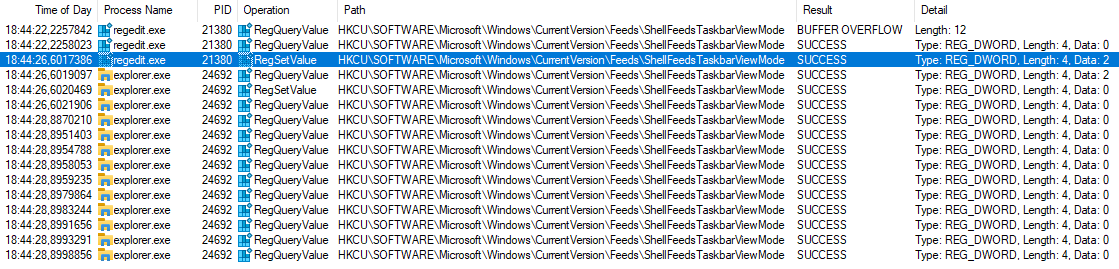
This is the same observation as in [Wayback/Archive] Windows Reverts Change to ShellFeedsTaskbarViewMode, but with the differences that setting it twice won’t stick, nor setting it to 1 will stick.
I tested it with this batch file:
reg query "HKCU\Software\Microsoft\Windows\CurrentVersion\Feeds" /v "ShellFeedsTaskbarViewMode"
reg add "HKCU\Software\Microsoft\Windows\CurrentVersion\Feeds" /v "ShellFeedsTaskbarViewMode" /t REG_DWORD /d "2" /f
reg query "HKCU\Software\Microsoft\Windows\CurrentVersion\Feeds" /v "ShellFeedsTaskbarViewMode"
It gave this output:
HKEY_CURRENT_USER\Software\Microsoft\Windows\CurrentVersion\Feeds
    ShellFeedsTaskbarViewMode    REG_DWORD    0x0

The operation completed successfully.

HKEY_CURRENT_USER\Software\Microsoft\Windows\CurrentVersion\Feeds
    ShellFeedsTaskbarViewMode    REG_DWORD    0x0
Similar solutions like the one in [Wayback/Archive] How do I remove the news and interests from windows taskbar with C#? – Stack Overflow will fail in the same way, though they often execute faster than a batch file, so the output will look like a success, but actually is a failure as explorer.exe restores the value after the correct output appeared.
Solution: kill explorer.exe before disabling newsfeed, then start explorer.exe
I remembered I had written a batch file before that kille and restarts explorer.exe years ago in Inno Setup: Program Folder not showing up In Start > All Programs and yesterday in Restart Windows explorer with an UAC administrator token.
So now the above batch file is this:
taskkill /F /IM explorer.exe
reg query "HKCU\Software\Microsoft\Windows\CurrentVersion\Feeds" /v "ShellFeedsTaskbarViewMode"
reg add "HKCU\Software\Microsoft\Windows\CurrentVersion\Feeds" /v "ShellFeedsTaskbarViewMode" /t REG_DWORD /d "2" /f
reg query "HKCU\Software\Microsoft\Windows\CurrentVersion\Feeds" /v "ShellFeedsTaskbarViewMode"
start explorer.exe
Which gave this output:
HKEY_CURRENT_USER\Software\Microsoft\Windows\CurrentVersion\Feeds
    ShellFeedsTaskbarViewMode    REG_DWORD    0x0

The operation completed successfully.

HKEY_CURRENT_USER\Software\Microsoft\Windows\CurrentVersion\Feeds
    ShellFeedsTaskbarViewMode    REG_DWORD    0x2
After this, the menu looks like I described in [Wayback/Archive] Jeroen Wiert Pluimers on Twitter: “@Marco_Langbroek @zouthapper Het effect is hetzelfde: daarna uitgeschakeld.”

The script is at [Wayback/Archive] Disabling the Windows 10 and Windows 11 news (and weather) feeds:
This file contains hidden or bidirectional Unicode text that may be interpreted or compiled differently than what appears below. To review, open the file in an editor that reveals hidden Unicode characters.
Learn more about bidirectional Unicode characters
| @echo off | |
| :: https://wiert.wordpress.com/?p=99344 | |
| :: no need to logoff/logon or reboot, killing explorer then restarting it suffices | |
| :: without the kill; explorer will reset the value from 2 to 0 within milliseconds | |
| taskkill /F /IM explorer.exe | |
| reg query "HKCU\Software\Microsoft\Windows\CurrentVersion\Feeds" /v "ShellFeedsTaskbarViewMode" | |
| reg add "HKCU\Software\Microsoft\Windows\CurrentVersion\Feeds" /v "ShellFeedsTaskbarViewMode" /t REG_DWORD /d "2" /f | |
| reg query "HKCU\Software\Microsoft\Windows\CurrentVersion\Feeds" /v "ShellFeedsTaskbarViewMode" | |
| start explorer.exe |
Disable Windows news feeds for all users?
I have not tried this myself, but the below solution modifying the User Profile registry hive of the Default User (on default systems that is stored in C:\Users\Default\NTUSER.DAT) from within the registry editor. For more on User Profiles and the one for the Default User, see:
- User profiles in Microsoft Windows: Profile creation – Wikipedia
- User profiles in Microsoft Windows: Profile contents – Wikipedia
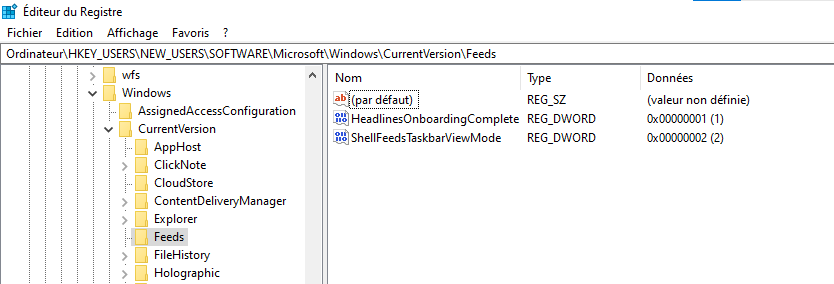
The user [Wayback/Archive] mathissuper – Microsoft Community (thanks!) explained how to in [Wayback/Archive] Hide News and Interests for new users – Microsoft Community:
I found the solution: the keyHeadlinesOnboardingComplete(value at1) is needed in addition to the keyShellFeedsTaskbarViewModewhen editing the Default’sNTUSER.DAT. Here’s what it looks like:Note: I loaded the Default’s hive (C:\Users\Default\NTUSER.DAT) inHKEY_USERS\NEW_USERS. Don’t forget to unload the hive after the edit!Now when I create a new user the widget is hidden from the taskbar as I wanted.
Disabling through Group Policy Editor
Performing a [Wayback/Archive] “explorer” resets “ShellFeedsTaskbarViewMode” – Google Search got me this [Wayback/Archive] Windows 10 june update – Disable taskbar widget : sysadmin:
- From an updated Windows 10 client:
copy bothfeeds.admlandfeeds.admxfromC:\Windows\PolicyDefinitionsto DomainControlleradmxstore- New GPO should appear on the following path:
Computer Configuration > Administrative Templates > Windows Components > News and interests > Enable news and interests on the taskbar
No News and Interests in Windows 10 editions: Enterprise LTSC
Yup, there is is nu such widget there, as LTSC (Long-Term Servicing Channel) (formerly LTSB (Long-Term Servicing Branch)) is meant to be a no frills edition, not to keep it cheap (it is likely more expensive as it is special) but because it is aimed for embedded systems like systems for medical, financial, and factory process usage (but not turn-key devices like kiosks, embedded equipment and such: those are what Windows IoT is for, see [Wayback/Archive] LTSC: What is it, and when should it be used? – Microsoft Tech Community).
So this question got a “No” as answer, as it is moot: [Wayback/Archive] Is it possible to get News and Interests in the taskbar on LTSC 2021? : Windows10LTSC
Source
I started with [Wayback/Archive] remove news from windows 10 taskbar – Google Search which lead to [Wayback/Archive] 3 Easy Ways to Disable News and Interests in Windows 10 that rambled about all kinds of non-related settings before mentioning the ShellFeedsTaskbarViewMode core registry settings in HKEY_CURRENT_USER\Software\Microsoft\Windows\CurrentVersion\Feeds.
From that, I found about the only link that actually documented the settings [Wayback/Archive] Don’t have Weather widget on taskbar (21390. build) Solved – Windows 10 Forums
rem News and Interests / 0 - Show icon and text (default) / 1 - Show icon only / 2 - Turn off

reg add "HKCU\Software\Microsoft\Windows\CurrentVersion\Feeds" /v "ShellFeedsTaskbarViewMode" /t REG_DWORD /d "0" /f
rem News and Interests Reduce taskbar updates / 0 - No / 1 - Yes

reg add "HKCU\Software\Microsoft\Windows\CurrentVersion\Feeds" /v "ShellFeedsTaskbarContentUpdateMode" /t REG_DWORD /d "0" /f
rem News and Interests Open on hover / 0 - No / 1 - Yes

reg add "HKCU\Software\Microsoft\Windows\CurrentVersion\Feeds" /v "ShellFeedsTaskbarOpenOnHover" /t REG_DWORD /d "1" /f
Looking at the values under "HKCU\Software\Microsoft\Windows\CurrentVersion\Feeds", I found these to be the defaults:
"ShellFeedsTaskbarViewMode"=0
"ShellFeedsTaskbarContentUpdateMode"was not there
"ShellFeedsTaskbarOpenOnHover"was not there
–jeroen

 The Wiert Corner - irregular stream of stuff
Leave a comment