Archive for the ‘Mac OS X / OS X / MacOS’ Category
Posted by jpluimers on 2020/09/28
 Windows 10 comes with a broken Camera viewer and before that, Windows 7 killed the one in Windows XP.
On a Mac you have the open source Quick Camera (which named QCamera before, seeViewing an USB camera on Mac OS X without mirroring and Capturing from a Magewell XI100USB on a Mac using OS X) at [WayBack] GitHub – simonguest/quick-camera.
For Windows 7, a long search initially revealed a lot of bloat-ware, but finally ended to these two both from the same author:
It is not open source (yet?), but since it is .NET, it is reasonable easy to see the innards.
Like QCamera, it does not require installation: just unzip and run. Enjoy!
Yes, I know there are Windows 10 workaround steps via Microsoft.CameraApp.App.ctor, but if you look at [WayBack] Win10 Home N – Camera App fails: System.IO.FileNotFoundException – Microsoft Community you will understand I did not apply them.
Similarly, when you install Skype from the app store, then sign-in, it will tell you that Skype is out of date.

–jeroen
via:
Posted in .NET, Apple, Development, Mac OS X / OS X / MacOS, Power User, Software Development, Windows | Leave a Comment »
Posted by jpluimers on 2020/07/06
Two tools I like:
GrandPersctive is good at showing a visual overeview. OmniDiskSweeper is better at gradually drilling down.
Easy installation:
$ brew install caskroom/cask/omnidisksweeper
$ brew install caskroom/cask/grandperspective
–jeroen
Posted in Apple, Mac OS X / OS X / MacOS, Power User | Leave a Comment »
Posted by jpluimers on 2020/07/03
[WayBack] AppCleaner helped me get rid of a the gazillion number of versions that GoToMeeting had silently installed and their dependencies.
Gigabytes recovered.
Installing is easy: $ brew install caskroom/cask/appcleaner
AppCleaner is a small application which allows you to thoroughly uninstall unwanted apps.
Installing an application distributes many files throughout your System using space of your Hard Drive unnecessarily.
AppCleaner finds all these small files and safely deletes them.
Simply drop an application onto the AppCleaner window. It will find for the related files and you can delete them by clicking the delete button.
–jeroen

Posted in Apple, Mac OS X / OS X / MacOS, Power User | Leave a Comment »
Posted by jpluimers on 2020/07/03
A friend asked me what tools I use for downloading media, converting it to various formats (including audio extraction) and audio editing.
It is a surprisingly short list:
Most of it runs out of the box on Mac OS X/MacOS/OS X, as I’ve moved there form Windows for most of my day to day access to systems (there is a great set of Microsoft Remote Desktop in the app store: [Archive.is] Microsoft Remote Desktop 8.0 on the Mac App Store and [Archive.is] Microsoft Remote Desktop 10 on the Mac App Store; I like the first one better).
Audacity shortcuts
Read the rest of this entry »
Posted in Apple, Audacity, Audio, ffmpeg, iMac, Mac, Mac OS X / OS X / MacOS, MacBook, MacBook Retina, MacBook-Air, MacBook-Pro, MacMini, Media, Power User, Remote Desktop Protocol/MSTSC/Terminal Services, SocialMedia, Windows, YouTube, youtube-dl | Leave a Comment »
Posted by jpluimers on 2020/06/29
 For quite a while, I had the error “The application “Audacity.app” can’t be opened.” and Audacity still opening. Clicking the OK button often enough made me hunt for the solution:
This is what I did:
$ cd ~/Library/Application\ Support/audacity

$ grep Temp audacity.cfg

TempDir=/Users/jeroenp/Library/Application Support/audacity/SessionData
Then I checked if the directory existed:
Read the rest of this entry »
Posted in *nix, *nix-tools, Apple, Audacity, Audio, Mac, Mac OS X / OS X / MacOS, MacBook, MacBook Retina, MacBook-Air, MacBook-Pro, Media, Power User, sed | Leave a Comment »
Posted by jpluimers on 2020/06/26
Put the song in a playlist and click the check box off. All the songs in the playlist will have to be clicked off as well.Or easier still have the track as the only song in the play list.
For me, the easiest way to do this is to put all songs in a playlist, then in the playlist (can be “Playlist” view mode, but “Songs” view mode is easier). The video below shows exactly how to do this, but here are te steps:
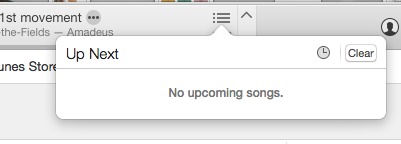 select all songs with Command-A
- right-click
- choose “Uncheck Selection” to remove all checkboxes
- double click on each song you want to play individually
Via:
Finally, [WayBack] iTunes 11 for Mac: Ways to play songs shows the meaning of the shuffle and repeat buttons in the player:

Source: S0024_ProgressBar.png (350×115)
–jeroen
Read the rest of this entry »
Posted in Apple, iTunes, Mac OS X / OS X / MacOS, Power User | Leave a Comment »
Posted by jpluimers on 2020/06/22
And still the UI has not improved:
The default folder-merge behavior in Mac OS X is to erase the existing folder, deleting all its files rather than offering to merge them intelligently. Windows and Linux file managers have offered folder-merging for decades, but Macs still don’t.
[WayBack]How to Merge Folders on Mac OS X Without Losing All Your Files (Seriously)
Via: [WayBack] Yes, you’re reading that right — try to merge a folder like you would on Windows or Linux and you’ll lose all the old folder’s files if you click Replace… – Roderick Gadellaa – Google+
–jeroen
Posted in Apple, Mac, Mac OS X / OS X / MacOS, Power User | Leave a Comment »
Posted by jpluimers on 2020/06/05
The Terminal on Mac OS X / OS X / MacOS is very much like a Linux terminal, but there are also a lot of differences especially with keyboard, tab and process handling.
So this chapter is very much wort reading: [WayBack] 1. Inside the Terminal – Mac OS X For Unix Geeks, 4th Edition [Book]
–jeroen
Posted in Apple, iMac, Mac, Mac OS X / OS X / MacOS, MacBook, MacBook Retina, MacBook-Air, MacBook-Pro, MacMini, Power User | Leave a Comment »


 The Wiert Corner - irregular stream of stuff