The Wiert Corner – irregular stream of stuff

Jeroen W. Pluimers on .NET, C#, Delphi, databases, and personal interests

  • My badges

  • Twitter Updates

  • My Flickr Stream

  • Pages

  • All categories

  • Enter your email address to subscribe to this blog and receive notifications of new posts by email.

    Join 1,862 other subscribers

Archive for the ‘Mac’ Category

Need to figure out how to remount 2015 Retina MacBook Pro SD card that got ejected during sleep

Posted by jpluimers on 2020/09/04

Somehow, every now and then, a 2015 Retina MacBook Pro will eject the SD Card during sleep.

I’m not sure about the cause, just about the message that a drive got unmounted in an unexpected way.

This fails to rescan for the drive on Mac OS Sierra:

sudo kextunload -b com.apple.driver.AppleSDXC
sudo kextload -b com.apple.driver.AppleSDXC

As per [WayBack] external disk – Problem with kextunload SD card remount – Ask Different, I tried the kextstat below, however, before the unload/load statements, kextstat | grep -e SDXC returns nothing.

After them, it returns something like

156 0 0xffffff7f841f3000 0x12000 0x12000 com.apple.driver.AppleSDXC (1.7.6) 0F6F5025-A1C4-3E77-9ECD-4D4410E684C5 <16 15 12 5 4 3 1>

When it happens again, I will likely need to read these:

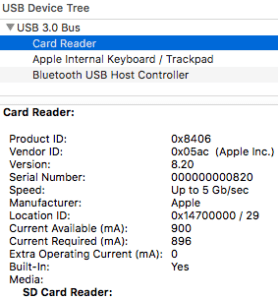
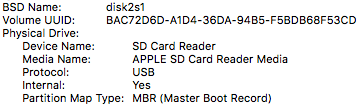
It might be that somewhere along the line, SDSX is not started by default any more or not applicable to MicroSD to SDXC card converters. These screenshots at least show that this disk is connected via a USB path:

The screenshots are from the stock “System Information.app” tool, and I really wish it showed the kext drivers used for each device. That would make debugging these issues a lot easier!

A solution then could be as easy as this:

Unmount all USB connected devices (for instance with a command like diskutil eject disk1);

sudo kextunload -b com.apple.driver.AppleUSBCardReader
sudo kextload -b com.apple.driver.AppleUSBCardReader

However my first try got me an error similar to the one result [WayBack] External USB disk sometimes requires a reboot to be recognized after eject – Ars Technica OpenForum I found after searching for “class com_apple_driver_AppleUSBCardReaderDriverNub has” “instances.”:

7/28/16 10:05:54.000 AM kernel[0]: Can't unload kext com.apple.driver.AppleUSBCardReader; classes have instances:
7/28/16 10:05:54.000 AM kernel[0]: Kext com.apple.driver.AppleUSBCardReader class com_apple_driver_AppleUSBCardReaderDriverNub has 2 instances.

–jeroen

Posted in Apple, Mac, MacBook, MacBook Retina, Power User | Leave a Comment »

Tools I use for audio/video downloading, media conversion and audio editing

Posted by jpluimers on 2020/07/03

A friend asked me what tools I use for downloading media, converting it to various formats (including audio extraction) and audio editing.

It is a surprisingly short list:

Most of it runs out of the box on Mac OS X/MacOS/OS X, as I’ve moved there form Windows for most of my day to day access to systems (there is a great set of Microsoft Remote Desktop in the app store: [Archive.isMicrosoft Remote Desktop 8.0 on the Mac App Store and [Archive.isMicrosoft Remote Desktop 10 on the Mac App Store; I like the first one better).

Audacity shortcuts

Read the rest of this entry »

Posted in Apple, Audacity, Audio, ffmpeg, iMac, Mac, Mac OS X / OS X / MacOS, MacBook, MacBook Retina, MacBook-Air, MacBook-Pro, MacMini, Media, Power User, Remote Desktop Protocol/MSTSC/Terminal Services, SocialMedia, Windows, YouTube, youtube-dl | Leave a Comment »

Audacity error when starting “The application “Audacity.app” can’t be opened.”

Posted by jpluimers on 2020/06/29

For quite a while, I had the error “The application “Audacity.app” can’t be opened.” and Audacity still opening. Clicking the OK button often enough made me hunt for the solution:

This is what I did:

$ cd ~/Library/Application\ Support/audacity
$ grep Temp audacity.cfg
TempDir=/Users/jeroenp/Library/Application Support/audacity/SessionData

Then I checked if the directory existed:

Read the rest of this entry »

Posted in *nix, *nix-tools, Apple, Audacity, Audio, Mac, Mac OS X / OS X / MacOS, MacBook, MacBook Retina, MacBook-Air, MacBook-Pro, Media, Power User, sed | Leave a Comment »

How to Merge Folders on Mac OS X Without Losing All Your Files (Seriously)

Posted by jpluimers on 2020/06/22

And still the UI has not improved:

The default folder-merge behavior in Mac OS X is to erase the existing folder, deleting all its files rather than offering to merge them intelligently. Windows and Linux file managers have offered folder-merging for decades, but Macs still don’t.

[WayBack]How to Merge Folders on Mac OS X Without Losing All Your Files (Seriously)

Via: [WayBack] Yes, you’re reading that right — try to merge a folder like you would on Windows or Linux and you’ll lose all the old folder’s files if you click Replace… – Roderick Gadellaa – Google+

–jeroen

Posted in Apple, Mac, Mac OS X / OS X / MacOS, Power User | Leave a Comment »

1. Inside the Terminal – Mac OS X For Unix Geeks, 4th Edition [Book]

Posted by jpluimers on 2020/06/05

The Terminal on Mac OS X / OS X / MacOS is very much like a Linux terminal, but there are also a lot of differences especially with keyboard, tab and process handling.

So this chapter is very much wort reading: [WayBack] 1. Inside the Terminal – Mac OS X For Unix Geeks, 4th Edition [Book]

–jeroen

Posted in Apple, iMac, Mac, Mac OS X / OS X / MacOS, MacBook, MacBook Retina, MacBook-Air, MacBook-Pro, MacMini, Power User | Leave a Comment »

How to set default apps on Mac | iMore

Posted by jpluimers on 2020/05/07

  1. Select a file in the Finder
  2. Press Command-I to show the “Get Info” for the file (or right click, and select “Get Info”)
  3. Expand the “Open with”
  4. Select a different application than the default, then press the “Change All…” button
  5. Confirm the change

Based on [WayBack] How to set default apps on Mac | iMore.

–jeroen

Posted in Apple, iMac, Mac, Mac OS X / OS X / MacOS, MacBook, MacBook Retina, MacBook-Air, MacBook-Pro, MacMini, Power User | Leave a Comment »

Quickly See All the Formulas in Excel with This Shortcut

Posted by jpluimers on 2020/04/13

Toggle between regular view and view all formulas in a worksheet via [WayBack] Quickly See All the Formulas in Excel with This Shortcut which I wish I had known years ago:

  • Windows: Ctrl + ` (the acute accent key, found next to the number 1 on your keyboard).
  • MacOS: Cmd + `

Found using image search macos excel show all formulas – Google Search

–jeroen

Read the rest of this entry »

Posted in Apple, Excel, Mac, Mac OS X / OS X / MacOS, MacBook, MacBook Retina, MacBook-Air, MacBook-Pro, macOS 10.12 Sierra, macOS 10.13 High Sierra, Office, Office 2011 for Mac, Power User | Leave a Comment »

Mounting a Time Machine backup under Linux so you can send it to Backblaze using Restic…

Posted by jpluimers on 2020/03/16

[WayBack1/WayBack2] Memo to self: Ich will ein Time Machine Backup unter Linux mounten, um das “Latest” Verzeichnis mit Restic an Backblaze senden zu können. Schritt 1: Sp… – Kristian Köhntopp – Google+:

Memo to self: Ich will ein Time Machine Backup unter Linux mounten, um das “Latest” Verzeichnis mit Restic an Backblaze senden zu können.

Schritt 1: Sparsebundle mounten

# ls -l /export/tm_kk/
total 8
drwx—— 3 kris users 4096 Oct 21 16:24 KK.sparsebundle

Geht mit

# git clone git://github.com/torarnv/sparsebundlefs.git
# cd sparsebundlefs; make
# mkdir -p /bundles/tm_kk
# sparsebundlefs /export/tm_kk/KK.sparsebundle /bundles/tm_kk
# ls -lh /bundles/tm_kk
total 0
-r——– 1 root nogroup 1.5T Oct 21 16:24 sparsebundle.dmg

Schritt 2: DMG loopmounten

# fdisk -l /bundles/tm_kk/sparsebundle.dmg
Disk /bundles/tm_kk/sparsebundle.dmg: 1.5 TiB, 1648462135296 bytes, 3219652608 sectors
Units: sectors of 1 * 512 = 512 bytes
Sector size (logical/physical): 512 bytes / 512 bytes
I/O size (minimum/optimal): 512 bytes / 512 bytes
Disklabel type: gpt
Disk identifier: 15FCCBBD-49E4-42BB-B359-EF662F9916CF

Device Start End Sectors Size Type
/bundles/tm_kk/sparsebundle.dmg1 40 409639 409600 200M EFI System
/bundles/tm_kk/sparsebundle.dmg2 409640 3219390423 3218980784 1.5T Apple HFS/HFS+

# kpartx -a -v /bundles/tm_kk/sparsebundle.dmg
add map loop8p1 (253:1): 0 409600 linear 7:8 40
add map loop8p2 (253:19): 0 3218980784 linear 7:8 409640

# mkdir -p /hfs/tm_kk
# mount -o ro -t hfsplus /dev/mapper/loop8p2 /hfs/tm_kk
# b=$(readlink /hfs/tm_kk/Backups.backupdb/KK/Latest)
# ls -l /hfs/tm_kk/Backups.backupdb/KK/$b
total 0
drwxr-xr-x 1 root root 30 Oct 21 14:26 ‘Macintosh HD’

Schritt 3: tmfs mount

Ein Time Machine Backup enthält doofe Hardlinks auf Verzeichnisse. Das kann Linux so nicht, und man muß das noch einmal mit tmfs fusemounten. Seufz.

# apt-get install tmfs
# mkdir -p /tmfs/tm_kk
# tmfs /hfs/tm_kk /tmfs/tm_kk
# ls -l /tmfs/tm_kk/KK/Latest/
total 0
drwxr-xr-x 1 root root 30 Oct 21 14:26 ‘Macintosh HD’

Das durchzulesen ist nicht mal langsam.

Schritt 4: Abbauen

# umount /tmfs/tm_kk
# umount /hfs/tm_kk/
# kpartx -d -v /bundles/tm_kk/sparsebundle.dmg
del devmap : loop8p1
del devmap : loop8p2
loop deleted : /dev/loop8
# umount /bundles/tm_kk

Schritt 5: Den Mist scripten

A few important comments from the WayBack2 link:

Jeroen Wiert Pluimers:

So your time machine data is on a Linux disk that you export from Linux to MacOS? (as otherwise, I don’t understand what /export/tm_kk/KK.sparsebundle is for)

Kristian Köhntopp:

Yes, I am running netatalk, SMB and NFS on an Ubuntu 18.04.

Jeroen Wiert Pluimers:

+Kristian Köhntopp Thanks. What do you envision as steps to restore a complete time machine?

Kristian Köhntopp:

We will see. I do not see that as normally necessary. Mostly I do not want to lose the work on my laptop, and am just to lazy to restrict the backup to that. In general, it should be possible to create this as a writeable setup so that I get the data back. I will probably never recreate a full runnable mac setup from this emergency offsite backup.

Tools used:

–jeroen

Posted in *nix, *nix-tools, Apple, Backup, Mac, Mac OS X / OS X / MacOS, MacBook, Power User | Leave a Comment »

MacOS: Checking a disk for bad blocks

Posted by jpluimers on 2020/03/13

Hardware fails, but most disk tools on MacOS only check logical disk structures, not bad blocks.

Luckily, fsck_hfs can, though Apple is a bit secretive on it: [WayBack] Page Not Found – Apple Developer: ManPages/man8/fsck_hfs.8.html is empty, but there is [WayBack] man page fsck_hfs section 8 and the gist below.

Disk volumes on MacOS use a successor of HFS called HFS Plus – Wikipedia, but the tooling never changed names.

I got at the below parameters through [

This is the disk check command:

# sudo fsck_hfs -dylS /dev/disk3s1
** /dev/rdisk3s1 (NO WRITE)
    Using cacheBlockSize=32K cacheTotalBlock=65536 cacheSize=2097152K.
Scanning entire disk for bad blocks
   Executing fsck_hfs (version hfs-407.50.6).
** Performing live verification.
** Checking Journaled HFS Plus volume.
   The volume name is SanDisk400GB
** Checking extents overflow file.
** Checking catalog file.
** Checking extended attributes file.
** Checking volume bitmap.
** Checking volume information.
** The volume SanDisk400GB appears to be OK.
    CheckHFS returned 0, fsmodified = 0

The italic part is the bad block scanning. The normal part the hfs scanning, which will continue even after finding bad blocks.

If bad blocks are found, output looks more like on the right. If it looks like that, basically you know a disk is toast.

It can be slow, as I did not specify a cache, so it defaults to 32 Kibibyte. You can increase that by adding for instance -c 512m  for 512 Mebibyte cache, just read the short help or man page below.

This tremendously helps checking volumes containing many files, for instance [WayBack] Checking Very Large Time Machine Volumes – Mac OS X Hints

Read the rest of this entry »

Posted in Apple, Mac, Mac OS X / OS X / MacOS, Power User | 1 Comment »

MacOS: converting a man page to markdown

Posted by jpluimers on 2020/03/09

Converting a man page to markdown is a three step process:

  1. installing a tool that can convert the source of a man page to markdown
  2. finding the location of the man page source
  3. doing the actual conversion

Tool to convert man to markdown

The source format of man pages is troff, which is usually converted by man using groff, or a set of macros.

My initial thought for the first problem was to use pandoc, but as I found earlier in pandoc oneliner from reStructuredText to html, on MacOS, the pandoc can write groff format, but not read it.

Luckily doing a pandoc from groff to markdown – Google Search, I bumped into [WayBack] Convert groff to markdown · Issue #8 · neomutt/neomutt-docs · GitHub which lead to mandoc – Wikipedia.

Since I already had homebrew installed, getting mandoc was simple: brew install mandoc.

Finding the man page source

Earlier in the process when searching for pandoc based conversions, I found the solution for the second problem too: [WayBack] Man page with preserved text decorations, proportional text and fixed-width code – Unix & Linux Stack Exchange taught me about the -w option, but there is actually a -W option that works better if you have multiple pages for a keyword:

-w or --path
Don’t actually display the man pages, but do print the location(s) of the files that would be formatted or displayed. If no argument is given: display (on stdout) the list of directories that is searched by man for man pages. If manpath is a link to man, then “manpath” is equivalent to “man --path“.

-W Like -w, but print file names one per line, without additional information. This is useful in shell commands like man -aW man | xargs ls -l

Actual conversion for fsck_hfs

It all came down to a one-liner:

mandoc -T markdown `man -w fsck_hfs` > /tmp/fsck_hfs.8.md

Note the order here is important this will fail with an error:

mandoc `man -w fsck_hfs` -T markdown > /tmp/fsck_hfs.8.md

mandoc: -T: ERROR: No such file or directory
mandoc: markdown: ERROR: No such file or directory

–jeroen

Read the rest of this entry »

Posted in Apple, Mac, Mac OS X / OS X / MacOS, Power User | 1 Comment »