Archive for the ‘Office 2007’ Category
Posted by jpluimers on 2022/03/01
Sometimes, you figure out Excel functionality you have never needed before, but has been there for decades.
A while ago, I had a very complex with formulas referencing full columns back and forth when suddenly I got into something strange: when reloading the spreadsheet, values would not appear because of recursion errors. Before saving this was fine, so it was hard to track back where I want wrong.
So I was happy to find out that Excel has two cool features for this:
- Trace Precedents
- Trace Dependents
Heck, looking at the icons I had a feel these features had been there for a long time. Boy, was I surprised to find them in [Wayback] Excel 2000 – Student Edition – Complete (a great book by the way), as you can see in this picture:
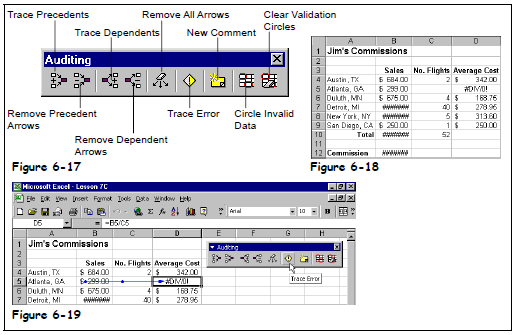
Excel 2000 – Student Edition – Complete – Trace precedents, dependents, error
As others can explain this feature so much better than I can, here are some links:
–jeroen
Posted in Excel, Office, Office 2000, Office 2003, Office 2007, Office 2010, Office 2011 for Mac, Office 2013, Office 2016, Power User | Leave a Comment »
Posted by jpluimers on 2021/06/11
Steps to have only the body parts of your Winword document Heading 1 numbered, but parts like Summary and Table of Contents without numbering.
Related:
Steps:
- Create a document with
- some paragraphs of body text, intertwined with:
- some paragraphs that should become numbered headings,
- some paragraphs that should become non-numbered headings
- room for a table of context
- Go to the “Styles” popup (keyboard shortcut
Ctrl+Shift+Alt+S, or ribbon “Home” -> section “Styles” -> small button on the lower right of the ribbon section
- For each paragraph that should become a heading, apply style “Heading 1” (you can also use keyboard shortcut
Ctrl+Alt+1 for this)
- Modify the various heading levels so they become numbered: see [WayBack] How to create numbered headings or outline numbering in Word 2007 and Word 2010 | ShaunaKelly.com. I prefer the hierarchical numbered multilevel list without the numbers being indented for the body text, but with indented numbers in the Table of Contents, so lets go.
- Start with the stock multi-leveled list definition:
- Change from “None”
 to the multi-level one: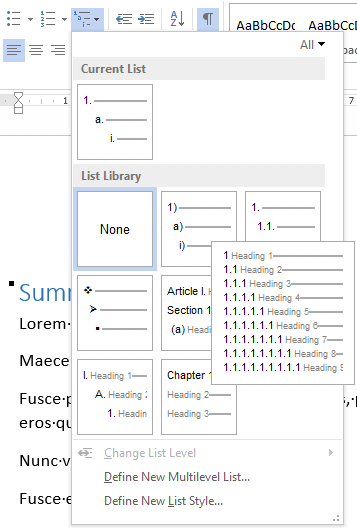
- Now create a new one based on it:
- “Define New List Style…”:

- Rename from “Style1”
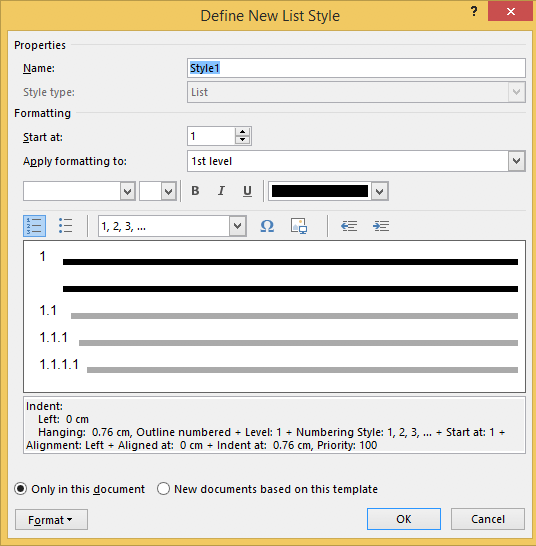 to “Heading
- This involves creating a new list style called “Headings”, based on the numbered list style you like
- Since by default, these bind to all levels, your document styles “Heading 1”..”Heading 9″ are covered. If for one or more styles, you do not want numbering, see below how to fix that (I do that for a “Heading 1 – no-numbering” style used for the “Summary” heading, and for the “TOC Heading” style.
- Mark the “Summary” heading as a new style “Heading 1 – non-numbered”:
- Press
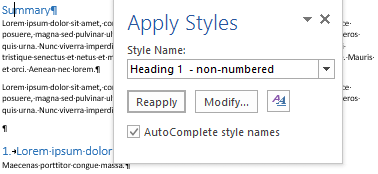
Ctrl+Shift+S to get to the “Apply Styles” 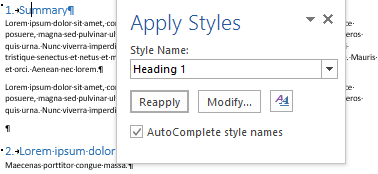
- Enter the new name “Heading 1 – non-numbered” and press the “New” button:
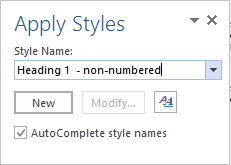
- Press the “Modify” button
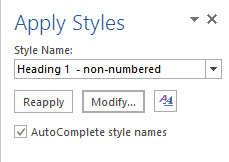
- to view the current style

- Press “Format” ->
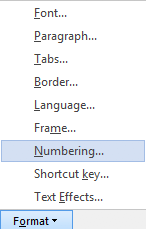
- Change it from “None”
 to “None” and press “OK”
- Observe the numbering is gone:
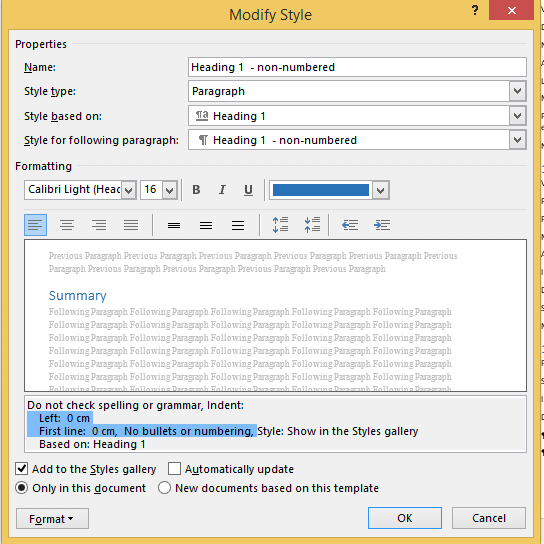
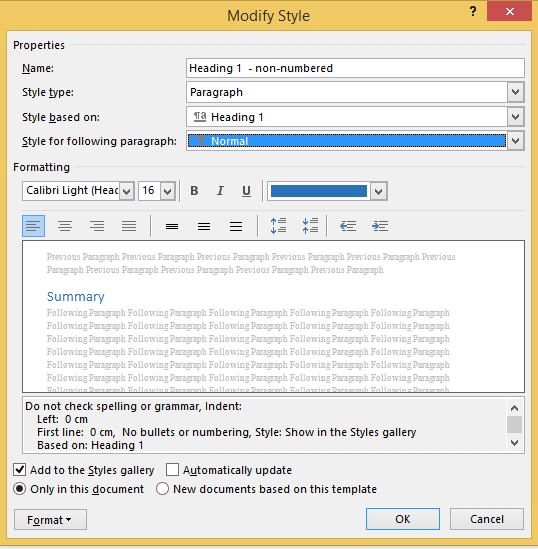
- Unlike the “Heading 1” style, the “Style for following paragraphs” is wrong: it needs to be
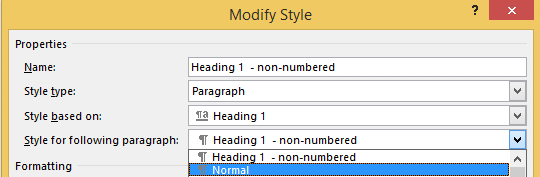
- Now we are done, so press the “OK” button:
- Then observe the first numbered “Heading 1” now has got the number “1” instead of the “Summary”:
- Insert a “Table of Contents”, for instance after the “Summary”
- You might think it will start with a heading “Table of Contents”:
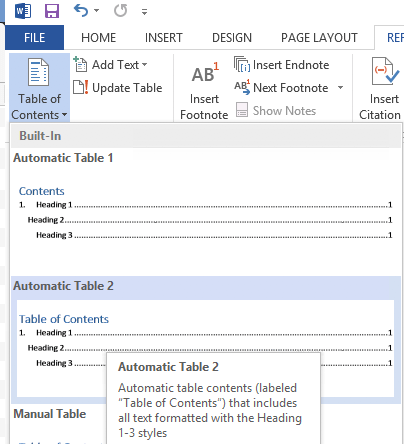
- Im some localisations of office, it is prepended with a “1.” and becomes “1. Table of Contents”. If it does, then you have to change style “TOC Heading” and undo the numbering as done with “Heading 1 – non-numbering” by pressing
Ctrl+Shift+S when you are in the “Table of Contents” heading: 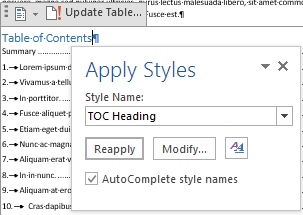
- From there, press the “Modify” button and continue as done with “Heading 1 – non-numbering”:
–jeroen
Posted in Office, Office 2007, Office 2010, Office 2013, Office 2016, Power User, Word | Leave a Comment »
Posted by jpluimers on 2021/06/07
Choices:
=lorem(...): Ramdom Lorem Ipsum text paragraphs.
- The sentences are roughly between 0.25 and 1.0 document widths in length.
=rand(...): Random English help text like paragraphs.
- The sentences are roughly between 0.5 and 1.5 document width in length.
=rand.old(...): “The quick brown fox jumps over the lazy dog.” paragraphs (up until Word 2003, this was what rand(...) returned).
- The sentences are always the same length.
(...) parameters:
(x,y): x paragraphs of y sentences of text(y): y paragraphs of 3 sentences of text (lorem more towards 1, rand more towards 3)(): depends on the function:
=lorem(): 5 paragraphs of 3 sentences of text=rand(): 5 paragraphs of 3 sentences of text=rand.old(): 3 paragraphs of 3 sentences of text
Note:
- There is no way to specify x paragraphs of random number lines of text.
- They need to have “Replace text as you type” enabled (see menu option “File” -> “Options” -> “Proofing” -> “Autocorrect Options”)
- Word 2003 and lower only have
=rand(...)
Based on:
Related: [WayBack] 10 awesome Lorem Ipsum alternatives – Justinmind via [WayBack] rand () in word – Microsoft Tech Community – 325554
For a random document demo, I usually do this:
=lorem(100,1) to get 100 paragraphs of 1 line of text- About every 10 paragraphs, I mark a paragraph with a relevant Heading style
- Inside the remaining text, I combine some paragraphs to get longer ones
–jeroen
Posted in Office, Office 2003, Office 2007, Office 2010, Office 2013, Office 2016, Power User, Word | Leave a Comment »
Posted by jpluimers on 2017/01/09
To match dd/mm/yyyy and mm/dd/yyyy column values in columns C (Date1) and N (Date2), I used these formulas in row 2:
| Meaning: |
Column: |
Formula: |
Explanation: |
| Date1Text |
I |
=TEXT(C2,”dd/mm/yyyy”) |
Interpret date text of the original text no matter the Excel settings |
| Date1Value |
J |
=DATE(RIGHT(I2,4),MID(I2,4,2),LEFT(I2,2)) |
Encode the date text to an actual date: dd#mm#yyyy format where # is any separator |
| DatesEqual |
K |
=J2=L2 |
Are the encoded dates equal? |
| Date2Value |
L |
=DATE(RIGHT(M2,4),LEFT(M2,2),MID(M2,4,2)) |
Encode the date text to an actual date: mm#dd#yyyy format where # is any separator |
| Date2Text |
M |
=TEXT(N2,”mm/dd/yyyy”) |
Interpret date text of the original text no matter the Excel settings |
Learn how to convert text values into dates in Excel. This lesson covers a range of different scenarios to help you. The comments have even more examples.
Source: Convert a text value into a date in Excel. Learn Microsoft Excel | Five Minute Lessons
Posted in Excel, Office, Office 2007, Office 2010, Office 2013, Power User | 1 Comment »
Posted by jpluimers on 2016/08/01
Oh man, why didn’t they make a line object out of this…
But if you realize it is a bottom border, then deleting is easy:
The answer is something of a trick, as the horizontal line is not a line (or a graphic), it’s a bottom border.
–jeroen
via: Deleting Horizontal Lines From Word.
Posted in Office, Office 2007, Office 2010, Office 2013, Power User | Leave a Comment »
Posted by jpluimers on 2016/07/18
Coming from an Office pre 2000 background, I’m still amazed at how will things are hidden in modern Office versions.
Take the page numbers not showing on slides – Microsoft Community.
I bumped into that recently as well on a new blank presentation:
You see the placeholders at design time, but they don’t show up at presentation time.
The obvious action for me: Right click on each to see if there is anything about special formatting or hiding. It doesn’t work.
What does work is to:
- Go to the top of the Slide Masters
- Click the Ribbon
- Choose Insert
- Choose Text
- Choose Header & Footer
- Put a check marks for the place holders you want to be visible
–jeroen
via: PowerPoint 2013: Date, Slide Number and Footer | Academic Technology @ Palomar College.
Read the rest of this entry »
Posted in Office, Office 2007, Office 2010, Office 2013, Power User | Leave a Comment »
Posted by jpluimers on 2016/03/25
Apart from the obvious “use less tables” and “break tables apart”, these can also help big time:
- Run %WinDir%\System32\SystemPropertiesPerformance.exe
- Choose “Ajust for best performance” (it will disable all visual enhancements)
- Re-enable “Smooth edges of screen fonts” (it will make it easier to set bold and italic apart in Word)
If it is still too slow, I might look into these:
–jeroen
Read the rest of this entry »
Posted in Microsoft Surface on Windows 7, Office, Office 2007, Office 2010, Office 2013, Power User, Windows, Windows 7, Windows 8, Windows 8.1, Windows 9, Windows Server 2008, Windows Server 2008 R2, Windows Server 2012, Windows Server 2012 R2, Windows Vista, Word | Leave a Comment »
Posted by jpluimers on 2015/12/07
Showing message headers and source used to be easy in early Outlook versions.
But as of Outlook 2007 they hid the internet message headers even further away than in Outlook 2003.
Steps for Outlook 2007+:
- Start Outlook.
- Double-click the message for which you want to view full internet headers.
- Click Options (2007) or Tags (2010/2013).
- The Message Options dialog box is displayed. You are after the Internet headers field at the bottom of the dialog box.
Same for the message source:
- Start Outlook
- Double-click the message for which you want to view full internet headers.
- In the Move section of the Ribbon, click on Actions
- Click Other Actions
- Click View Source
- Notepad (or the program associated with html source files) opens with a file email.txt containing the message source.
–jeroen
via:
Posted in Office, Office 2003, Office 2007, Office 2010, Office 2013, Outlook, Power User | Leave a Comment »
Posted by jpluimers on 2015/11/19
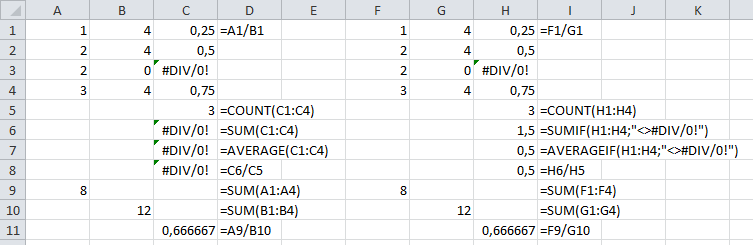
I bumped into a #DIV/0! result for average functions when processing large sets of data.
It is actually very easy to spot the error in small results, sets, but hard in big ones, as you cannot see the #DIV/0!
So there are average functions that can ignore certain outcomes. COUNT already does that (there is no COUNTIF), the others have a *IF equivalent, but not in all Excel versions:
Note there is a small SUMIF/SUMIFS/AVERAGEIF/AVERAGEIFS in Excel 2010 (not in 2007, and maybe not in 2013) glitch when the criteria are in a different sheet.
The seemingly easy workaround of summing columns A and B, then doing the division fails: it returns different results as it forgets to ignore faulty rows:
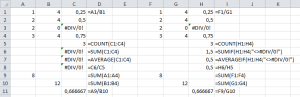
SUM/AVERAGE versus SUMIF/AVERAGEIF (click to enlarge)
Leermomentje (techable moment comes close)…
–jeroen
via:
Posted in Development, Excel, Office, Office 2003, Office 2007, Office 2010, Office 2013, Power User, Software Development | 2 Comments »





 The Wiert Corner - irregular stream of stuff