The Wiert Corner – irregular stream of stuff

Jeroen W. Pluimers on .NET, C#, Delphi, databases, and personal interests

  • My badges

  • Twitter Updates

  • My Flickr Stream

  • Pages

  • All categories

  • Enter your email address to subscribe to this blog and receive notifications of new posts by email.

    Join 1,860 other subscribers

Archive for the ‘Office’ Category

PowerPoint 2013: when Date, Slide Number or Footer don’t show – via: Academic Technology @ Palomar College

Posted by jpluimers on 2016/07/18

Coming from an Office pre 2000 background, I’m still amazed at how will things are hidden in modern Office versions.

Take the page numbers not showing on slides – Microsoft Community.

I bumped into that recently as well on a new blank presentation:

You see the placeholders at design time, but they don’t show up at presentation time.

The obvious action for me: Right click on each to see if there is anything about special formatting or hiding. It doesn’t work.

What does work is to:

  1. Go to the top of the Slide Masters
  2. Click the Ribbon
  3. Choose Insert
  4. Choose Text
  5. Choose Header & Footer
  6. Put a check marks for the place holders you want to be visible

–jeroen

via: PowerPoint 2013: Date, Slide Number and Footer | Academic Technology @ Palomar College.

Read the rest of this entry »

Posted in Office, Office 2007, Office 2010, Office 2013, Power User | Leave a Comment »

View Headers and Source from Outlook .msg file – via Super User

Posted by jpluimers on 2016/05/23

Sometimes people give you .msg files saved from Outlook instead of forwarding those mails by e-mail.

Opening a .msg file requires Outlook.

You don’t need to bind Outlook to an e-mail account for this (so you can skip those steps when asked the first time Outlook opens). An Office installation that includes Outlook suffices.

After opening the message:

  1. Open the toolbar if it’s not open yet
  2. Under “Move” choose “Actions” -> “Other Actions”
  3. Then choose either “Message Header” or “View Source”

For some HTML messages, “View Source” is not available. I’m not yet sure why.

–jeroen

via: How can I view the entire source code of an email in Outlook 2010? – Super User

Posted in Office, Office 2010, Office 2013, Office 2016, Outlook, Power User | Leave a Comment »

Improve Word performance with tables

Posted by jpluimers on 2016/03/25

Apart from the obvious “use less tables” and “break tables apart”, these can also help big time:

  1. Run %WinDir%\System32\SystemPropertiesPerformance.exe
  2. Choose “Ajust for best performance” (it will disable all visual enhancements)
  3. Re-enable “Smooth edges of screen fonts” (it will make it easier to set bold and italic apart in Word)

If it is still too slow, I might look into these:

–jeroen

Read the rest of this entry »

Posted in Microsoft Surface on Windows 7, Office, Office 2007, Office 2010, Office 2013, Power User, Windows, Windows 7, Windows 8, Windows 8.1, Windows 9, Windows Server 2008, Windows Server 2008 R2, Windows Server 2012, Windows Server 2012 R2, Windows Vista, Word | Leave a Comment »

Displaying Full Message Headers and Source in Microsoft Outlook (Windows) – via: Yale ITS

Posted by jpluimers on 2015/12/07

Showing message headers and source used to be easy in early Outlook versions.

But as of Outlook 2007 they hid the internet message headers even further away than in Outlook 2003.

Steps for Outlook 2007+:

  1. Start Outlook.
  2. Double-click the message for which you want to view full internet headers.
  3. Click Options (2007) or Tags (2010/2013).
  4. The Message Options dialog box is displayed. You are after the Internet headers field at the bottom of the dialog box.

Same for the message source:

  1. Start Outlook
  2. Double-click the message for which you want to view full internet headers.
  3. In the Move section of the Ribbon, click on Actions
  4. Click Other Actions
  5. Click View Source
  6. Notepad (or the program associated with html source files) opens with a file email.txt containing the message source.

–jeroen

via:

Posted in Office, Office 2003, Office 2007, Office 2010, Office 2013, Outlook, Power User | Leave a Comment »

How can I combine multiple nested Substitute functions in Excel? – Stack Overflow

Posted by jpluimers on 2015/11/20

You can’t: How can I combine multiple nested Substitute functions in Excel? – Stack Overflow.

Posted in Excel, Office, Office 2007, Office 2010, Office 2013, Power User | Leave a Comment »

How to aggregate (count/sum/average) cells and ignore the #div/0! ‘s – via: list of functions by Excel version

Posted by jpluimers on 2015/11/19

I bumped into a #DIV/0! result for average functions when processing large sets of data.

It is actually very easy to spot the error in small results, sets, but hard in big ones, as you cannot see the #DIV/0!

So there are average functions that can ignore certain outcomes. COUNT already does that (there is no COUNTIF), the others have a *IF equivalent, but not in all Excel versions:

Note there is a small SUMIF/SUMIFS/AVERAGEIF/AVERAGEIFS in Excel 2010 (not in 2007, and maybe not in 2013) glitch when the criteria are in a different sheet.

The seemingly easy workaround of summing columns A and B, then doing the division fails: it returns different results as it forgets to ignore faulty rows:
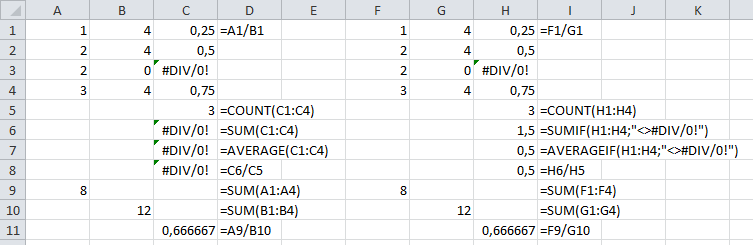
SUM/AVERAGE versus SUMIF/AVERAGEIF (click to enlarge)

SUM/AVERAGE versus SUMIF/AVERAGEIF (click to enlarge)

Leermomentje (techable moment comes close)…

–jeroen

via:

Posted in Development, Excel, Office, Office 2003, Office 2007, Office 2010, Office 2013, Power User, Software Development | 2 Comments »

how to open vsdx files with visio 2010 – via: Microsoft Community

Posted by jpluimers on 2015/11/09

Easy if you know how

VSDX files can be opened easily in Visio 2010:

  1. Install Visio 2010 Sp2 from http://support.microsoft.com/kb/2687468/en-us
  2. Install “Compatibility Pack” from http://www.microsoft.com/en-us/download/details.aspx?id=39640

VSDX files will then be recognized as Visio Files by Visio 2010.

Direct downloads at the time of writing:

Description of Visio 2010 SP2:

Download Service Pack 2 for Microsoft Visio 2010 (KB2687468) 32-Bit Edition from Official Microsoft Download Center.

Download Service Pack 2 for Microsoft Visio 2010 (KB2687468) 64-Bit Edition from Official Microsoft Download Center.

Download Microsoft Visio Compatibility Pack from Official Microsoft Download Center.

–jeroen

via: how to open vsdx files with visio 2010? – Microsoft Community.

Posted in Office, Office 2007, Office 2010, Power User, Visio | Leave a Comment »

Changing a TextBox annotation in an MDI file

Posted by jpluimers on 2015/08/28

Even though MDI files have been abandoned for a while (you can only install it for Office XP, 2003 and 2007), sometimes I need to do some editing of TextBox annotations.

This is not intuitive: you have to right-click the textbox in order to edit it.

Printing in Office 2003 also was non-intuitive: Ctrl-P would crash the Microsoft Office Document Imaging MDI editor with a Microsoft Crash Report. But mouse-clicking the print-icon works. I remember having sending dozens of these reports to Microsoft around 10 years ago, but it never got fixed.

–jeroen

Posted in Microsoft Document Imaging, Office, Office 2000, Office 2003, Office 2007, Power User | Leave a Comment »

Excel: get content of a cell given the row and column numbers (ADDRESS, INDIRECT, ROW, COLUMN)

Posted by jpluimers on 2015/08/28

A while ago, I needed to do calculations on partially absolute cell references: for some number of rows, the cells needed to be fixed to the top row of each row group.

For a pure absolute cell reference, you’d prepend a dollar sign to the row or column of a cell. So A1 would become $A1 (to make column A absolute), A$1 (to make row 1 absolute) or $A$1 (to make both column A and row 1 absolute).

There is a nice short cut function key F4 to do this.

Excel does not have a built-in partially absolute cell reference solution.

To solve this, I used these addressing functions: ADDRESSINDIRECTCOLUMNROW.

For all these functions, the ROW and COLUMN numbering starts at 1 (one) not 0 (zero).

The way I solved it was to added the below columns (first the reference:heading, then the formula).

The values in the formulas are for ROW 2 (cells A2..XFD2).

  1. AF: Calculation
    • =IF(D2=”*”;INDIRECT(AG2)&X2;””)
  2. AG: ZLookup
    • =ADDRESS($AH2;COLUMN(Z2))
  3. AH: Row
    • =2+12*TRUNC((ROW()-2)/12)

Column AH

Calculates the fixed row of the row group. There are 12 rows per group. ROW numbers start at 1, and there is one heading row, hence the 2+ and the -2.

Without TRUNC, the ROW result would be rounded (that is the default floating point to integer conversion that Excel uses).

There is no need to reference a specific row when calling ROW: if you leave it out, it will return the number of the current row.

Column AG

returns the address of the calculated ROW (from AH) combined with the

Column AF

Depending on the value of the D column, it calculates the outcome by combining

–jeroen

via:

Posted in Algorithms, Development, Excel, Floating point handling, Office, Office 2003, Office 2007, Office 2010, Office 2013, Power User, Software Development | 2 Comments »

Excel: Set the printing order of worksheet pages; printing row/coumn headings

Posted by jpluimers on 2015/08/21

I keep forgetting these two settings, most likely because I hardly use spreadsheets that are both wide and tall.

First the print order

Basically there are two orders:

  • Prefer horizontal over vertical (Excel calls this “Over, then down”) so it prints columns first, then rows
  • Prefer top to bottom (Excel calls this “Down, then over”) so it prints rows first, then columns

Here is how to do it in Excel 2007 and up:

  1. Ensure your worksheet is active.
  2. Click the “Page Layout” tab.
  3. In the “Page Setup” group, click the “Dialog Box Launcher” on the bottom right of the group (this tiny icon: Dialog box launcher).
  4. In the “Page Setup” dialog that appears, click on the “Sheet” tab.
  5. Under “Page order”, select either of these two options (the preview will change, see the images below).
    1. Down, then over
    2. Over, then down
  6. Click OK to close the “Page order” dialog.

Then the row/colum headings

This is actually much easier, and also works this way from Excel 2007 and up:

  1. Ensure your worksheet is active.
  2. Click the “Page Layout” tab.
  3. In the “Sheet Options” group, under “Headings”, select the “Print” check box.

–jeroen

via:

Image thanks to Microsoft:

Down, then over.

Down, then over.

Over, then down.

Over, then down.


Printing row/column headings

Posted in Excel, Office, Office 2007, Office 2010, Office 2013, Power User | Leave a Comment »