Archive for the ‘Office’ Category
Posted by jpluimers on 2018/11/12
For a very long time, gMail did nothing with Outlook Calendar entires.
So I had to view at the message source, then translate them to Google Calendar entries myself.
--_000_430b30b9ffd74d959b74ab7ba778b487ultrawarenl_
Content-Type: text/calendar; charset="utf-8"; method=REQUEST
Content-Transfer-Encoding: base64

...
As of late, they seem to be processed into Google Calendar compatible entries. Nice!
–jeroen
Posted in base64, Development, Encoding, GMail, Google, GoogleCalendar, MIME, Office, Outlook, Power User, Software Development, UTF-8, UTF8 | Leave a Comment »
Posted by jpluimers on 2018/11/05
Both in %TEMP% and %Windir%\TEMP, a lot of log files named %COMPUTERNAME%-yyymmdd-hhnn.loghaving entries named Click-To-Run General Telemetry appear.
Anyone who knows how to disable this logging?
I think they are related to Office 2016 installed through Office 365.
Disabling the Click-To-Run Monitor scheduled task is not a good solution, as it will also Office disable update notification: [WayBack] MS Office 2016 – Click to run logs | MalwareTips Forums
–jeroen
Posted in Office, Office 2016, Power User, Windows | Leave a Comment »
Posted by jpluimers on 2018/10/29
For my link archive: [WayBack] Language Accessory Pack for Office – Office Support (short-link)
All supported languages for Office 2010, 2013 and 2066/newer versions.
–jeroen
Posted in Office, Office 2010, Office 2013, Office 2016, Power User, Windows | Leave a Comment »
Posted by jpluimers on 2018/09/17
Steps to try first:
- Check
%windir%\Windowsupdate.log (on my system, it did not reveal anything special)
- In an administrator command prompt, run
sfc /scannow (which takes a few minutes to run)
- Reboot
- Run Clean Manager
%windir%\System32\cleanmgr.exe (ensure to clean up update files: it can take tens of minutes to run)
- Reboot
- Download the SP1 files (I needed 32-bit x86)
- Install SP1 manually
- If it still hangs:
- In
Appwiz.cpl try a “Repair” of the Office 2013 installation
- If it works: Reboot, otherwise:
- Uninstall Office 2013
- Disable the network adapter
- Reboot
- Check if KB3173424 is installed (check it with
Appwiz.cpl)
- if not: download on a different machine, transfer over USB, install, then reboot
- Check ifKB3172614 is installed (which has a younger Windows Update Client)
- if not: downloadon a different machine, transfer over USB, install, then reboot
- Enable the network adapter
- Let Windows scan for updates and install them
- If you get an error 80070463 or 80070663: just reboot and retry the updates.
- Reboot
- Run Clean Manager
- Install Office 2013
- Reboot
- Let Windows scan for updates and install them
- Reboot
- Run Clean Manager
- Reboot
The KB3172614 should also alleviate long during (dozens of minutes) high CPU usage of svchost.exe and TiWorker.exe when searching for Windows updates.
Read the rest of this entry »
Posted in Office, Office 2013, Power User, Windows, Windows 8.1 | Leave a Comment »
Posted by jpluimers on 2018/09/11
After each reboot on the admin console after every logon and after every RDP connection:
net stop ClickToRunSvc
Via [WayBack] Office 365 #fail: Not sure yet, but every now and then – without any UI showing – C:\Program Files\Common Files\Microsoft Shared\ClickToRun\OfficeClickT… – Jeroen Wiert Pluimers – Google+
Office 365 #fail: Not sure yet, but every now and then – without any UI showing – C:\Program Files\Common Files\Microsoft Shared\ClickToRun\OfficeClickToRun.exe is using truckloads of CPU while executing an invisible OneDriveSetup.exe both totaling 100% of the full CPU for tens of minutes.
Since it needs to run after each RDP connection, Windows: running a batch file during logon of a single or all users is not enough.
I will need to dig into [WayBack] remote desktop – Run application or script on Windows RDC connection – Super User and [WayBack] SessionChangeDescription Struct (System.ServiceProcess) | Microsoft Docs
–jeroen
Posted in Office, Office 2016, Power User | Leave a Comment »
Posted by jpluimers on 2018/08/24
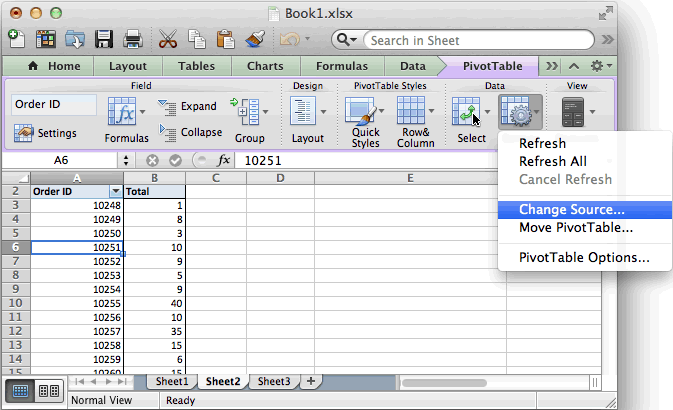 Based on [WayBack] MS Excel 2011 for Mac: How to Change Data Source for a Pivot Table:
- Refreshing the data is in the “PivotTable” toolbar under “Data”: either
- “Refresh” for the current PivotTable or
- “Refresh All” for all PivotTables in the spreadsheet
- Setting the range of source data is “Change Source” in the “PivotTable” toolbar under “Data”
- If your data is on a sheet by itself, it’s better to select the range using column only notation than using column:row notation, compare these:
- ‘FRITZ!Box_CallList.csv’!$A:$S
- ‘FRITZ!Box_CallList.csv’!$A$1:$S$401
The last trick makes it way easier to add newer data from an external CSV file into an existing workbook with various PivotTable analysis worksheets:
- Append the CSV data to the source
- Copy over any formulas needed to make pivot life easier
- “Refresh All”
On a 1920×1200 screen, the PivotTable toolbar looks like this:

Excel 2011 for Mac PivotTable toolbar
–jeroen
Posted in Office, Office 2011 for Mac, Power User | Leave a Comment »
Posted by jpluimers on 2018/08/10
Because I tend to forget how to use this:
Excel VLOOKUP tutorial with an example spreadsheet & video. The article shows how to lookup the values from one column to use in another worksheet column.
Source: [Archive.is] VLOOKUP Example Spreadsheet & Tutorial | Productivity Portfolio
–jeroen
Read the rest of this entry »
Posted in Excel, Office, Power User | Leave a Comment »
Posted by jpluimers on 2018/05/11
If you use Outlook to check and manage your email, you can easily use it to check your Gmail account as well. You can set up your Gmail account to allow you to synchronize email across multiple machines using email clients instead of a browser.
Oh: you need to lower your Gmail security for Outlook 2013 as the latter isn’t up to par on security. For that, follow similar steps like in “the user name or password for imap.gmail is incorrect” – iPad, iPod or iPhone with iOS < 7.
–jeroen
Posted in GMail, Google, Office, Office 2013, Office 2016, Outlook, Power User | Leave a Comment »
Posted by jpluimers on 2018/03/27
 From the “I hate my users” department:
- This dialog pops up every 10 seconds
- The Office 2011 for Mac update requires non-Office apps to quit as well
–jeroen
Posted in Apple, Development, iMac, Mac, Mac OS X / OS X / MacOS, MacBook, MacBook Retina, MacBook-Air, MacBook-Pro, MacMini, Office, Office 2011 for Mac, Power User, Software Development, Usability, User Experience (ux) | Leave a Comment »
Posted by jpluimers on 2018/02/07
Via [WayBack] Hi all,I’m a bit stuck here with a “simple” task.Looks like Outlook 2016 doesn’t supports “MAPISendMail”, at least, if i trigger this, Thunderbird… – Attila Kovacs – Google+:
Basically only MAPISendMail works cross architecture and only if you fill all fields.
This edited [WayBack] email – MAPI Windows 7 64 bit – Stack Overflow answer by [WayBack] epotter is very insightful (thanks [WayBack] Rik van Kekem – Google+):
Calls to MAPISendMail should work without a problem.
For all other MAPI method and function calls to work in a MAPI application, the bitness (32 or 64) of the MAPI application must be the same as the bitness of the MAPI subsystem on the computer that the application is targeted to run on.
In general, a 32-bit MAPI application must not run on a 64-bit platform (64-bit Outlook on 64-bit Windows) without first being rebuilt as a 64-bit application.
For a more detailed explanation, see the MSDN page on Building MAPI Applications on 32-Bit and 64-Bit Platforms
–jeroen
Posted in Delphi, Delphi x64, Development, Office, Outlook, Power User, Software Development, x86 | Leave a Comment »


 The Wiert Corner - irregular stream of stuff