The Wiert Corner – irregular stream of stuff

Jeroen W. Pluimers on .NET, C#, Delphi, databases, and personal interests

  • My badges

  • Twitter Updates

  • My Flickr Stream

  • Pages

  • All categories

  • Enter your email address to subscribe to this blog and receive notifications of new posts by email.

    Join 1,860 other subscribers

Archive for the ‘X201’ Category

List of the ThinkPad models I owned

Posted by jpluimers on 2022/12/02

I stopped buying ThinkPads when they messed with screen sizes (a long while they did not have anything 16:10 at 1920×1200 or better) and keyboards (no 6-row keyboard for me).

So below is the (at least partial) list of ThinkPads I own(ed) and features they so I can find back information on them in case of need.

Note I had the X201 despite the smaller screen size, as it was an excellent travel companion.

Read the rest of this entry »

Posted in Power User, T510, ThinkPad, W701, X201 | Leave a Comment »

Thinkpad max memory configurations for the models I own

Posted by jpluimers on 2022/02/28

Below are the maximum memory configurations for the Thinkpad models I own.

Note these re only 7-row keyboard configurations, the 6-row keyboards were always “meh”.

I used this command to get the CPU information:

wmic cpu get name

Memory speed

As mentioned in PC3-8500 or PC3-10600:

As PC3-10600 is getting increasingly difficult to acquire, PC3-12800 can be used instead. Using PC3-12800 may or may not increase the performance of your model, as some models may underclock it to their respective original DRAM speeds.

T510 – the midrange

Intel(R) Core(TM) i5 CPU       M 560  @ 2.67GHz

[Wayback] Category:T510 – ThinkWiki

You might think it would fit two 8GB modules and be upgradable to 16GB, but the chipset prevents it. Some of the W510 models seem to accept 8GB modules though:

W701 – the largest of the bunch

Intel(R) Core(TM) i7 CPU       Q 720  @ 1.60GHz

[Wayback] Category:W701 – ThinkWiki

  • 2, 3, 4 or 8GB PC3-8500 memory standard, upgradable to 16 GB

I actually still have 16GB in my version, see: ThinkPad W701: Win7 Ultimate x64 suddenly only saw 8GB RAM of 16GB (via: [H]ard|Forum).

Searching back my blog history, I did note that 32GB should fit: ThinkPad W701 with 32GB of memory via: forum.thinkpads.com • Newer 8G memory sticks in a W700, W701, W500, W510 ?

X201 – the smallest of the bunch

Intel(R) Core(TM) i7 CPU M 620 @ 2.67GHz

[Wayback] Category:X201 – ThinkWiki

Some seem to differ however, and got 16GB to work, but others don’t, as only the lower 8GB are accessible:

I might upgrade the W701, order 4*8GB modules, test some in the X201, then order more if it works.

Notes

Just in case I want to ever get a smaller Thinkpad with 7-row keyboard that allows 32-gigabytes of memory, the state as of 2019 is pretty accurate as no 7-row keyboards were manufacturerd after that (not even the horrendously expensive T25, which was a 2017 model [Wayback]/Archive.is] My ThinkPad T25 review : thinkpad):

[WaybackCurrent Thinkpad models that support 32 gb ram (even unofficially) – Thinkpads Forum (state in 2019)

If you really want to go the T25 way, you can modify it to put T480 hardware in it: [Wayback] Thinkpad T25 Gets Less Retro With Hardware Swap | Hackaday

–jeroen

Read the rest of this entry »

Posted in Power User, T510, ThinkPad, W701, X201 | Leave a Comment »

Thinkpad X201 BIOS 1.40-1.15 Update Bootable CD

Posted by jpluimers on 2021/08/23

From [WayBack] BIOS Update Bootable CD for Windows 8 (32-bit, 64-bit), 7 (32-bit, 64-bit), Vista (32-bit, 64-bit), XP – ThinkPad – NL

  • [WayBack] 6quj19us.iso

    • BIOS Update Bootable CD
    • Checksum Tips
      • MD5:a7a7f175f638854db52ba5a9b9da24e4
      • SHA1:b1616c89ac85e6024fd57b72022bed15f22ff074
      • SHA-256:c612bdf3005e86870e64b2c4bb2535d238c546a9884bfe05695abe6c8508a390
    • 1.40-1.15
    • 04 Dec 2014
    • 26.4 MB
  • [WayBack] 6quj19uc.txt

    • README for BIOS Update Bootable CD
    • Checksum Tips
      • MD5:c14b824ee96a97810d74f03133160ec2
      • SHA1:2e65b61327466b6fa14b236dcec43ef2cd822fb2
      • SHA-256:06fbaa2501b8b3f865d2dba04f5f0bdda31dc52409c91ce5e36e9c0e1f2cff5a
    • 1.40-1.15
    • 04 Dec 2014
    • 23.1 KB

Version 1.40-1.15
BIOS: 1.40 / ECP: 1.15/1.15

  • (New) Embedded Controller update will modify battery charge algorithms to balance battery charging and lifespan.
    Note: Applied models are ThinkPad X201, X201i and X201s.

–jeroen

Posted in Power User, ThinkPad, X201 | Leave a Comment »

ThinkPad X201: fixing the “black screen” (without mouse pointer) after upgrading to Windows 10

Posted by jpluimers on 2016/06/10

After this Windows 10 boot screen the display goes blank without a mouse cursor.

After this Windows 10 boot screen the display goes blank without a mouse cursor.

So you upgraded your X201 from Windows 7 to Windows 10 even though it’s not in the listed on the Lenovo supported models page.

Now it gets through the boot screen, flashes the CapsLock/NumLock LEDS, blanks the screen (no mouse cursor) and continues booting without any visual feedback apart from the HDD LED flashing until it is finished booting

Since Windows 10 by default does not enable the F8 option any more, you need some more severe measures.

BIOS update

The first was to get the BIOS up to date. At the time of writing that was 1.40-1.15 from BIOS Update Bootable CD for Windows 8 (32-bit, 64-bit), 7 (32-bit, 64-bit), Vista (32-bit, 64-bit), XP – ThinkPad – Lenovo Support (US):

Then I had to burn the ISO. Which was a bit picky because most of my infrastructure is VM based and none of the physical machines had a DVD or CD-drive any more. Luckily I found a LiteOn SLW 831SX which Windows detects as Slimtype DVDRW SLW-831S USB Device. ImgBurn worked with that (elevated to Administrative mode that is: it requires that both for burning and grabbing an ISO image).

Upgrading the BIOS went fine, but the symptoms stayed.

Removing/re-inserting battery

Removing the battery for a while, then reinserting was suggested at one of the sites.  It didn’t help.

Force into Repair Mode

Then I read this:

If the system can’t load the necessary configuration more than two times, the system will  direct the display to Windows RE(Recovery environment).

Source: Windows 10 – How to enter Safe Mode if I can’t boot the system successfully?

They also have: Windows 10 – If I can’t enter the system, how can I restore the Windows 10 laptop or PC to default settings?

This very easy to do:

Prepairing Automatic Repair

Prepairing Automatic Repair

  1. Keep the power button down to power off the machine
  2. Power up the machine
  3. Wait for the boot screen to appear, then
    1. Keep the power button down to power off the machine
  4. Power up the machine
  5. Wait for the boot screen to appear, then
    1. Keep the power button down to power off the machine
  6. Wait for the “Prepairing Automatic Repair” to finish
  7. Wait for the “Diagnosing your PC” to finish
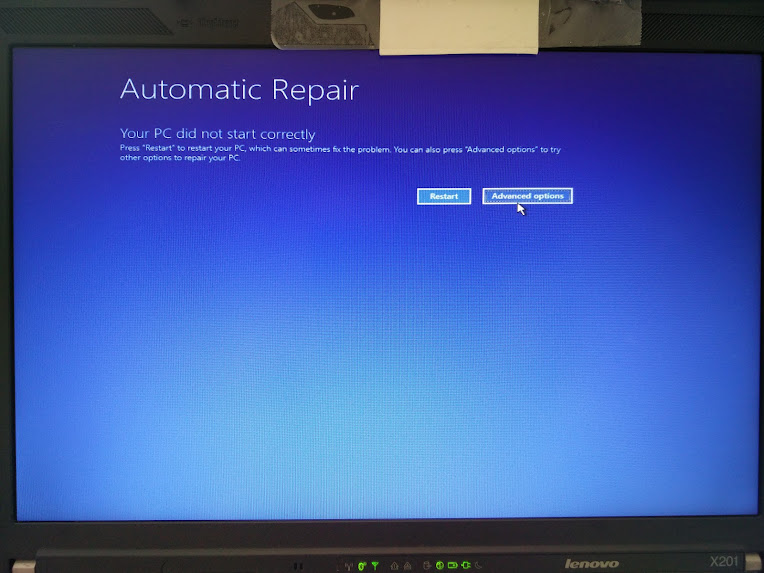
  8. Wait for the “Automatic Repair” to appear, then
    1. Wiggle with the mouse to get a mouse cursor
  9. Press the “Advanced Options” button
  10. Choose “Troubleshoot”
  11. Choose “Advanced Options”
  12. Choose “Startup Settings”
  13. Choose “Restart”
  14. Wait for the reboot and “Startup Settings” to appear (note: no mouse cursor)
  15. Hit F5 for “Enable Safe Mode with Networking”
  16. Wait for it to reboot twice.

This didn’t work as well as I hoped as now I was at the failure point as well.

But now at least I had a starting point to trip Windows into booting any way I wanted. I now only had to find which function key would get me into a state where I could see what was going on.

And the good things: The “Diagnosing your PC” only required one ‘manual power down” to appear.

  • F9 – Disable automatic restart after failure
  • F8 – Disable early launch anti-malware protection
  • F7 – Disable driver signature enforcement
  • F6 – Enable Safe Mode with Command Prompt
  • F5 – Enable Safe Mode with Networking
  • F4 – Enable Safe Mode
  • F3 – Enable low-resolution video
  • F2 – Enable boot logging
  • F1 – Enable debugging

F3 finally got me to the VIDEO_DRIVER_INIT_FAILURE (BSOD STOP 0x000000B4) which indicated the machine was so hosed that I had to to a clean install.

–jeroen

Automatic Repair - wiggle with the mouse and you have a cursor too!

Automatic Repair – wiggle with the mouse and you have a cursor too!

–jeroen

Images via:

Posted in BIOS, Boot, Power User, ThinkPad, UEFI, Windows, Windows 10, Windows 7, X201 | Leave a Comment »