The Wiert Corner – irregular stream of stuff

Jeroen W. Pluimers on .NET, C#, Delphi, databases, and personal interests

  • My badges

  • Twitter Updates

  • My Flickr Stream

  • Pages

  • All categories

  • Enter your email address to subscribe to this blog and receive notifications of new posts by email.

    Join 1,860 other subscribers

Archive for the ‘Windows 10’ Category

Windows 10 Home: allow a certain user to have a non-expiring password

Posted by jpluimers on 2021/03/15

Sometimes it makes sense to have a user never expire the password.

On a non-home editions of Windows, this is easy: just run lusrmgr.msc, then in the UI change the property for the user.

On home editions of Windows, you cannot do this in a GUI: those bits are either disabled or completely unavailable.

I did this on a demo VM system on an elevated command-prompt:

C:\>wmic UserAccount where Name='developer' set PasswordExpires=False
Updating property(s) of '\\DEMO-VM\ROOT\CIMV2:Win32_UserAccount.Domain="DEMO-VM",Name="developer"'
Property(s) update successful.

To show the current state (before I changed it):

C:\>wmic UserAccount where Name='developer'
AccountType  Caption           Description  Disabled  Domain      FullName  InstallDate  LocalAccount  Lockout  Name       PasswordChangeable  PasswordExpires  PasswordRequired  SID                                            SIDType  Status 
512          DEMO-VM\developer              FALSE     DEMO-VM                            TRUE          FALSE    developer  TRUE                TRUE             TRUE              S-1-5-21-2478057260-1439466941-978077079-1002  1        OK     

Via: [WayBack] Cocosenor: 4 ways to disable or enable Windows 10 password expiration notification

–jeroen

Posted in Power User, Windows, Windows 10 | Leave a Comment »

Windows Users like “Window Manager\DWM-3” are virtual users

Posted by jpluimers on 2021/03/15

Having seen logon failures from user Window Manager\DWM-3 while on a public WiFi network, I did a quick search on [WayBack] “Window Manager\DWM-3” – Google Search.

It appeared somebody trying a dictionary attack on the RDP port of my Windows VM which was on the host Bridged Network (see [Archive.is] Help – VMware Fusion 6 Documentation Center).

This is a virtual user that is part of a series of users that the Desktop Window Manager started using from Windows 8 and up.

The first user always exist, DWM-2 and up are created for new dwm.exe processes (by winlogon.exe) when users start logging on through RDP connections to a Windows machine:

  1. Window Manager\DWM-1
  2. Window Manager\DWM-2
  3. Window Manager\DWM-3
  4. Window Manager\DWM-4

In addition to logging on as a new user, as of Windows 8, these also are created when shutting down and starting up (which Windows fools you by actually doing a kind of hibernate): [Wayback] windows 8 – What is winlogon.exe -SpecialSession? – Super User

Related:

–jeroen

Posted in Power User, Windows, Windows 10, Windows 8, Windows 8.1 | Leave a Comment »

Enable Block at First Sight to detect malware in seconds | Microsoft Docs

Posted by jpluimers on 2021/03/12

On my reading list, because I saw it suddenly enabled on a domain based Windows network:

[WayBackEnable Block at First Sight to detect malware in seconds | Microsoft Docs

Enable the Block at First sight feature to detect and block malware within seconds, and validate that it is configured correctly.

It seems to have been introduced early 2018: Windows Defender – Wikipedia: Advanced Features

Windows 10’s Anniversary Update introduced Limited Periodic Scanning, which optionally allows Windows Defender to scan a system periodically if another antivirus app is installed.[5] It also introduced Block at First Sight, which uses machine learning to predict whether a file is malicious.[21]

There is a BAFS – Windows Defender Testground for which you need a Microsoft account.

–jeroen

Posted in Power User, Security, Windows, Windows 10 | Leave a Comment »

Reminder of Windows 10 update “What’s New” location

Posted by jpluimers on 2021/03/02

If you forgot what Microsoft has added, look for a file named like this:

C:\Program Files\WindowsApps\Microsoft.Getstarted_7.3.20251.0_x64__8wekyb3d8bbwe\WhatsNew.Store.exe

Disregard any warnings you find through the above link: it is a legit file installed during Windows 10 update.

–jeroen

Posted in Power User, Windows, Windows 10 | Leave a Comment »

Research list: getting rid of the Windows 10 Delivery Content data and service

Posted by jpluimers on 2021/02/15

Not sure yet if this is still possible, but on my research list as it pollutes low-resource Windows 10 VMs and computers the Delivery Content:

–jeroen

Read the rest of this entry »

Posted in Power User, Windows, Windows 10 | Leave a Comment »

Deleting the WebCache database – The IE browser cache | Apttech’s Blog

Posted by jpluimers on 2021/02/15

[WayBack] Deleting the WebCache database – The IE browser cache | Apttech’s Blog quotes from WayBack: C drive space is using up on terminal server after upgrading to IE10 or IE11 – AsiaTech: Microsoft Azure & Development:

With the new cache implementation, the cache files are saved in %LocalAppData%\Microsoft\Windows\WebCache\ folder. And, the cache files will be created when a new user logs on.

Actually, the database is a file named WebCacheV01.dat in the cache folder, and its initial size could be around 20-32MB. The size of this file will keep increasing along with you browse more and more websites.

save the below contents into ClearIECache.cmd file and try to fun this file.

echo OFF
net stop COMSysApp
taskkill /F /IM dllhost.exe
taskkill /F /IM taskhost.exe
taskkill /F /IM taskhostex.exe
del /Q %LocalAppData%\Microsoft\Windows\WebCache\*.*
net start COMSysApp
echo ON

Furthermore, you’d better deploy the batch file to a logoff script of your local GPO, here are the steps.

Related:

–jeroen

Posted in Internet Explorer, Power User, Web Browsers, Windows, Windows 10 | Leave a Comment »

Windows events for Remote Desktop connections

Posted by jpluimers on 2021/01/25

Some notes and links, as eventually I want to react on Windows events raised for successful Remote Desktop connections.

Log-files:

  • Name Microsoft-Windows-TerminalServices-LocalSessionManager/Admin
  • Path %SystemRoot%\System32\Winevt\Logs\Microsoft-Windows-TerminalServices-LocalSessionManager%4Admin.evtx
  • Name Microsoft-Windows-TerminalServices-LocalSessionManager/Operational
  • Path %SystemRoot%\System32\Winevt\Logs\Microsoft-Windows-TerminalServices-LocalSessionManager%4Operational.evtx

EventID 25:

<Event xmlns="http://schemas.microsoft.com/win/2004/08/events/event">
<System>
<Provider Name="Microsoft-Windows-TerminalServices-LocalSessionManager" Guid="{5D896912-022D-40AA-A3A8-4FA5515C76D7}" /> 
<EventID>25</EventID> 
<Version>0</Version> 
<Level>4</Level> 
<Task>0</Task> 
<Opcode>0</Opcode> 
<Keywords>0x1000000000000000</Keywords> 
<TimeCreated SystemTime="2019-02-06T13:48:02.978377900Z" /> 
<EventRecordID>5358</EventRecordID> 
<Correlation ActivityID="{F4203346-1BFB-421E-8668-C7503D590000}" /> 
<Execution ProcessID="308" ThreadID="12552" /> 
<Channel>Microsoft-Windows-TerminalServices-LocalSessionManager/Operational</Channel> 
<Computer>MACHINE-NAME.subdomain.domain</Computer> 
<Security UserID="S-1-5-18" /> 
</System>
<UserData>
<EventXML xmlns="Event_NS">
<User>DOMAIN\jeroen</User> 
<SessionID>2</SessionID> 
<Address>192.168.1.42</Address> 
</EventXML>
</UserData>
</Event>

Links on the events:

Links on triggers and scripts running because of events:


–jeroen

Read the rest of this entry »

Posted in Power User, Windows, Windows 10 | Leave a Comment »

How to remove (disable or hide) User Accounts on the Windows 10 Login Screen – Make Tech Easier

Posted by jpluimers on 2021/01/11

Works on my systems too (I think it works from Windows XP on) to hide users from the home screen: [WayBackHow to Hide User Accounts on the Windows 10 Login Screen – Make Tech Easier.

Show only the last logged on user, but add a switch-user dialog

Run the below .reg file on your machine, or manually add this key (does not need any value): HKEY_LOCAL_MACHINE\SOFTWARE\Microsoft\Windows NT\CurrentVersion\ProfileList\DomainStyleLogon

Windows Registry Editor Version 5.00

[HKEY_LOCAL_MACHINE\SOFTWARE\Microsoft\Windows NT\CurrentVersion\ProfileList\DomainStyleLogon]

Note the empty line at the end of the .reg file: that is by intention.

This will show the last logged-on user on the home screen, but still allows users to perform a switch to other users.

Related: [WayBack] ALWAYS display the last / default user Windows 7 welcome screen

Disable the users on the logon screen from interactive logon

Warning: do NOT disable your administrator user this way!

For why not, see the various users that lost access: [WayBackHide User Accounts on Windows 7 Logon – Windows 7 IT Pro > Windows 7 User Interface

  1. use net user on the command prompt to list the usernames and note the username you want to hide from the login screen
  2. run regedit to edit the registry
  3. ensure this registry key exists HKEY_LOCAL_MACHINE\SOFTWARE\Microsoft\Windows NT\CurrentVersion\Winlogon
  4. Under that key, create a new key SpecialAccounts
  5. Under the SpecialAccounts key, create a new key UserList
  6. Under the UserList key, create a new DWORD (32-bit) value with the Value name equal to the username and the Value data to zero (0, which is the default)
  7. Reboot
  8. Observe that user is not on the login window any more.

Example:

If you lost access because of SpecialAccounts

If you would like to unhide the hidden Administrator account on Windows 7:

  1. Boot a Windows 7 Installation DVD or ISO
  2. go to command prompt and type regedit -it
  3. click on HKLM hive and
  4. next navigate File>>Load hive
  5. navigate to C:\Windows\System32\config folder and choose `SOFTWARE` file load it and assign this hive any name for example REM_SOFTWARE
  6. open key HKEY_LOCAL_MACHINE\REM_SOFTWARE\Microsoft\Windows NT\CurrentVersion\Winlogon\SpecialAccounts\UserList
  7. remove the Administrator account
    • or better way remove the whole key HKEY_LOCAL_MACHINE\REM_SOFTWARE\Microsoft\Windows NT\CurrentVersion\Winlogon\SpecialAccounts

–jeroen

Posted in Power User, Windows, Windows 10, Windows 7, Windows 8, Windows 8.1 | Leave a Comment »

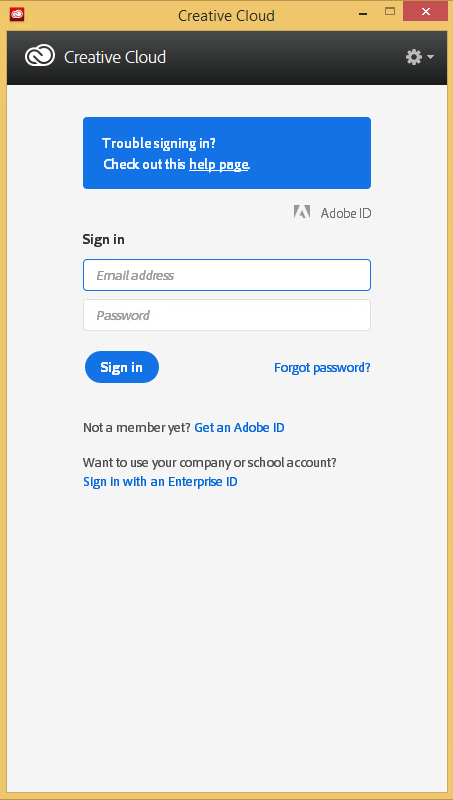
Automating the closing of the Creative Cloud signing and ABBY FindReader for ScanSnap 5.0 dialogs

Posted by jpluimers on 2021/01/06

Every time my scan VM logs on I get the dialog on the right.
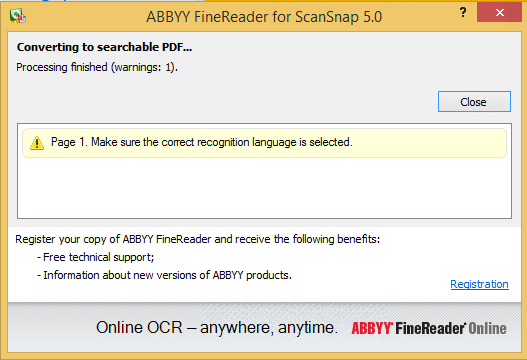
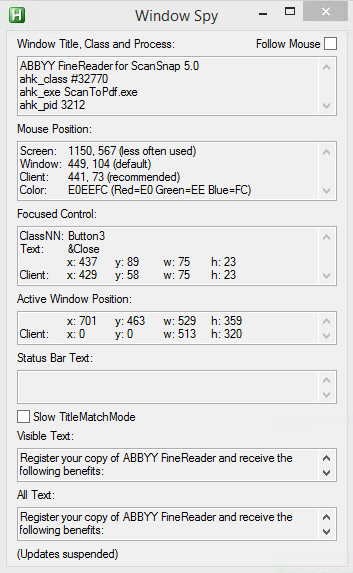
Every time I finish an OCR scan, I get the dialog below.

There are two reasons I want to close the ABBY dialog:

  1. While open, it will keep both the original PDF and OCR PDF files alive.When after a while, Windows updates auto-reboots the machine, before clicking the OK buttons I have to manually check if the conversion succeeded before removing the non-OCR PDF.This is time consuming.
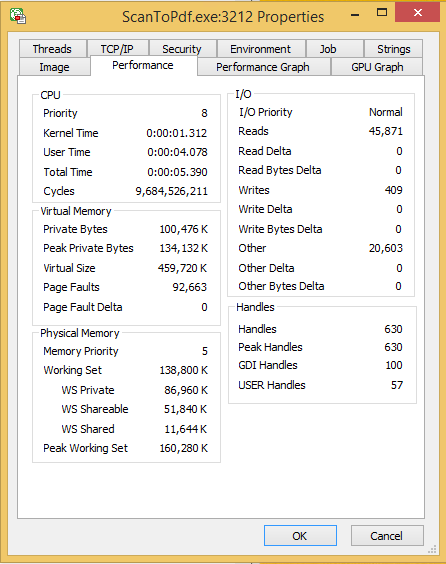
  2. While open, it still consumes a lot of system resources: about 100 megabyte for a simple single monochrome A4 page. Much more for complex, multi-page or colour documents.When scanning a lot of document this causes the system to run out of memory, after becoming much much slower because the truckload of Window handles and underlying threads drags Windows down.

I do not want to fully get rid of these dialogs, as often being aware of the progress is important, and I always forget how to re-enable things. If you can do without the dialogs, then try these:

Finding the Windows and controls

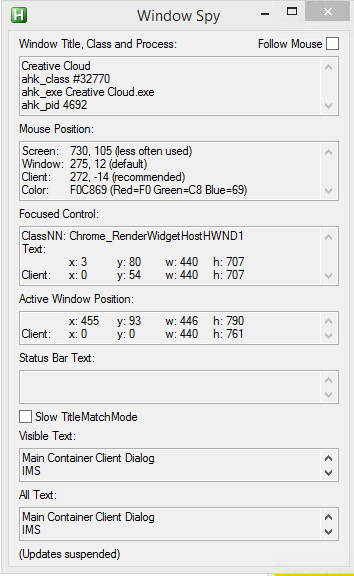
I did use one nice feature of AutoHotKey: their Windows Spy utility, which is implemented as a AHK script: [WayBack] AutoHotKey-scripts/WindowSpy.ahk at master · elig0n/AutoHotKey-scripts · GitHub. In the past this was a separate executable, so do not start looking for that any more. You can get it either after a full install of the [WayBack] Releases · Lexikos/AutoHotkey_L · GitHub, or by extracting from the most current AutoHotKey.zip from [Archive.is] AutoHotkey Downloads.

Related:

This gets these for the Create Cloud and ABBY windows:

Automating the click

I contemplated about using AutoIt (freeware, but closed source) or AutoHotKey_L (the current active fork of AutoHotKey).

AutoIt is now closed source, forked in the past as AutoHotKey, which has a lot of half backed – usually poorly documented – scripts needing you to learn a new API wrapper around existing Windows API functionality.

So I reverted back to using the Windows API using Delphi: a simple repeat loop, to check for the existence of the underlying processes, windows and controls, plus some logic to terminate then the user stops the application (Ctrl-C, Ctrl-Break), logs off, or Windows shuts down.

Releated Windows API  keywords and posts:


I could have used AutoHotKey with these hints to get it working:

MacOS

Note that when you run on MacOS, you need an alternative like for instance the video below shows via [WayBack] Stop ScanSnap From Prompting You When You Scan.

–jeroen

Read the rest of this entry »

Posted in Development, Fujitsu ScanSnap, Hardware, ix100, ix500, Power User, Scanners, Scripting, Software Development, Windows, Windows 10, Windows 8.1 | Leave a Comment »

Windows Sandbox – Microsoft Tech Community – 301849

Posted by jpluimers on 2020/12/21

For my link archive, as I totally missed it when it was released: [WayBack] Windows Sandbox – Microsoft Tech Community – 301849:

  1. Install Windows 10 Pro or Enterprise, Insider build 18305 or newer
  2. Enable virtualization:
    • If you are using a physical machine, ensure virtualization capabilities are enabled in the BIOS.
    • If you are using a virtual machine, enable nested virtualization with this PowerShell cmdlet:
    • Set-VMProcessor -VMName <VMName> -ExposeVirtualizationExtensions $true
  3. Open Windows Features, and then select Windows Sandbox. Select OK to install Windows Sandbox. You might be asked to restart the computer.
  4. Optional Windows Features dlg.png
  5. Using the Start menu, find Windows Sandbox, run it and allow the elevation
  6. Copy an executable file from the host
  7. Paste the executable file in the window of Windows Sandbox (on the Windows desktop)
  8. Run the executable in the Windows Sandbox; if it is an installer go ahead and install it
  9. Run the application and use it as you normally do
  10. When you’re done experimenting, you can simply close the Windows Sandbox application. All sandbox content will be discarded and permanently deleted
  11. Confirm that the host does not have any of the modifications that you made in Windows Sandbox.

–jeroen

Posted in Power User, Windows, Windows 10 | Leave a Comment »