The Wiert Corner – irregular stream of stuff

Jeroen W. Pluimers on .NET, C#, Delphi, databases, and personal interests

  • My badges

  • Twitter Updates

  • My Flickr Stream

  • Pages

  • All categories

  • Enter your email address to subscribe to this blog and receive notifications of new posts by email.

    Join 1,839 other subscribers

Archive for the ‘Windows 10’ Category

How to remove (disable or hide) User Accounts on the Windows 10 Login Screen – Make Tech Easier

Posted by jpluimers on 2021/01/11

Works on my systems too (I think it works from Windows XP on) to hide users from the home screen: [WayBackHow to Hide User Accounts on the Windows 10 Login Screen – Make Tech Easier.

Show only the last logged on user, but add a switch-user dialog

Run the below .reg file on your machine, or manually add this key (does not need any value): HKEY_LOCAL_MACHINE\SOFTWARE\Microsoft\Windows NT\CurrentVersion\ProfileList\DomainStyleLogon

Windows Registry Editor Version 5.00

[HKEY_LOCAL_MACHINE\SOFTWARE\Microsoft\Windows NT\CurrentVersion\ProfileList\DomainStyleLogon]

Note the empty line at the end of the .reg file: that is by intention.

This will show the last logged-on user on the home screen, but still allows users to perform a switch to other users.

Related: [WayBack] ALWAYS display the last / default user Windows 7 welcome screen

Disable the users on the logon screen from interactive logon

Warning: do NOT disable your administrator user this way!

For why not, see the various users that lost access: [WayBackHide User Accounts on Windows 7 Logon – Windows 7 IT Pro > Windows 7 User Interface

  1. use net user on the command prompt to list the usernames and note the username you want to hide from the login screen
  2. run regedit to edit the registry
  3. ensure this registry key exists HKEY_LOCAL_MACHINE\SOFTWARE\Microsoft\Windows NT\CurrentVersion\Winlogon
  4. Under that key, create a new key SpecialAccounts
  5. Under the SpecialAccounts key, create a new key UserList
  6. Under the UserList key, create a new DWORD (32-bit) value with the Value name equal to the username and the Value data to zero (0, which is the default)
  7. Reboot
  8. Observe that user is not on the login window any more.

Example:

If you lost access because of SpecialAccounts

If you would like to unhide the hidden Administrator account on Windows 7:

  1. Boot a Windows 7 Installation DVD or ISO
  2. go to command prompt and type regedit -it
  3. click on HKLM hive and
  4. next navigate File>>Load hive
  5. navigate to C:\Windows\System32\config folder and choose `SOFTWARE` file load it and assign this hive any name for example REM_SOFTWARE
  6. open key HKEY_LOCAL_MACHINE\REM_SOFTWARE\Microsoft\Windows NT\CurrentVersion\Winlogon\SpecialAccounts\UserList
  7. remove the Administrator account
    • or better way remove the whole key HKEY_LOCAL_MACHINE\REM_SOFTWARE\Microsoft\Windows NT\CurrentVersion\Winlogon\SpecialAccounts

–jeroen

Posted in Power User, Windows, Windows 10, Windows 7, Windows 8, Windows 8.1 | Leave a Comment »

Automating the closing of the Creative Cloud signing and ABBY FindReader for ScanSnap 5.0 dialogs

Posted by jpluimers on 2021/01/06

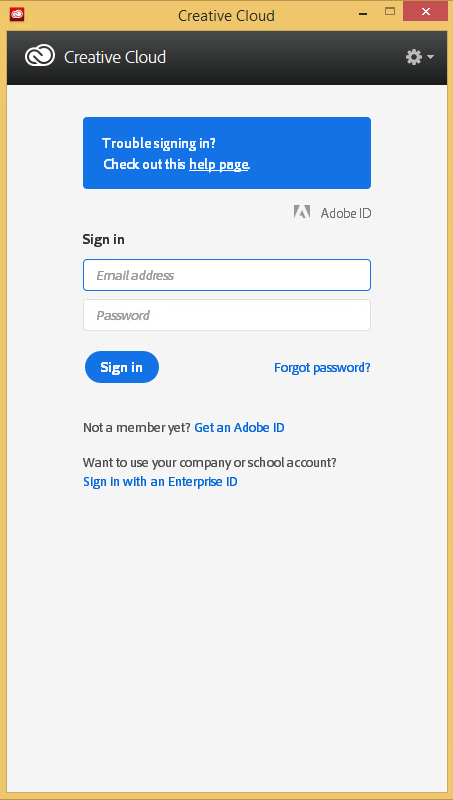
Every time my scan VM logs on I get the dialog on the right.
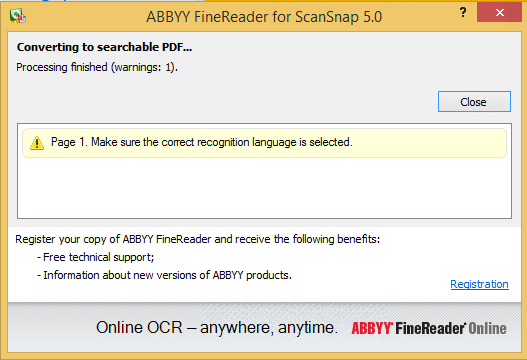
Every time I finish an OCR scan, I get the dialog below.

There are two reasons I want to close the ABBY dialog:

  1. While open, it will keep both the original PDF and OCR PDF files alive.When after a while, Windows updates auto-reboots the machine, before clicking the OK buttons I have to manually check if the conversion succeeded before removing the non-OCR PDF.This is time consuming.
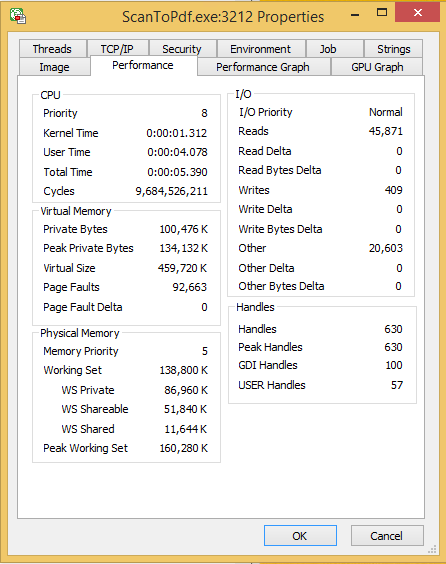
  2. While open, it still consumes a lot of system resources: about 100 megabyte for a simple single monochrome A4 page. Much more for complex, multi-page or colour documents.When scanning a lot of document this causes the system to run out of memory, after becoming much much slower because the truckload of Window handles and underlying threads drags Windows down.

I do not want to fully get rid of these dialogs, as often being aware of the progress is important, and I always forget how to re-enable things. If you can do without the dialogs, then try these:

Finding the Windows and controls

I did use one nice feature of AutoHotKey: their Windows Spy utility, which is implemented as a AHK script: [WayBack] AutoHotKey-scripts/WindowSpy.ahk at master · elig0n/AutoHotKey-scripts · GitHub. In the past this was a separate executable, so do not start looking for that any more. You can get it either after a full install of the [WayBack] Releases · Lexikos/AutoHotkey_L · GitHub, or by extracting from the most current AutoHotKey.zip from [Archive.is] AutoHotkey Downloads.

Related:

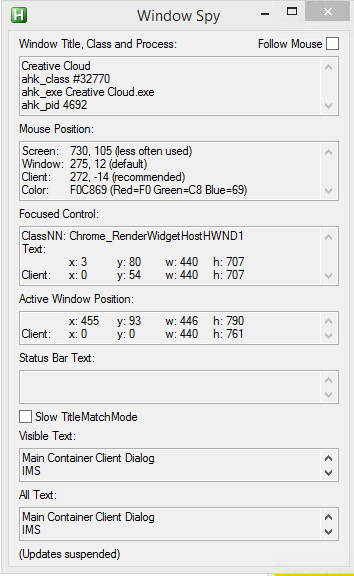
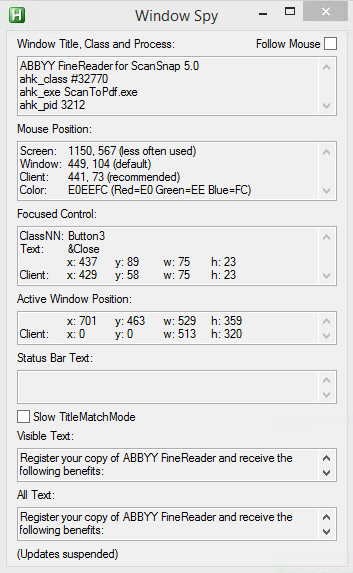
This gets these for the Create Cloud and ABBY windows:

Automating the click

I contemplated about using AutoIt (freeware, but closed source) or AutoHotKey_L (the current active fork of AutoHotKey).

AutoIt is now closed source, forked in the past as AutoHotKey, which has a lot of half backed – usually poorly documented – scripts needing you to learn a new API wrapper around existing Windows API functionality.

So I reverted back to using the Windows API using Delphi: a simple repeat loop, to check for the existence of the underlying processes, windows and controls, plus some logic to terminate then the user stops the application (Ctrl-C, Ctrl-Break), logs off, or Windows shuts down.

Releated Windows API  keywords and posts:


I could have used AutoHotKey with these hints to get it working:

MacOS

Note that when you run on MacOS, you need an alternative like for instance the video below shows via [WayBack] Stop ScanSnap From Prompting You When You Scan.

–jeroen

Read the rest of this entry »

Posted in Development, Fujitsu ScanSnap, Hardware, ix100, ix500, Power User, Scanners, Scripting, Software Development, Windows, Windows 10, Windows 8.1 | Leave a Comment »

Windows Sandbox – Microsoft Tech Community – 301849

Posted by jpluimers on 2020/12/21

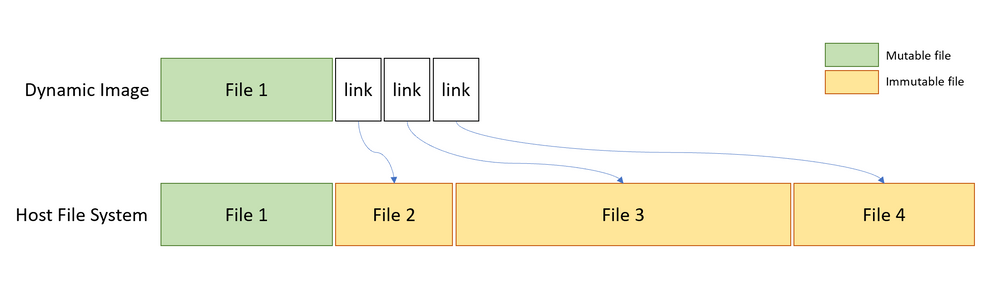
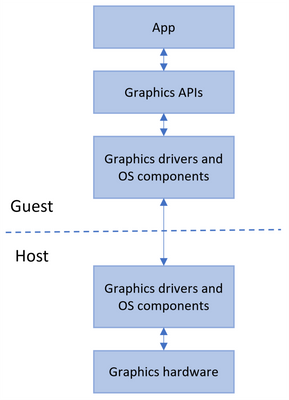
For my link archive, as I totally missed it when it was released: [WayBack] Windows Sandbox – Microsoft Tech Community – 301849:

  1. Install Windows 10 Pro or Enterprise, Insider build 18305 or newer
  2. Enable virtualization:
    • If you are using a physical machine, ensure virtualization capabilities are enabled in the BIOS.
    • If you are using a virtual machine, enable nested virtualization with this PowerShell cmdlet:
    • Set-VMProcessor -VMName <VMName> -ExposeVirtualizationExtensions $true
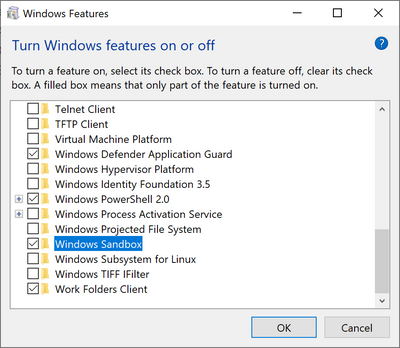
  3. Open Windows Features, and then select Windows Sandbox. Select OK to install Windows Sandbox. You might be asked to restart the computer.
  4. Optional Windows Features dlg.png
  5. Using the Start menu, find Windows Sandbox, run it and allow the elevation
  6. Copy an executable file from the host
  7. Paste the executable file in the window of Windows Sandbox (on the Windows desktop)
  8. Run the executable in the Windows Sandbox; if it is an installer go ahead and install it
  9. Run the application and use it as you normally do
  10. When you’re done experimenting, you can simply close the Windows Sandbox application. All sandbox content will be discarded and permanently deleted
  11. Confirm that the host does not have any of the modifications that you made in Windows Sandbox.

–jeroen

Posted in Power User, Windows, Windows 10 | Leave a Comment »

How to install Telnet with only one command

Posted by jpluimers on 2020/12/01

Source: [WayBackHow to install Telnet with only one command:

dism /online /Enable-Feature /FeatureName:TelnetClient

–jeroen

Posted in Microsoft Surface on Windows 7, Power User, Windows, Windows 10, Windows 7, Windows 8, Windows 8.1, Windows 9, Windows Server 2008, Windows Server 2008 R2, Windows Server 2012, Windows Server 2012 R2, Windows Server 2016, Windows Vista | Leave a Comment »

Compressing C:\Users\All Users\Microsoft\ClickToRun\ProductReleases

Posted by jpluimers on 2020/11/27

Microsoft keeps more and more under C:\Users\All Users\Microsoft\ClickToRun\ProductReleases (also accessible via C:\ProgramData\Microsoft\ClickToRun\ProductReleases or more precisely %AllUsersProfile%\Microsoft\ClickToRun\ProductReleases).

This can be huge, running into 10s of gigabytes, which – for todays cloud, VM and light-weight device based world – is huge.

Compressing seems to fail for me consistently, as I get “access denied” while compressing when elevating from Windows Explorer.

So this is a reminder to sort this out eventually.

These did not help yet:

I don’t dare deleting it:

Hopefully it is something explainable like the a virus scanner.

Later

Yup: it was the Avira Virus Scanner.

Somehow it has the Windows Explorer UI cause an “Access Denied” message to appear when elevating, but you can still compress files fine in a subdirectory with these steps:

Given a subdirectory named C:\SomeDir\A do this:

  1. pushd C:\SomeDir\A
  2. compact /c /s *.*
  3. cd ..
  4. compact /c A
  5. popd

It is not the first time I bump into Avira stuff (but I only blogged about it once, dumb me: VirusTotal: Avira marks a Delphi built executable als false positive), but the decision of using it was outside my control.

–jeroen

Posted in Power User, Windows, Windows 10 | Leave a Comment »

Exiting the Microsoft Narrator

Posted by jpluimers on 2020/11/24

The keyboard bindings for the Microsoft Narrator changed in Windows 10 from Windows 8.1 and earlier.

Since the below support pages refuse to save in the WayBack machine and Archive.is, I copy-pasted some bits of them.

Related:

Read the rest of this entry »

Posted in Power User, Windows, Windows 10, Windows 8, Windows 8.1 | Leave a Comment »

“net view” “System error 1231 has occurred.” “Windows 10”

Posted by jpluimers on 2020/11/09

On my research list: none of my Windows 10 PC’s in WORKGROUP can see that other machines exist, but they can connect to each other.

C:\>net view
System error 1231 has occurred.c

C:\>net view
System error 6118 has occurred.

On Windows 8.1 and 7 (I know: both beyond end-of-support) can see both Windows 8.1/7 machines and Windows 10 machines:

C:\>net view
Server Name          Remark
-------------------------------------------------------------------------------
\\...
The command completed successfully.

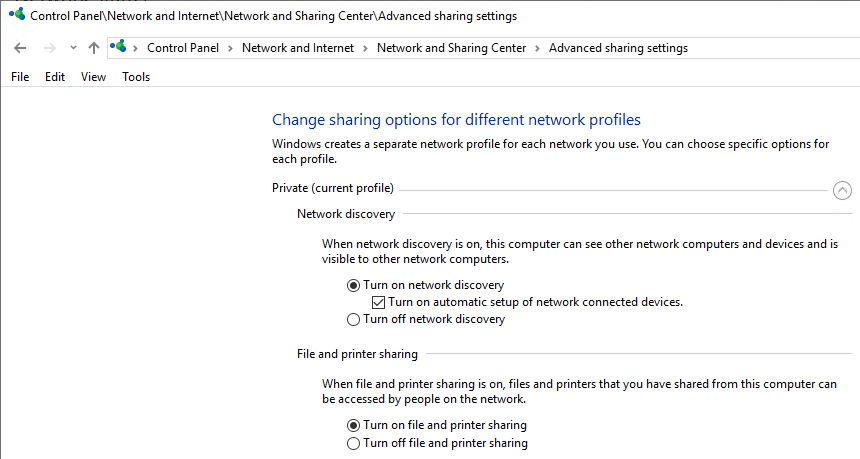
It is unclear on which Windows 10 release this started failing. I think it is around 1803 (April 2018 Update) or 1709 (Fall Creators Update). It fails despite all settings indicating sharing and discovery are enabled:

Things tried that failed:

Start service WebClient

Tried from an administrative command prompt, then waited a minute:

C:\net start WebClient
The WebClient service is starting.
The WebClient service was started successfully.

Failed.

Via: [WayBack] System error 1231 has occurred – Microsoft Community

Ensure system names are uppercase

The system names were already in uppercase.

Via: [WayBack] Win10 10586 – FOUND FIX for system error 1231 bug ( network shares – Microsoft Community

TODO

Note: do not re-enable SMBv1 as it is inherently insecure!

–jeroen

Posted in Power User, Windows, Windows 10 | Leave a Comment »

[Random] How to quickly view a binary’s embedded manifest? – MITHUN SHANBHAG’s blog

Posted by jpluimers on 2020/10/26

[WayBack] [Random] How to quickly view a binary’s embedded manifest? – MITHUN SHANBHAG’s blog

Cool! sigcheck -m dumps a manifest if there is one:

C:\>\\live.sysinternals.com\tools\sigcheck.exe -m C:\Windows\notepad.exe

Background information: [WayBack] Sigcheck – Windows Sysinternals | Microsoft Docs: Dump file version information and verify that images on your system are digitally signed.

[WayBack] License to Kill: Malware Hunting with the Sysinternals Tools | TechEd North America 2013 | Channel 9 This session provides an overview of several Sysinternals tools, including Process Monitor, Process Explorer, and Autoruns, focusing on the features useful for malware analysis and removal. These util

–jeroen

Posted in LifeHacker, Power User, Windows, Windows 10 | Leave a Comment »

RDP logon while other user is logged on: no way to automate automatic disconnect/logoff

Posted by jpluimers on 2020/10/21

One of the dreaded things when logging on using RDP is that if another user is logged on, you have to first indicate you want to indeed logon (if you don’t, the RDP connection will close after some 15-30 seconds), then wait for their approval time-out before you can logon.

As of writing there is no way around this.

Some links that helped me conclude this:

–jeroen

Posted in Development, Power User, Software Development, Windows, Windows 10, Windows 7, Windows 8, Windows 8.1, Windows Development | Leave a Comment »

Non-rectangle select in Windows command line – Super User

Posted by jpluimers on 2020/10/16

Just discovered this has been possible since Windows 10 by holding the shift key while dragging with the mouse. After like 20 years of waiting, why did nobody warn me (:

Is there any way I can disable the stupid rectangle selection mode thing in the Windows command line? I want to select line by line like normal. Currently it’s a giant pain when I need to copy things

So this is a thing from the past: [WayBack] Non-rectangle select in Windows command line – Super User

And this was already possible (but then you had to drag the full width): [WayBack] windows – Select text across lines in cmd.exe? – Super User

–jeroen

Posted in Development, Power User, Windows, Windows 10 | Leave a Comment »