


macos – How can I modify the list of Applications under ‘Open With…’? – Ask Different
Posted by jpluimers on 2019/11/22
Some interesting links on the “open with” database:
- [WayBack] macos – How can I modify the list of Applications under ‘Open With…’? – Ask Different
- [WayBack] macos – How do I remove duplicate “Open With” context menu items in Finder.app? – Ask Different
- [WayBack] How to rebuild the LaunchServices database – Mac OS X Hints
- [WayBack] GitHub – spaquet/CleanOpenWith: Simple AppleScript to keep clean the OpenWith menu
- [WayBack] How to Remove Duplicates & Customize the “Open With” Menu in Mac OS X « Mac Tips :: Gadget Hacks
Simple solution to clean the list:
# Clean up LaunchServices to remove duplicates in the “Open With” menu.
alias lscleanup="/System/Library/Frameworks/CoreServices.framework/Frameworks/LaunchServices.framework/Support/lsregister -kill -r -domain local -domain system -domain user && killall Finder"`
These were by products of what I was really searching for:
Why are some items grey when modifying the “Open with…” settings?
Some applications are greyed out, for instance when editing the “Open with…” for the .cap extension (which are pcap network captures that Wireshark can process).
After the steps below, sometimes the menu still does not update for all files of that extension.
This alias helped me to get that to work: alias restart-finder='killall -KILL Finder'.
Links that helped me finding out:
- [WayBack] Mac OS X: Forcing Dock Applications to Open Files – The Mac Observer
- [WayBack] Global assign Open With problem | Mac Help Forums
- [WayBack] Get to grips with the “Open With” menu | Finder, Terminal | Mac OS X Tips

The trick is to toggle “Recommended Applications” into “All Applications”:
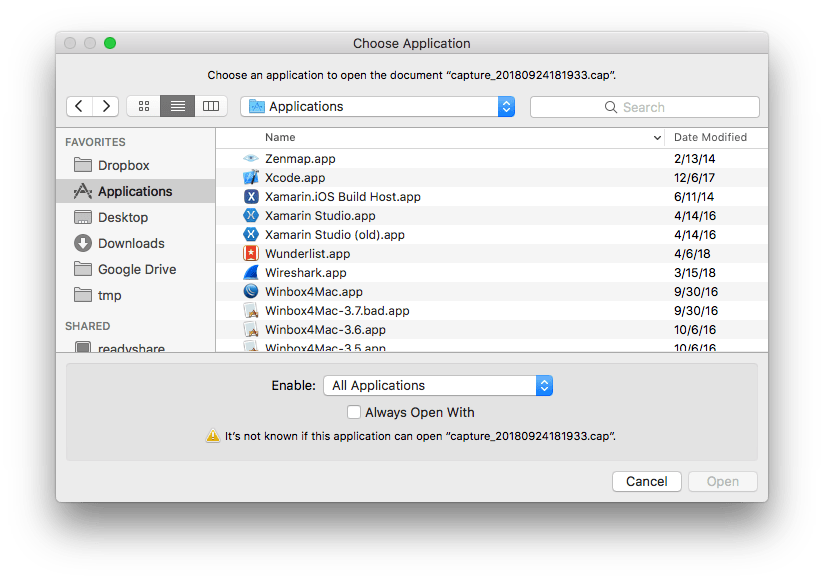
Then you can select “Wireshark.app”:

The same happens when you filter on a name (for instance because you know that Wireshark will work fine):
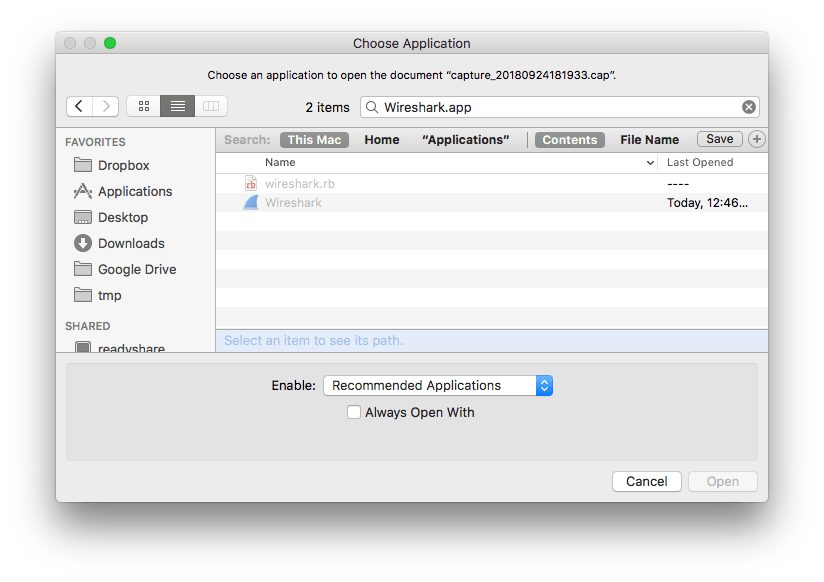
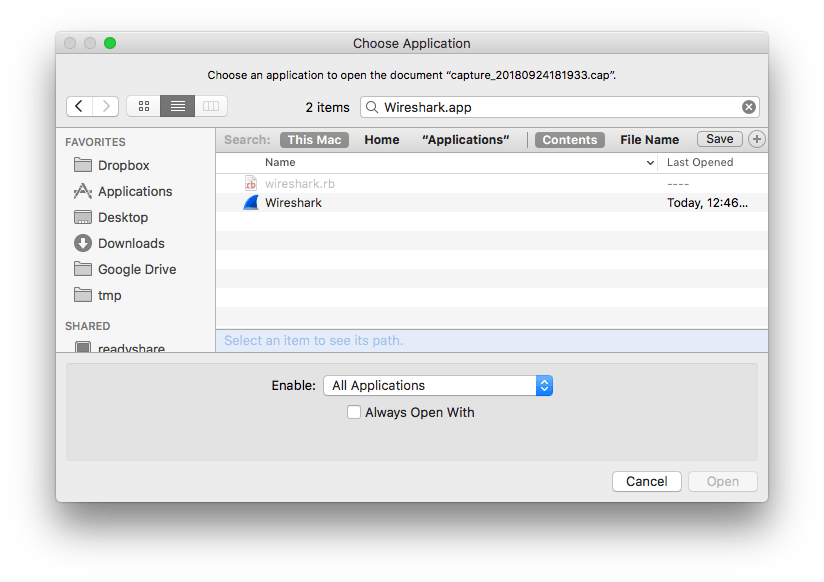
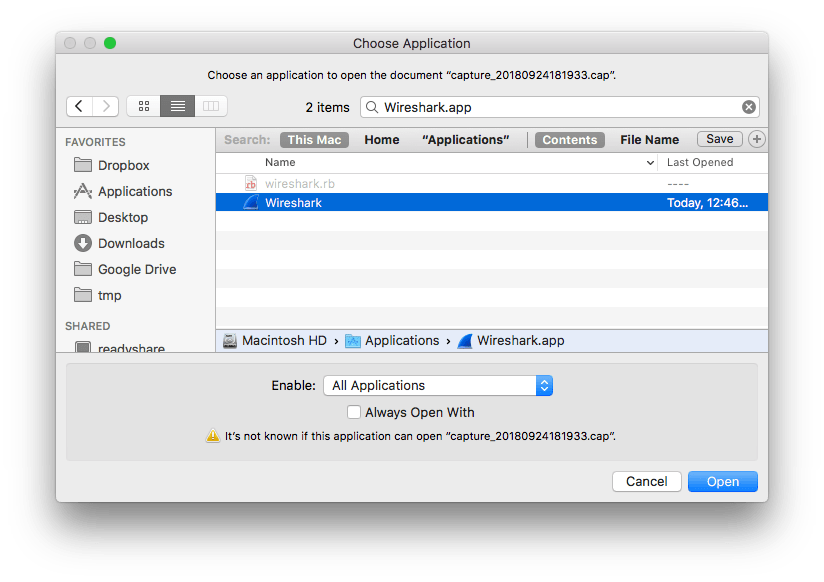
A final thing is that you have to check “Always Open With” so it ends up in the list.

–jeroen

 The Wiert Corner - irregular stream of stuff
Leave a comment