The Wiert Corner – irregular stream of stuff

Jeroen W. Pluimers on .NET, C#, Delphi, databases, and personal interests

  • My badges

  • Twitter Updates

  • My Flickr Stream

  • Pages

  • All categories

  • Enter your email address to subscribe to this blog and receive notifications of new posts by email.

    Join 1,862 other subscribers

Archive for the ‘Visual Studio and tools’ Category

No, Visual Studio Community 2017 is not a 30 day trial – via Stack Overflow

Posted by jpluimers on 2019/04/30

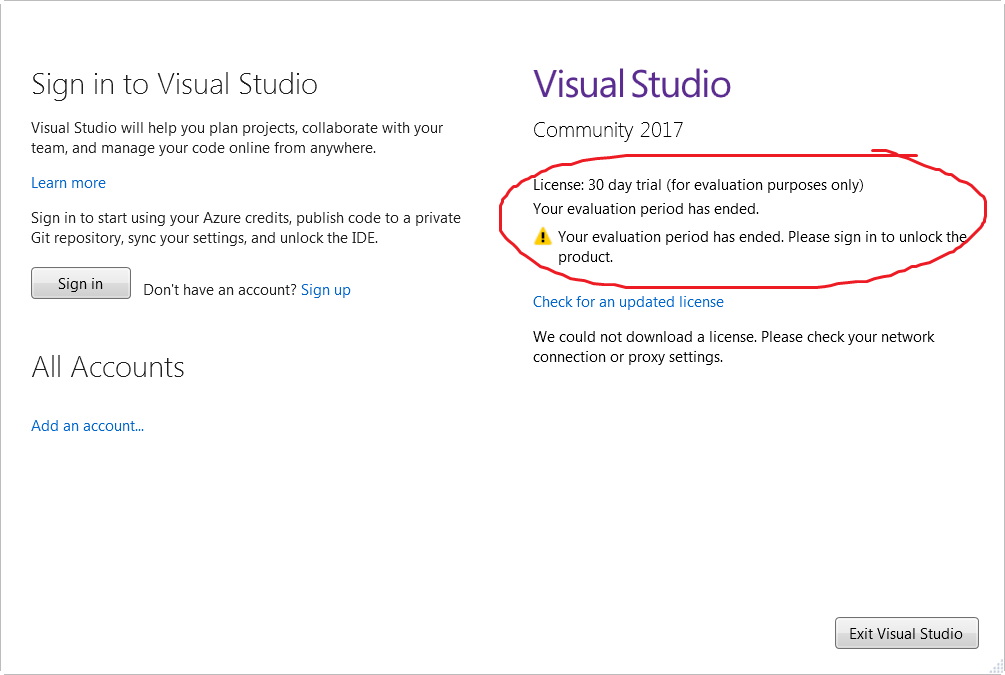
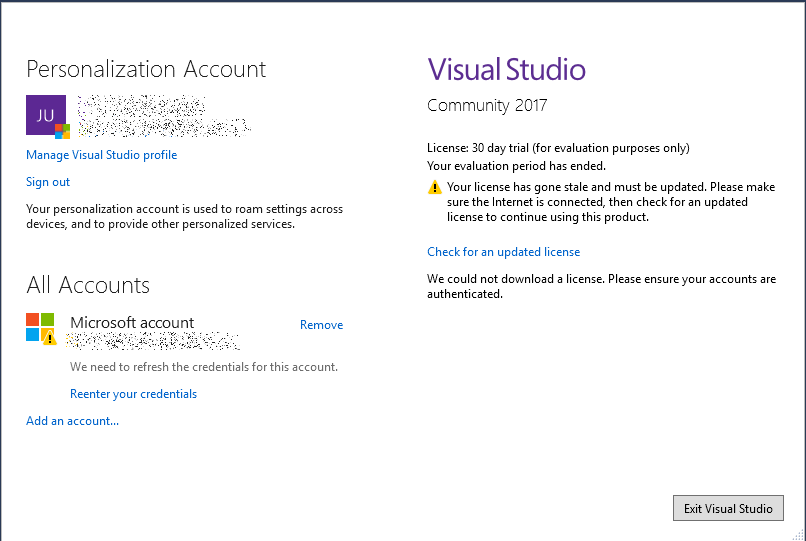
Visual Studio Community 2017 needs a license renewal every ~30 days with a Microsoft account: [WayBack] Visual Studio Community 2017 is a 30 day trial? – Stack Overflow.

This means it is not a trial, but it does not a Microsoft account, and communicate with it every ~30 days which you can get at [WayBack] Microsoft account | Sign In or Create Your Account Today.

Messages you can get:

  • “We could not download a license. Please check your network connection or proxy settings” – meaning: sign in with a Microsoft account by clicking “Add an account…”
  • “We could not download a license, Please ensure your accounts are authenticated.” – meaning you have to click “Reenter your credentials”

–jeroen

Posted in .NET, Development, Software Development, Visual Studio 2017, Visual Studio and tools | Leave a Comment »

Draft – .NET Glossary Diagram – Scott Hanselman

Posted by jpluimers on 2019/04/10

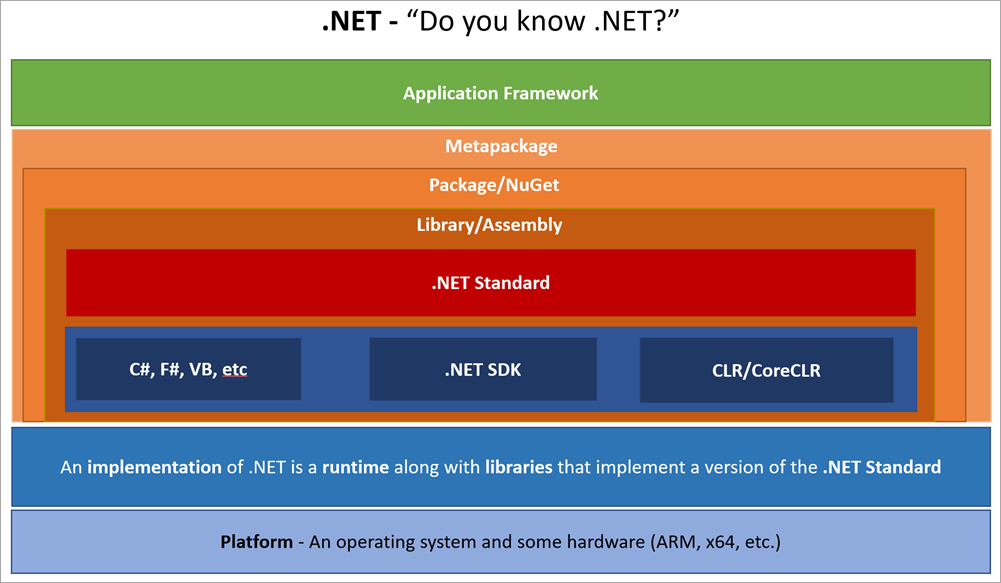
By now this should be out of [WayBackDraft – .NET Glossary Diagram – Scott Hanselman: a list of common terms to describe various parts of the .NET ecosystem.

He has a nice list of sentences where each term is used.

I’ll try to use them myself as well, so I gave it a start at paulcbetts/refit: The automatic type-safe REST library for Xamarin and .NET.

–jeroen

Posted in .NET, C#, Development, F#, Software Development, VB.NET, Visual Studio and tools | Leave a Comment »

from a WSDL import: empty “Reference.cs” – Google Search

Posted by jpluimers on 2019/01/10

A search for empty “Reference.cs” – Google Search seems to indicate this happens with referenced types that – despite turning off that option – from the Visual Studio 2017 IDE sometimes results in an empty Reference.cs.

My solution: import in an empty project, then move the reference to the existing project and add it.

[WayBack] c# – Sometimes adding a WCF Service Reference generates an empty reference.cs – Stack Overflow

–jeroen

Posted in .NET, C#, Development, Software Development, Visual Studio 2015, Visual Studio 2017, Visual Studio and tools | Leave a Comment »

Creating a full off-line installation directory for Visual Studio 2017 Community

Posted by jpluimers on 2018/11/01

Steps:

  1. mkdir C:\Installs\VS2017Community\VS2017CommunityLayout
  2. pushd C:\Installs\VS2017Community
  3. bitsadmin.exe /transfer "VS2017CommunityBootstrap" https://aka.ms/vs/15/release/vs_community.exe C:\Installs\VS2017Community\vs_community.exe
  4. vs_community.exe --lang en-US --layout C:\Installs\VS2017Community\VS2017CommunityLayout
  5. VS2017CommunityLayout\vs_community.exe

Step 3 needs a full path to the destination file.

Step 4 can take a relative path.

Step 4 takes considerable time (for 15.2 about 90 minutes on a 100 Mibit/s fiber connection with an ~8 millisecond ping time to download.visualstudio.microsoft.com; for 15.8 with 80 Mibit/s and a ~4 millisecond ping about 120 minutes) resulting in ~40 gigabyte download.

After download, run the vs_setup.exe in theVS2017CommunityLayout directory.

Note that upgrading to a newer version of Visual Studio 2017 will require downloads! See [WayBack] Offline Install Modify always goes to the WEB – Developer Community.

Note that after installation, Visual Studio 2017 needs considerable disk space as found via visual studio 2017 disk size – Google Search:

[WayBack] Visual Studio 2017 System Requirements | Microsoft Docs:

Find the minimum system requirements, supported hardware, and languages for the Visual Studio 2017 product family.

Hardware
  • 1.8 GHz or faster processor. Dual-core or better recommended
  • 2 GB of RAM; 4 GB of RAM recommended (2.5 GB minimum if running on a virtual machine)
  • Hard disk space: up to 130 GB of available space, depending on features installed; typical installations require 20-50 GB of free space.
  • Hard disk speed: to improve performance, install Windows and Visual Studio on a solid state drive (SSD).
  • Video card that supports a minimum display resolution of 720p (1280 by 720); Visual Studio will work best at a resolution of WXGA (1366 by 768) or higher.

For instance, the choices below require about 22 gigabyte of space, while adding mobile .NET development adds another 13 gigabyte.
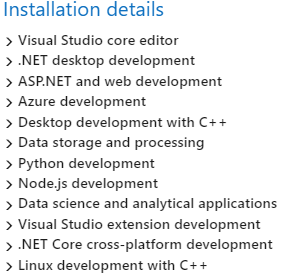
Via:

–jeroen

Posted in .NET, Development, Software Development, Visual Studio 2017, Visual Studio and tools | Leave a Comment »

When Google Search returns one link twice in the results, thinking it was published on two different dates.

Posted by jpluimers on 2018/09/13

I laughed when https://www.google.com/#q=visual%20studio%20code%20indent%20settings%20per%20file%20type got me the first link twice (see below screenshot).

But I was glad that that link to [WayBack] visual studio code – How to set per-filetype tab size? – Stack Overflow.

This one:

In addition, it taught me how to configure the settings.json with md specific settings, which – despite the IDE indicating the JSON is invalid – just works: markdown indentation is now 2 character positions.

    "[md]": {
      "editor.tabSize": 2
    }

The search result:

Read the rest of this entry »

Posted in .NET, Chrome, Development, Google, GoogleSearch, Power User, Software Development, Visual Studio and tools, vscode Visual Studio Code | Leave a Comment »

.net – How to generate service reference with only physical wsdl file – Stack Overflow

Posted by jpluimers on 2018/08/28

Since I always forget that you can add a service reference by hand-pasting the full path to a local WSDL file, then hit Go: [WayBack] .net – How to generate service reference with only physical wsdl file – Stack Overflow

–jeroen

Read the rest of this entry »

Posted in .NET, Development, Software Development, Visual Studio 2015, Visual Studio and tools | Leave a Comment »

Pretty printing HTML is the same as formatting code: How do you format code in Visual Studio Code (VSCode) – Stack Overflow

Posted by jpluimers on 2018/07/18

I was looking for a HTML pretty printer (…) but in Visual Studio code, that is called code formatting, which supports many languages out of the box (including HTML) without requiring extensions like Atom.io (see below).

The shortcuts are at [WayBack] How do you format code in Visual Studio Code (VSCode) – Stack Overflow.

For Mac OS X/OS X/MacOS they are (the second one only appears when you have a code selection):

  • document: ShiftOptionF
  • selection: CommandK CommandF

Read the rest of this entry »

Posted in Development, Software Development, Visual Studio and tools, vscode Visual Studio Code | Leave a Comment »

Visual Studio – Add File As Link

Posted by jpluimers on 2018/07/04

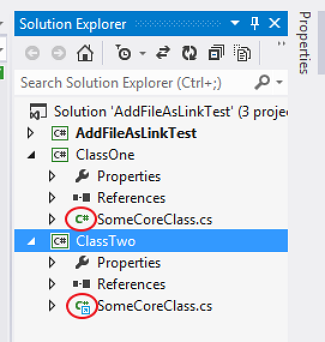
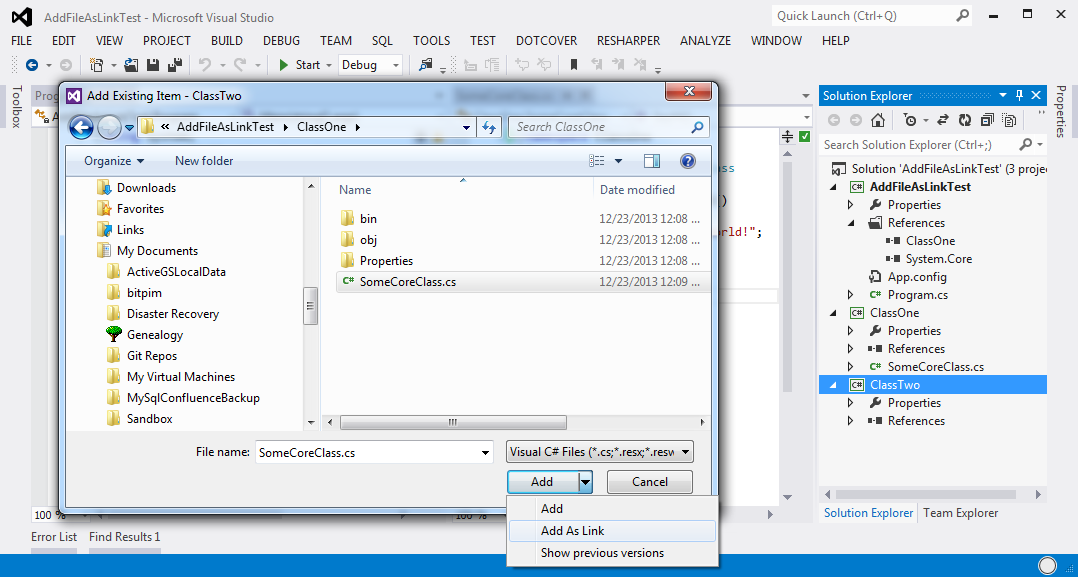
Since I forget where they hid the [WayBack] Visual Studio – Add File As Link feature, two images from the linked post:

  1. The icon in the link is different from the normal file:
  2. Adding as a link is  not a separate menu item, but a modification of the file open dialog overlaying the default Add button with two more options: Add; Add as Link (note Show Previous Versions is a feature of non-Home version of Windows Vista and up).
    Do not double click the file name, as that will add (AND COPY TO THE CURRENT PROJECT DIRECTORY !!!1!!!) that file to your current project.

A step by step instruction is at [WayBack] c# – Add File as a Link on Visual Studio – Debug vs Publish – Stack Overflow.

–jeroen

Posted in .NET, Development, Software Development, Visual Studio and tools | Leave a Comment »

Some useful Visual Studio Keyboard bindings – via my comment at “Allow for floating windows · Issue #10121 · Microsoft/vscode · GitHub”

Posted by jpluimers on 2018/05/30

The thread at [WayBack]: Allow for floating windows · Issue #10121 · Microsoft/vscode · GitHub made me discover a few things, which I have commented there.

Reminder to self: find the Windows keyboard shortcuts as well.

Thanks @steinhh for the CmdK O keyboard combination. I was not aware of that yet and I am going to use this next week on a multi-monitor system to see how well that works.

Your tip made me found the PDFs below and made me make the lists/screenshots below as well.

Terrific! Thank you, thank you!

The bindings (on Mac) I found with their screenshots:

  • CmdShiftP: show all commands
    screenshot 2018-05-20 15 27 30
  • CmdK O: open current file in new Window
  • CmdShiftN: open a new window
    screenshot 2018-05-20 15 27 00
  • CmdK CmdR: open keyboard shortcuts reference PDF for current OS in the default web-browser
  • CmdK CmdS: open keyboard shortcuts editor
    screenshot 2018-05-20 15 24 07

The keyboard shortcuts editor has a search which can find bindings on the keybinding name itself or the command name:

  • screenshot 2018-05-20 15 31 58
  • screenshot 2018-05-20 15 33 19

–jeroen

Posted in Development, Software Development, Visual Studio and tools, vscode Visual Studio Code | Leave a Comment »

Why do 90% of the Visual Studio Tools and Extensions make it so hard to update…

Posted by jpluimers on 2018/03/08

Worth repeating my [WayBack] Friday developers rant… Why do 90% of the Visual Studio Tools and Extensions make it so !@#$!@#$ hard to update.… – Jeroen Wiert Pluimers – Google+:

Why do 90% of the Visual Studio Tools and Extensions make it so !@#$!@#$ hard to update as for *each* tool, you have to:

1. start Visual Studio (which doesn’t show progress, sometimes starts fast and sometimes takes a minute)
2. go to “Tools” menu, then to the “Extensions and Updates…” entry
3. in the dialog, browse to the bottom entry of the leftmost treeview (“Updates”) and click on it (as you cannot reach it by keyboard)
4. click the “Update” button for the topmost tool (it downloads with your default web browser which takes focus away from Visual Studio)
5. switch back to Visual Studio
6. close the “Extensions and Updates…” dialog
7. quit Visual studio
8. find the downloaded updater in your web browser (all !@#*!@# web browsers do this in a different way)
9. update (specify options, choose UAC elevation when needed, etc, etc)
10. wait for the update to complete (.NET Core 1.0.1, Microsoft Azure SDK for .NET and Microsoft SQL Server Data Tools take ages to complete and for most of the time stay at 95% of the progress bar for minutes. It’s called progress bar for a reason, track your progress evenly and hurry up!)
11. start over at step 1 for the next update

10 )!@($#*%&@# manual steps PER UPDATE

Afterwards you need to clean all the downloaded installers as they often are partial web-installers which cannot be re-used

I want a “update all with default settings” button….

–jeroen

Posted in .NET, Development, Software Development, Visual Studio and tools | Leave a Comment »