Archive for the ‘Visual Studio 2002’ Category
Posted by jpluimers on 2017/05/03
This might be obvious for CMake regulars, but given the help, I would never have guessed this.
Generate x64:
cmake .. -G"Visual Studio 14 Win64"
Generate x86 is just leaving out the platform away:
cmake .. -G"Visual Studio 14"
In this case they are for Visual Studio 2015 (internally named 14).
The help:
The following generators are available on this platform:
  Visual Studio 14 2015 [arch] = Generates Visual Studio 2015 project files.
                                 Optional [arch] can be "Win64" or "ARM".
  Visual Studio 12 2013 [arch] = Generates Visual Studio 2013 project files.
                                 Optional [arch] can be "Win64" or "ARM".
  Visual Studio 11 2012 [arch] = Generates Visual Studio 2012 project files.
                                 Optional [arch] can be "Win64" or "ARM".
  Visual Studio 10 2010 [arch] = Generates Visual Studio 2010 project files.
                                 Optional [arch] can be "Win64" or "IA64".
  Visual Studio 9 2008 [arch]  = Generates Visual Studio 2008 project files.
                                 Optional [arch] can be "Win64" or "IA64".
  Visual Studio 8 2005 [arch]  = Generates Visual Studio 2005 project files.
                                 Optional [arch] can be "Win64".
  Visual Studio 7 .NET 2003    = Deprecated.  Generates Visual Studio .NET
                                 2003 project files.
–jeroen
Adopted from: [CMake] choose 32bit or 64bit in visual studio
Posted in .NET, Development, Software Development, Visual Studio 11, Visual Studio 2002, Visual Studio 2003, Visual Studio 2005, Visual Studio 2008, Visual Studio 2010, Visual Studio 2012, Visual Studio 2013, Visual Studio 2014, Visual Studio 2015, Visual Studio and tools | Leave a Comment »
Posted by jpluimers on 2016/06/29
Every once in a while I do Command-line Building With csc.exe.
When building libraries, it throws this error:
The reason is that by default it wants to build a program.
Change this default by adding the /target:library parameter.
–jeroen
via: c# – Program does not contain a static ‘Main’ method suitable for an entry point – Stack Overflow.
Posted in .NET, .NET 1.x, .NET 2.0, .NET 3.0, .NET 3.5, .NET 4.0, .NET 4.5, Development, Software Development, Visual Studio 11, Visual Studio 2002, Visual Studio 2003, Visual Studio 2005, Visual Studio 2008, Visual Studio 2010, Visual Studio 2012, Visual Studio 2013, Visual Studio 2014, Visual Studio 2015, Visual Studio and tools | Leave a Comment »
Posted by jpluimers on 2016/06/28
The below batch file finds and runs the latest vsvars32.bat on a system.
vsvars32.bat initializes the path and other environment variables to run Visual Studio and command-line tools (like csc.exe, xsd.exe, editbin.exe).
The batch file employs a few tricks from:
  :: Run the most recent vsvars32.bat

  :: test these environment variables that have 110 or 120 in them (future enhancements: support more Visual Studio versions):
  :: Visual Studio .NET 2002: VS70COMNTOOLS=C:\Program Files (x86)\Microsoft Visual Studio .NET\Common7\Tools\
  :: Visual Studio .NET 2003: VS71COMNTOOLS=C:\Program Files (x86)\Microsoft Visual Studio .NET 2003\Common7\Tools\
  :: Visual Studio 2005: VS80COMNTOOLS=C:\Program Files (x86)\Microsoft Visual Studio 8\Common7\Tools\
  :: Visual Studio 2008: VS90COMNTOOLS=C:\Program Files (x86)\Microsoft Visual Studio 9.0\Common7\Tools\
  :: Visual Studio 2010: VS100COMNTOOLS=C:\Program Files (x86)\Microsoft Visual Studio 10.0\Common7\Tools\
  :: Visual Studio 2012: VS110COMNTOOLS=C:\Program Files (x86)\Microsoft Visual Studio 11.0\Common7\Tools\
  :: Visual Studio 2013: VS120COMNTOOLS=C:\Program Files (x86)\Microsoft Visual Studio 12.0\Common7\Tools\
  :: VS130COMNTOOLS was skipped: http://www.neowin.net/forum/topic/1215607-visual-studio-13-to-be-skipped-vnext-to-be-v14/
  :: Visual Studio 2015: VS130COMNTOOLS=C:\Program Files (x86)\Microsoft Visual Studio 14.0\Common7\Tools\
  :: They contain `vsvars32.bat` which will update the `PATH` so it includes where `xsd.exe`, `csc.exe`, `editbin.exe` and others reside
  :: Different examples: https://github.com/noop-dev/c-cgdk/blob/master/compile-vscpp.bat
  :: and https://code.google.com/p/xvid4psp/source/browse/trunk/bin/4Gb+patcher.bat
  :: or give it a go for any version: http://chess.eecs.berkeley.edu/ptexternal/src/ptII/ptolemy/actor/lib/fmi/fmus/template/sources/build_fmu.bat
  setlocal enabledelayedexpansion
  :: delayed expansion allows for the exclamation marks
  :: see http://ss64.com/nt/delayedexpansion.html
  :: see http://stackoverflow.com/questions/22857407/windows-batch-how-to-assign-variable-with-dynamic-name
  for %%v in (70 71 80 90 100 110 120 130) do if not [!VS%%vCOMNTOOLS!]==[] set VSCOMNTOOLS=!VS%%vCOMNTOOLS!
  :: http://stackoverflow.com/questions/28682268/assign-variables-past-endlocal-in-a-loop
  endlocal & call :do call "%VSCOMNTOOLS%vsvars32.bat"
  goto :eof

:do
  echo %*
  %*
  goto :eof
–jeroen
via: Finding the path of xsd.exe from your Visual Studio Build Events « The Wiert Corner – irregular stream of stuff.
Posted in .NET, .NET 1.x, .NET 2.0, .NET 3.0, .NET 3.5, .NET 4.0, .NET 4.5, Development, Software Development, Visual Studio 11, Visual Studio 2002, Visual Studio 2003, Visual Studio 2005, Visual Studio 2008, Visual Studio 2010, Visual Studio 2012, Visual Studio 2013, Visual Studio 2014, Visual Studio 2015, Visual Studio and tools | Leave a Comment »
Posted by jpluimers on 2015/02/25
This is why I like the extensions in Visual Studio so much: even though recordable macro’s were removed in Visual Studio 11, textual macros (which I used most) are in the Text Macros for Visual Studio 2012/2013 extension by Xavier Poinas:
You can try this extension (I am the author):
http://visualstudiogallery.msdn.microsoft.com/8e2103b6-87cf-4fef-9410-a580c434b602
It basically does the same thing as the Notepad++ macros (text editing, no UI automation).
The code is open source (GitHub), so feel free to contribute improvements :-)
–jeroen
via: Can I record/play Macros in Visual Studio 2012/2013? – Stack Overflow.
Posted in .NET, Development, Software Development, Visual Studio 11, Visual Studio 2002, Visual Studio 2003, Visual Studio 2005, Visual Studio 2008, Visual Studio 2010, Visual Studio and tools | 4 Comments »
Posted by jpluimers on 2014/12/24
Once every while you still do WinForms work, and bump into something you hadn’t bumped into before.
This time it was trying to set ForeColor = Color.Red on a ReadOnly TextBox for displaying error messages:
- Using a TextBox means the user can still copy the text to the clipboard.
- Using a Red foreground draws enough attention (it’s was an app with a really busy user interface).
When setting a TextBox from ReadOnly = false to true sets the BackColor from SystemColors.Window (usually white) to SystemColors.Control (usually light grey), and leaves the ForeColor to SystemColors.WindowText (usually black).
Setting ForeColor = Color.Red (funny there is a plural in SystemColors but not in Color) it doesn’t display it as such:
To my surprise, the TextBox had ReadOnly text (you could copy, but not modify it), which showed with a a grey (SystemColors.Control) BackColor and a black (SystemColors.WindowText) ForeColor: the defaults for a ReadOnly TextBox, not using my ForeColor = Color.Red;
I vaguely remembered there was some odd way of solving this, but since I hadn’t written a blog article about it back then (somewhere around .NET 1.x or 2.0 I didn’t have a blog yet), I was glad that Cheetah posted this answer on StackOverflow: Read the rest of this entry »
Posted in .NET, .NET 1.x, .NET 2.0, .NET 3.0, .NET 3.5, .NET 4.0, .NET 4.5, C#, C# 1.0, C# 2.0, C# 3.0, C# 4.0, C# 5.0, Color (software development), Development, Software Development, VB.NET, VB.NET 10.0, VB.NET 11.0, VB.NET 7.0, VB.NET 7.1, VB.NET 8.0, VB.NET 9.0, Visual Studio 11, Visual Studio 2002, Visual Studio 2003, Visual Studio 2005, Visual Studio 2008, Visual Studio 2010, Visual Studio and tools, WinForms | Leave a Comment »
Posted by jpluimers on 2014/01/16
This is one of the things I tend to forget, as you do it once per machine, and the place to do it is not logical to me.
I mainly use it to quickly record a Macro (boy, I wish Office had a TemporaryMacro feature like Visual Studio had. Alas no more: Macro Recording/Playback has been removed in Visual Studio 2012).
The logical place for me would be to have a context-menu on the ribbon where you can enable the Developer tab.
Anyway, this is how to enable the Developer tab in Word 2007/2010/2013: Read the rest of this entry »
Posted in Development, Office, Office 2007, Office 2010, Office 2013, Power User, Software Development, Visual Studio 11, Visual Studio 2002, Visual Studio 2003, Visual Studio 2005, Visual Studio 2008, Visual Studio 2010, Visual Studio and tools, Word | Leave a Comment »
Posted by jpluimers on 2013/12/10
Some things you have done for ages, are already phrased so nicely, the only thing you can do is quote.
Thanks Dave Coulter:
You can attach the Visual Studio debugger to a process by:
Debug > Attach to Process > Attach Read the rest of this entry »
Posted in .NET, .NET 1.x, .NET 2.0, .NET 3.0, .NET 3.5, .NET 4.0, .NET 4.5, C#, C# 1.0, C# 2.0, C# 3.0, C# 4.0, C# 5.0, Development, Software Development, Visual Studio 11, Visual Studio 2002, Visual Studio 2003, Visual Studio 2005, Visual Studio 2008, Visual Studio 2010, Visual Studio and tools | Leave a Comment »
Posted by jpluimers on 2013/02/05
 Clarification of the steps from via Support Beyond Compare to use Beyond Compare 3 or 2 from Visual Studio and with Team Foundation System.
First run this little batch file to show you the exact location of BComp.exe:
@echo off
  call :show "%ProgramFiles%\Beyond Compare 3\BComp.exe"
  call :show "%ProgramFiles(x86)%\Beyond Compare 3\BComp.exe"
  call :show "%ProgramFiles%\Beyond Compare 2\BComp.exe"
  call :show "%ProgramFiles(x86)%\Beyond Compare 2\BComp.exe"
  goto :eof
:show
  if not exist %1 goto :eof
  echo Beyond Compare is here:
  echo %~1
(I know that this will not find a Portable Beyond Compare installation).
 Note that
 BComp.exe (for GUI use) and BComp.com (for console use) are bootstrappers for BCompare.exe. Both will wait when ran from a GUI or console for the comparison to finish. Starting BCompare.exe will not wait. See BComp.exe vs BComp.com – Scooter Forums for more information on this.
Everywhere you see path to BComp.exe below, enter the path that the above batch file tells you.
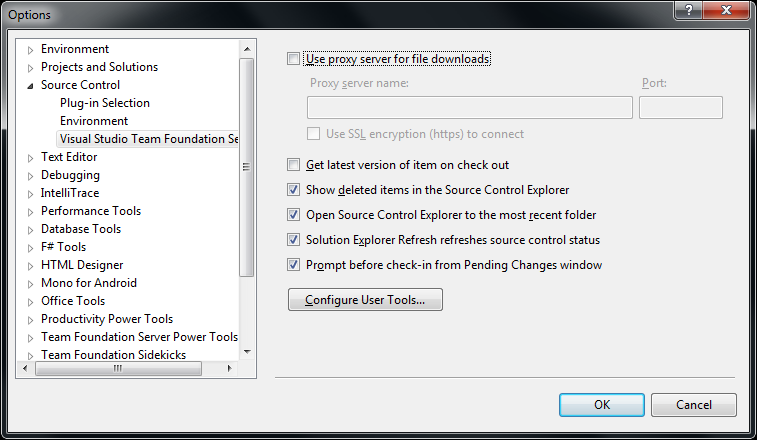
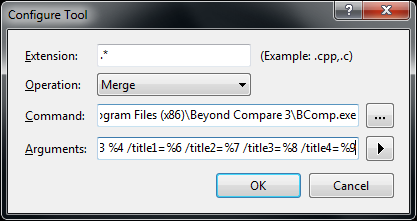
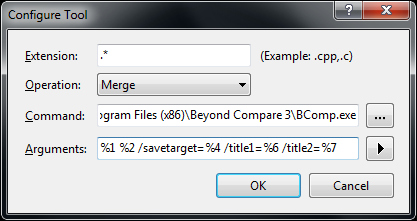
The first two pictures on the right show common steps for all three integrations. The images below are the specific ones for each integration. You can click on each image to view a larger version.
The steps work with the full version of Visual Studio and the Team Explorer edition of Visual Studio.
You can find different arguments for other tools on this excellent diff/merge configuration in Team Foundation – common Command and Argument values post by James Manning.
Adding diff/compare support to Visual Studio
 In Visual Studio Choose Options from the Tools menu.
- Expand Source Control in the treeview.
- Click Visual Studio Team Foundation Server in the treeview.
- Click the Configure User Tools button.
- Click the Add button.
- Enter “.*” in the Extension edit.
- Choose
Compare in the Operation combobox.
- Enter the
path to BComp.exe in the Command edit.
- In the Arguments edit, use:
%1 %2 /title1=%6 /title2=%7
- Then press OK, then OK, then OK
Adding 3-way Merge to Visual Studio
You need Beyond Compare version 3 Professional for this.
(note: only the steps marked with * are different from above)
 In Visual Studio Choose Options from the Tools menu.
- Expand Source Control in the treeview.
- Click Visual Studio Team Foundation Server in the treeview.
- Click the Configure User Tools button.
- Click the Add button.
- Enter “.*” in the Extension edit.
- * Choose
Merge in the Operation combobox.
- Enter the
path to BComp.exe in the Command edit.
- * In the Arguments edit, use:
%1 %2 %3 %4 /title1=%6 /title2=%7 /title3=%8 /title4=%9
- Then press OK, then OK, then OK
Adding 2-way Merge to Visual Studio
This is for Beyond Compare version 2, and Beyond Compare version 3 Standard.
(note: only the step marked with * is different from above)
 In Visual Studio Choose Options from the Tools menu.
- Expand Source Control in the treeview.
- Click Visual Studio Team Foundation Server in the treeview.
- Click the Configure User Tools button.
- Click the Add button.
- Enter “.*” in the Extension edit.
- Choose
Merge in the Operation combobox.
- Enter the
path to BComp.exe in the Command edit.
- * In the Arguments edit, use:
%1 %2 /savetarget=%4 /title1=%6 /title2=%7
- Then press OK, then OK, then OK
To summarize, the differences
Functionality
|
entry in
Operation combobox
|
content of
Arguments edit
|
Beyond Compare
version/edition |
| diff/merge |
Compare |
%1 %2 /title1=%6 /title2=%7 |
any version/edition |
| 3-ware compare |
Merge |
%1 %2 %3 %4 /title1=%6 /title2=%7 /title3=%8 /title4=%9 |
3/Professional |
| 2-way compare |
Merge |
%1 %2 /savetarget=%4 /title1=%6 /title2=%7 |
2 or 3/Standard |
Hope this helps a few people.
–jeroen
via:
Posted in .NET, Beyond Compare, Development, Power User, Software Development, Visual Studio 11, Visual Studio 2002, Visual Studio 2003, Visual Studio 2005, Visual Studio 2008, Visual Studio 2010, Visual Studio and tools | Leave a Comment »
Posted by jpluimers on 2013/01/10
In the .NET 1.x past, the WinForms designers in Visual Studio .NET and Visual Studio 2003 would put the C# or VB.NET code containing the form code as the InitializeComponent method of the top most class monolithic C# and VB.NET files that also contain the user code (for events and such).
As of Visual Studio 2005 (actually: Whidbey and higher), this code is based on partial classes. For each form (actually designable entity, but lets limit this to WinForms forms) you get a MyForm.cs and MyForm.Designer.cs
As a side note, with a bit of effort, you can generate the Windows Form Designer generated code yourself as this answer shows. This is for instance convenient when you have form definitions in a different technology and want to convert it to WinForms, WPF or another form of designer based .NET code.
I long time ago I wrote a short manual for co-workers on converting the monolithic files (for people interested, it is below).
Since then I found a couple of very interesting links: Read the rest of this entry »
Posted in .NET, .NET 1.x, .NET 2.0, .NET 3.0, C#, C# 1.0, C# 2.0, C# 3.0, C# 4.0, C# 5.0, Development, Software Development, Visual Studio 11, Visual Studio 2002, Visual Studio 2003, Visual Studio 2005, Visual Studio 2008, Visual Studio 2010, Visual Studio and tools, WinForms | 1 Comment »





 The Wiert Corner - irregular stream of stuff