Archive for the ‘Visual Studio 2008’ Category
Posted by jpluimers on 2013/02/05
 Clarification of the steps from via Support Beyond Compare to use Beyond Compare 3 or 2 from Visual Studio and with Team Foundation System.
First run this little batch file to show you the exact location of BComp.exe:
@echo off
  call :show "%ProgramFiles%\Beyond Compare 3\BComp.exe"
  call :show "%ProgramFiles(x86)%\Beyond Compare 3\BComp.exe"
  call :show "%ProgramFiles%\Beyond Compare 2\BComp.exe"
  call :show "%ProgramFiles(x86)%\Beyond Compare 2\BComp.exe"
  goto :eof
:show
  if not exist %1 goto :eof
  echo Beyond Compare is here:
  echo %~1
(I know that this will not find a Portable Beyond Compare installation).
 Note that
 BComp.exe (for GUI use) and BComp.com (for console use) are bootstrappers for BCompare.exe. Both will wait when ran from a GUI or console for the comparison to finish. Starting BCompare.exe will not wait. See BComp.exe vs BComp.com – Scooter Forums for more information on this.
Everywhere you see path to BComp.exe below, enter the path that the above batch file tells you.
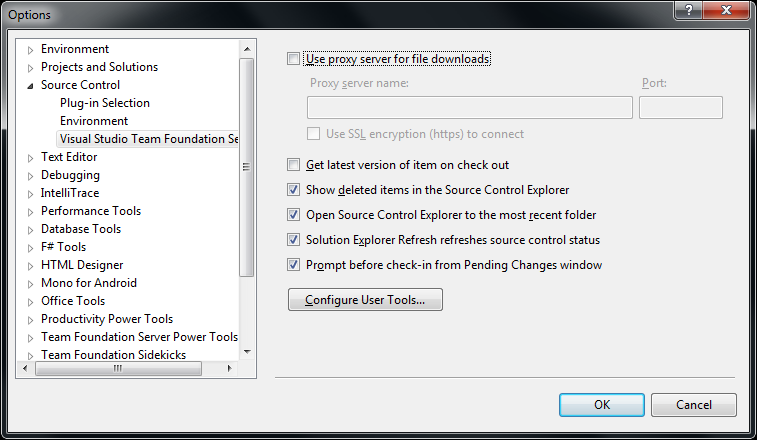
The first two pictures on the right show common steps for all three integrations. The images below are the specific ones for each integration. You can click on each image to view a larger version.
The steps work with the full version of Visual Studio and the Team Explorer edition of Visual Studio.
You can find different arguments for other tools on this excellent diff/merge configuration in Team Foundation – common Command and Argument values post by James Manning.
Adding diff/compare support to Visual Studio
 In Visual Studio Choose Options from the Tools menu.
- Expand Source Control in the treeview.
- Click Visual Studio Team Foundation Server in the treeview.
- Click the Configure User Tools button.
- Click the Add button.
- Enter “.*” in the Extension edit.
- Choose
Compare in the Operation combobox.
- Enter the
path to BComp.exe in the Command edit.
- In the Arguments edit, use:
%1 %2 /title1=%6 /title2=%7
- Then press OK, then OK, then OK
Adding 3-way Merge to Visual Studio
You need Beyond Compare version 3 Professional for this.
(note: only the steps marked with * are different from above)
 In Visual Studio Choose Options from the Tools menu.
- Expand Source Control in the treeview.
- Click Visual Studio Team Foundation Server in the treeview.
- Click the Configure User Tools button.
- Click the Add button.
- Enter “.*” in the Extension edit.
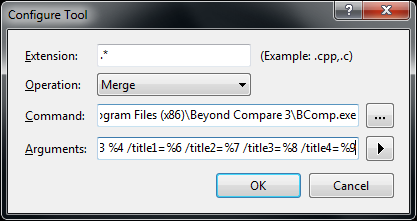
- * Choose
Merge in the Operation combobox.
- Enter the
path to BComp.exe in the Command edit.
- * In the Arguments edit, use:
%1 %2 %3 %4 /title1=%6 /title2=%7 /title3=%8 /title4=%9
- Then press OK, then OK, then OK
Adding 2-way Merge to Visual Studio
This is for Beyond Compare version 2, and Beyond Compare version 3 Standard.
(note: only the step marked with * is different from above)
 In Visual Studio Choose Options from the Tools menu.
- Expand Source Control in the treeview.
- Click Visual Studio Team Foundation Server in the treeview.
- Click the Configure User Tools button.
- Click the Add button.
- Enter “.*” in the Extension edit.
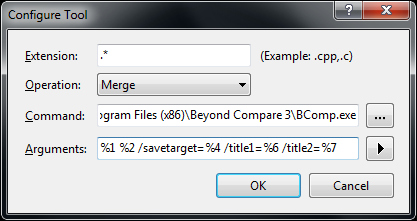
- Choose
Merge in the Operation combobox.
- Enter the
path to BComp.exe in the Command edit.
- * In the Arguments edit, use:
%1 %2 /savetarget=%4 /title1=%6 /title2=%7
- Then press OK, then OK, then OK
To summarize, the differences
Functionality
|
entry in
Operation combobox
|
content of
Arguments edit
|
Beyond Compare
version/edition |
| diff/merge |
Compare |
%1 %2 /title1=%6 /title2=%7 |
any version/edition |
| 3-ware compare |
Merge |
%1 %2 %3 %4 /title1=%6 /title2=%7 /title3=%8 /title4=%9 |
3/Professional |
| 2-way compare |
Merge |
%1 %2 /savetarget=%4 /title1=%6 /title2=%7 |
2 or 3/Standard |
Hope this helps a few people.
–jeroen
via:
Posted in .NET, Beyond Compare, Development, Power User, Software Development, Visual Studio 11, Visual Studio 2002, Visual Studio 2003, Visual Studio 2005, Visual Studio 2008, Visual Studio 2010, Visual Studio and tools | Leave a Comment »
Posted by jpluimers on 2013/01/22
I normally don’t do much VBScript stuff, but sometimes I have to, and these tips helped me big time:
–jeroen
This was the script in question (mimicked a bit after Prnmngr.vbs): Read the rest of this entry »
Posted in Development, Scripting, Software Development, VBScript, Visual Studio 11, Visual Studio 2005, Visual Studio 2008, Visual Studio 2010, Visual Studio and tools | Leave a Comment »
Posted by jpluimers on 2013/01/10
In the .NET 1.x past, the WinForms designers in Visual Studio .NET and Visual Studio 2003 would put the C# or VB.NET code containing the form code as the InitializeComponent method of the top most class monolithic C# and VB.NET files that also contain the user code (for events and such).
As of Visual Studio 2005 (actually: Whidbey and higher), this code is based on partial classes. For each form (actually designable entity, but lets limit this to WinForms forms) you get a MyForm.cs and MyForm.Designer.cs
As a side note, with a bit of effort, you can generate the Windows Form Designer generated code yourself as this answer shows. This is for instance convenient when you have form definitions in a different technology and want to convert it to WinForms, WPF or another form of designer based .NET code.
I long time ago I wrote a short manual for co-workers on converting the monolithic files (for people interested, it is below).
Since then I found a couple of very interesting links: Read the rest of this entry »
Posted in .NET, .NET 1.x, .NET 2.0, .NET 3.0, C#, C# 1.0, C# 2.0, C# 3.0, C# 4.0, C# 5.0, Development, Software Development, Visual Studio 11, Visual Studio 2002, Visual Studio 2003, Visual Studio 2005, Visual Studio 2008, Visual Studio 2010, Visual Studio and tools, WinForms | 1 Comment »
Posted by jpluimers on 2012/12/12
One of our solutions would not completely build.
An console application that was hardly used, was not built.
No warnings or hints in the “Error List”.
This is what the build log would show:
------ Skipped Build: Project: App404.UI, Configuration: Debug Any CPU ------

Project not selected to build for this solution configuration

========== Build: 21 succeeded or up-to-date, 0 failed, 1 skipped ==========
None of the suggestions at the Stack Overflow question visual studio 2005: skipping builds for unknown reason? would work (not even running msbuild with the highest verbosity level, you get so much information that it is impossible to weed the useful from the useless information).
Luckily, About | WishMesh pointed me in the right direction: inspect your solution file for anomalies. Read the rest of this entry »
Posted in .NET, C#, C# 4.0, Development, Software Development, Visual Studio 11, Visual Studio 2005, Visual Studio 2008, Visual Studio 2010, Visual Studio and tools | Leave a Comment »
Posted by jpluimers on 2012/12/07
While developing x64 applications, most Windows development tools are actually running in x86 mode, and use an intermediate x64 layer to debug the x64 process even for local debugging.
For Visual Studio 2008 and up, this is msvsmon.exe (for Delphi XE2 and up it is PAServer.exe for remote debugging or [WayBack] dbkw64_16_0.exe for local debugging, other tools use a similar mechanism).
The fun thing with Visual Studio is that when msvsmon.exe fails to load locally, you get a misleading error message:
 [Microsoft Visual Studio]

Error while trying to run project: Unable to start debugging.

The Microsoft Visual Studio Remote Debugging Monitor has been closed on the remote machine.

[OK]
I found two workarounds myself :
- Kill msvsmon.exe if it is running but Visual Studio cannot talk to it
- Restart Visual Studio if it cannot start msvsmon.exe
I learned the why from Steve Steiner: he posted the StackOverflow answer explaining msvsmon.exe is also used for local x64 debugging.
Delphi XE2 and up sometimes have a similar cryptic message (I forgot to jolt it down, next time I come across it, I will edit this blog post) and usually killing PAServer.exe or dbkw63*.exe or restarting the IDE solves it.
–jeroen
via:
Posted in .NET, Debugging, Delphi, Delphi x64, Development, QC, Remote Debugging, Software Development, Visual Studio 11, Visual Studio 2008, Visual Studio 2010, Visual Studio and tools | Leave a Comment »
Posted by jpluimers on 2012/11/28
I was involved in porting a Visual Studio 2003 VB.NET solution to the latest Visual Studio.
One of the things present was a binary (don’t ask) version of the VBPowerPack, which used to be available on GotDotNet.
Though you can link against .NET 1.1 assemblies from .NET 2.0 and up, I’d rather have source.
That allows me to fix things whenever something comes up (it probably does, as VBPowerPack was pre-Aero, so the controls in it might need some adjustments).
GotDotNet was hated by many people, and finally closed in 2007 by Microsoft in favour of CodePlex (don’t you just love the cloud?).
Luckily, people do archive stuff, so VB Helper has VBPowerPack.
The download is a simple MSI installer, that you can extract using something like this:
msiexec /a PathToMSIFile /qb TARGETDIR=DirectoryToExtractTo
–jeroen
via:
Posted in .NET, Development, Software Development, VB.NET, Visual Studio 11, Visual Studio 2002, Visual Studio 2003, Visual Studio 2005, Visual Studio 2008, Visual Studio 2010, Visual Studio and tools | 1 Comment »
Posted by jpluimers on 2012/11/21
Often when comparing characters with a list of characters, that list does not consist of consts.
It if were, you could make a switch statement:
                    switch (item)
                    {
                        case '/':
                        case '\\':
                        case ';':
                            addSeparator(separatorsUsed, item);
                            break;
                    }
But reality is that you cannot do things like this:
                    switch (item)
                    {
                        case Path.AltDirectorySeparatorChar: // Error: A constant value is expected
                        case Path.DirectorySeparatorChar:
                        case Path.PathSeparator:
                            addSeparator(separatorsUsed, item);
                            break;
                    }
However, you can perform a small trick and use LINQ to write some pretty elegant code based on Contains.
                    char[] pathSeparators = { Path.AltDirectorySeparatorChar, Path.DirectorySeparatorChar, Path.PathSeparator };
                    // LINQ: http://stackoverflow.com/questions/1818611/how-to-check-if-a-char-in-a-char-array/1818635#1818635
                    if (pathSeparators.Contains(item))
                        addSeparator(separatorsUsed, item);
The LINQ logic has the logic backwards (you can think of it like “item in pathSeparators”, but it is far easier to read than this:
                    if ((item == Path.AltDirectorySeparatorChar) || (item == Path.DirectorySeparatorChar) || (item == Path.PathSeparator))
                        addSeparator(separatoseparatorsUsedrsInUse, item);
Full source of a demo application: Read the rest of this entry »
Posted in .NET, .NET 3.5, .NET 4.5, C#, C# 3.0, C# 4.0, C# 5.0, Development, LINQ, Software Development, Visual Studio 11, Visual Studio 2008, Visual Studio 2010, Visual Studio and tools | 2 Comments »
Posted by jpluimers on 2012/11/01
Sometimes you search for Visual Studio functionality that you use every couple of years to pin down something nasty: The HTML build log output.
And after searching for a long time, then nasty surprise is: the feature got removed.
Q: (by Andrew MacDonald)
With earlier versions of Visual C++, you could view the build log by ctrl+clicking the link in the output window or opening it directly from the intermediate folder. With VS2010 Beta 1 this doesn’t seem to exist. Have I missed it? There is a .log file written to the solution folder, but it just contains the same things as the output window, and doesn’t show the command lines used. I need this to debug why something isn’t building correctly.
A: (by Brian Tyler)
The old HTML log output option is no longer available – we use the command MSBuild logging instead. What you need to do is go to Tools->Options->Projects and Solutions->Build and Run. At the bottom, change the logging level from Normal to Detailed for either the output window or log file.
This will generate a considerable amount of information about the overall build process – so what I do is then just click in the output window and search for cl.exe, or whatever the name of the tool is you are looking for.
–jeroen
via: How to view build log in VS2010?.
Posted in .NET, Development, Software Development, Visual Studio 2005, Visual Studio 2008, Visual Studio 2010, Visual Studio and tools | Leave a Comment »





 The Wiert Corner - irregular stream of stuff