


In case I occasionally need something that supports most features of Adobe Premiere: DaVinci Resolve – Wikipedia
Via [Wayback/Archive] Angrynerds 086 – Gone in 37 minutes – YouTube
–jeroen
Posted by jpluimers on 2026/03/23
In case I occasionally need something that supports most features of Adobe Premiere: DaVinci Resolve – Wikipedia
Via [Wayback/Archive] Angrynerds 086 – Gone in 37 minutes – YouTube
–jeroen

Posted in Adobe, Audio, Media, Power User, Video | Leave a Comment »
Posted by jpluimers on 2026/03/06
[Wayback/Archive] HelgaDulfer on Twitter: “@zorgenzo Probeer form op te slaan en dan met Adobe Fill&Sign in vullen en ondertekenen; vervolgens kun je ingevulde exempl. mailen of weer opslaan”
I took a quick look, but the mobile Fill & Sign apps on Android and iOS are even harder to use for filling out forms than using Acrobat Reader on PC or MacOS Preview.
–jeroen
Posted in Adobe, Adobe Acrobat, Adobe Reader, Android Devices, iOS, PDF, Power User | Leave a Comment »
Posted by jpluimers on 2026/03/02
Being so used to open PDF files using MacOS Preview – which remembers the last view settings and re-applies that when opening a new document, it took me a while to figure out that in both Adobe Acrobat and Adobe Reader (formerly Acrobat Reader) you have to set it in the preferences using Ctrl-K as explained in [Wayback/Archive] Changing default page view in Adobe Acrobat
When you open a PDF in Adobe Acrobat Reader, the default page view may not be to your liking. For example, it may show a full page when you really need to see part of a page in full width.
…
To change these settings follow the steps below.
- Edit, Preferences (or Control-K).
- Choose Page Display in the Categories section.
- In the Default Layout and Zoom section (top of page), change the Page Layout and Zoom selections to your preference. “100%” and “Fit Page” are most commonly used in the Zoom selection.
- Click OK to save your settings.
Contrary to the above, the defaults for both my Acrobat Reader both the “Paye Layout” and “Zoom” settings were “Automatic”. I just changed the “Page Layout” to “Two-Up” and am much happier now (:
Posted in Power User, Adobe, Adobe Reader, Adobe Acrobat | Leave a Comment »
Posted by jpluimers on 2025/12/19
With the permission of Adobe Systems Inc., the Computer History Museum is pleased to make available, for non-commercial use, the source code to the 1990 version 1.0.1 of Photoshop. All the code is here with the exception of the MacApp applications library that was licensed from Apple. There are 179 files in the zipped folder, comprising about 128,000 lines of mostly uncommented but well-structured code. By line count, about 75% of the code is in Pascal, about 15% is in 68000 assembler language, and the rest is data of various sorts.
https://computerhistory.org/blog/adobe-photoshop-source-code/
Posted in 68k, Adobe, Apple, Apple Pascal, Classic Macintosh, Development, History, Macintosh SE/30, Object Pascal, Pascal, Power User, Uncategorized | Leave a Comment »
Posted by jpluimers on 2024/07/30
I forgot this was in the queue: [Wayback/Archive] ruffle-rs/ruffle: A Flash Player emulator written in Rust.
It is cool and plays a lot of Adobe Flash content and supports quite a bit of the underlying ActionScript language.
I really wish the web version could play web.archive.org/web/20160706140910oe_/http://games.erdener.org/laser/laser.swf (older), web.archive.org/web/20061211011310/http://www.gamuz.com/jeux/laser.swf (newer) or web.archive.org/web/20030827220214oe_/http://www.lurghi.net/laser/laser.swf (newest) but alas when running from https://ruffle.rs/demo/, that SWF is trying to download https://ruffle.rs/demo/config.txt some 20-30 times per second.
Maybe there is a workaround, as I have only tried the [Wayback/Archive] Ruffle Web Demo page (which is the easiest way to get started).
Posted in Adobe, Development, Flash, Power User, Rust, Software Development | Leave a Comment »
Posted by jpluimers on 2023/12/22
Summary of [Wayback/Archive] Print large PDF in Preview over several pages… – Apple Community:
Via [Wayback/Archive] macos print pdf scaled over two pages – Google Search.
–jeroen
Posted in Adobe, Adobe Acrobat, Apple, Mac OS X / OS X / MacOS, PDF, Power User, Windows | Leave a Comment »
Posted by jpluimers on 2023/09/04
Adobe Acrobat Reader DC (née Adobe Reader) has a mind of it’s own not just in names. Error handling, messages and user experience are, well, peculiar.
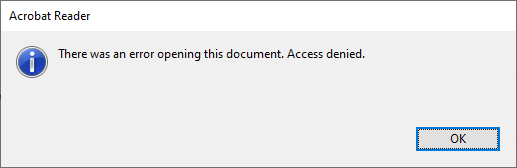
A while ago, I bumped into this error when double clicking on a PDF file:
Access denied.
I tried Ctrl-C to copy the text, which has been a feature of standard dialogs as of Windows 2000 (see [Wayback] Cutting Edge: Using Windows Hooks to Enhance MessageBox in .NET | Microsoft Docs) and not hard to implement.
Well, Adobe decided to not support this great user experience: no dialog data on the clipboard, so I had to manually type it:
[Adobe Reader]
There was an error opening this document. Access denied.
[OK]
and searched for [Wayback] “There was an error opening this document. Access denied.” “Reader DC” – Google Search (I will explain the Reader DC bit below) without any useful hints (apart from “reinstall, Adobe Acrobat Reader DC might be corrupted”, lowering security settings and phishing sites wanting me to download so called “repair tools”).
So I decided to open the file using the File -> Open menu with the same file and got a fresh new error:
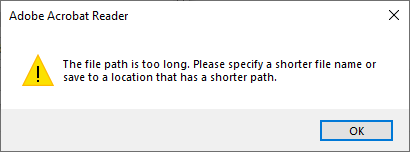
The file path is too long.
Of course, Ctrl-C here would fail too, so this is the error text:
[Adobe Acrobat Reader]
The file path is too long. Please specify a shorter file name or
save to a location that has a shorter path.
[OK]
Three things about this error message:
Adobe still seems ambivalent on their product name, it is actually Adobe Acrobat Reader DC DC superseding version X, hence the Reader DC bit in the search), but they still call it Adobe Reader and Adobe acrobat Reader.
After all these years, Adobe is inconsistent at best.
–jeroen

Posted in Adobe, Adobe Reader, Power User | Leave a Comment »
Posted by jpluimers on 2021/09/27
Every now and then you encounter brain-dead PDF forms, for instance ones that have:
For those cases, especially if you need to return them in print form, it is easiest to just add new text fields so it is easier to fill them out in a readable form (trust me, my handwriting is at doctors level, so even I cannot always read it).
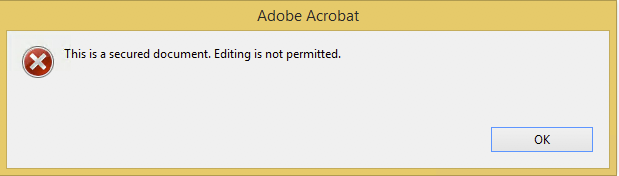
Welcome to the world of “This is a secured document. Editing is not permitted.”!
These all did NOT solve the problem for most of the PDF files I encountered:
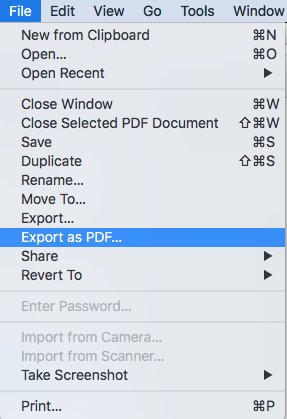
The easiest way to work around this for me is to use MacOS Preview to open the PDF, then export the PDF to a new file. This way, the protection will be removed from the new file.
I later found similar options being mentioned in [WayBack] How to remove security from a PDF file? – Super User.
I might try pdftk in the future based on [WayBack] linux – Removing PDF usage restrictions – Super User.
–jeroen

Posted in Adobe, Adobe Acrobat, Power User | Leave a Comment »
Posted by jpluimers on 2021/08/16
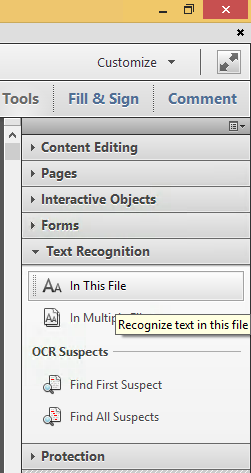
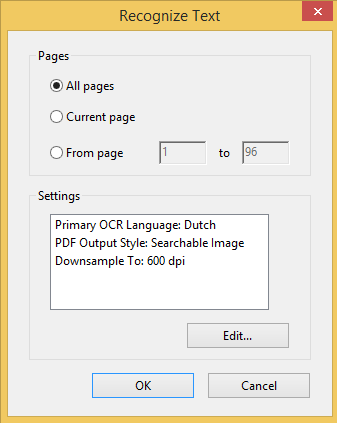
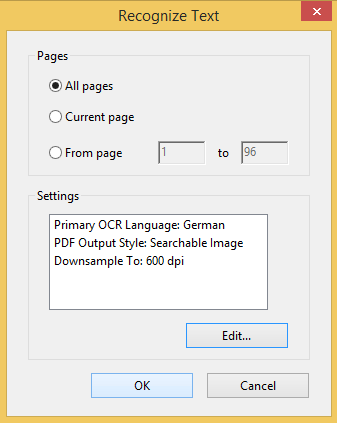
Steps to convert PDF to OCR on all pages in Acrobat XI Standard (STD) via [WayBack] PDF to text, how to convert a PDF to text | Adobe Acrobat DC:
- Open a PDF file containing a scanned image in Acrobat.
- Click on the Edit PDF tool in the right pane. Acrobat automatically applies optical character recognition (OCR) to your document and converts it to a fully editable copy of your PDF.
- …
- Choose File > Save As and type a new name for your editable document.
Screenshots:
You can select from many OCR languages:
On pages without bitmap content, you see this message:
Note that Acrobat XI was the last version where this was possible in the Standard edition.
More recent versions of Acrobat, need the Pro version for OCR:

Posted in Adobe, Adobe Acrobat, Fujitsu ScanSnap, Hardware, ix100, Power User, Scanners | Leave a Comment »
Posted by jpluimers on 2019/07/05
You can the final download locations through files like https://platformdl.adobe.com/adm/smanifest/readerdc_en_1801120058.xml, which contains https://ardownload2.adobe.com/pub/adobe/reader/win/AcrobatDC/1801120058/AcroRdrDC1801120058_en_US.exe
Related: [WayBack] Unorthodoxer Weg um an einen Offline Installer für Adobe Flash zu kommen – Administrator
–jeroen
Posted in Adobe, Adobe Reader, Power User | Leave a Comment »

 The Wiert Corner - irregular stream of stuff