The Wiert Corner – irregular stream of stuff

Jeroen W. Pluimers on .NET, C#, Delphi, databases, and personal interests

  • My badges

  • Twitter Updates

  • My Flickr Stream

  • Pages

  • All categories

  • Enter your email address to subscribe to this blog and receive notifications of new posts by email.

    Join 1,860 other subscribers

Archive for the ‘macOS 10.12 Sierra’ Category

how do I merge the tabs of two open Preview windows if I have more than two open? – Ask Different

Posted by jpluimers on 2023/07/10

That was more difficult than I anticipated: [Wayback/Archive] how do I merge the tabs of two open Preview windows if I have more than two open? – Ask Different

First of all, make sure that the “tab bar” is displayed by choosing “view”->”Show Tab Bar”. Then, you should be seeing the tab bar, which displays the file name:
enter image description here
Then, in the other preview window, click and hold the tab bar, and drag it onto the tab bar of the target preview window. Using this method, you can merge as many tabs as you want.
Tested on MacOS Catalina 10.15.4

Read the rest of this entry »

Posted in Apple, Mac OS X / OS X / MacOS, macOS 10.12 Sierra, macOS 10.13 High Sierra, Power User, Uncategorized | Leave a Comment »

How to get old versions of macOS – Apple Support

Posted by jpluimers on 2022/03/11

Note just because of a Mac being incompatible, but also because of 32-bit apps being incompatible ruling out Cataline (10.15) or newer.

[Wayback] How to get old versions of macOS – Apple Support

If your Mac isn’t compadmgtible with the latest macOS, you might still be able to upgrade to an earlier macOS, such as macOS Catalina, Mojave, High Sierra, Sierra, or El Capitan.

Download macOS

It takes time to download and install macOS, so make sure that you’re plugged into AC power and have a reliable internet connection.

Safari uses these links to find the old installers in the App Store. After downloading from the App Store, the installer opens automatically.

Safari downloads the following older installers as a disk image named InstallOS.dmg or InstallMacOSX.dmg. Open the disk image, then open the .pkg installer inside the disk image. It installs an app named Install [Version Name]. Open that app from your Applications folder to begin installing the operating system.

links for 10.13 and newer on the Apple site are App-Store only, so you need to download, then save the installer in a safe place.

Alternative download methods and notes on certificate expirations:

–jeroen

Posted in Apple, Mac OS X / OS X / MacOS, macOS 10.12 Sierra, macOS 10.13 High Sierra, OS X 10.10 Yosemite, OS X 10.11 El Capitan, Power User | Leave a Comment »

I wish I had known “How to rename multiple files at once on Mac | iMore” ages ago

Posted by jpluimers on 2022/01/04

Coming from a Windows and Linux background, I was used that mass renaming files was a non-stock feature and getting it right usually a pain in the butt.

How glad I was to find out [Wayback] How to rename multiple files at once on Mac | iMore

Believe it or not, it used to be a real pain to batch-rename files on Mac. Times have changed and so have the names of those 15 files.

Prior to OS X Yosemite, there was no simple way to rename multiple files at the same time on the Mac. Some people set up Automator rules. Others tried workarounds to rename files in third-party apps. Finally, Apple realized our heartache and created a much simpler way to rename multiple files at once, and it’s only gotten easier as macOS updates continue. Here’s how to batch-rename files on your Mac.

The only mass-rename I regularly need is fixing typos or OCR errors in filenames: this means replacing certain text with another piece of text.

That’s this easy:

Read the rest of this entry »

Posted in Apple, Mac OS X / OS X / MacOS, macOS 10.12 Sierra, macOS 10.13 High Sierra, OS X 10.10 Yosemite, OS X 10.11 El Capitan, Power User | Leave a Comment »

How to toggle finder’s “Keep Both” vs. “Skip”, and when copying or moving files – why does the “default” seem to change?

Posted by jpluimers on 2021/07/02

Based on:

Via macos “keep both” versus “skip” – Google Search

When copying or moving files on MacOS using the Finder, sometimes you get a popup with chooses “Skip”, “Stop”, “Replace”, but at other times “Keep Both”, “Stop”, “Replace”.

Empirically:

  • “Keep Both” happens with less than 5 duplicate file names
  • “Skip” happens with 5 or more 5 duplicate file names
  • The “Alt” or “Option” key toggles between “Keep Both” and “Skip”
  • This was introduced around OS X 10.8 Mountain Lion, as it used to be always “Keep Both” in all Mac OS X versions up to and including Mac OS X 10.7 Lion. The new behaviour has stayed in all OS X and macOS versions since.

–jeroen

Posted in Apple, Mac OS X / OS X / MacOS, Mac OS X 10.7 Lion, macOS 10.12 Sierra, macOS 10.13 High Sierra, OS X 10.10 Yosemite, OS X 10.11 El Capitan, OS X 10.8 Mountain Lion, OS X 10.9 Mavericks, Power User | Leave a Comment »

Need to figure uit: MacOS High Sierra suddenly holding a key down does not produce an accented character any more

Posted by jpluimers on 2021/06/21

Logging on as a different user, holding a vowel key produces a small menu with accented characters.

Inspecting the keyboard preferences for both users did not show obvious differences.

On my list to figure out if it ever happens again.

These links might help me then:

This failed me on a few  occasions so far.

Sometimes a reboot is required. Sometimes quitting the most memory hungry applications, then restarting them (Chrome! Microsoft Remote Desktop!) re-enables it.

Related twitter thread below.

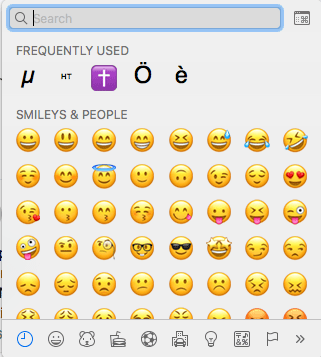
Learned new shortcut Command+Option+Space: shows the character viewer:

More of these at [WayBack] Mac keyboard shortcuts – Apple Support

There I learned about these Sleep, log out, and shut down shortcuts:

You might need to press and hold some of these shortcuts for slightly longer than other shortcuts. This helps you to avoid using them unintentionally.

  • Power button: Press to turn on your Mac or wake it from sleep. Press and hold for 1.5 seconds to put your Mac to sleep.* Continue holding to force your Mac to turn off.
  • Option–Command–Power button* or Option–Command–Media Eject : Put your Mac to sleep.
  • Control–Shift–Power button* or Control–Shift–Media Eject : Put your displays to sleep.
  • Control–Power button* or Control–Media Eject : Display a dialog asking whether you want to restart, sleep, or shut down.
  • Control–Command–Power button:* Force your Mac to restart, without prompting to save any open and unsaved documents.
  • Control–Command–Media Eject : Quit all apps, then restart your Mac. If any open documents have unsaved changes, you will be asked whether you want to save them.
  • Control–Option–Command–Power button* or Control–Option–Command–Media Eject : Quit all apps, then shut down your Mac. If any open documents have unsaved changes, you will be asked whether you want to save them.
  • Shift-Command-Q: Log out of your macOS user account. You will be asked to confirm. To log out immediately without confirming, press Option-Shift-Command-Q.

* Does not apply to the Touch ID sensor.

–jeroen

Read the rest of this entry »

Posted in Apple, Mac OS X / OS X / MacOS, macOS 10.12 Sierra, Power User | Leave a Comment »

VMware VMRC: connect to a remote console without the vSphere Client

Posted by jpluimers on 2021/06/21

Interesting tool: https://www.vmware.com/go/download-vmrc.

Back when scheduling this post in 2019, this was the most recent version: [WayBack] Download VMware vSphere: Download VMware Remote Console 10.0.4

From [WayBack] ovf – How to connect ESXi vm console from ESXi host console – Stack Overflow:

Example of vmrc.exe command :

"C:\Program Files (x86)\VMware\VMware Remote Console\vmrc.exe" vmrc://<ESXi host username>@<ESXi host IP>/?moid=<VM ID>

Basically it uses the vmrc scheme to start a connection to the remote screen for a specific MoRef ID. On ESXi, this is actually the VM ID that you get from vim-cmd vmsvc/getallvms. In that sense this is very similar to getting a single screenshot for the VM from the ESXi host by using the https://%5BHOST%5D:%5BPORT%5D/?id=%5BVM-MOREF%5D like described in ESXi and VMware Workstation: quick way of getting Console screenshots in PNG format; some URLs on your ESXi machine.


In MacOS, starting VMware Remote Console is slightly different as you have to start it through a URI using using the vmrc scheme from either a browser or with the open command on the console.

The reason is that there is no vmrc binary on MacOS.

  • [WayBack] Using VMware’s Standalone Remote Console for OS X with free ESXi | Der Flounder:

    vmrc://@[HOST]:[PORT]/?moid=[VM-MOREF]

    • HOST = the hostname or IP address of the ESXi server
    • PORT = the HTTPS port of the ESXi server, which is usually 443

    open 'vmrc://@server_name_here:port_number_here/?moid=vmid_number_here'

  • [WayBack] Standalone VMRC now available for Mac OS X:

    just provide the following URI which will prompt for your ESXi credentials

    vmrc://@[HOST]:[PORT]/?moid=[VM-MOREF]

    Once you have generated the VMRC URI, you MUST launch it through a web browser as that is how it is passed directly to the Standalone VMRC application. In my opinion, this is not ideal especially for customers who wish to automatically generate this as part of a VM provisioning workflow to their end users and not having to require a browser to launch the Standalone VMRC application. If you have some feedback on this, please do leave a comment.

    In the mean time, a quick workaround is to use the “open” command on Mac OS X along with the VMRC URI which will automatically load it into your default browser and launch the Standalone VMRC application for you.

    open 'vmrc://@192.168.1.60:443/?moid=vm-18'

On one of my test systems, for VMID 3 (see below), this comes down to this:

open 'vmrc://@192.168.71.94:443/?moid=3'

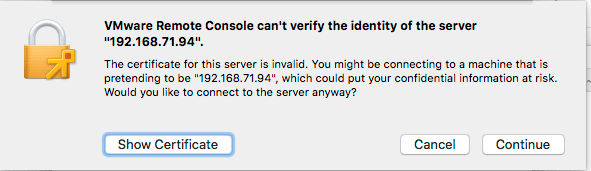
Note you have to accept the ESXi self generated TLS certificate once on MacOS:
After this, these processes were started (note there is no vmrc like on Windows):

± ps -ax | grep -i "\(vmware\|vmrc\)"
65239 ?? 0:04.15 /Applications/VMware Remote Console.app/Contents/MacOS/VMware Remote Console
65343 ?? 0:00.01 /Applications/VMware Remote Console.app/Contents/Library/services/VMRC Services 3 4
65360 ?? 0:00.16 /Applications/VMware Remote Console.app/Contents/Library/vmware-usbarbitrator
65363 ?? 0:00.01 /Applications/VMware Remote Console.app/Contents/Library/services/VMware USB Arbitrator Service 3 4
65393 ?? 0:01.29 /Applications/VMware Remote Console.app/Contents/Library/vmware-remotemks -@ vmdbPipeHandle=42; vm=_7FD2A461E8E0_3; gui=true -H 44 -R -P 2 -# product=256;name=VMware Remote Console;version=10.0.1;buildnumber=5898794;licensename=VMware Remote Console;licenseversion=10.0; -s libdir=/dev/null/Non-existing DEFAULT_LIBDIRECTORY
65872 ttys001 0:00.00 grep -i \(vmware\|vmrc\)

VM IDs (or VM-MOREFs)

You get the VM IDs using the vim-cmd vmsvc/getallvms command; they appear in the left column:

[root@ESXi-X9SRI-3F:/] vim-cmd vmsvc/getallvms
Vmid         Name                                 File                               Guest OS       Version   Annotation
1      Lampje             [EVO860_250GB] Lampje/Lampje.vmx                       opensuse64Guest    vmx-14              
3      X9SRI-3F-W10P-NL   [EVO860_250GB] X9SRI-3F-W10P-NL/X9SRI-3F-W10P-NL.vmx   windows9_64Guest   vmx-14    

Note that in practice, this is much harder so I wrote a script for that which you can find in VMware ESXi console: viewing all VMs, suspending and waking them up: part 1.

bundle files

I did not know about bundle files, but they seem to be sh scripts that precede a binary: [WayBack] What is a .bundle file and how do I run it? – Super User.

Inspecting such a files, shows it starts with this code:

#!/usr/bin/env bash
#
# VMware Installer Launcher
#
# This is the executable stub to check if the VMware Installer Service
# is installed and if so, launch it.  If it is not installed, the
# attached payload is extracted, the VMIS is installed, and the VMIS
# is launched to install the bundle as normal.

# Architecture this bundle was built for (x86 or x64)
ARCH=x64

if [ -z "$BASH" ]; then
   # $- expands to the current options so things like -x get passed through
   if [ ! -z "$-" ]; then
      opts="-$-"
   fi

   # dash flips out of $opts is quoted, so don't.
   exec /usr/bin/env bash $opts "$0" "$@"
   echo "Unable to restart with bash shell"
   exit 1
fi

–jeroen

Posted in Apple, ESXi6, ESXi6.5, ESXi6.7, Mac OS X / OS X / MacOS, macOS 10.12 Sierra, macOS 10.13 High Sierra, Power User, Virtualization, VMware, VMware ESXi, Windows, Windows 10, Windows 7, Windows 8, Windows 8.1 | Leave a Comment »

MacOS: when “Command-Tab” does not work (no visual response, no application switching) you need to restart the Dock

Posted by jpluimers on 2021/05/21

Based on [WayBack] Command-Tab Not working….. – Apple Community

If you go to Activity monitor and search for dock, doubleclick on it, choose Force quit.
It will restart the Dock app and now it should work.

I wrote this alias which restarts Dock (including Dashboard and Spaces as they are served by the same process).

alias restart-dock-dashboard-spaces='killall -KILL Dock'

Related: my 2013 post Mac: Restarting the Mac OS X Dock, Finder, Spaces or Menubar | Stefan Ernst.

–jeroen

Posted in Apple, iMac, Mac, Mac OS X / OS X / MacOS, MacBook, MacBook Retina, MacBook-Air, MacBook-Pro, MacMini, macOS 10.12 Sierra, macOS 10.13 High Sierra, OS X 10.10 Yosemite, Power User | Leave a Comment »

Quickly See All the Formulas in Excel with This Shortcut

Posted by jpluimers on 2020/04/13

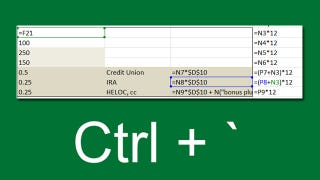
Toggle between regular view and view all formulas in a worksheet via [WayBack] Quickly See All the Formulas in Excel with This Shortcut which I wish I had known years ago:

  • Windows: Ctrl + ` (the acute accent key, found next to the number 1 on your keyboard).
  • MacOS: Cmd + `

Found using image search macos excel show all formulas – Google Search

–jeroen

Read the rest of this entry »

Posted in Apple, Excel, Mac, Mac OS X / OS X / MacOS, MacBook, MacBook Retina, MacBook-Air, MacBook-Pro, macOS 10.12 Sierra, macOS 10.13 High Sierra, Office, Office 2011 for Mac, Power User | Leave a Comment »

Create a custom paper size for printing on Mac – Apple Support

Posted by jpluimers on 2020/04/06

Since a search for this does not result in any hits on the apple.com web site (for instance not “To create a new paper size based on an existing size, select a paper size in the list, then click Duplicate.”), I have quoted it in full.

The main reason: “to change the name, double-click, then type a new name”

I needed this to specify A0 size, in inches, which was hard to find exact dimensions with more than 1 decimal digit, but luckily- unlike ISO 216 – Wikipedia:

And there is the millimeter specs (and way more) at [WayBack] A4 paper format / International standard paper sizes.

The quote from [WayBack/Archive.is] Create a custom paper size for printing on Mac – Apple Support:

Create a custom paper size

If you want to create a document that has a unique size, such as an envelope or card, first see if the paper size appears in the Paper Size pop-up menu. If not, you can create your own custom paper size. Custom paper sizes aren’t available for some printers or for all apps.

Note: The following options might not be available for your printer or app. If these instructions differ from what you see onscreen, refer to the documentation that came with the app you’re using.

  1. Choose File > Print. If you see a Show Details button, click it to show all available options.
  2. Click the Paper Size pop-up menu, then choose Manage Custom Sizes.
  3. Click the Add button  to add a new paper size, then specify the paper size you want.
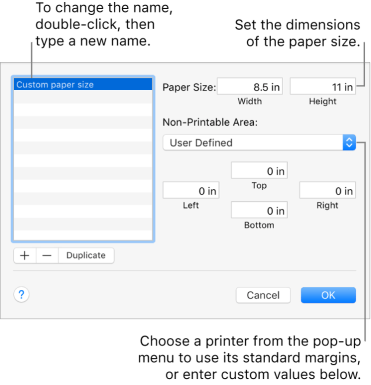
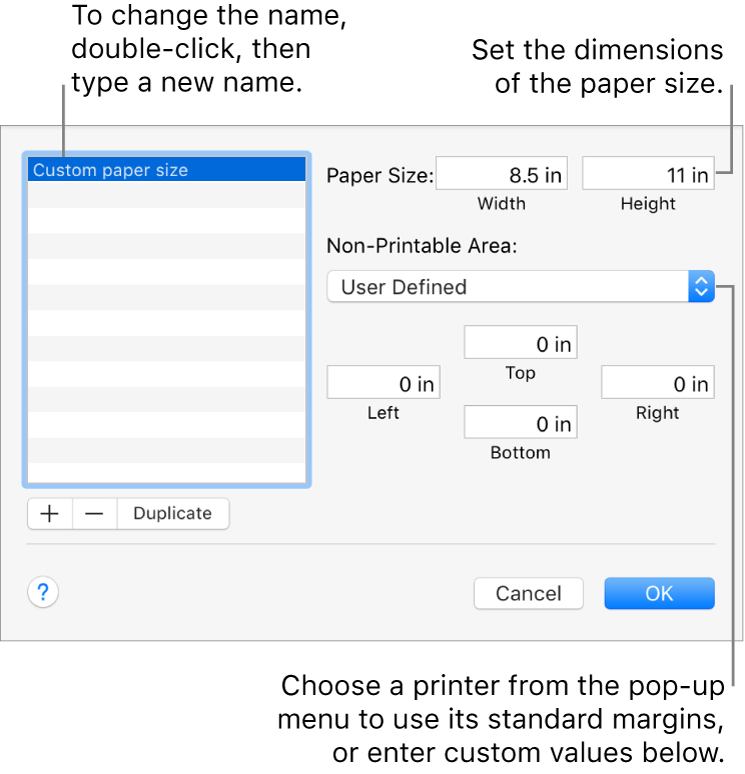
    Click the Add button to add a new paper size. To change the name of your custom paper size, double-click the name, then type a new one. Choose a printer from the pop-up menu to use its standard margins, or enter custom values in the fields below.

To create a new paper size based on an existing size, select a paper size in the list, then click Duplicate.

To print to a custom paper size, choose it from the Paper Size pop-up menu in the Print dialog (choose File > Print). To set a document size to a custom paper size, choose it from the Paper Size pop-up menu in the Page Setup dialog (choose File > Page Setup).

Tip: If a document is printing with incorrect margins or clipped text, try this: click the Non-Printable Area pop-up menu, choose User Defined, then enter zero for the nonprintable margins. In some cases this allows the document margins to print as expected.

–jeroen

Posted in Apple, Mac OS X / OS X / MacOS, macOS 10.12 Sierra, macOS 10.13 High Sierra, Power User | Leave a Comment »

python – How do I install pip on macOS or OS X? – Stack Overflow

Posted by jpluimers on 2020/03/25

On Mac OS X with stock Python:

All you need to do is

sudo easy_install pip

After this, you might want to upgrade pip:

sudo pip install --upgrade pip

Source: [WayBackpython – How do I install pip on macOS or OS X? – Stack Overflow

You could go the homebrew way, but that means your system will have two Python installations usually causing a nightmare of path dependency orders. In addition, homebrew puts you on the wrong foot, so:

DO NOT DO THIS!

# brew install pip
Error: No available formula with the name "pip" 
Homebrew provides pip via: `brew install python`. However you will then
have two Pythons installed on your Mac, so alternatively you can install
pip via the instructions at:
  https://pip.readthedocs.io/en/stable/installing/

–jeroen

Posted in Apple, Development, Mac OS X / OS X / MacOS, macOS 10.12 Sierra, macOS 10.13 High Sierra, Power User, Python, Scripting, Software Development | Leave a Comment »