Archive for the ‘Mac OS X / OS X / MacOS’ Category
Posted by jpluimers on 2020/01/10
Posted in Android, Android Devices, Apple, Development, iMac, Mac, Mac OS X / OS X / MacOS, MacBook, MacBook Retina, MacBook-Air, MacBook-Pro, MacMini, macOS 10.12 Sierra, macOS 10.13 High Sierra, Mobile Development, Software Development | Leave a Comment »
Posted by jpluimers on 2020/01/03
 Based on [WayBack] macOS – Wikipedia and follow-up of OS X – the versions and their names – as I always forget them and osx – How to find out Mac OS X version from Terminal? (via: Super User)
Release history (with release dates):
The graph with Apple Mac OS X / OS X / Mac OS versions cannot do without a graph showing the BSD and Unix inheritance.
Graph origins:
More complete Mac OS X / OS X / Mac OS and Unix timelines are below from macOS version history – Wikipedia.
–jeroen
Read the rest of this entry »
Posted in Apple, Mac OS X / OS X / MacOS, Mac OS X 10.4 Tiger, Mac OS X 10.5 Leopard, Mac OS X 10.6 Snow Leopard, Mac OS X 10.7 Lion, macOS 10.12 Sierra, macOS 10.13 High Sierra, OS X 10.10 Yosemite, OS X 10.11 El Capitan, OS X 10.8 Mountain Lion, OS X 10.9 Mavericks, Power User | Leave a Comment »
Posted by jpluimers on 2019/12/30
My Dock kept moving to another monitor every now and then.
This actually seems to be a feature but got me a while to find out what it does at [WayBack] Dock keeps moving between monitors | Official Apple Support Communities:
If you move the mouse to another window and pull it down to very bottom of the screen and hold it there, the dock moves over. To move it back, move the mouse pointer to the screen you want it on and hold the pointer at the very bottom of the screen.
This bites you when an application has features (like tools) at the very bottom of a window.
–jeroen
Posted in Apple, iMac, Mac, Mac OS X / OS X / MacOS, MacBook, MacBook Retina, MacBook-Air, MacBook-Pro, MacMini, macOS 10.12 Sierra, OS X 10.10 Yosemite, OS X 10.11 El Capitan, OS X 10.9 Mavericks, Power User | Leave a Comment »
Posted by jpluimers on 2019/12/06
For my link archive:
If you want it on USB in stead, the steps are simpler (the link below also links to other OS X and MacOS versions):
If you do not have the full ~5 gigabyte install, then:
–jeroen
Posted in Apple, Mac, Mac OS X / OS X / MacOS, Power User | Leave a Comment »
Posted by jpluimers on 2019/11/22
Some interesting links on the “open with” database:
Simple solution to clean the list:
# Clean up LaunchServices to remove duplicates in the “Open With” menu.
alias lscleanup="/System/Library/Frameworks/CoreServices.framework/Frameworks/LaunchServices.framework/Support/lsregister -kill -r -domain local -domain system -domain user && killall Finder"`
These were by products of what I was really searching for:
Why are some items grey when modifying the “Open with…” settings?
Some applications are greyed out, for instance when editing the “Open with…” for the .cap extension (which are pcap network captures that Wireshark can process).
After the steps below, sometimes the menu still does not update for all files of that extension.
This alias helped me to get that to work: alias restart-finder='killall -KILL Finder'.
Links that helped me finding out:

The trick is to toggle “Recommended Applications” into “All Applications”:
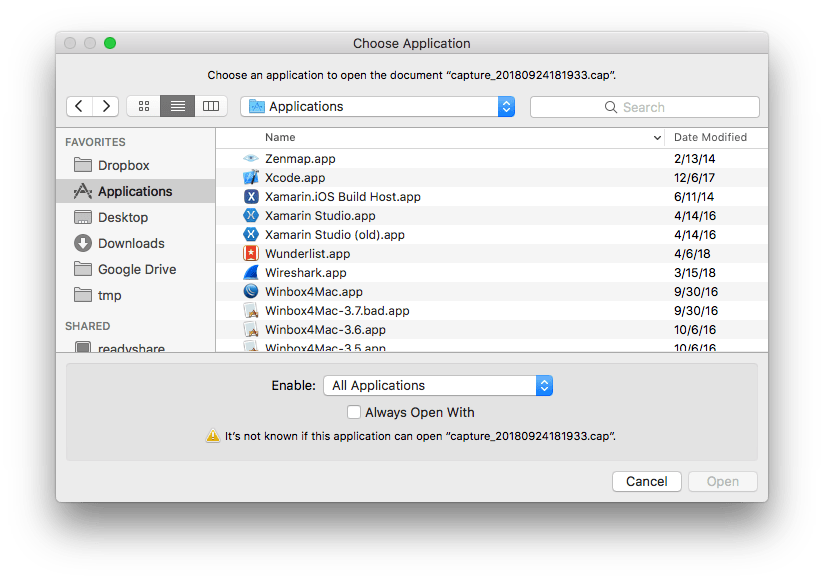
Then you can select “Wireshark.app”:

The same happens when you filter on a name (for instance because you know that Wireshark will work fine):
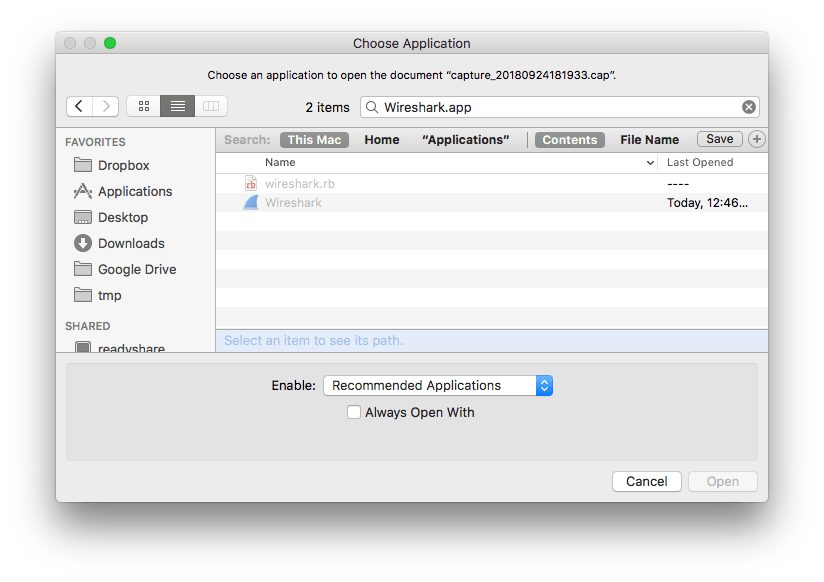
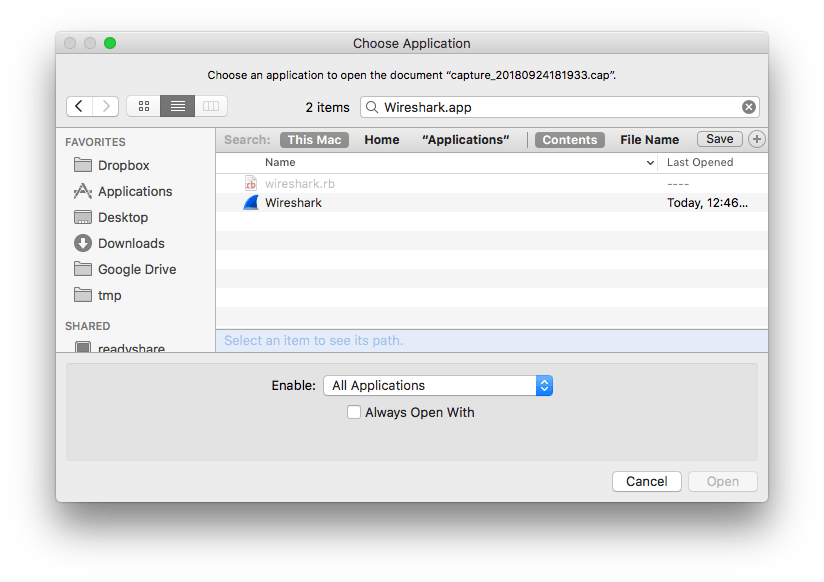
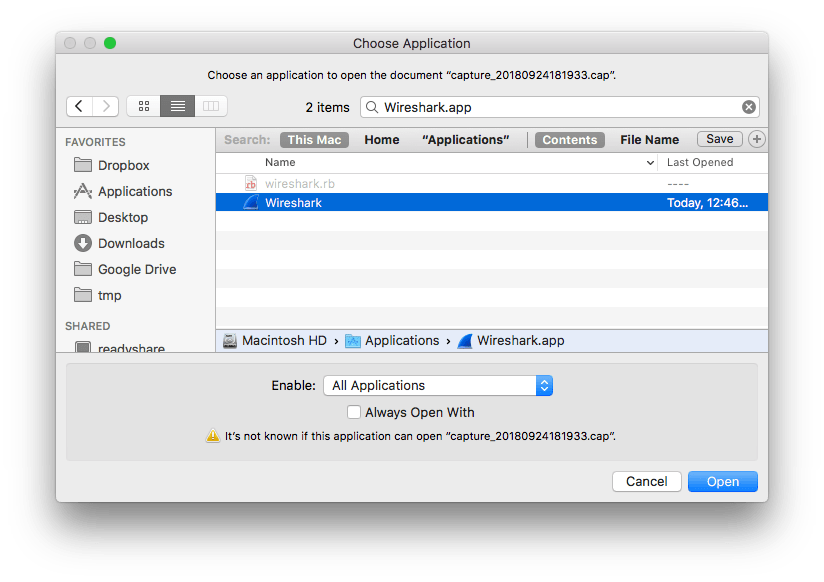
A final thing is that you have to check “Always Open With” so it ends up in the list.

–jeroen
Posted in Apple, Mac OS X / OS X / MacOS, Power User | Leave a Comment »
Posted by jpluimers on 2019/10/28
Interesting tool that I needed one day to figure out how to recover from a certain NTFS partition having become RAW [Archive.is/WayBack] TestDisk, Data Recovery:
TestDisk is powerful free data recovery software! It was primarily designed to help recover lost partitions and/or make non-booting disks bootable again when these symptoms are caused by faulty software: certain types of viruses or human error(such as accidentally deleting a Partition Table). Partition table recovery using TestDisk is really easy.
TestDisk can
- Fix partition table, recover deleted partition
- Recover FAT32 boot sector from its backup
- Rebuild FAT12/FAT16/FAT32 boot sector
- Fix FAT tables
- Rebuild NTFS boot sector
- Recover NTFS boot sector from its backup
- Fix MFT using MFT mirror
- Locate ext2/ext3/ext4 Backup SuperBlock
- Undelete files from FAT, exFAT, NTFS and ext2 filesystem
- Copy files from deleted FAT, exFAT, NTFS and ext2/ext3/ext4 partitions.
TestDisk has features for both novices and experts. For those who know little or nothing about data recovery techniques, TestDisk can be used to collect detailed information about a non-booting drive which can then be sent to a tech for further analysis. Those more familiar with such procedures should find TestDisk a handy tool in performing onsite recovery.
–jeroen
Posted in *nix, Apple, Mac, Mac OS X / OS X / MacOS, Power User, Windows | Leave a Comment »
Posted by jpluimers on 2019/10/07
Posted in Apple, iMac, Mac, Mac OS X / OS X / MacOS, Mac OS X 10.4 Tiger, Mac OS X 10.5 Leopard, Mac OS X 10.6 Snow Leopard, Mac OS X 10.7 Lion, MacBook, MacBook Retina, MacBook-Air, MacBook-Pro, MacMini, macOS 10.12 Sierra, OS X 10.10 Yosemite, OS X 10.11 El Capitan, OS X 10.8 Mountain Lion, OS X 10.9 Mavericks, Power User | Leave a Comment »
Posted by jpluimers on 2019/09/13
When all else fails: [WayBack] How to start up your Mac in Internet Recovery Mode.
Command-Option-R is one of the plethora of keyboard tricks you can use during boot:
Some Mac features are available by holding down certain keys during startup.
[WayBack] Startup key combinations for Mac – Apple Support
| Hold during startup |
Description |
| Shift ⇧ |
Start up in Safe Mode. |
| Option ⌥ |
Start up to Startup Manager. |
| C |
Start up from a bootable CD, DVD, or USB thumb drive (such as OS X install media). |
| D |
Start up to either Apple Hardware Test or Apple Diagnostics, depending on which Mac you’re using. |
| Option-D |
Start up to either Apple Hardware Test or Apple Diagnostics over the Internet. |
| N |
Start up from a compatible NetBoot server. |
| Option-N |
Start up from a NetBoot server using the default boot image. |
| Command (⌘)-R |
Start up from OS X Recovery. |
| Command-Option-R |
Start up from OS X Recovery over the Internet. |
| Command-Option-P-R |
Reset NVRAM. Release the keys after you hear the startup sound again. |
| Command-S |
Start up in single-user mode. |
| T |
Start up in target disk mode. |
| X |
Start up from an OS X startup volume when the Mac would otherwise start up from a non-OS X startup volume. |
| Command-V |
Start up in verbose mode. |
| Eject (⏏), F12, mouse button, or trackpad button |
Eject removable media, such as an optical disc. |
Read the rest of this entry »
Posted in Apple, Mac, Mac OS X / OS X / MacOS, MacBook, MacBook Retina, MacBook-Pro, OS X 10.11 El Capitan, OS X 10.9 Mavericks, Power User | Leave a Comment »
Posted by jpluimers on 2019/09/03
Link archival: [WayBack] How to Install Node.js and NPM on a Mac:
In this article, I’ll take you through the process of installing Node.js and NPM on a Mac using Homebrew.
TL;DR
- Ensure you have installed
homebrew.
- Run
brew install node.
–jeroen
Posted in Apple, Development, Mac OS X / OS X / MacOS, Power User, Software Development | Leave a Comment »
Posted by jpluimers on 2019/08/26
This looks smart
gem update `gem list | cut -d ' ' -f 1`
From: [WayBack] How to Update All Your Ruby Gems At Once | Life, the Universe, and Everything
Though on the bash prompt, it works fine on Mac OS X / OS X / macOS / …, it does not work nice as an alias.
You can get it to work with difficult escaping (or nesting).
But it is easier to escape this:
gem update $(gem list | cut -d ' ' -f 1)
Escaped, it comes down to:
alias "gem-update-all=gem update \$(gem list | cut -d ' ' -f 1)"
Based on:
–jeroen
Posted in Apple, bash, bash, Development, Mac OS X / OS X / MacOS, Power User, Scripting, Software Development | Leave a Comment »


 The Wiert Corner - irregular stream of stuff


