The Wiert Corner – irregular stream of stuff

Jeroen W. Pluimers on .NET, C#, Delphi, databases, and personal interests

  • My badges

  • Twitter Updates

  • My Flickr Stream

  • Pages

  • All categories

  • Enter your email address to subscribe to this blog and receive notifications of new posts by email.

    Join 1,862 other subscribers

Archive for the ‘Mac’ Category

macOS DisplayLink driver downloads: 4.1 works fine with MacOS 10.12 Sierra

Posted by jpluimers on 2019/01/28

macOS DisplayLink driver downloads: 4.1 works fine with MacOS 10.12 Sierra on a 15-inch mid 2015 Retina MacBook Pro.

Downloads:

–jeroen

Posted in Apple, Mac, Mac OS X / OS X / MacOS, MacBook, MacBook Retina, MacBook-Pro, macOS 10.12 Sierra, Power User | Leave a Comment »

brew update reminder

Posted by jpluimers on 2019/01/01

Reminder to self:

==> Caveats
==> nss
nss is keg-only, which means it was not symlinked into /usr/local,
because Firefox can pick this up instead of the built-in library, resulting in
random crashes without meaningful explanation.

Please see https://bugzilla.mozilla.org/show_bug.cgi?id=1142646 for details.

If you need to have nss first in your PATH run:
echo ‘export PATH=”/usr/local/opt/nss/bin:$PATH”‘ >> ~/.bash_profile

For compilers to find nss you may need to set:
export LDFLAGS=”-L/usr/local/opt/nss/lib”
export CPPFLAGS=”-I/usr/local/opt/nss/include”

For pkg-config to find nss you may need to set:
export PKG_CONFIG_PATH=”/usr/local/opt/nss/lib/pkgconfig”

==> sphinx-doc
sphinx-doc is keg-only, which means it was not symlinked into /usr/local,
because this formula is mainly used internally by other formulae.
Users are advised to use `pip` to install sphinx-doc.

If you need to have sphinx-doc first in your PATH run:
echo ‘export PATH=”/usr/local/opt/sphinx-doc/bin:$PATH”‘ >> ~/.bash_profile

==> sqlite
sqlite is keg-only, which means it was not symlinked into /usr/local,
because macOS provides an older sqlite3.

If you need to have sqlite first in your PATH run:
echo ‘export PATH=”/usr/local/opt/sqlite/bin:$PATH”‘ >> ~/.bash_profile

For compilers to find sqlite you may need to set:
export LDFLAGS=”-L/usr/local/opt/sqlite/lib”
export CPPFLAGS=”-I/usr/local/opt/sqlite/include”

For pkg-config to find sqlite you may need to set:
export PKG_CONFIG_PATH=”/usr/local/opt/sqlite/lib/pkgconfig”

==> openssl
A CA file has been bootstrapped using certificates from the SystemRoots
keychain. To add additional certificates (e.g. the certificates added in
the System keychain), place .pem files in
/usr/local/etc/openssl/certs

and run
/usr/local/opt/openssl/bin/c_rehash

openssl is keg-only, which means it was not symlinked into /usr/local,
because Apple has deprecated use of OpenSSL in favor of its own TLS and crypto libraries.

If you need to have openssl first in your PATH run:
echo ‘export PATH=”/usr/local/opt/openssl/bin:$PATH”‘ >> ~/.bash_profile

For compilers to find openssl you may need to set:
export LDFLAGS=”-L/usr/local/opt/openssl/lib”
export CPPFLAGS=”-I/usr/local/opt/openssl/include”

For pkg-config to find openssl you may need to set:
export PKG_CONFIG_PATH=”/usr/local/opt/openssl/lib/pkgconfig”

==> openssl@1.1
A CA file has been bootstrapped using certificates from the system
keychain. To add additional certificates, place .pem files in
/usr/local/etc/openssl@1.1/certs

and run
/usr/local/opt/openssl@1.1/bin/c_rehash

openssl@1.1 is keg-only, which means it was not symlinked into /usr/local,
because openssl/libressl is provided by macOS so don’t link an incompatible version.

If you need to have openssl@1.1 first in your PATH run:
echo ‘export PATH=”/usr/local/opt/openssl@1.1/bin:$PATH”‘ >> ~/.bash_profile

For compilers to find openssl@1.1 you may need to set:
export LDFLAGS=”-L/usr/local/opt/openssl@1.1/lib”
export CPPFLAGS=”-I/usr/local/opt/openssl@1.1/include”

For pkg-config to find openssl@1.1 you may need to set:
export PKG_CONFIG_PATH=”/usr/local/opt/openssl@1.1/lib/pkgconfig”

==> icu4c
icu4c is keg-only, which means it was not symlinked into /usr/local,
because macOS provides libicucore.dylib (but nothing else).

If you need to have icu4c first in your PATH run:
echo ‘export PATH=”/usr/local/opt/icu4c/bin:$PATH”‘ >> ~/.bash_profile
echo ‘export PATH=”/usr/local/opt/icu4c/sbin:$PATH”‘ >> ~/.bash_profile

For compilers to find icu4c you may need to set:
export LDFLAGS=”-L/usr/local/opt/icu4c/lib”
export CPPFLAGS=”-I/usr/local/opt/icu4c/include”

For pkg-config to find icu4c you may need to set:
export PKG_CONFIG_PATH=”/usr/local/opt/icu4c/lib/pkgconfig”

==> ruby
By default, binaries installed by gem will be placed into:
/usr/local/lib/ruby/gems/2.6.0/bin

You may want to add this to your PATH.

ruby is keg-only, which means it was not symlinked into /usr/local,
because macOS already provides this software and installing another version in
parallel can cause all kinds of trouble.

If you need to have ruby first in your PATH run:
echo ‘export PATH=”/usr/local/opt/ruby/bin:$PATH”‘ >> ~/.bash_profile

For compilers to find ruby you may need to set:
export LDFLAGS=”-L/usr/local/opt/ruby/lib”
export CPPFLAGS=”-I/usr/local/opt/ruby/include”

For pkg-config to find ruby you may need to set:
export PKG_CONFIG_PATH=”/usr/local/opt/ruby/lib/pkgconfig”

==> qt
We agreed to the Qt open source license for you.
If this is unacceptable you should uninstall.

qt is keg-only, which means it was not symlinked into /usr/local,
because Qt 5 has CMake issues when linked.

If you need to have qt first in your PATH run:
echo ‘export PATH=”/usr/local/opt/qt/bin:$PATH”‘ >> ~/.bash_profile

For compilers to find qt you may need to set:
export LDFLAGS=”-L/usr/local/opt/qt/lib”
export CPPFLAGS=”-I/usr/local/opt/qt/include”

For pkg-config to find qt you may need to set:
export PKG_CONFIG_PATH=”/usr/local/opt/qt/lib/pkgconfig”

==> python
Python has been installed as
/usr/local/bin/python3

Unversioned symlinks `python`, `python-config`, `pip` etc. pointing to
`python3`, `python3-config`, `pip3` etc., respectively, have been installed into
/usr/local/opt/python/libexec/bin

If you need Homebrew’s Python 2.7 run
brew install python@2

You can install Python packages with
pip3 install <package>
They will install into the site-package directory
/usr/local/lib/python3.7/site-packages

See: https://docs.brew.sh/Homebrew-and-Python
==> youtube-dl
Bash completion has been installed to:
/usr/local/etc/bash_completion.d

zsh completions have been installed to:
/usr/local/share/zsh/site-functions
==> cabal-install
Bash completion has been installed to:
/usr/local/etc/bash_completion.d
==> node
Bash completion has been installed to:
/usr/local/etc/bash_completion.d
==> hub
Bash completion has been installed to:
/usr/local/etc/bash_completion.d

zsh completions have been installed to:
/usr/local/share/zsh/site-functions
==> gnupg
Once you run this version of gpg you may find it difficult to return to using
a prior 1.4.x or 2.0.x. Most notably the prior versions will not automatically
know about new secret keys created or imported by this version. We recommend
creating a backup of your `~/.gnupg` prior to first use.

For full details on each change and how it could impact you please see
https://www.gnupg.org/faq/whats-new-in-2.1.html
==> mas
Bash completion has been installed to:
/usr/local/etc/bash_completion.d
==> pandoc
Bash completion has been installed to:
/usr/local/etc/bash_completion.d
==> go
A valid GOPATH is required to use the `go get` command.
If $GOPATH is not specified, $HOME/go will be used by default:
https://golang.org/doc/code.html#GOPATH

You may wish to add the GOROOT-based install location to your PATH:
export PATH=$PATH:/usr/local/opt/go/libexec/bin

–jeroen

Posted in Apple, LifeHacker, Mac, Mac OS X / OS X / MacOS, macOS 10.13 High Sierra, Power User | Leave a Comment »

macOS Sierra: Change the order of the network ports your computer uses to connect

Posted by jpluimers on 2018/10/15

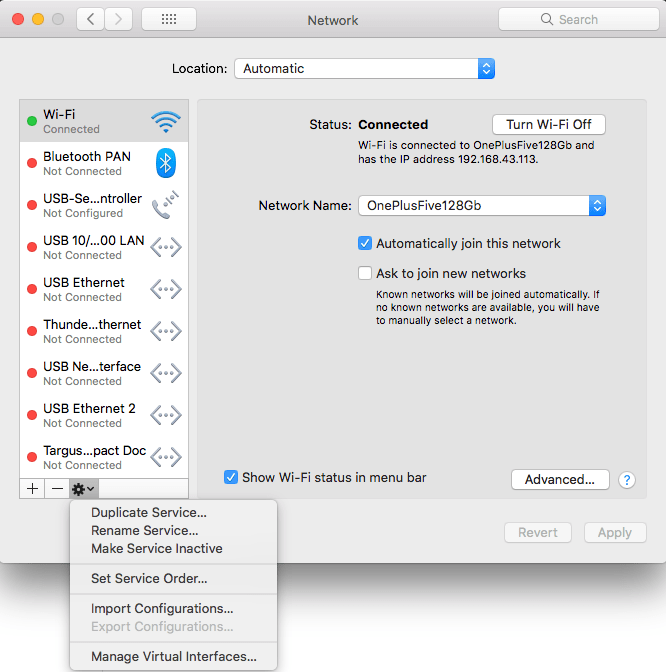
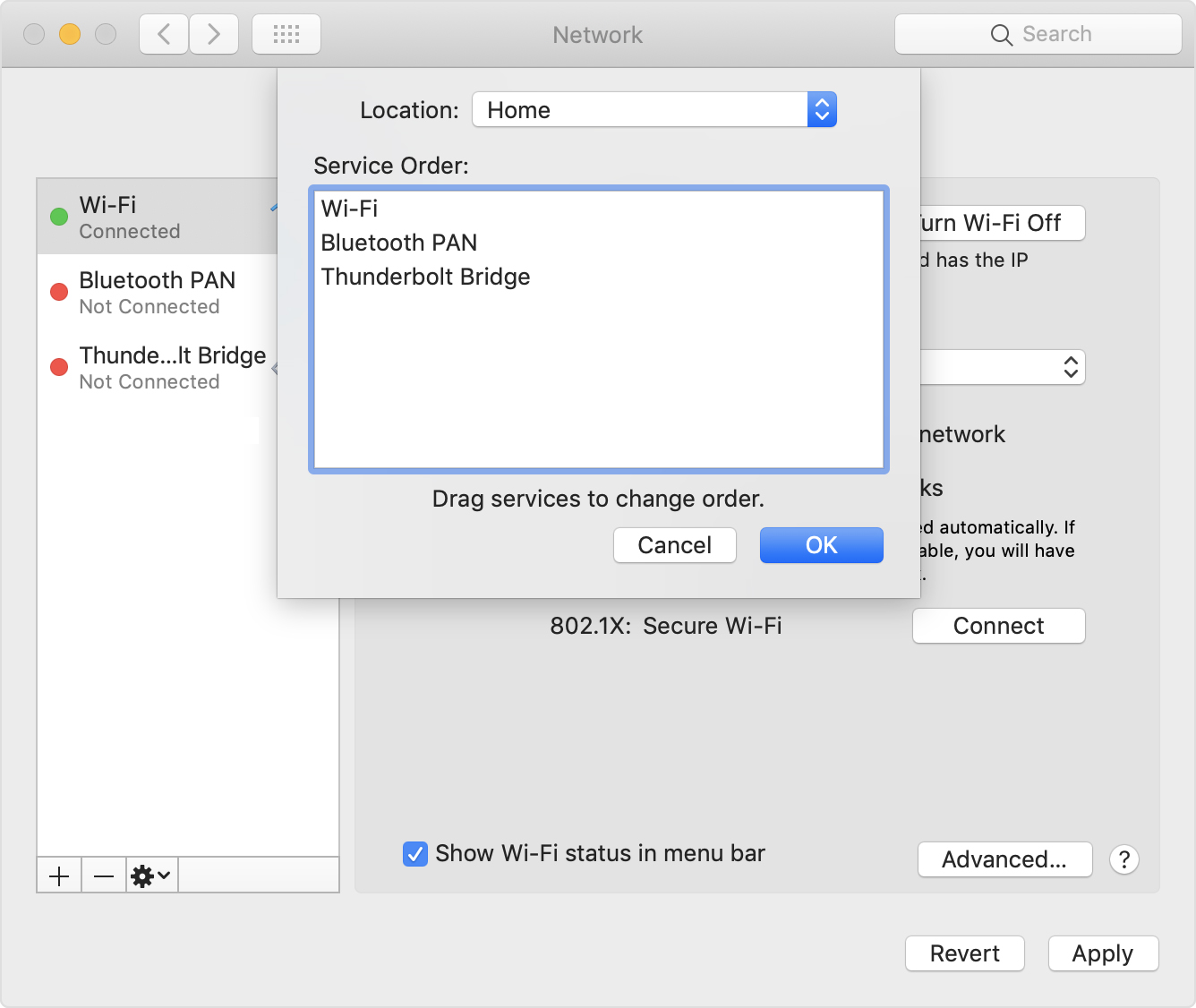
Very useful when you want to give your WiFi less priority than an USB or Thunderbolt network adapter: [WayBack] macOS Sierra: Change the order of the network ports your computer uses to connect.
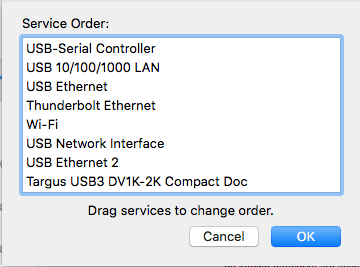
It is not just that the topmost adapter gets more priority: it also determines the DNS search!

Anyway: after choosing “Set Service Order” on the right, choose the order as seen below.

–jeroen

PS: Since Apple is cleaning up their site, only the above WayBack works, but luckily the below link explains it in a very similar way when using Locations:

[WayBack] How to use network locations on your Mac – Apple Support


Posted in Apple, iMac, Mac, Mac OS X / OS X / MacOS, MacBook, Power User | Leave a Comment »

macOS / OS X / Mac OS X: excessive sysmond or mds CPU usage – via Ask Different and osXdaily

Posted by jpluimers on 2018/10/05

If you suffer from [WayBack] macos – Excessive CPU usage from sysmond – Ask Different, then it could be Activity Monitor itself using that CPU.

If you suffer from high CPU usage in mds, then it is likely the Spotlight search indexer acting up: [WayBack] mds – what MDS process is and why it uses CPU on the Mac

–jeroen

Posted in Apple, Mac, Mac OS X / OS X / MacOS, Power User, SpotLight | Leave a Comment »

I am on a Mac that is bound to an AD Domain. The AD Domain has a 90 days pass…

Posted by jpluimers on 2018/08/27

[WayBack] I am on a Mac that is bound to an AD Domain. The AD Domain has a 90 days password expiration policy. When will my password expire? $ cat bin/is-passwor… – Kristian Köhntopp – Google+

For my link archive:


#! /bin/bash —
validFor=$(( 90 * 86400 ))
domainPrefix='/Active Directory/DOMAIN/doma.in/"
lastPW=$(dscl "/$domainPrefix" -read /Users/$USER | awk '/SMBPasswordLastSet/ { print $NF }')
unixPW=$(($lastPW / 10000000 – 11644473600 + $validFor))
expireDate=$(date -r $unixPW)
echo "Password expires $expireDate"

Script copied to [WayBack] Kristian Köhntopp: I am on a Mac that is bound to an AD Domain. The AD Domain has a 90 days password expiration policy. When will my password expire?  · GitHub

–jeroen

Posted in *nix, Apple, bash, Development, Mac, MacBook, MacBook Retina, MacBook-Air, MacBook-Pro, MacMini, Power User, Scripting, Software Development | Leave a Comment »

Mac OS X beyond Yosemite: Ctrl-Click to add/remove an item from a selection fails in Windows on VMware Fusion

Posted by jpluimers on 2018/08/03

Somewhere after Yosemite, braindead Mac OS X forcibly maps “Ctrl+Click” to right-click. In past versions, you could disable but those days have gone.

This means that inside Windows on VMware Fusion, you cannot add/remove items to/from a selection any more (for instance in the Windows Explorer).

Various workarounds turned up in my Google Search, but only this one works:

Holding down CTRL + OPTION together and LEFT CLICKING will do this.

Source: [WayBackvmware fusion – How to use the control key in VM Ware? – Super User

–jeroen

via:

Posted in Apple, Fusion, Mac, Mac OS X / OS X / MacOS, MacBook, MacBook Retina, MacBook-Air, MacBook-Pro, MacMini, macOS 10.12 Sierra, OS X 10.10 Yosemite, OS X 10.11 El Capitan, OS X 10.9 Mavericks, Power User, Virtualization, VMware | Leave a Comment »

Many ways to lock your MacBook

Posted by jpluimers on 2018/07/31

There are [WayBack] 7 ways to lock your MacBook – CNET: When it comes to locking your Mac, you have options.

For now I’ve added the below alias to my ~/.bash_profile which only works if you have “require a password immediately after sleep or screensaver begins”. I have that enabled (with a 5 second delay, not immediate so that when I’m behind my laptop and it starts the screensaver I can still move the mouse or touch a key to keep it awake).

alias sleep-display='pmset displaysleepnow'

See:

–jeroen

Posted in Apple, iMac, Mac, MacBook, MacBook Retina, MacBook-Pro, Power User | Leave a Comment »

PowerShell on Mac OS X and other non-Windows systems

Posted by jpluimers on 2018/07/17

I wasn’t expecting it to be so easy to install PowerShell on Mac OS X:

brew install Caskroom/cask/powershell

In the background it executes this script: https://github.com/caskroom/homebrew-cask/blob/master/Casks/powershell.rb. which indirectly goes through the URL template https://github.com/PowerShell/PowerShell/releases/download/v#{version}/powershell-#{version}.pkg.

On other non-Windows systems, you have to go through GitHub yourself: https://github.com/powershell/PowerShell. The PowerShell team at Microsoft has many more repositories including the Win32-OpenSSH port which you can find through https://github.com/PowerShell.

At the time of writing, PowerShell was available for these platforms:

Platform Downloads How to Install
Windows 10 / Server 2016 (x64) .msi Instructions
Windows 8.1 / Server 2012 R2 (x64) .msi Instructions
Windows 7 (x64) .msi Instructions
Windows 7 (x86) .msi Instructions
Ubuntu 16.04 .deb Instructions
Ubuntu 14.04 .deb Instructions
CentOS 7 .rpm Instructions
OpenSUSE 42.1 .rpm Instructions
Arch Linux Instructions
Many Linux distributions .AppImage Instructions
macOS 10.11 .pkg Instructions
Docker Instructions

The first version I installed on Mac OS X was this: ==> Downloading https://github.com/PowerShell/PowerShell/releases/download/v6.0.0-alpha.17/powershell-6.0.0-alpha.17.pkg

By now I really hope it is out of Alpha state.

–jeroen

via:

Posted in *nix, Apple, CommandLine, Development, iMac, Linux, Mac, Mac OS X / OS X / MacOS, MacBook, MacBook Retina, MacBook-Air, MacBook-Pro, MacMini, openSuSE, Power User, PowerShell, PowerShell, Scripting, Software Development, SuSE Linux, Ubuntu | Leave a Comment »

Apple Extends Free Repairs of Anti-Reflective Coating on Select MacBook and MacBook Pro Models – Mac Rumors

Posted by jpluimers on 2018/07/02

I hear stories of people having their replacement screens stain as well, some of them get a renewed free repair. [WayBackApple Extends Free Repairs of Anti-Reflective Coating on Select MacBook and MacBook Pro Models – Mac Rumors.

Affected models for an initial repair:

  • MacBook Pro (13-inch, Early 2013)
  • MacBook Pro (15-inch, Early 2013)
  • MacBook Pro (13-inch, Late 2013)
  • MacBook Pro (15-inch, Late 2013)
  • MacBook Pro (13-inch, Mid 2014)
  • MacBook Pro (15-inch, Mid 2014)
  • MacBook Pro (13-inch, Early 2015)
  • MacBook Pro (15-inch, Mid 2015)
  • MacBook Pro (13-inch, 2016)
  • MacBook Pro (15-inch, 2016)
  • MacBook Pro (13-inch, 2017)
  • MacBook Pro (15-inch, 2017)
  • MacBook (12-inch, Early 2015)
  • MacBook (12-inch, Early 2016)
  • MacBook (12-inch, Early 2017)

–jeroen

Read the rest of this entry »

Posted in Apple, Mac, MacBook, MacBook Retina, MacBook-Pro, Power User | Leave a Comment »

SD cards solutions to add 256 gigabyte to your non USB-C Retina MacBook

Posted by jpluimers on 2018/06/12

I was asked what I used to extend my Retina Macbook storage. Mine still has an SD-card slot so the sit flush solutions below work fine.

I could have used USB-3 to micro-SD card adapters that sit flush.

There are no USB-C to micro-SD adapters that sit flush, so they do not work for more modern Retina MacBook devices.

Via: [WayBack] Haha wow. Apple announced new Macbook Pro’s just little over 6 months after they did the last models. And now you do get all the stuff you wanted back then… – Jeroen Wiert Pluimers – Google+ (except 32 gigabyte RAM, that’s for later).

Either [WayBackTranscend 256GB JetDrive Lite 360 Storage Expansion Card for 15-Inch MacBook Pro with Retina Display (TS256GJDL360)

Or the adapter [WayBack] BASEQI aluminum microSD Adapter for MacBook Pro 15″ Retina (Late 2013 onwards) and one of:

–jeroen

Read the rest of this entry »

Posted in Apple, LifeHacker, Mac, MacBook, MacBook Retina, MacBook-Air, MacBook-Pro, Power User | Leave a Comment »