


Helaas gaf [Wayback/Archive] excel inkomstenbelasting 2021 – Google Search niet de directe link naar de downloadpagina.
Gelukkig [Wayback/Archive] belastingaangifte 2022 site:www.computeridee.nl – Google Search wel:
Posted by jpluimers on 2022/03/25
Helaas gaf [Wayback/Archive] excel inkomstenbelasting 2021 – Google Search niet de directe link naar de downloadpagina.
Gelukkig [Wayback/Archive] belastingaangifte 2022 site:www.computeridee.nl – Google Search wel:

Posted in Excel, LifeHacker, Power User | Leave a Comment »
Posted by jpluimers on 2022/03/01
Sometimes, you figure out Excel functionality you have never needed before, but has been there for decades.
A while ago, I had a very complex with formulas referencing full columns back and forth when suddenly I got into something strange: when reloading the spreadsheet, values would not appear because of recursion errors. Before saving this was fine, so it was hard to track back where I want wrong.
So I was happy to find out that Excel has two cool features for this:
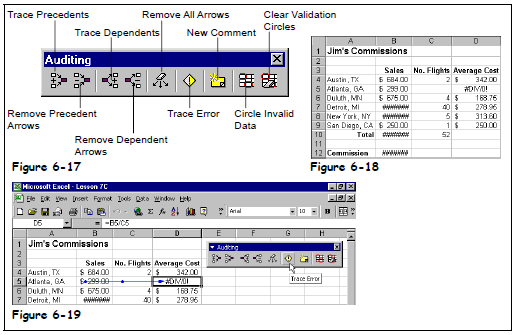
Heck, looking at the icons I had a feel these features had been there for a long time. Boy, was I surprised to find them in [Wayback] Excel 2000 – Student Edition – Complete (a great book by the way), as you can see in this picture:
Excel 2000 – Student Edition – Complete – Trace precedents, dependents, error
As others can explain this feature so much better than I can, here are some links:
When checking formulas, use the Trace Precedents and Trace Dependents commands to display the relationships between these cells and formulas.
…
- Precedent cells — cells that are referred to by a formula in another cell. For example, if cell D10 contains the formula =B5, then cell B5 is a precedent to cell D10.
Dependent cells — these cells contain formulas that refer to other cells. For example, if cell D10 contains the formula =B5, cell D10 is a dependent of cell B5.
…
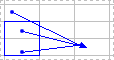
you can use the Trace Precedents and Trace Dependents commands to graphically display and trace the relationships between these cells and formulas with tracer arrows, as shown in this figure.
Excel offers us some useful tools for auditing a formula, in order to understand what we have done wrong in the formula, by tracking down the relationships between the cells of the formula in a spreadsheet…
You use the Trace Precedents button on the Formula Auditing toolbar to trace all the generations of cells that contribute to the formula in the selected cell(something like tracing all the ancestors in your family tree).
–jeroen

Posted in Excel, Office, Office 2000, Office 2003, Office 2007, Office 2010, Office 2011 for Mac, Office 2013, Office 2016, Power User | Leave a Comment »
Posted by jpluimers on 2022/01/25
In Get Formatted Value of Cell in Excel – Stack Overflow, I focused on the =TEXT function, then indicated I would look into Excel format strings later.
Below are just a few links and a very short description as hopefully later I will have more time to dig into this.
The basic format is this (where all bits other than Format1 are optional):
[Locale]Format1;Format2;Format3;Format4
For now this is for my link archive:
HA001034635 link has disappeared, which is a pity as it explains the localisation; luckily two forms of the URL have been saved where [Locale] is constructed like this example (all Locale digits are hexadecimal):
[$-24050412]m/d/yyIn the preceding example:
24is the numeral shape component (Korean 1).
05is the calendar type component (Korean (Tangun era)).
0412is the locale and language designation component (Korean).
[Locale] information is explained in [Wayback] What does the 130000 in Excel locale code [$-130000] mean? – Stack Overflow by [Wayback] User IrwinAllen13 – Stack Overflow and has more calendar formats than the above Microsoft links.@ is for: the content of the cell.First the base:
When you create custom number formats, you can specify up to four sections of format code. These sections of code define the formats for
- positive numbers,
- negative numbers,
- zero values, and
- text,
in that order. The sections of code must be separated by semicolons (
;).The following example shows the four types of format code sections.
Format for positive numbers
Format for negative numbers
Format for zeros
Format for text
Then on on specifying less than 4 sections:
- If you specify only one section of format code, the code in that section is used for all numbers.
- If you specify two sections of format code, the first section of code is used for positive numbers and zeros, and the second section of code is used for negative numbers.
- When you skip code sections in your number format, you must include a semicolon for each of the missing sections of code.
- You can use the ampersand (&) text operator to join, or concatenate, two values.
Then on the
@sign (which is under “Text and spacing”):To create a number format that includes text that is typed in a cell, insert an “at” sign (@) in the text section of the number format code section at the point where you want the typed text to be displayed in the cell.
…
For example, to include text before the text that’s typed in the cell, enter “gross receipts for “@ in the text section of the number format code.
Finally it explains how to colorise the formatting or hide particular values under “Decimal places, spaces, colors, and conditions”:
The color code must be the first item in the code section.
[Black] [Blue] [Cyan] [Green] [Magenta] [Red] [White] [Yellow]…
Hiding various values:
To hide Use this code Zero values 0;–0;;@All values ;;;(three semicolons)
Office Open XML file formats – This Standard defines Office Open XML’s vocabularies and document representation and packaging
Below a few screenshots while experimenting.
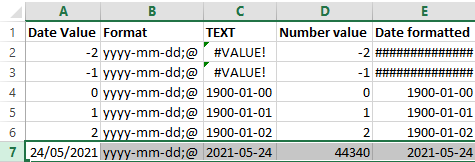
The first one shows the formulas, the second one the content. The Date value cells shows the values when entered as shown; the Date formatted cells are all formatted with yyyy-mm-dd;@ formatting.
I still need to figure out why using a =TEXT function shows #VALUE! whereas using cell formatting just a bunch of ############### (15 times a #, not sure if that is always the same number).

–jeroen

Posted in Development, Excel, Office, Office Development, Power User, Software Development | Leave a Comment »
Posted by jpluimers on 2022/01/18
It’s odd, but facing a potentially lot shorter life expectancy, I need to prepare to become more expendable in personal life.
This means that I need to document or/and automate a lot of duties.
In this case, it is administrative work as custodian for my brother that is based on scripts, Excel sheets and manual steps.
In order to lessen these steps, I wanted to get the formatted value of certain Excel WorkSheet cells so I could concatenate them in other places.
It appears that neither the CONCATENATE function (nor the more recently introduced CONCAT function) nor & concatenation operator just take the unformatted value of the cell and put that in as text.
Note that the TEXTJOIN function is basically a CONCATENATE function with an extra delimiter parameter, so it does not format text.
One format I needed was YYYY-MM-DD, basically the ISO-8601 date format.
The Excel format string for this is yyyy-mm-dd;@, and the corresponding formula to apply it on cell L5 is =TEXT(J5, "yyyy-mm-dd;@")
Based on [Wayback] Get Formatted Value of Cell in Excel – Stack Overflow:
Use the
TEXT()function:
TEXT(value, format_text)
So if the value is 23.5 and you pass=TEXT(A1, "$0.00")it will return$23.50
Source: http://office.microsoft.com/en-us/excel-help/text-function-HP010062580.aspx
At a later stage, I will look into the actual format strings.
References:
–jeroen
Posted in Development, Excel, Office, Power User, Software Development | Leave a Comment »
Posted by jpluimers on 2021/12/15
I always forget that, when moving a folder, instead of finding all references to that folder and fixing them, you can create an NTFS symlink from the old location to the new one.
[Wayback] how to move MSOCACHE folder from C-drive to D-drive ?? – Microsoft Community (thanks [Wayback] tgunda numbering and casing updates mine):
There are too much entries in the registry to correct them manually one by one.
An easier and quicker solution is to copy the fullMSOCachefolder to a new place and to make a soft link to it:
- Create a new folder, e.g.
F:\MSOCache- Copy everything from
C:\MSOCacheto the new one.- Rename the old folder
C:\xMSOCache(Don’t delete it, just in case).- Open a command prompt window in administrator mode.
- Write:
mklink /d c:\MSOCache f:\MSOCacheNow there is anMSOCachelink atC, pointing to the new place.If everything is OK, you can deleteC:\xMSOCache
This can be very handy when moving around large software development installations, circumventing a full uninstall/install sequence loosing lots of configuration settings.
–jeroen
Posted in Development, LifeHacker, Office, Power User, Software Development, Windows, Windows Development | Leave a Comment »
Posted by jpluimers on 2021/11/09
This is a great PCA calculator: [Archive.is] CADD calculator 0.5BETA END USER Google Docs – Google Sheets
Via:
Related:
–jeroen
Posted in Development, Excel, Google, GoogleDocs, GoogleSheets, Office, Office Automation, Office VBA, Power User, Scripting, Software Development | Leave a Comment »
Posted by jpluimers on 2021/11/02
As it combines VBA and AppleScript, I might need the script from this in the future [WayBack] Word for Mac 2011: create macro or shortcut to ‘Insert Picture – Microsoft Community.
–jeroen
Posted in Development, Office, Office 2011 for Mac, Office Automation, Office VBA, Scripting, Software Development | Leave a Comment »
Posted by jpluimers on 2021/10/01
Every now and then, for instance with a document including other documents, like in a homework assignment, you might want to exclude part of your Heading 1 (or Heading 2/Heading 3) entries from the table of contents.
Since presence in the Table of Contents is a ToC feature, not a style feature, you have to set the correct options in the ToC.
This is how you do it:
This is contrary to many advices to use the “Reference” toolbar, then “Add Text” marked “Do Not Show In Table Of Contents”. That advice will remove the heading formatting completely and remove it from the navigation pane, so do not follow [WayBack] Quick Tip: How to exclude headings from the Table of Contents in Microsoft Word – jeffreykusters.nl.
The above solution both keeps the formatting, and the appearance in the navigation pane. It only disappears from the Table of Contents.
It is based on:
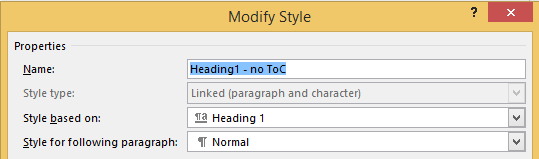
Following the above steps, you get styles like this:

Posted in Office, Office 2010, Office 2011 for Mac, Office 2013, Office 2016, Power User, Word | Leave a Comment »
Posted by jpluimers on 2021/07/23
On an old system, I found some x86 installers with names like RbudLR.cab, RosebudMUI.msi, RosebudMUI.xml, setup.xml.
They appeared to be the (now deprecated and never released as x64): MSDAIPP – Wikipedia (Microsoft Data Access Internet Publishing Provider).
Searching for RosebudMUI many returned detection scams like solvusoft, but somewhere further down was this only meaningful result: [WayBack] What is the RosebudMUI AddOn in Visio 2007?
–jeroen
Posted in Office, Office 2010, Power User, Windows | Leave a Comment »
Posted by jpluimers on 2021/06/11
Steps to have only the body parts of your Winword document Heading 1 numbered, but parts like Summary and Table of Contents without numbering.
Related:
Steps:
Ctrl+Shift+Alt+S, or ribbon “Home” -> section “Styles” -> small button on the lower right of the ribbon sectionCtrl+Alt+1 for this) to the multi-level one: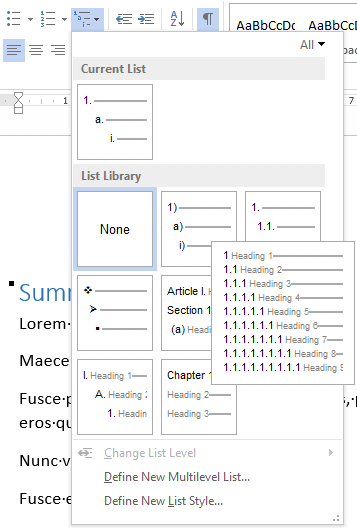

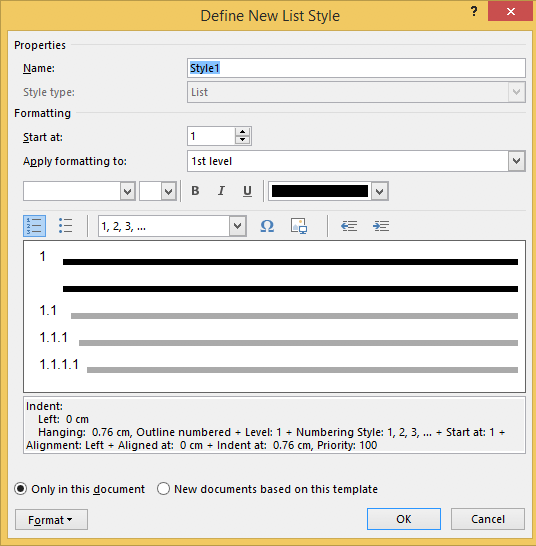 to “Heading
Ctrl+Shift+S to get to the “Apply Styles” 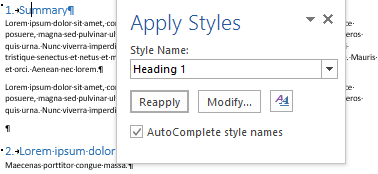
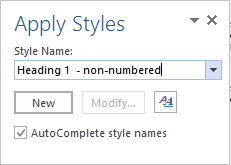
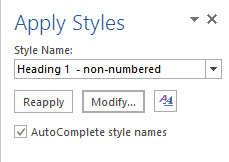

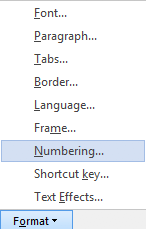
 to “None” and press “OK”
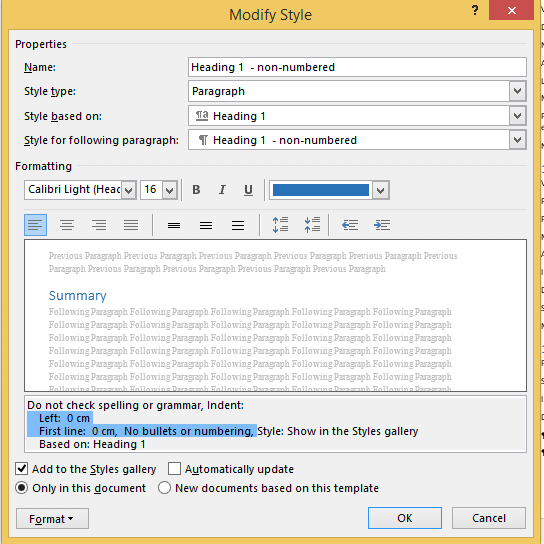
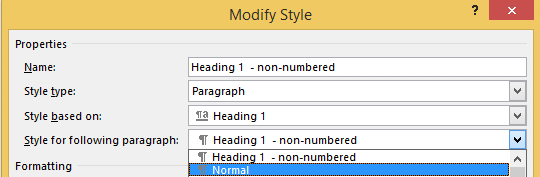
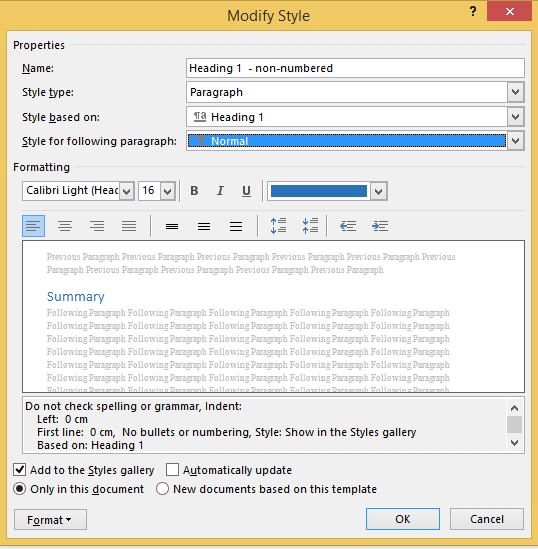
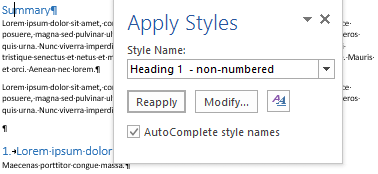
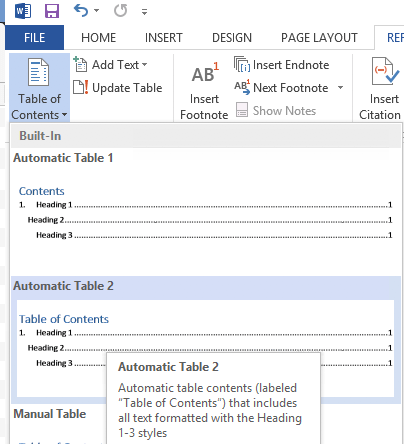
Ctrl+Shift+S when you are in the “Table of Contents” heading: 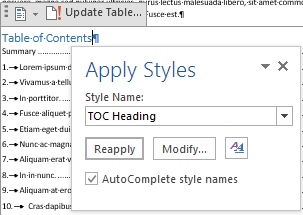
–jeroen

Posted in Office, Office 2007, Office 2010, Office 2013, Office 2016, Power User, Word | Leave a Comment »


 The Wiert Corner - irregular stream of stuff