The Wiert Corner – irregular stream of stuff

Jeroen W. Pluimers on .NET, C#, Delphi, databases, and personal interests

  • My badges

  • Twitter Updates

  • My Flickr Stream

  • Pages

  • All categories

  • Enter your email address to subscribe to this blog and receive notifications of new posts by email.

    Join 1,860 other subscribers

Archive for the ‘PowerToys’ Category

Overlay of commands / shortcuts / keys pressed – Screencast Mode · Issue #981 · microsoft/PowerToys · GitHub

Posted by jpluimers on 2025/07/23

This is a reminder to check if this below late 2019 proposal inspired by Visual Studio Code Screencast mode¹ already made it: [Wayback/Archive] Overlay of commands / shortcuts / keys pressed – Screencast Mode · Issue #981 · microsoft/PowerToys · GitHub which mentions some tools that can already do this

Here is a list of FOSS apps that currently do this (sorted by stars):

To add to this list (unsorted):

In the meantime, I am using Key-n-Stroke as it is the only still supported one I found that is easily turned off/on when typing sensitive content like passwords:

Read the rest of this entry »

Posted in .NET, Development, Keyboards and Keyboard Shortcuts, KVM keyboard/video/mouse, Power User, PowerToys, Software Development, vscode Visual Studio Code, Windows | Tagged: , | Leave a Comment »

PowerToys Keyboard Manager utility for Windows | Microsoft Docs

Posted by jpluimers on 2024/01/19

It looks like after decades, ReMapKey (from the Windows 2000 and 20023 Resource Kits, see If you miss having the Caps Lock button on your #Chromebook… (via: Google Chrome – Google+)) got a successor:

[Wayback/Archive] PowerToys Keyboard Manager utility for Windows | Microsoft Docs:

The PowerToys Keyboard Manager enables you to redefine keys on your keyboard.

For example, you can exchange the letter A for the letter B on your keyboard. When you press the A key, a B will display.

You can also exchange shortcut key combinations. For example: The shortcut key Ctrl+C will copy text in Microsoft Word. With PowerToys Keyboard Manager utility, you can exchange that shortcut for ⊞ Win+C. Now, ⊞ Win+C will copy text. If you do not specify a targeted application in PowerToys Keyboard Manager, the shortcut exchange will be applied globally across Windows.

PowerToys Keyboard Manager must be enabled (with PowerToys running in the background) for remapped keys and shortcuts to be applied. If PowerToys is not running, key remapping will no longer be applied.

The real kicker however, is that the new PowerToys Keyboard Manager can be application specific:

Read the rest of this entry »

Posted in Power User, PowerToys, Windows, Windows 10, Windows 11 | Leave a Comment »

⊞ Win+? shortcut: PowerToys Shortcut Guide utility for Windows | Microsoft Docs

Posted by jpluimers on 2024/01/15

About a year and a half ago, JenMsft (Jen Gentleman) pointed me to the cool “Shortcut Guide” part of the Windows PowerToys: [Wayback/Archive] microsoft/PowerToys: Windows system utilities to maximize productivity.

The PowerToys install is an all or nothing approach which will elevate you as admin during installation:

winget install Microsoft.PowerToys --source winget

From the [Wayback/Archive] PowerToys Shortcut Guide utility for Windows | Microsoft Docs:

Open the shortcut guide with the shortcut key combination: ⊞ Win+Shift+/ (or as we like to think, ⊞ Win+?) or hold down the ⊞ Win for the time as set in the Settings. An overlay will appear showing keyboard shortcuts that use the Windows key, including:

  • common Windows shortcuts
  • shortcuts for changing the position of the active window
  • taskbar shortcuts

Read the rest of this entry »

Posted in Power User, PowerToys, Windows, Windows 10, Windows 11 | Leave a Comment »

Boomer screenshots: wondering why Windows still has no keyboard shortcut for saving a screenshot or screen snippet to disk

Posted by jpluimers on 2022/03/14

With the disappearing PrtScn buttons on modern keyboards, boomer screenshots are about the only way to easily persist a screenshot, as these are the only available Windows screenshot shortcuts:

  • PrtScn: copies full screenshot to the clipboard; multiple invocations overwrite the clipboard
  • Windows + PrtScn: saves full screenshot to a file; multiple invocations saves to new files
  • Windows + Shift + S: copies full screen or part of the screen to the clipboard, and allows manual action to start snippet tool to save the clipboard contents; often looses the image when on remote desktop connections or when copying something else to the clipboard; multiple invocations overwrite the clipboard

Now look at macOS what a choices, and how less messy than on Windows:

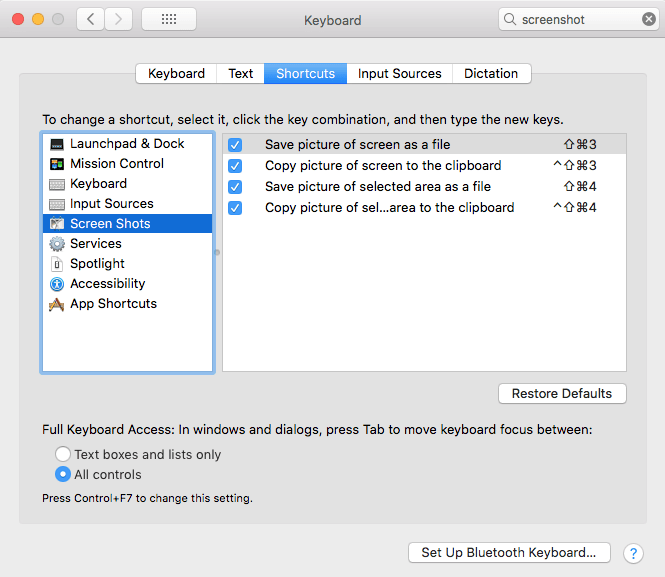
macOS has various shortcuts to save (partial) screenshots to clipboard or file

macOS has various shortcuts to save (partial) screenshots to clipboard or file

For macOS 10.14 Mojave and newer, you can even set the folder (default: Desktop) to save the screenshots to:

I want this ease in Windows as well, and maybe I can in part without installing external tools and modifying existing shortcuts to make things easier:

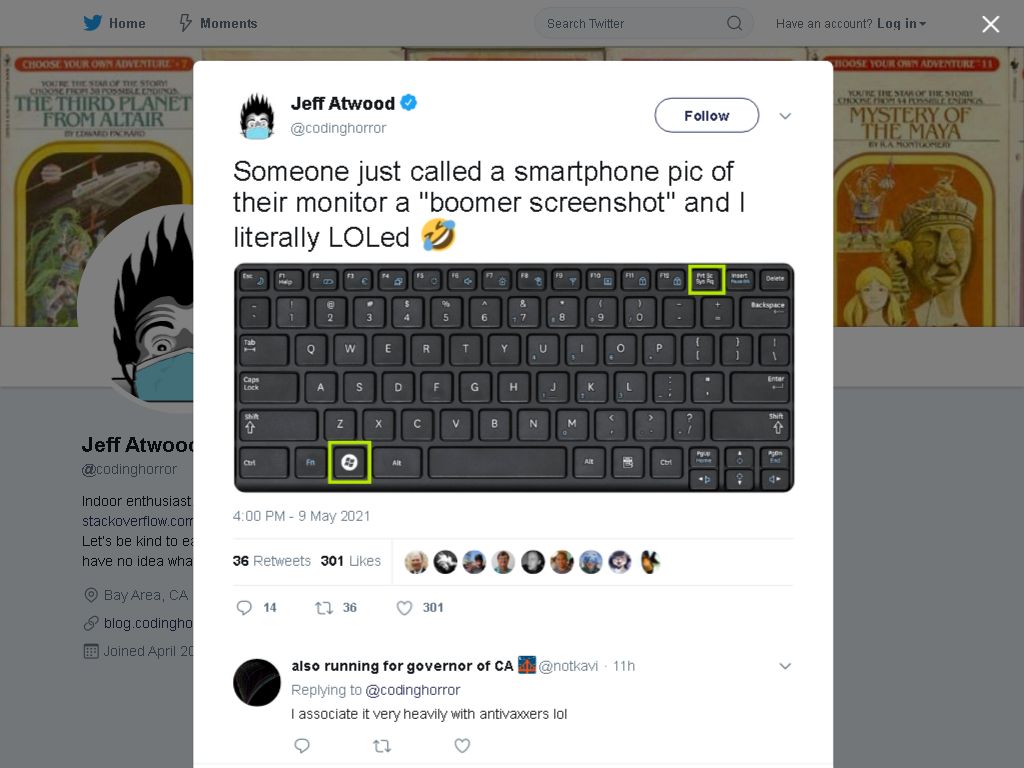
Written after bumping into [Archive.is] Jeff Atwood on Twitter: “Someone just called a smartphone pic of their monitor a “boomer screenshot” and I literally LOLed 🤣… “

–jeroen

Posted in Apple, LifeHacker, Mac OS X / OS X / MacOS, Power User, PowerToys, Windows, Windows 10 | Leave a Comment »

Some notes on tfpt.exe from Microsoft Visual Studio Team Foundation Server (2010/2013/2015) Power Tools extension

Posted by jpluimers on 2016/06/23

Some links.

First tfpt:

Old name: Microsoft Team Foundation Server 2010 Power Tools.

Then witAdmin:

With API:


–jeroen

via: Microsoft Visual Studio Team Foundation Server 2013 Power Tools extension.

Links to past posts about tfpt:

Posted in .NET, Development, Power User, PowerToys, Software Development, Source Code Management, TFS (Team Foundation System), Visual Studio and tools, Windows | Leave a Comment »