I keep forgetting these two settings, most likely because I hardly use spreadsheets that are both wide and tall.
First the print order
Basically there are two orders:
- Prefer horizontal over vertical (Excel calls this “Over, then down”) so it prints columns first, then rows
- Prefer top to bottom (Excel calls this “Down, then over”) so it prints rows first, then columns
Here is how to do it in Excel 2007 and up:
- Ensure your worksheet is active.
- Click the “Page Layout” tab.
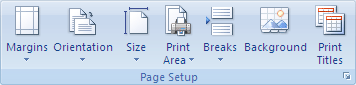
- In the “Page Setup” group, click the “Dialog Box Launcher” on the bottom right of the group (this tiny icon:
 ).
).
- In the “Page Setup” dialog that appears, click on the “Sheet” tab.
- Under “Page order”, select either of these two options (the preview will change, see the images below).
- Down, then over
- Over, then down
- Click OK to close the “Page order” dialog.
Then the row/colum headings
This is actually much easier, and also works this way from Excel 2007 and up:
- Ensure your worksheet is active.
- Click the “Page Layout” tab.
- In the “Sheet Options” group, under “Headings”, select the “Print” check box.
–jeroen
via:
Image thanks to Microsoft:


Down, then over.

Over, then down.


 The Wiert Corner - irregular stream of stuff