


Reproduction of A start job is running for dev-disk-by... – Google Photos / Oops. Let’s see if I can reproduce it, as I think this is related: https://…
Reproducible steps below.
Related:
- [WayBack] TUMBLEWEED How to resolve “A start job is running for dev-disk-by\…” problems? Raspberry Pi / openSUSE
- [WayBack] TUMBLEWEED How to resolve “A start job is running for dev-disk-by\…” problems? Raspberry Pi / openSUSE – Page 2
- [WayBack] TUMBLEWEED How to resolve “A start job is running for dev-disk-by\…” problems? Raspberry Pi / openSUSE – Page 3
- [WayBack] LEAP 42.2 Solution: Activating WLAN WiFi on openSUSE Leap 42.2 / Raspberry Pi-3 aarch64
Tried tips from last link: fails as well
These are the modifications of the steps further on based on the last link above.
- After first boot, verify the WiFi drivers are there:
# rpm -qa | grep bcm43xx

bcm43xx-firmware-20170410-2.1.noarch
- After editing
/etc/dracut.conf.d/raspberrypi_modules.conf, performsudo mkinitrdwithout any-f - After reboot, same error
Error result
At boot time:
A start job is running for dev-disk-by\…
After waiting:
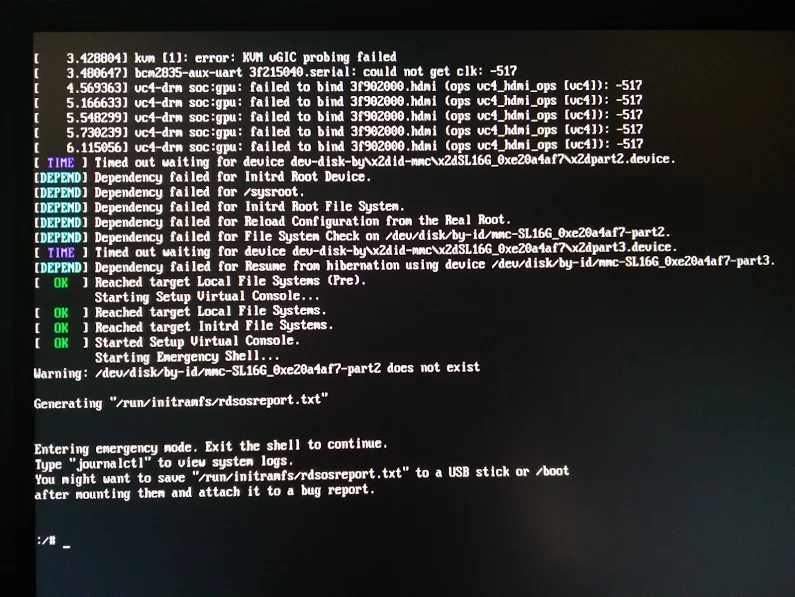
Reproducible steps
- download (or a more recent one) from http://download.opensuse.org/repositories/devel:/ARM:/Factory:/Contrib:/RaspberryPi3/images/ :
- [WayBack] http://download.opensuse.org/repositories/devel:/ARM:/Factory:/Contrib:/RaspberryPi3/images/openSUSE-Tumbleweed-ARM-E20-raspberrypi3.aarch64-2017.07.22-Build3.16.packages
- [WayBack] http://download.opensuse.org/repositories/devel:/ARM:/Factory:/Contrib:/RaspberryPi3/images/openSUSE-Tumbleweed-ARM-E20-raspberrypi3.aarch64-2017.07.22-Build3.16.raw.xz
- [WayBack] http://download.opensuse.org/repositories/devel:/ARM:/Factory:/Contrib:/RaspberryPi3/images/openSUSE-Tumbleweed-ARM-E20-raspberrypi3.aarch64-2017.07.22-Build3.16.raw.xz.sha256
- Install them on a MicroSD card
- Put in Raspberry Pi 3 and boot
- Get the IP address of the machine, then SSH into it (
ssh root@ip-address, passwordlinux) - Follow the steps from [WayBack] openSUSE on Raspberry Pi 3: From Zero to Functional System in a Few Easy Steps – SUSE Blog | SUSE Communities to get WiFi working:
- Edit
/etc/dracut.conf.d/raspberrypi_modules.confand remove thesdhci-iprocfrom the first and#on the last line:From :add_drivers+=" sdhci-iproc bcm2835-sdhost bcm2835_dma mmc_block dwc2 " # Workaround for Wifi #omit_drivers+=" sdhci-iproc"To :
add_drivers+=" bcm2835-sdhost bcm2835_dma mmc_block dwc2 " # Workaround for Wifi omit_drivers+=" sdhci-iproc" - Run these commands:
mkinitrd -f reboot - Check in
Yastifwlan0exists inSystem->Network Settings, then assign an SSIS plus credentials to it- Verify the list contains
BCM43430 WLAN card - Select it
- Click the
Editbutton - Put the check mark next to
Dynamic Addressthen selectDHCPand the kind ofDHCP(in my caseboth version 4 and 6) - Click the
Nextbutton - Keep
Operating ModeasManaged - Click the
Scan Networkbutton - Select
Network Name (ESSID)from the list - Select
Authentication Modefrom the list - Put the check mark for
Key Input TypeasPassphrase - Enter the
Encryption Key - Click the
Nextbutton - Click the
OKbutton - Quit
Yast - Wait a few moments, then very with
ip athatwlan0got an IP address
- Verify the list contains
- Edit
- Update the system:
zypper refresh zypper dist-upgrade - Reboot
- Wait for the error to occur on the HDMI screen (USB keyboard does not work there, so I cannot copy logs)
Gist log until 7. is below.
IRC chat transcript opensuse-factory
<wiert>
–jeroen


 The Wiert Corner - irregular stream of stuff