


Backup & Sync: The ridiculous steps you need to move the Google Drive from the C: drive to the D: drive
Posted by jpluimers on 2018/04/27
Unlike for instance DropBox, Google Backup & Sync does not allow you do move the Google Drive location in a one-step way. You have to go through below ridiculous steps to move it around yourself.
A comment on G+ indicated I should try Insync. Not free, but way more stable and more features.
[WayBack] Insync: A Mini Desktop File Manager For Your Google Drive
Insync adds Google Drive functionality to your Windows, Linux and mac OS desktop. Sync, backup, edit and share files easily with one or multiple accounts. Team Drives syncing for G Suite accounts now available! Try Insync free, no credit card needed.
[WayBack] Unlike for instance DropBox, Google Backup & Sync does not allow you do move … – Jeroen Wiert Pluimers – G+
I got them via [Archive.is] Change default location of Backup and Sync Folder on disk. – Google Product Forums, rephrased and added screenshots:
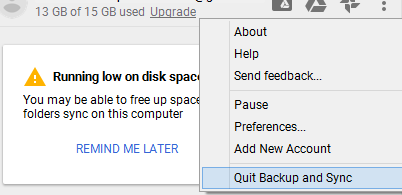
- Quit Backup and Sync:
- Mirror the files to the D: drive:
robocopy /mir "C:\Users\ix500\Google Drive" "D:\Users\ix500\Google Drive" - Renamed the old directory:
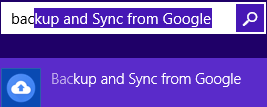
C:\Users\ix500>rename "Google Drive" "GoogleDrive.original" - Started Backup and Sync:
- Got a second notification:
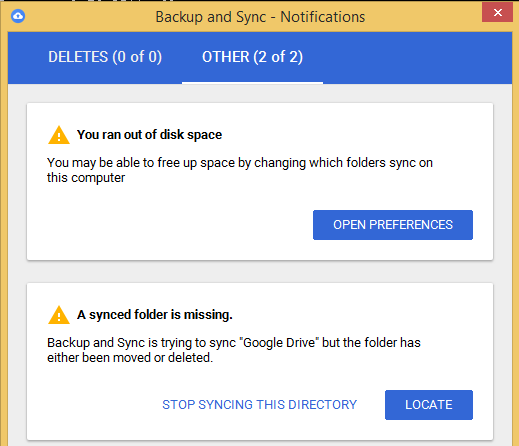
- Located the folder:
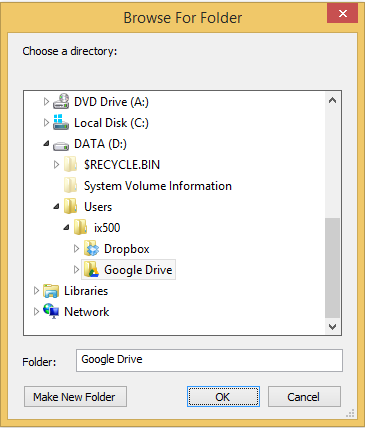
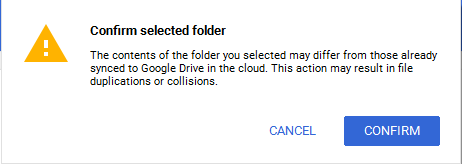
- Confirmed the location:
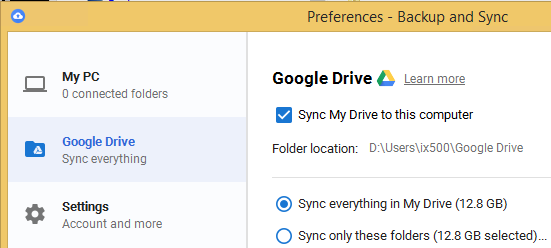
- Now the preferences shows the new location:


In the past, Google Drive did not have this feature either, but had different steps:
[WayBack] Change the Google Drive default folder | G Suite Tips


–jeroen

 The Wiert Corner - irregular stream of stuff
Leave a comment