


Visual Studio Code: enable Python debugging and selecting the Python version used
Posted by jpluimers on 2019/12/18
A few links and screenshots for my archive (assuming development on MacOS):
Enable Python Debugging

- Start the debugger: key combination Shift-Command-D, or click the debug icon

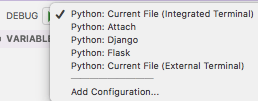
- Click on the wheel with the red dot in the debugger pane:
 , which will generate and open a
 launch.jsonfile in the current workspace, remote the red dot and fill the drop down with debug configurations
Via:
- [WayBack] Python debugging configurations in Visual Studio Code Details on configuring the Visual Studio Code debugger for different Python applications
- [WayBack] Python in Visual Studio Code: Debugging
- [WayBack] Running Python scripts from Visual Studio Code – Stève Sfartz – Medium
Selecting the Python version
- Key combination Ctrl-Shift-P
- Type
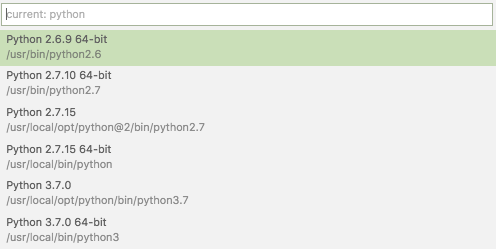
Select Interpreter

- Select the Python version you want; on my system they were at the time of writing:
Via:
- [WayBack] Configuring Python Environments in Visual Studio Code
- [WayBack] python – How can I debug Python3 code in Visual Studio Code – Stack Overflow
- [WayBack] Use Virtualenv with Python with Visual Studio Code in Ubuntu – Stack Overflow As of September 2016 (according to the Github repo documentation of the extension) you can just execute a command from within vscode that will let you select the interpreter from an automatically
Setting command-line arguments
Commandline arguments are set in the same .vscode/launch.json file:
"args": [
    "--quiet", "--norepeat"
],
Though [WayBack] Python debugging configurations in Visual Studio Code: args could have been more clear that you should put that under the Python configuration section you are debugging with, for instance:
{
    // Use IntelliSense to learn about possible attributes.
    // Hover to view descriptions of existing attributes.
    // For more information, visit: https://go.microsoft.com/fwlink/?linkid=830387
    "version": "0.2.0",
    "configurations": [
        {
            "name": "Python: Current File (Integrated Terminal)",
            "type": "python",
            "request": "launch",
            "program": "${file}",
            "console": "integratedTerminal",
            "args": [
                "--quiet", "--norepeat"
            ]
        },
Setting the startup python program
The page above also has a section on [WayBack] Python debugging configurations in Visual Studio Code: _troubleshooting that you can use to start the same script each time you debug, for instance your integration tests:
{
    // Use IntelliSense to learn about possible attributes.
    // Hover to view descriptions of existing attributes.
    // For more information, visit: https://go.microsoft.com/fwlink/?linkid=830387
    "version": "0.2.0",
    "configurations": [
        {
            "name": "Python: Current File (Integrated Terminal)",
            "type": "python",
            "request": "launch",
            // "program": "${file}",
            "program": "${workspaceFolder}/snapperListDeleteFailures.FileTests.py",
Fazit
I should have read [WayBack] Get Started Tutorial for Python in Visual Studio Code first.
–jeroen

 The Wiert Corner - irregular stream of stuff
Leave a comment