This started out ad a post to make things easier for my mentally brother, but then I figured it makes it so much easier for myself as well: getting rid of the evern returning Windows nag screens. Not just the ones after logon during initial Windows install that get back about every other Windows 20H update (thank god they stepped away from 19## version numbering that felt so, ehm, last millennium), but also the various “suggestions” in start menu, on the taskbar and elsewhere.
I understand that basically giving Windows 10 and 11 for free to many Windows 7/8 licensed machines or Windows-preinstalled machines induces Microsoft to see Windows as an advertising environment, but hey: many users can do without these distractions.
It is hard to solve, as even the underlying registry settings seem to be reset every once in a while, and solving it globally is not an option: the settings are a per-user one. Which means you need to run script early during every Windows logon to overwrite these settings.
Searching for registry settings to change first got me [Wayback/Archive] Windows 10 is nagging users with full-screen setup prompts and [Wayback/Archive] “Let’s Finish Setting Up Your Device”/”Get Even More Out of Windows” : Windows10 which both confirmed me there was at least one registry key value named ScoobeSystemSettingEnabled. That knowledge tremendously helped me narrow down my Google search queries.
They also indicated it was a HKCU (HKEY_CURRENT_USER) user level setting, but I wanted a HKLM (HKEY_LOCAL_MACHINE) machine level setting, so I dug deeper.
[Wayback/Archive] windows 10 – Disable Win 10 “Lets finish setting up your device” and other advertising computer wide – Super User (thanks [Wayback/Archive] Dom and [Wayback/Archive] Elaskanator) got me both
[HKEY_CURRENT_USER\SOFTWARE\Microsoft\Windows\CurrentVersion\UserProfileEngagement]
"ScoobeSystemSettingEnabled"=dword:00000000
and
[HKEY_CURRENT_USER\SOFTWARE\Microsoft\Windows\CurrentVersion\ContentDeliveryManager]
"SubscribedContent-338388Enabled"=dword:00000000
"SubscribedContent-310093Enabled"=dword:00000000
which helped me further refine my search queries.
It also confirmed my suspicion that Windows every now and then overwrites at least some of these registry settings, which implies that one needs to run an override script often.
Various involved keys and values
From the above you can already see there are two keys and two values involves. It gets worse: way more are involved.
From this set of (partially un-archivable) Microsoft Answers pages (also see the section about HKEY_USERS\.DEFAULT not being for the Default user) :
- Disable Get Even More Out of Windows – Microsoft Community – page 1
What I’ve tried so far is setting the registry key HKEY_CURRENT_USER\SOFTWARE\Microsoft\Windows\CurrentVersion\UserProfileEngagement\ScoobeSystemSettingEnabled to 0, as that was the advice I got online. Didn’t work.
I’ve also tried unchecking the “Show me the Windows welcome experience after updates and occassionally when I sign in to highlight what’s new and suggested” option in Settings->System->Notifications as that was supposed to help too. Didn’t work.
What do I need to do to get Microsoft to stop bothering me? Preferably something with a CLI so I can automate it.
…
It appears that this is controlled by, in my case, three keys under the HKEY_CURRENT_USER\Software\Microsoft\Windows\CurrentVersion\ContentDeliveryManager branch.
the ones that start with SubscribedContent
set them all to zero.
I have done this now, but i cant make the screen pop up reliably, so i dont know if its fixed the problem. Its not popping up on second reboot of the same machine, even before i changed these keys.
Another problem, is that these are user keys. So like my digital signage runs as an unprivileged local user, so no group policy will apply to it. Have to make disabling these keys part of my setup signage script, or find another way to push them to all users.
ref: https://www.majorgeeks.com/content/page/how_to_disable_get_even_more_out_of_windows.html
Note that i dont have the above key exactly, but three similarly named different keys. When i search those strinsg, they all have to do with **** i dont want and that microsoft can seemingly randomly push to machines. so we want those off.
reg add HKEY_CURRENT_USER\Software\Microsoft\Windows\CurrentVersion\ContentDeliveryManager /v "SubscribedContent-338388Enabled" /d "0" /t REG_DWORD /f
reg add HKEY_CURRENT_USER\Software\Microsoft\Windows\CurrentVersion\ContentDeliveryManager /v "SubscribedContent-338389Enabled" /d "0" /t REG_DWORD /f
reg add HKEY_CURRENT_USER\Software\Microsoft\Windows\CurrentVersion\ContentDeliveryManager /v "SubscribedContent-353696Enabled" /d "0" /t REG_DWORD /f
edit: this seems to have worked. put in a computer policy for windows 10 machines, targeting the default user container. But i cant reproduce the error at will so cant test if this solves it.
computer policy for NEW users
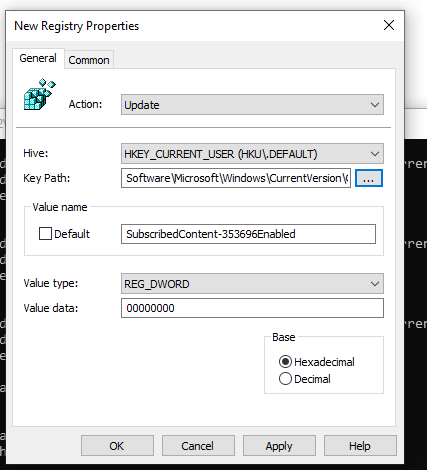
user policy for existing users:
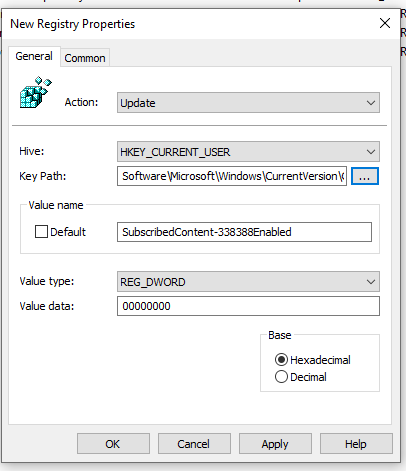
gotta do all 3.
…
As far as I can tell:
SubscribedContent-338388Enabled is related to giving ads for apps in the start menuSubscribedContent-338389Enabled is related to the ads you see on the lock menuSubscribedContent-353696Enabled is related to ads in the settings menu
While you wouldn’t want any of these on any computer, I don’t think either of these settings are likely to fix the issue.
This problem is one of the worst to have, being so hidden and spontaneous, so you can’t really troubleshoot it either. Having someone actually from Microsoft respond would probably be the best bet, but reaching anything but low tier techs reading from the same checklist you are while completely ignoring everything you say is a nightmare and a half.
…
Found this list at: www.reddit.com/r/sysadmin/comments/7bl1f2/has_anyone_found_a_canonical_mapping_of_windows
Seems about right.
310093 # “Show me the Windows welcome experience after updates and occasionally when I sign in to highlight what’s new and suggested”
338387 # “Get fun facts, tips and more from Windows and Cortana on your lock screen”
338388 # “Occasionally show suggestions in Start”
338389 # “Get tips, tricks, and suggestions as you use Windows”
338393 # “Show me suggested content in the Settings app”
…
Interesting suggestion. It led me to the Windows Consumer Features registry key, which may be exactly what I’m looking for. That led me to the following files of batch scripting, which should hopefully disable all the nonsense on Windows 10, or at least the consumer-oriented nonsense.
:: Request admin prompt, needed for the next line
Net session >nul 2>&1 || (PowerShell start -verb runas '%~0' &exit /b)
REG ADD "HKEY_LOCAL_MACHINE\Software\Policies\Microsoft\Windows\CloudContent" /v DisableWindowsConsumerFeatures /t REG_DWORD /d 1 /f
The bad news is this particular key requires administrator rights in order to modify. The good news is it’s the wild west out there, and plenty of companies couldn’t care less about silly little things like “security” and “best practices”. I personally do a little bit, so if someone knows a good way to do this automatically without requiring user input or disabling UAC, any suggestions for how to accomplish that would be appreciated. Will try out the key for now and hope for the best.
- Disable Get Even More Out of Windows – Microsoft Community – page 2
When i make a new windows 10 image, i start up the vm with the network card disconnected. i then run the following command. Need to do it before windows can connect to the internet. I might just be clicking “run as administrator” on this and it does work.
reg add HKLM\Software\Policies\Microsoft\Windows\CloudContent /v DisableWindowsConsumerFeatures /t REG_DWORD /d 1 /f
I do it this way because when i first started imaging windows 10, certain metro applications would prevent sysprep to run properly. So had to do before they got downloaded and installed.
…
I tried the following:
\HKEY_CURRENT_USER\Software\Microsoft\Windows\CurrentVersion\ContentDeliveryManager
ContentDeliveryAllowed 00000001 -> 00000000
See what happens using the Russian roulette approach.
…
According to https://www.majorgeeks.com/content/page/how_to_disable_get_even_more_out_of_windows.html the registry entry has changed:
HKEY_CURRENT_USER\Software\Microsoft\Windows\CurrentVersion\ContentDeliveryManager
SubscribedContent-310093Enabled
- Disable Get Even More Out of Windows – Microsoft Community – page 3
…
This here article, provides more context on how to check it:
www.windowslatest.com/2020/06/07/windows-10-full-screen-setup-prompts-are-back
just go to settings -> notifications and actions and check if “Suggest ways I can finish setting up my device to get the most out of Windows” is checked or not. I can only find this setting in version 2004 which it appears taht some of my machines have auto upgraded to.. DAMNIT
…
I just finished upgrading 22 (2 Home, 20 Pro) machines from 1909 to 2004. About 10 of the 1909 machines did not have the “Suggest ways I can finish setting up my device to get the most out of Windows” setting. The others did.
…
Unfortunately you need to apply the script after the 2004 update, since the update will overwrite the registry key(probably because key wasn’t supported prior to this version).
After 2 months, I have around 800+ Windows 10 terminals updated to 2004, and none of them has so far had the dreaded blue screen.
Before it popped up every month after major updates.
- [Wayback/Archive] Disable Get Even More Out of Windows – Microsoft Community – page 4
…
Once I upgraded my 22 machines from the 1909 to the 2004 Windows release and verified that. the “Suggest ways I can finish setting up my device to get the most out of Windows” is unchecked in Notifications and Actions, I have not had a reoccurrence at any reboots since July.
…
- [Wayback/Archive] Disable Get Even More Out of Windows – Microsoft Community – page 5
Note: it looks like the DisableWindowsConsumerFeatures value has stopped working somewhere in or after 2020.
Links referred to from the above quoted content:
Useful scripts to start with
Examples of scripts are for instance:
But isn’t HKEY_USERS\.DEFAULT the way to modify registry entries for the Default user?
No, as per [Wayback/Archive] The .Default user is not the default user – The Old New Thing
…
HKEY_USERS\.Default. Who is this guy? Despite its name, the profile for the .Default user is not the default user profile. It’s actually the profile for the Local System account and is an alias for HKEY_USERS\S-1-5-18. (S-1-5-18 is the security identifier for the Local System account.) Consequently, settings in HKEY_USERS\.Default are used by programs and services that run as Local System. The most visible examples of programs that run as Local System are winlogon and logonui, the programs that display the interface for logging onto the system.
…
The registry settings for new users do not come from the .Default user. Rather, they come from what I’ve started calling the “template user”, which is kept† in the file C:\Documents and Settings\Default User\ntuser.dat. This hive is not loaded most of the time (since there’s no reason to waste memory on something that is needed only rarely), so if you want to make a change to the template user, you’ll have to load the hive manually. Mind you, messing with the template user hive directly is most likely not supported. The supported way of modifying the template user hive on Windows XP is to use the system preparation tool “SysPrep”.
…
The link that Raymond Chen mentioned has moved over time:
- 2005: [Wayback/Archive] Security identifiers
- 2010: [Wayback/Archive] Security identifiers
- 2014: [Wayback/Archive] Security identifiers
- 2022: [Wayback/Archive] Security identifiers | Microsoft Learn
|
Local System (S-1-5-18)
|
A service account that is used by the operating system.
|
Raymond does not tell where the HKU\.Default user profile is stored, but it is documented at [Wayback/Archive] Why is (Almost) Everybody Wrong About HKU.Default? • Helge Klein:
The Truth
The settings stored in the registry hive HKU\.Default are used by the logon desktop. That desktop is, of course, shown to give users the ability to log on to their system. Want to have the Num Lock key turned on when users enter their credentials? Go to HKEY_USERS\.DEFAULT\Control Panel\Keyboard and change the value InitialKeyboardIndicators from 0 to 1. Don’t believe me? Try it out!
The hive HKU\.Default is stored in %SystemRoot%\system32\config\default (no extension). This is a very different location from the default user profile’s registry file which is stored in the file NTUSER.DAT inside the profile directory (typically in C:\Users\Default).
Initial settings: the Default user template
There is still one more thing to do: solving the settings for the “Default” user template so that when a new user gets created, it inherits the correct settings from the template (and auto-executing of scripts to re-apply them after logon or remote desktop access).
[Wayback/Archive] How can I configure default settings for new users? | ITPro Today: IT News, How-Tos, Trends, Case Studies, Career Tips, More confirmed that one can load %SYSTEMROOT%\Users\Default\NTUSER.DAT (well, it used the Windows NT 3.x location %SYSTEMROOT%\Profiles\Default User\NTUSER.DAT) using a registry editor UI (in this case via regedt32.exe, but RegEdit.exe can do he same).
I still need to think about that, as applying them requires modifying at least C:\Users\Default\NTUSER.DAT (which normally is not loaded into the registry) and files under C:\Users\Default (which might benefit from a mechanism to sync both from a central place).
[Wayback/Archive] Optimizing Windows 10, Build 2004, for a Virtual Desktop role: Default User Settings | Microsoft Learn first talks about
You can customize the Windows registry file at C:\Users\Default\NTUSER.DAT. Any setting changes you make to this file will be applied to any subsequent user profiles created from a machine running this image. You can control which settings you wish to apply to the default user profile by editing the DefaultUserSettings.txt file.
then further on mentions how to load/unload the file as hive into the registry:
The following are the optimization settings applied to the default user profile registry hive to optimize performance. Note that this operation is performed by first loading the default user profile registry hive NTUser.dat, as the ephemeral key name Temp, and then making the below listed modifications:
Load HKLM\Temp C:\Users\Default\NTUSER.DAT
add "HKLM\Temp\Software\Microsoft\Windows\CurrentVersion\Explorer" /v ShellState /t REG_BINARY /d 240000003C2800000000000000000000 /f
add "HKLM\Temp\Software\Microsoft\Windows\CurrentVersion\Explorer\Advanced" /v IconsOnly /t REG_DWORD /d 1 /f
add "HKLM\Temp\Software\Microsoft\Windows\CurrentVersion\Explorer\Advanced" /v ListviewAlphaSelect /t REG_DWORD /d 0 /f
add "HKLM\Temp\Software\Microsoft\Windows\CurrentVersion\Explorer\Advanced" /v ListviewShadow /t REG_DWORD /d 0 /f
add "HKLM\Temp\Software\Microsoft\Windows\CurrentVersion\Explorer\Advanced" /v ShowCompColor /t REG_DWORD /d 1 /f
add "HKLM\Temp\Software\Microsoft\Windows\CurrentVersion\Explorer\Advanced" /v ShowInfoTip /t REG_DWORD /d 1 /f
add "HKLM\Temp\Software\Microsoft\Windows\CurrentVersion\Explorer\Advanced" /v TaskbarAnimations /t REG_DWORD /d 0 /f
add "HKLM\Temp\Software\Microsoft\Windows\CurrentVersion\Explorer\VisualEffects" /v VisualFXSetting /t REG_DWORD /d 3 /f
add "HKLM\Temp\Software\Microsoft\Windows\DWM" /v EnableAeroPeek /t REG_DWORD /d 0 /f
add "HKLM\Temp\Software\Microsoft\Windows\DWM" /v AlwaysHiberNateThumbnails /t REG_DWORD /d 0 /f
add "HKLM\Temp\Control Panel\Desktop" /v DragFullWindows /t REG_SZ /d 0 /f
add "HKLM\Temp\Control Panel\Desktop" /v FontSmoothing /t REG_SZ /d 2 /f
add "HKLM\Temp\Control Panel\Desktop" /v UserPreferencesMask /t REG_BINARY /d 9032078010000000 /f
add "HKLM\Temp\Control Panel\Desktop\WindowMetrics" /v MinAnimate /t REG_SZ /d 0 /f
add "HKLM\Temp\Software\Microsoft\Windows\CurrentVersion\StorageSense\Parameters\StoragePolicy" /v 01 /t REG_DWORD /d 0 /f
add "HKLM\Temp\Software\Microsoft\Windows\CurrentVersion\ContentDeliveryManager" /v SubscribedContent-338393Enabled /t REG_DWORD /d 0 /f
add "HKLM\Temp\Software\Microsoft\Windows\CurrentVersion\ContentDeliveryManager" /v SubscribedContent-353694Enabled /t REG_DWORD /d 0 /f
add "HKLM\Temp\Software\Microsoft\Windows\CurrentVersion\ContentDeliveryManager" /v SubscribedContent-353696Enabled /t REG_DWORD /d 0 /f
add "HKLM\Temp\Software\Microsoft\Windows\CurrentVersion\ContentDeliveryManager" /v SubscribedContent-338388Enabled /t REG_DWORD /d 0 /f
add "HKLM\Temp\Software\Microsoft\Windows\CurrentVersion\ContentDeliveryManager" /v SubscribedContent-338389Enabled /t REG_DWORD /d 0 /f
add "HKLM\Temp\Software\Microsoft\Windows\CurrentVersion\ContentDeliveryManager" /v SystemPaneSuggestionsEnabled /t REG_DWORD /d 0 /f
add "HKLM\Temp\Control Panel\International\User Profile" /v HttpAcceptLanguageOptOut /t REG_DWORD /d 1 /f
add "HKLM\Temp\Software\Microsoft\Windows\CurrentVersion\BackgroundAccessApplications\Microsoft.Windows.Photos_8wekyb3d8bbwe" /v Disabled /t REG_DWORD /d 1 /f
add "HKLM\Temp\Software\Microsoft\Windows\CurrentVersion\BackgroundAccessApplications\Microsoft.Windows.Photos_8wekyb3d8bbwe" /v DisabledByUser /t REG_DWORD /d 1 /f
add "HKLM\Temp\Software\Microsoft\Windows\CurrentVersion\BackgroundAccessApplications\Microsoft.SkypeApp_kzf8qxf38zg5c" /v Disabled /t REG_DWORD /d 1 /f
add "HKLM\Temp\Software\Microsoft\Windows\CurrentVersion\BackgroundAccessApplications\Microsoft.SkypeApp_kzf8qxf38zg5c" /v DisabledByUser /t REG_DWORD /d 1 /f
add "HKLM\Temp\Software\Microsoft\Windows\CurrentVersion\BackgroundAccessApplications\Microsoft.YourPhone_8wekyb3d8bbwe" /v Disabled /t REG_DWORD /d 1 /f
add "HKLM\Temp\Software\Microsoft\Windows\CurrentVersion\BackgroundAccessApplications\Microsoft.YourPhone_8wekyb3d8bbwe" /v DisabledByUser /t REG_DWORD /d 1 /f
add "HKLM\Temp\Software\Microsoft\Windows\CurrentVersion\BackgroundAccessApplications\Microsoft.MicrosoftEdge_8wekyb3d8bbwe" /v Disabled /t REG_DWORD /d 1 /f
add "HKLM\Temp\Software\Microsoft\Windows\CurrentVersion\BackgroundAccessApplications\Microsoft.MicrosoftEdge_8wekyb3d8bbwe" /v DisabledByUser /t REG_DWORD /d 1 /f
add "HKLM\Temp\Software\Microsoft\InputPersonalization" /v RestrictImplicitInkCollection /t REG_DWORD /d 1 /f
add "HKLM\Temp\Software\Microsoft\InputPersonalization" /v RestrictImplicitTextCollection /t REG_DWORD /d 1 /f
add "HKLM\Temp\Software\Microsoft\Personalization\Settings" /v AcceptedPrivacyPolicy /t REG_DWORD /d 0 /f
add "HKLM\Temp\Software\Microsoft\InputPersonalization\TrainedDataStore" /v HarvestContacts /t REG_DWORD /d 0 /f
add "HKLM\Temp\Software\Microsoft\Windows\CurrentVersion\UserProfileEngagement" /v ScoobeSystemSettingEnabled /t REG_DWORD /d 0 /f
Unload HKLM\Temp
Another series of default user settings recently added is to disable several Windows apps from starting and running in the background. While not significant on a single device, Windows 10 starts up a number of processes for each user session on a given device (host). The Skype app is one example, and Microsoft Edge is another. The settings included turn off several apps from being able to run in the background. If this functionality is desired as it is, just delete out the lines in the “DefaultUserSettings.txt” file that include the app names “Windows.Photos,” “SkypeApp,” “YourPhone,” and/or “MicrosoftEdge.”
All in all, it is not clear where the DefaultUserSettings.txt file is being used so that will be a topic for future research.
More links on this for future research (where some have DefaultUserSettings.json and use PowerShell instead of batch files):
I found [Wayback/Archive] Customize Windows 10 default user profile – ScribbleGhost earlier (see tweets below), which comes with the same solution but a different path:
use the command prompt.
reg load HKLM\DEFAULT c:\users\default\ntuser.dat

...your custom registry tweaks goes here...

reg unload HKLM\DEFAULT
Basically, you would add all registry commands as you would normally do in a command prompt except you have to start by “loading a hive” and finish by “unloading the hive”. For example you could add reg add "HKLM\DEFAULT\Software\Microsoft\Windows\CurrentVersion\Explorer" /v EnableAutoTray /t REG_DWORD /d 1 /f. Notice the HKLM\DEFAULT\? That one is important because it specifies that the registry should be added to the default user profile.
The ScribbleGhost entry shows the mechanism with a more meaningful name, but the Virtual-Desktop-Optimization-Tool has way more parameters to tweak (and still misses a few).
Hopefully in the future I can dig more into that and find/assemble a source that is more complete. Given the ever growing number of nags in Windows that likely will be an ongoing effort.
Tweets and threads
Dalija made me search for registry based solutions.
- [Wayback/Archive] Jeroen Wiert Pluimers @wiert@mastodon.social on Twitter: “Hi @JenMsft, is there any way to skip the Windows configuration steps that appear every few months during Windows updates? My mentally retarded brother gets really confused when hey appear on his system after Windows automatically rebooted after updating: he cannot get past them:” thread saved at [Wayback/Archive] Thread by @jpluimers on Thread Reader App – 3 tweets
- [Wayback/Archive] Dalija Prasnikar on Twitter: “@jpluimers No, I don’t know exactly how to automate this. But, if I remember correctly there should be some related registry setting. I don’t know which one it is, but maybe this information will help you find it. With registry it can be automated.”
- [Wayback/Archive] Jeroen Wiert Pluimers @wiert@mastodon.social on Twitter: “@dalijap I’m not alone in running into this as it is a per-user registry setting:
superuser.com/questions/1645364/disable-win-10-lets-finish-setting-up-your-device-and-other-advertising-comput“ thread saved at [Wayback/Archive] Thread by @jpluimers on Thread Reader App – 4 tweets
The curious case of ShellState 240000003C2800000000000000000000
[Wayback/Archive] Need help identifying two Registry KeyNames – Microsoft Q&A
Q
Greetings all, I’m working on optimizing our VDI environment for Windows 10 20H2 and was looking at suggested settings from Microsoft here: https://docs.microsoft.com/en-us/windows-server/remote/remote-desktop-services/rds-vdi-recommendations-2004
There are a couple registry tweaks that are listed and I couldn’t find any information regarding what the actual registry change does for the following registry key names:
ShellState: HKLM\Temp\Software\Microsoft\Windows\CurrentVersion\Explorer
ShowCompColor: HKLM\Temp\Software\Microsoft\Windows\CurrentVersion\Explorer\Advanced
In the document, it advises to set ShellState to 240000003C2800000000000000000000 and ShowCompColor to 1 Would anyone know what these key names pertain to and what the suggested tweak would change? Cheers and thanks in advance.
A
ShowCompColor is described at GlobalFolderOptions element
ShellState is defined in a structure (SHELLSTATEW structure)
(not easy to find which bits are set apart by using SHGetSetSettings in a program (C++, VB, C#, …))
The 240000003C2800000000000000000000 value has 32 nibbles, so is 16 bites (128 bits)
Referenced links:
- [Wayback/Archive] VDI Optimizations — Need help identifying a few Reg Keys (Win10 20H2) Solved – Windows 10 Forums
- [Wayback/Archive] [MS-GPPREF]: GlobalFolderOptions element | Microsoft Learn
The GlobalFolderOptions inner element represents a collection of options used to control how folders are displayed on a client operating system.
…
|
Attribute name
|
Description
|
|
noNetCrawling
|
HKEY_CURRENT_USER\Software\Microsoft\Windows\CurrentVersion\Explorer\Advanced\NoNetCrawling
|
|
folderContentsInfoTip
|
HKEY_CURRENT_USER\Software\Microsoft\Windows\CurrentVersion\Explorer\Advanced\FolderContentsInfoTip
|
|
friendlyTree
|
HKEY_CURRENT_USER\Software\Microsoft\Windows\CurrentVersion\Explorer\Advanced\FriendlyTree
|
|
fullPathAddress
|
HKEY_CURRENT_USER\Software\Microsoft\Windows\CurrentVersion\Explorer\CabinetState\FullPathAddress
|
|
fullPath
|
HKEY_CURRENT_USER\Software\Microsoft\Windows\CurrentVersion\Explorer\CabinetState\FullPath
|
|
disableThumbnailCache
|
HKEY_CURRENT_USER\Software\Microsoft\Windows\CurrentVersion\Explorer\Advanced\DisableThumbnailCache
|
|
hidden
|
HKEY_CURRENT_USER\Software\Microsoft\Windows\CurrentVersion\Explorer\Advanced\Hidden
|
|
hideFileExt
|
HKEY_CURRENT_USER\Software\Microsoft\Windows\CurrentVersion\Explorer\Advanced\HideFileExt
|
|
separateProcess
|
HKEY_CURRENT_USER\Software\Microsoft\Windows\CurrentVersion\Explorer\Advanced\SeparateProcess
|
|
showSuperHidden
|
HKEY_CURRENT_USER\Software\Microsoft\Windows\CurrentVersion\Explorer\Advanced\ShowSuperHidden
|
|
classicViewState
|
HKEY_CURRENT_USER\Software\Microsoft\Windows\CurrentVersion\Explorer\Advanced\ClassicViewState
|
|
persistBrowsers
|
HKEY_CURRENT_USER\Software\Microsoft\Windows\CurrentVersion\Explorer\Advanced\PersistBrowsers
|
|
showControlPanel
|
HKEY_CURRENT_USER\Software\Microsoft\Windows\CurrentVersion\Explorer\HideMyComputerIcons\{21EC2020-3AEA-1069-A2DD-08002B30309D}
|
|
showCompColor
|
HKEY_CURRENT_USER\Software\Microsoft\Windows\CurrentVersion\Explorer\Advanced\ShowCompColor
|
|
showInfoTip
|
HKEY_CURRENT_USER\Software\Microsoft\Windows\CurrentVersion\Explorer\Advanced\ShowInfoTip
|
|
forceGuest
|
HKEY_LOCAL_MACHINE\System\CurrentControlSet\Control\LSA\ForceGuest
|
|
webViewBarricade
|
HKEY_CURRENT_USER\Software\Microsoft\Windows\CurrentVersion\Explorer\Advanced\ WebViewBarricade
|
- [Wayback/Archive]
SHELLSTATEW (shlobj_core.h) – Win32 apps | Microsoft Learn
Contains settings for the Shell’s state. This structure is used with the SHGetSetSettings function.
…
typedef struct {
  BOOL  fShowAllObjects : 1;
  BOOL  fShowExtensions : 1;
  BOOL  fNoConfirmRecycle : 1;
  BOOL  fShowSysFiles : 1;
  BOOL  fShowCompColor : 1;
  BOOL  fDoubleClickInWebView : 1;
  BOOL  fDesktopHTML : 1;
  BOOL  fWin95Classic : 1;
  BOOL  fDontPrettyPath : 1;
  BOOL  fShowAttribCol : 1;
  BOOL  fMapNetDrvBtn : 1;
  BOOL  fShowInfoTip : 1;
  BOOL  fHideIcons : 1;
  BOOL  fWebView : 1;
  BOOL  fFilter : 1;
  BOOL  fShowSuperHidden : 1;
  BOOL  fNoNetCrawling : 1;
  DWORD dwWin95Unused;
  UINT  uWin95Unused;
  LONG  lParamSort;
  int   iSortDirection;
  UINT  version;
  UINT  uNotUsed;
  BOOL  fSepProcess : 1;
  BOOL  fStartPanelOn : 1;
  BOOL  fShowStartPage : 1;
  BOOL  fAutoCheckSelect : 1;
  BOOL  fIconsOnly : 1;
  BOOL  fShowTypeOverlay : 1;
  BOOL  fShowStatusBar : 1;
  UINT  fSpareFlags : 9;
} SHELLSTATEW, *LPSHELLSTATEW;
– 17 bits
– 1 DWORD (32-bits)
– 1 UINT (32-bits)
– 1 LONG (32-bits)
– 1 int (32-bits)
– 1 UINT (32-bits)
– 1 UINT (32-bits)
– 7 bits
– 9 bits
This is a total of 32 bytes, which is different from the value above. That is extremely odd.
Via:
- [Wayback/Archive]
SHGetSetSettings function (shlobj_core.h) – Win32 apps | Microsoft Learn
Searches
–jeroen


 The Wiert Corner - irregular stream of stuff
Leave a comment