The Wiert Corner – irregular stream of stuff

Jeroen W. Pluimers on .NET, C#, Delphi, databases, and personal interests

  • My badges

  • Twitter Updates

  • My Flickr Stream

  • Pages

  • All categories

  • Enter your email address to subscribe to this blog and receive notifications of new posts by email.

    Join 1,862 other subscribers

Archive for the ‘TFS (Team Foundation System)’ Category

asp.net – Should the WebInfo file be excluded from SVN – Stack Overflow

Posted by jpluimers on 2012/10/03

When moving a truckload of stuff from Visual Source Crash, I came a long many .webinfo files.

I wasn’t sure they should be in TFS, and indeed they should not:

.webinfo should be excluded. (Some info about webinfo: How to copy and configure ASP.NET projects between different local computers)

–jeroen

via: asp.net – Should the WebInfo file be excluded from SVN – Stack Overflow.

Posted in .NET, ASP.NET, Development, Software Development, Source Code Management, TFS (Team Foundation System) | Leave a Comment »

“tfpt treeclean /exclude:*.suo,*.user” is what I use most (and recommend this thread: Does any tool exist to help Sync a directory with TFS? – Stack Overflow)

Posted by jpluimers on 2012/09/20

This post describes the TFS workspace cleanup features Treeclean and Scorch.

Both are not in the Visual Studio UI nor TFS tool, but are available form the ftpt command from the optional Team Foundation Power Tools package.

The main reason you need these two features is that TFS does not always clean up after it self when you perform get latest. For instance renamed directories, as well as bin and obj directories are not automatically removed.

The tfpt command I most often use this this one:

tfpt treeclean /exclude:*.suo,*.user

This deletes files from your local TFS workspace directory tree that are not in the source control system, but skips the *.suo and *.user files.

Tfpt also allows you to scorch files from your TFS.

So my second most used tfpt command is scorch in either of the two below forms:

tfpt scorch /recursive /diff
tfpt scorch /recursive /diff /exclude:*.suo,*.user

The first form is for the automatic build environment, the second for my normal development workspace.

Below is the explanation of treeclean and scorch.

First some other great commands from this StackOverflow answer by Martin Woodward:

Not quite, however you might want to download the TFS Power Tools and check out the command line utility tfpt.exe.

The “tfpt online” and “tfpt treeclean” might be most useful to you when working outside of an integrated TFS client. tfpt online will look for files in your local directory that are not under version control, treeclean will show you files in your local directory that are not under version control so that you can remove then if they are not required.

Scorch versus Treeclean

Scorch does more than Treeclean.

I use Treeclean for 90% of my normal workspace work, Scorch (with exclude) for about 10% of the time in my regular workspace.
For my CCnet build integration workspace, I only use Scorch (without exclude).

Treeclean just cleans the tree of stuff that is not in TFS:

B:\MasterWorkingDir>tfpt treeclean /?
tfpt treeclean - Delete files and folders not under version control

Usage: tfpt treeclean [/exclude:filespec1,filespec2,...] [filespec...]
[/recursive] [/batchsize:num] [/noprompt [/preview]]

Scorch does more work: at the end, both source control and the local disk situation are identical.

B:\MasterWorkingDir>tfpt scorch /?
tfpt scorch - Ensure source control and the local disk are identical

Your local disk will be scanned for:
 (1) items that are not in source control
 (2) items which are different on disk from the workspace version
 (3) items which are in the workspace but are missing on disk
Items not in source control will be deleted from disk, just as with the
 tfpt treeclean command. Items determined to be different on disk from the
 workspace version will be redownloaded from the server. Items missing on
 disk will also be redownloaded. Items with pending changes are exempted.

By default, items deleted from your local disk (#3 above) will not be
scanned for, and local items are determined to be identical/different from
the workspace version *solely by examining the read-only bit on the file*.

To redownload items deleted from your local disk (#3 above), supply the
/deletes option. To detect items which are different from the workspace
version but still have their read-only bit set (+R), supply the /diff option.
When using either or both of these options, tfpt scorch runs more slowly.

Usage: tfpt scorch [/exclude:filespec1,filespec2,...] [filespec...]
[/recursive] [/batchsize:num] [/noprompt [/preview]]
[/deletes] [/diff]

The commandline options are also different.

Scorch has these extra when compared to Treeclean:

/batchsize:num Set the batch size for server calls (default 500)
/deletes Detect and replace items missing from the local disk
/diff Use MD5 hashes to compare items with source control

Treeclean can have these options:

/noprompt Operate in command-line mode only
/exclude:filespec[,..] Files and directories matching a filespec in this list
are excluded from processing
/preview Do not make changes; only list the potential actions
/recursive Switch from one level of recursion to full recursion
/batchsize:num Set the batch size for server calls (default 500)
filespec... Only files and directories matching these filespecs
are processed

Scorch can have these options:

/noprompt Operate in command-line mode only
/exclude:filespec[,..] Files and directories matching a filespec in this list
are excluded from processing
/preview Do not make changes; only list the potential actions
/recursive Switch from one level of recursion to full recursion
/batchsize:num Set the batch size for server calls (default 500)
filespec... Only files and directories matching these filespecs
are processed

–jeroen

via:

Posted in CodePlex, Development, Software Development, Source Code Management, TFS (Team Foundation System), Visual Studio 11, Visual Studio 2002, Visual Studio 2003, Visual Studio 2005, Visual Studio 2008, Visual Studio 2010, Visual Studio and tools | 4 Comments »

git-tfs

Posted by jpluimers on 2012/09/19

Interesting:

git-tfs is a two-way bridge between TFS and git, similar to git-svn.

Need to check out if it is more like the SVNBridge wrapper that wraps SVN around TFS on either the server or the client, or like git-svn which wraps git around SVN only around the client.

–jeroen

via: git-tfs.

Posted in Development, DVCS - Distributed Version Control, git, Software Development, Source Code Management, Subversion/SVN, TFS (Team Foundation System) | Leave a Comment »

VS2010 Workfold Command: allows moving a local working folder for a WorkSpace, but not unmapping it when you have multiple workspaces with the same name

Posted by jpluimers on 2012/08/29

Just found a glitch in the unmap support for tf workfold (and found out it has already been reported).

First what I tried to do:

  1. move D:\develop.TFS02 into D:\develop\CodePlex\TFS02 using tf map (which BTW allows you to do in place branch switching).
  2. unmap D:\develop.TFS02\besharp from TFS

First a few things; the first one succeeded (as it implicitly uses the /map command), the last ones failed because /unmap is ambivalent on the /collection parameter: on the one hand it wants to do without, but when it discovers it cannot do without, it wrongly indicates it requires it.

D:\develop.TFS02\besharp>tf workfold /collection:https://tfs.codeplex.com/tfs/tfs02 /workspace:%COMPUTERNAME% $/ D:\develop\CodePlex\TFS02

D:\develop.TFS02\besharp>tf workfold /collection:https://tfs.codeplex.com/tfs/tfs02 /workspace:%COMPUTERNAME% /unmap $BeSharp
The option collection is not allowed.

D:\develop.TFS02\besharp>tf workfold /unmap /collection:https://tfs.codeplex.com/tfs/tfs02 /workspace:%COMPUTERNAME% D:\develop.TFS02\besharp
The option collection is not allowed.

D:\develop.TFS02\besharp>tf workfold /unmap D:\develop.TFS02\besharp
Unable to determine the workspace. You may be able to correct this by running 'tf workspaces /collection:TeamProjectCollectionUrl'.

D:\develop.TFS02\besharp>tf workfold /unmap /workspace:%COMPUTERNAME% D:\develop.TFS02\besharp
Multiple workspaces exist with the name T61PJWP.
Please specify the Team Foundation Server or qualify the name with the owner.

Workaround

The workaround is to

  1. start Visual Studio,
  2. unmap $/,
  3. recursively map $/ to D:\develop\CodePlex\TFS02,
  4. perform a get latest.

–jeroen

Via:

Posted in .NET, Development, Software Development, Source Code Management, TFS (Team Foundation System), Visual Studio 2010, Visual Studio and tools | Leave a Comment »

Solving the “Some projects have been bound to server locations that may be incorrect.” in Visual Studio 2010 when using Team Foundation System 2010 #VS2010 #TFS2010

Posted by jpluimers on 2012/08/23

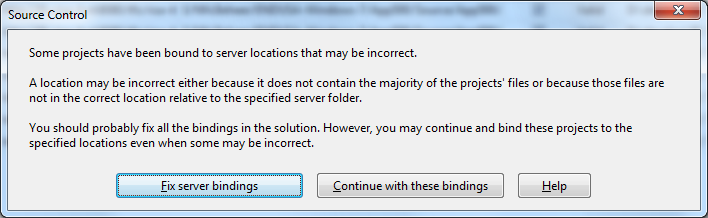
A while ago, I inherited a bunch of C# and VB.NET projects. One of them always generated the below error when including it in Team Foundation System (yes, the original projects were salvaged from Visual Source Shredder version 6.0c):

[Source Control]
Some projects have been bound to server locations that may be incorrect.
A location may be incorrect either because it does not contain the majority of the projects' files or because those files are not in the correct location relative to the specified server folder.
You should probably fix all the bindings in the solution. However, you may continue and bind these projects to the specified locations even when some may be incorrect.
[Fix server bindings] [Continue with these bindings] [Help]

First I tried the Help button: it links to a Help page on MSDN explaining the error can be cause with some statistics on projects not being in the source control system. Since all projects were, there, I looked for more information.

I tried finding a “Fix Server Bindings” or a 2010 “Some projects have been bound to server locations that may be incorrect” link that fitted my use case (getting projects from VSS into TFS), but the solutions I tried eventually all led to the same issue.

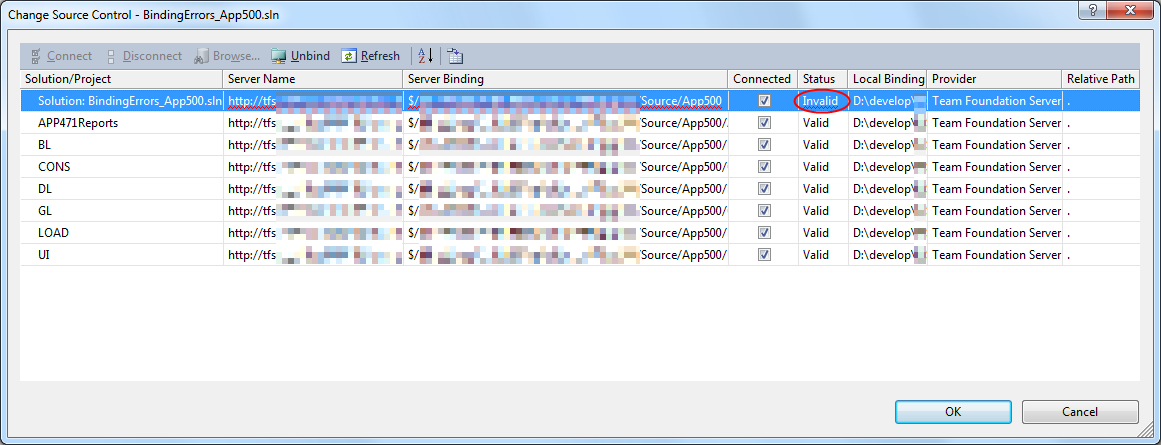
Fixing the server bindings would always fail: the solution (which itself is also a project) would get the status Invalid.

The next steps were these:

  1. add an empty solution in the same directory as the original one,
  2. add that solution to TFS
  3. add the projects from the original solution to this solution one by one
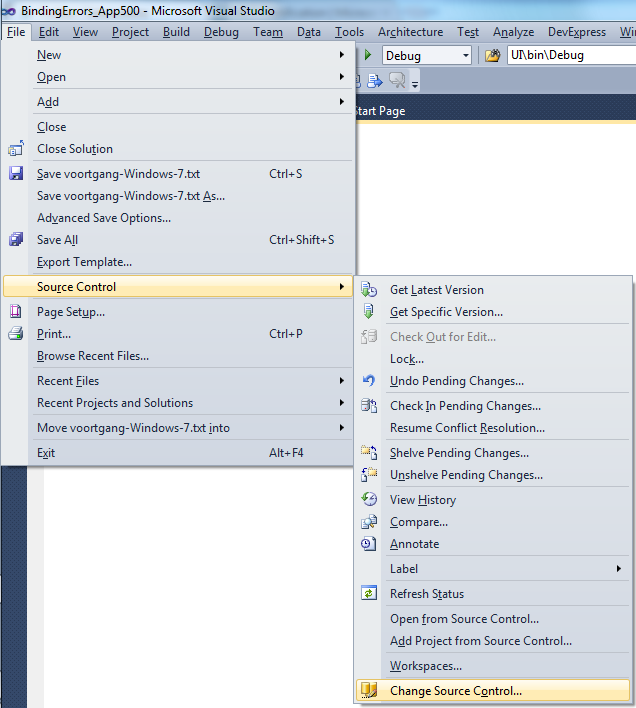
  4. check after each addition of the bindings were still OK using the “File”, “Source Control”, “Change Source Control” sequence on the right.
    (note that you don’t always see “Change Source Control”, if you don’t select the solution in the Solution Explorer before going to the File menu).
  5. text compare both .SLN solution files
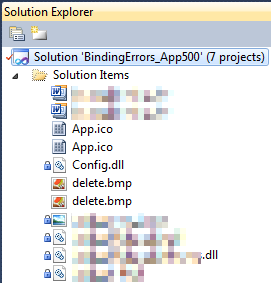
  6. observe that “Solution Items” actually is a project just like the others:
    Project("{2150E333-8FDC-42A3-9474-1A3956D46DE8}") = "Solution Items", "Solution Items", "{8D9964D4-6129-4B8F-9238-F9161A02B968}"
    ProjectSection(SolutionItems) = preProject
    ...
    Framework\Config.dll = Framework\Config.dll
    ...
    EndProjectSection
    EndProject
  7. add the existing solution item from the original solution to this solution one by one, check
  8. check after each addition of the bindings were still OK using the “File”, “Source Control”, “Change Source Control” sequence on the right.
    (note that you don’t always see “Change Source Control”, if you don’t select the solution in the Solution Explorer before going to the File menu).
  9. copy the non-existing solution items to the solution one by one using the text compare tool (yes, a lot of the projects are dirty and contain references to files that are not in the version control system)
    save after every copy, then reload the project in Visual Studio
  10. check after each addition of the bindings were still OK using the “File”, “Source Control”, “Change Source Control” sequence on the right.
    (note that you don’t always see “Change Source Control”, if you don’t select the solution in the Solution Explorer before going to the File menu).
  11. after a few files, suddenly the “Invalid” appeared, so the issue has to do with missing files.

Reading the Help more carefully, with in the back of my mind keeping “Solution Items” all as projects, I finally got the cause:

When some percentage of Solution Items cannot be found locally, and are not in the version control system, Visual Studio marks the solution binding to the version control system as “Invalid”.

The temporary solution is to ignore the error, until I have found all the missing files (they are scattered around some network shares), or made sure they are not needed at all.
There are many of those (you recognize them from the missing padlock icon in the Solution Explorer).

Version control rot is just like link rot, that’s why one of the high priority action items is to introduce for build automation at this client, then deploy those as clean builds into the Develop and Test stages of the DTAP, then verify if the solutions still work).

–jeroen

Posted in .NET, C#, C# 1.0, C# 2.0, C# 3.0, C# 4.0, C# 5.0, Development, Internet, link rot, Power User, Software Development, Source Code Management, TFS (Team Foundation System), VB.NET, Visual Studio 2010, Visual Studio and tools, WWW - the World Wide Web of information | Leave a Comment »

Great post on the differences between TFS, SVN, CVS and other source code management systems, ideas on Trunk/Tag/Branch

Posted by jpluimers on 2012/07/19

When switching between different source code management systems for doing version control at clients, it is always a bit of “getting used” to the mantra of both their system, and how it has been implemented.

Few people can really explain this well.

Richard Berg did in his great StackOverflow answer sharing his ideas on how to handle Trunk/Branch/Tag (for people starting with SVN, read this answer by David Schmitt before you mix them up).

I still see truckloads of people, and even teams try to do without version control. Please do use source control. If you don’t know where to get started, read some text on Source Control for beginners, or for instance the free on-line Red Bean books on SVN, Mercurial or CVS.

Also read some other great answers by Richard Berg (many on TFS, but also this very balanced view on usage of nullable in languages and proper use of Invoke-Expression in PowerShell: recommended reading).

–jeroen

Posted in Mercurial/Hg, Source Code Management, Subversion/SVN, TFS (Team Foundation System) | Leave a Comment »

TFS – Undelete File or Folder – brilliantly easy from the Visual Studio IDE: just enable “Show deleted items in the Source Control Explorer”

Posted by jpluimers on 2012/06/19

Never knew it was so brilliantly easy to undelete files from TFS: you can do it in Visual Studio, by enabling “Show deleted items in the Source Control Explorer” in the settings.

Just look at TFS – Undelete File or Folder for the screen shots.

Not sure in which Visual Studio version this got introduced, but it works in VS 2010 and up.

–jeroen

Posted in Development, Software Development, Source Code Management, TFS (Team Foundation System), Visual Studio 11, Visual Studio 2010, Visual Studio and tools | Leave a Comment »

Some research links on “change assemblyversion during checkin ccnet” – via Google Search

Posted by jpluimers on 2012/05/15

(Thanks to a “Missed Post” problem on WordPress.com, this one didn’t get posted on the scheduled date. Sorry for any inconvenience)

One of the next steps in the automated build process I’m setting up is increasing AssemblyVersion values after succesful builds.

It is is in a CCnet / TFS2010 / VS2010 environment.

Some links:

–jeroen

via: change assemblyversion during checkin ccnet – Google Search.

Posted in .NET, C#, Continuous Integration, CruiseControl.net, Development, Missed Schedule, SocialMedia, Software Development, Source Code Management, TFS (Team Foundation System), WordPress | Leave a Comment »

CodePlex TFS 2010 login: prefix login with “snd\” domain and suffix username with “_cp” (via Ahmed Al-Asaad’s Blog)

Posted by jpluimers on 2012/01/18

I keep forgetting this:

When logging in to CodePlex using TFS, then you need to prefix your username with “snd\” and suffix it with “_cp“.

So if your CodePlex username is wiert, then your login becomes snd\wiert_cp.

Somehow, this used to be more prominently on the codeplex site, but it isn’t any more.

–jeroen

via: TFS2010 « Ahmed Al-Asaad’s Blog.

Posted in CodePlex, Development, Source Code Management, TFS (Team Foundation System) | Leave a Comment »

Added a few links to my “Tools” page, @WordPress bug spuriously inserting div tags still present.

Posted by jpluimers on 2011/12/28

While re-designing a Visual Studio 2010 plus Delphi XE2 install for a specific client, I updated some of my Tools page links:

And found out that the WordPress still wrongly inserts div tags when you step out a list by pressing Enter twice is still present. Annoying, as it has been there for at least 2 years, so I’m still interesting in people having a workaround for it.

–jeroen

Posted in .NET, C#, Delphi, Development, Software Development, TFS (Team Foundation System), Visual Studio 2008, Visual Studio 2010, Visual Studio and tools | 1 Comment »