The Wiert Corner – irregular stream of stuff

Jeroen W. Pluimers on .NET, C#, Delphi, databases, and personal interests

  • My badges

  • Twitter Updates

  • My Flickr Stream

  • Pages

  • All categories

  • Enter your email address to subscribe to this blog and receive notifications of new posts by email.

    Join 1,839 other subscribers

Archive for the ‘Mac OS X / OS X / MacOS’ Category

Need to figure uit: MacOS High Sierra suddenly holding a key down does not produce an accented character any more

Posted by jpluimers on 2021/06/21

Logging on as a different user, holding a vowel key produces a small menu with accented characters.

Inspecting the keyboard preferences for both users did not show obvious differences.

On my list to figure out if it ever happens again.

These links might help me then:

This failed me on a few  occasions so far.

Sometimes a reboot is required. Sometimes quitting the most memory hungry applications, then restarting them (Chrome! Microsoft Remote Desktop!) re-enables it.

Related twitter thread below.

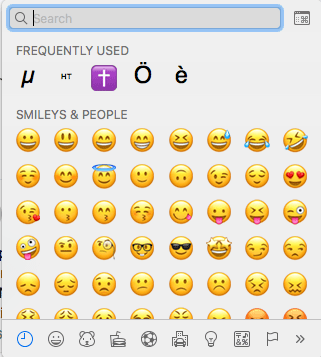
Learned new shortcut Command+Option+Space: shows the character viewer:

More of these at [WayBack] Mac keyboard shortcuts – Apple Support

There I learned about these Sleep, log out, and shut down shortcuts:

You might need to press and hold some of these shortcuts for slightly longer than other shortcuts. This helps you to avoid using them unintentionally.

  • Power button: Press to turn on your Mac or wake it from sleep. Press and hold for 1.5 seconds to put your Mac to sleep.* Continue holding to force your Mac to turn off.
  • Option–Command–Power button* or Option–Command–Media Eject : Put your Mac to sleep.
  • Control–Shift–Power button* or Control–Shift–Media Eject : Put your displays to sleep.
  • Control–Power button* or Control–Media Eject : Display a dialog asking whether you want to restart, sleep, or shut down.
  • Control–Command–Power button:* Force your Mac to restart, without prompting to save any open and unsaved documents.
  • Control–Command–Media Eject : Quit all apps, then restart your Mac. If any open documents have unsaved changes, you will be asked whether you want to save them.
  • Control–Option–Command–Power button* or Control–Option–Command–Media Eject : Quit all apps, then shut down your Mac. If any open documents have unsaved changes, you will be asked whether you want to save them.
  • Shift-Command-Q: Log out of your macOS user account. You will be asked to confirm. To log out immediately without confirming, press Option-Shift-Command-Q.

* Does not apply to the Touch ID sensor.

–jeroen

Read the rest of this entry »

Posted in Apple, Mac OS X / OS X / MacOS, macOS 10.12 Sierra, Power User | Leave a Comment »

VMware VMRC: connect to a remote console without the vSphere Client

Posted by jpluimers on 2021/06/21

Interesting tool: https://www.vmware.com/go/download-vmrc.

Back when scheduling this post in 2019, this was the most recent version: [WayBack] Download VMware vSphere: Download VMware Remote Console 10.0.4

From [WayBack] ovf – How to connect ESXi vm console from ESXi host console – Stack Overflow:

Example of vmrc.exe command :

"C:\Program Files (x86)\VMware\VMware Remote Console\vmrc.exe" vmrc://<ESXi host username>@<ESXi host IP>/?moid=<VM ID>

Basically it uses the vmrc scheme to start a connection to the remote screen for a specific MoRef ID. On ESXi, this is actually the VM ID that you get from vim-cmd vmsvc/getallvms. In that sense this is very similar to getting a single screenshot for the VM from the ESXi host by using the https://%5BHOST%5D:%5BPORT%5D/?id=%5BVM-MOREF%5D like described in ESXi and VMware Workstation: quick way of getting Console screenshots in PNG format; some URLs on your ESXi machine.


In MacOS, starting VMware Remote Console is slightly different as you have to start it through a URI using using the vmrc scheme from either a browser or with the open command on the console.

The reason is that there is no vmrc binary on MacOS.

  • [WayBack] Using VMware’s Standalone Remote Console for OS X with free ESXi | Der Flounder:

    vmrc://@[HOST]:[PORT]/?moid=[VM-MOREF]

    • HOST = the hostname or IP address of the ESXi server
    • PORT = the HTTPS port of the ESXi server, which is usually 443

    open 'vmrc://@server_name_here:port_number_here/?moid=vmid_number_here'

  • [WayBack] Standalone VMRC now available for Mac OS X:

    just provide the following URI which will prompt for your ESXi credentials

    vmrc://@[HOST]:[PORT]/?moid=[VM-MOREF]

    Once you have generated the VMRC URI, you MUST launch it through a web browser as that is how it is passed directly to the Standalone VMRC application. In my opinion, this is not ideal especially for customers who wish to automatically generate this as part of a VM provisioning workflow to their end users and not having to require a browser to launch the Standalone VMRC application. If you have some feedback on this, please do leave a comment.

    In the mean time, a quick workaround is to use the “open” command on Mac OS X along with the VMRC URI which will automatically load it into your default browser and launch the Standalone VMRC application for you.

    open 'vmrc://@192.168.1.60:443/?moid=vm-18'

On one of my test systems, for VMID 3 (see below), this comes down to this:

open 'vmrc://@192.168.71.94:443/?moid=3'

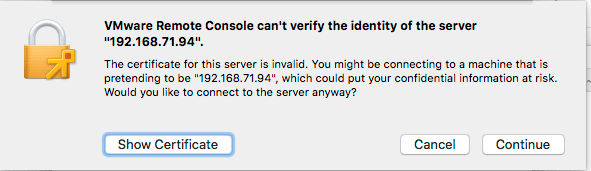
Note you have to accept the ESXi self generated TLS certificate once on MacOS:
After this, these processes were started (note there is no vmrc like on Windows):

± ps -ax | grep -i "\(vmware\|vmrc\)"
65239 ?? 0:04.15 /Applications/VMware Remote Console.app/Contents/MacOS/VMware Remote Console
65343 ?? 0:00.01 /Applications/VMware Remote Console.app/Contents/Library/services/VMRC Services 3 4
65360 ?? 0:00.16 /Applications/VMware Remote Console.app/Contents/Library/vmware-usbarbitrator
65363 ?? 0:00.01 /Applications/VMware Remote Console.app/Contents/Library/services/VMware USB Arbitrator Service 3 4
65393 ?? 0:01.29 /Applications/VMware Remote Console.app/Contents/Library/vmware-remotemks -@ vmdbPipeHandle=42; vm=_7FD2A461E8E0_3; gui=true -H 44 -R -P 2 -# product=256;name=VMware Remote Console;version=10.0.1;buildnumber=5898794;licensename=VMware Remote Console;licenseversion=10.0; -s libdir=/dev/null/Non-existing DEFAULT_LIBDIRECTORY
65872 ttys001 0:00.00 grep -i \(vmware\|vmrc\)

VM IDs (or VM-MOREFs)

You get the VM IDs using the vim-cmd vmsvc/getallvms command; they appear in the left column:

[root@ESXi-X9SRI-3F:/] vim-cmd vmsvc/getallvms
Vmid         Name                                 File                               Guest OS       Version   Annotation
1      Lampje             [EVO860_250GB] Lampje/Lampje.vmx                       opensuse64Guest    vmx-14              
3      X9SRI-3F-W10P-NL   [EVO860_250GB] X9SRI-3F-W10P-NL/X9SRI-3F-W10P-NL.vmx   windows9_64Guest   vmx-14    

Note that in practice, this is much harder so I wrote a script for that which you can find in VMware ESXi console: viewing all VMs, suspending and waking them up: part 1.

bundle files

I did not know about bundle files, but they seem to be sh scripts that precede a binary: [WayBack] What is a .bundle file and how do I run it? – Super User.

Inspecting such a files, shows it starts with this code:

#!/usr/bin/env bash
#
# VMware Installer Launcher
#
# This is the executable stub to check if the VMware Installer Service
# is installed and if so, launch it.  If it is not installed, the
# attached payload is extracted, the VMIS is installed, and the VMIS
# is launched to install the bundle as normal.

# Architecture this bundle was built for (x86 or x64)
ARCH=x64

if [ -z "$BASH" ]; then
   # $- expands to the current options so things like -x get passed through
   if [ ! -z "$-" ]; then
      opts="-$-"
   fi

   # dash flips out of $opts is quoted, so don't.
   exec /usr/bin/env bash $opts "$0" "$@"
   echo "Unable to restart with bash shell"
   exit 1
fi

–jeroen

Posted in Apple, ESXi6, ESXi6.5, ESXi6.7, Mac OS X / OS X / MacOS, macOS 10.12 Sierra, macOS 10.13 High Sierra, Power User, Virtualization, VMware, VMware ESXi, Windows, Windows 10, Windows 7, Windows 8, Windows 8.1 | Leave a Comment »

MacOS: killing Chrome from the terminal

Posted by jpluimers on 2021/06/14

Every now and then, Chrome hangs to badly on MacOS that the whole Mac GUI becomes unresponsive so even the “Force Quit” dialog does not appear.

Sometimes you are lucky enough that you have a (remote) terminal shell open.

Then you can do either of these:

  • Less hard kill:
    • killall 'Google Chrome'
    • killall Google\ Chrome
  • Hard kill:
    • killall -9 'Google Chrome'
    • killall -9 Google\ Chrome

The less hard kill sometimes brings up an unresponsive task and still allows you to save any changed.

Via:

–jeroen

Posted in Apple, Chrome, Google, Mac OS X / OS X / MacOS, Power User | Leave a Comment »

MacOS: when “Command-Tab” does not work (no visual response, no application switching) you need to restart the Dock

Posted by jpluimers on 2021/05/21

Based on [WayBack] Command-Tab Not working….. – Apple Community

If you go to Activity monitor and search for dock, doubleclick on it, choose Force quit.
It will restart the Dock app and now it should work.

I wrote this alias which restarts Dock (including Dashboard and Spaces as they are served by the same process).

alias restart-dock-dashboard-spaces='killall -KILL Dock'

Related: my 2013 post Mac: Restarting the Mac OS X Dock, Finder, Spaces or Menubar | Stefan Ernst.

–jeroen

Posted in Apple, iMac, Mac, Mac OS X / OS X / MacOS, MacBook, MacBook Retina, MacBook-Air, MacBook-Pro, MacMini, macOS 10.12 Sierra, macOS 10.13 High Sierra, OS X 10.10 Yosemite, Power User | Leave a Comment »

Time Machine taking a very long time for “Preparing backup…” and causing Finder to use 100% of one CPU core

Posted by jpluimers on 2021/04/26

Just in case I get Finder at 100% of one CPU core again while Time Machine is performing “Preparing backup…” for > 6 hours, I might take another look at these links:

This did not reveal much interesting back then:

clear; printf '\e[3J' && log show --predicate 'subsystem == "com.apple.TimeMachine"' --info --last 24h | grep -F 'eMac' | grep -Fv 'etat' | awk -F']' '{print substr($0,1,19), $NF}'

I was at Mac OS 10.3 High Sierra back then with 4 TB external backup disks backing up from the internal 1TB PCIe NVMe.

–jeroen

Read the rest of this entry »

Posted in Apple, Mac OS X / OS X / MacOS, macOS 10.13 High Sierra, Power User | Leave a Comment »

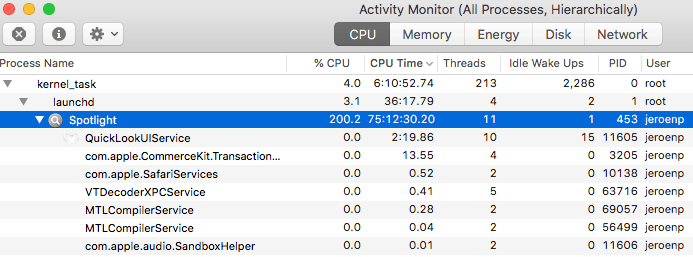
Spotlight taking 200% CPU

Posted by jpluimers on 2021/04/19

First I thought this was about using 4K resolution and chrome, but later I realized that it wasn’t just Chrome disliking high resolutions Spotlight was using a tremendous amount of CPU, not just while Chrome was running:

This was MacOS “mds_stores” high CPU usage all over again, but with different processe names as pointed to me in a sudo su - shell:

Read the rest of this entry »

Posted in Apple, Mac OS X / OS X / MacOS, Power User, SpotLight | Leave a Comment »

Recovering files with scalpel.

Posted by jpluimers on 2021/04/19

I missed this 2014 article [WayBack] Recovering Deleted Files with Scalpel » Linux Magazine:

The Scalpel file carver helps users restore what they thought were lost files.

Via the now defunct G+ link: https://plus.google.com/+Doortodoorgeek/posts/eskyp8PH57a?_utm_source=1-2-2 from which I saved this quote:

+honkey Magoo recovering with Photorec can be hard, I had a touch more luck with this one

Scalpel File Carver: http://www.linux-magazine.com/Online/Features/Recovering-Deleted-Files-with-Scalpel

I wish it had been maintained longer, as the most recent changes are indeed from 2014: [WayBack] GitHub – sleuthkit/scalpel: Scalpel is an open source data carving tool. (it is now indeed part of Sleuthkit, see [WayBack] Scalpel – ForensicsWiki)

So basically this was a short revival: WayBack: Digital Forensics Solutions: Announcing Scalpel 2.0.

–jeroen

Read the rest of this entry »

Posted in *nix, *nix-tools, Apple, Mac OS X / OS X / MacOS, Power User | Leave a Comment »

linux – How can I execute a series of commands in a bash subshell as another user using sudo? – Stack Overflow

Posted by jpluimers on 2021/03/31

Based on [WayBack] linux – How can I execute a series of commands in a bash subshell as another user using sudo? – Stack Overflow:

alias restart-spotlight-service-as-root="sudo bash -c 'echo stop;launchctl stop com.apple.metadata.mds;echo start;launchctl start com.apple.metadata.mds;echo started'"

The bold bits above sudo bash -c 'echo stop;launchctl stop com.apple.metadata.mds;echo start;launchctl start com.apple.metadata.mds;echo started' allow the commands between single quotes to executed in one new bash shell under sudo.

–jeroen

Posted in *nix, *nix-tools, Apple, bash, bash, Development, Mac OS X / OS X / MacOS, Power User, Scripting, Software Development | Leave a Comment »

flyover-reverse-engineering/README.md at master · retroplasma/flyover-reverse-engineering · GitHub

Posted by jpluimers on 2021/03/30

For my research list: [WayBack] flyover-reverse-engineering/README.md at master · retroplasma/flyover-reverse-engineering · GitHub

–jeroen

Posted in Apple, Development, Go (golang), Mac OS X / OS X / MacOS, Power User, Software Development | Leave a Comment »

MacOS “mds_stores” high CPU usage

Posted by jpluimers on 2021/03/15

I notices a high CPU usage, so searched for [Wayback] “mds_stores” – Google Search.

There I quickly found out this is the Spotlight indexer using a lot of CPU.

From that, it was easy to track down: I had added a second 4TB backup disk, but forgot to add it to the Spotlight indexing exclusion list, where you get by following these steps:

  1. Open “Preferences”
  2. Search for “Spotlight”
  3. Click on the “Privacy” button
  4. Click on the “+” button to add a new folder
  5. Browse to the top of the list inside your computer to find the volumes to exclude

Now it is on it:

Related: [WayBack] [FIXED] mds_stores Process Consuming High CPU Usage – MacMetric

–jeroen

Posted in Apple, Mac OS X / OS X / MacOS, Power User, SpotLight | Leave a Comment »