Archive for the ‘KVM keyboard/video/mouse’ Category
Posted by jpluimers on 2012/07/04
![Apple ][ plus keyboard](https://i0.wp.com/farm9.staticflickr.com/8018/7460975930_9301da62e4_n.jpg "Apple ][ plus keyboard") Some nostalgia (:
Some nostalgia (:
In the mid 80s, when programming in UCSD Pascal and Turbo Pascal, I learned that Pascal has (. and .) digraphs that translate into [ and ], similar to the (* and *) digraphs that translate to { and }.
In fact I thought the English word was bigraph (as bi- is a prefix for twice, just like tri- is a prefix for thirce).
The digraphs are lexical alternatives (Pascal ISO standard 7185:1990 paragraph 6.1.9 or Extended Pascal ISO standard 10260:1990 paragraph 6.1.11). There is even one more: the @ at-sign is a lexical alternative for the ^ caret.
Back then (I was in my teens, there was no internet yet and school library had nothing on programming) I thought these were because keyboards like those of the Apple ][ plus couldn’t emit [ and ], but I was wrong: it was in fact the Hollerith Card Code that could not represent these characters.
That limitation was because of the first Pascal implementation was done on a CDC 6000 series that used punched card readers/writers. You could not punch arbitrary numbers of holes on each row (lace cards lacked structural strength) limiting the character codes you can represent.
They still work in the Delphi compiler for arrays and for comments (I just learned that various Pascal implementations use different rules of mixing digraph and normal comments (some even allow nesting)).
While I taught myself C and C++ just as I taught myself Pascal, somehow I never learned that they use lexical alternatives too. It was only recently that they do, both as trigraphs and as of C99 also as digraphs and that there is even a trigraph tool as part of the C++ personality of RAD Studio 2007.
–jeroen
Posted in Apple, Apple ][, C++, Delphi, Development, History, Keyboards and Keyboard Shortcuts, Power User, Software Development | 1 Comment »
Posted by jpluimers on 2012/07/04
I’m a keyboard fan, so recently I have put up a new Keyboards and Keyboard Shortcuts category and tried to add all old relevant posts to it (staying organized is time consuming, but in the end it pays back by being able to find back stuff faster).
At conferences, presentations, and clients people often wonder “how do you get to such-and-such IDE feature so quickly” and the answer usually is: be sure you know your keyboard shortcuts. Which isn’t easy, as documentation for them is often spread out, and to find the information: you have to know how the underlying actions are called.
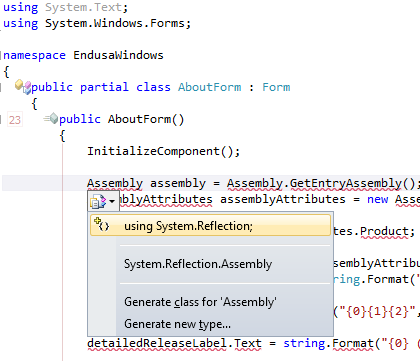
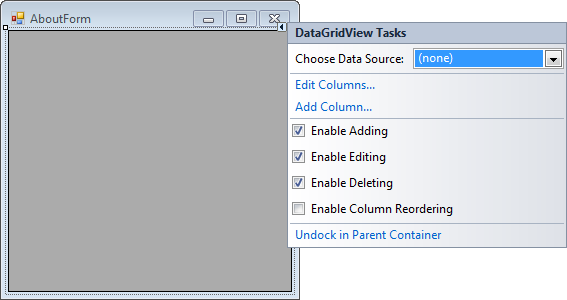
A long time ago (I think it was in version 2005) Visual Studio introduced Smart Tags. Most posts talk only about one kind of Smart Tags, but the Visual Studio IDE has two kinds:
- A tiny triangle in the designer
- A combobox drop-down button like control in the code editor
Both listen to these keyboard shortcuts (most cheat sheets miss at least one of these, but you can find them at Pre-defined keyboard shortcuts and at the VS2008 C# keyboard cheatsheet):
- Shift-Alt-F10
The shortcut is called View.ShowSmartTag, View.ObjectBrowserGoToSearchCombo
- Ctrl-. (yes, the . is a period)
The shortcut seems to be called Edit.Generate
The pictures below show the Smart Tag in action.


Oh BTW: the red squiggly lines and some of the other adornments in the screenshot are from CodeRush, one of the most keyboard-centric additions to Visual Studio I know.
–jeroen
Posted in Keyboards and Keyboard Shortcuts, Visual Studio 11, Visual Studio 2005, Visual Studio 2008, Visual Studio 2010, Visual Studio and tools | Leave a Comment »
Posted by jpluimers on 2012/05/21
The introduction of the Ribbon in Office 2007 and 2010 often makes me ask “why are things so complicated now, that were so easy until Office 2003”.
One of the things that were very close together in Word 2003, was converting text to and from tables: they were in adjecent menu items.
Not any more, as you can see in the Convert text to a table or vice versa topic on the Microsoft site. There is even a Dummies article on this topic.
Summarized:
Convert text to a table
- Tab Insert,
- Group Tables,
- click Table,
- then click Convert Text to Table.
Of course the keyboard shortcuts are “easy” to remember: Alt, N, T, V
Convert a table to text
- When you have a (portion of a) table selected, you get a new contextual tab set called Table Tools.
- Tab Layout,
- Group Data,
- click Convert to Text.
Of course the keyboard shortcuts are “easy” to remember: Alt, J,L, V

–jeroen
via: Convert text to a table or vice versa – Word – Office.com.
 Naming of ribbon UI elements
Posted in Keyboards and Keyboard Shortcuts, Office, Power User, Word | Leave a Comment »
Posted by jpluimers on 2012/05/18
(Thanks to a “Missed Post” problem on WordPress.com, this one didn’t get posted on the scheduled date. Sorry for any inconvenience)
First Lenovo did away with 1920×1200 screens. Now they done away with the ThinkPad keyboard layout.
Both were my compelling reasons for buying Lenovo.
In fact, they are now marked as forum.thinkpads.com • non-ThinkPad Lenovo Hardware.

New Lenovo X1 keyboard. No more ScrLk, Pause and local-menu keys, PrtScr key moved to impossible place. 6-key navigation split.
–jeroen
PS: Anyone in The Netherlands who has a new ThinkPad W701 with 1920×1200 screen for sale?
Posted in Keyboards and Keyboard Shortcuts, Missed Schedule, Power User, SocialMedia, WordPress | 2 Comments »
Posted by jpluimers on 2012/05/18
 Some shortcuts on the Mac are difficult for me to remember. For instance the one to move s
 omething from the Finder to the Trash.
The guides on Trash at MacRumours.com to the rescue:
Deleting items
You delete files and folders by moving them to the Trash. You can:
Drag and drop a file on the trash icon in the dock
Control-click on a file and select “Move to Trash” from the menu
Select a file or files and use the keyboard shortcut: command-backspace
Select a file or files and choose “File > Move to Trash” from the menu bar
Notes:
Read the rest of this entry »
Posted in Apple, Keyboards and Keyboard Shortcuts, Mac OS X / OS X / MacOS, Mac OS X 10.5 Leopard, Mac OS X 10.6 Snow Leopard, Mac OS X 10.7 Lion, Power User | Leave a Comment »
Posted by jpluimers on 2012/05/04
One of the things about the Office 2007 and 2010 Ribbon is that it makes the things that you have remembered for 10+ years go into hard to find places.
My point is that according to the ribbon documenation:
A ribbon can replace both the traditional menu bar and toolbars.
Microsoft has decided to read the “a ribbon can replace” as “the ribbon replaces”. Thereby also introducing a whole new naming for the UI elements used in ribbons (see at the bottom).

Tab “Review”; Group “Changes”; Commands “Protect Sheet” / “Protect Workbook”
Protecting a worksheet and workbook have been in the menu “Tools”, submenu “Protection” forever. But alas: No more “Tools” menu, and accompanying keyboard shortcut productivity (and I needed “unprotect workbook” because you cannot copy workbooks inside a protected workbook).
As “password protect worksheet” shows, it is now under:
- Tab: Review
- Group: Changes
- Commands: Protect Sheet / Unprotect Sheet / Protect Workbook / Unprotect Workbook
–jeroen
via: Microsoft Excel 2007 – Protecting Workbooks.

Naming of ribbon UI elements
Posted in Excel, Keyboards and Keyboard Shortcuts, Office, Power User | Leave a Comment »
Posted by jpluimers on 2012/03/16
Unlike most tools where you use Shift-Enter to add a line break character (ASCII 10: line feed), Excel is different:
Sometimes it’s necessary to have more than one line inside a worksheet cell, which is easily done with a line break.
Add a new line by holding down the Alt key while you press enter. It’s the keyboard shortcut Alt+Enter. In Excel 2008 and 2011 for Mac use Cmd+Option+Enter.
–jeroen
via: Start a New Line Inside a Spreadsheet Cell in Excel | Excel Semi-Pro.
Posted in Excel, Keyboards and Keyboard Shortcuts, Office, Office 2000, Office 2003, Office 2007, Office 2010, Office 2013, Office 2016, Power User | Leave a Comment »
Posted by jpluimers on 2012/03/08
This use case drove me nuts in Visual Studio 2010 for a while, but can be solved.
Use cases:
 double click on a word to select it
- press Ctrl-C to copy the selected text
- result is either of these two dialogs:
---------------------------

Microsoft Visual Studio

---------------------------

Cannot navigate to definition.

---------------------------

OK

---------------------------
 or
or
---------------------------

Microsoft Visual Studio

---------------------------

Cannot navigate to definition. The cursor is not on a symbol.

---------------------------

OK

---------------------------
The reason is that Visual Studio 2010 still thinks I am clicking the identifier (which I’m not, I just released the mouse button) while pressing the Ctrl key. Read the rest of this entry »
Posted in .NET, Delphi, Development, Keyboards and Keyboard Shortcuts, Power User, Software Development, Visual Studio 2010, Visual Studio and tools | Leave a Comment »
Posted by jpluimers on 2012/03/05
Both the WordPress Visual editor and HTML editor accept keyboard shortcuts. The built in WordPress Visual editor is based on TinyMCE where some of the shortcuts come from.
Since I’m a keyboard guy, I collected some information on keyboard shortcuts over time, and below is a table with what I collected for both editors.
That, combined with distraction free writing really gives WordPress a boost.
Most of the shortcut keys use the modifier keys ALT plus SHIFT.
Note that on a Mac, you will have to use the “command” key in stead of the “CTRL” key.
Visual Editor
You can see what these shortcuts do in the WordPress Visual Editor support page.
| Function |
Shortcut Keys |
Alternative Shortcut Keys |
| Undo |
|
CTRL + z |
| Redo |
|
CTRL + y |
| Headers (H1, H2, H3, …, H6) |
CTRL + 1 … 6 |
|
| Paragraph |
CTRL + 7 |
|
| Format |
CTRL + 8 |
(doesn’t work on a Mac) |
| Address |
CTRL + 9 |
|
| Bold |
ALT + SHIFT + b |
CTRL + b |
| Italic |
ALT + SHIFT + i |
CTRL + i |
| Underline |
|
CTRL + u |
| Strike through with red (delete) |
ALT + SHIFT + d |
|
| Align left |
ALT + SHIFT + l |
|
| Align center |
ALT + SHIFT + c |
|
| Align right |
ALT + SHIFT + r |
|
| Blockquote |
ALT + SHIFT + q |
|
| Unquote/outdent |
ALT + SHITF + w |
(doesn’t work on a Mac) |
| Code |
ALT + SHIFT + c |
(doesn’t work, is “align center”) |
| Unordered List (ul) |
ALT + SHIFT + u |
|
| Ordered List (ol) |
ALT + SHIFT + o |
|
| List item (li) |
ALT + SHIFT + l |
(doesn’t work, is “align left”) |
| A Hyperlink (a) |
ALT + SHIFT + a |
|
| Line break |
SHIFT + Enter |
|
| Read more |
ALT + SHIFT + t |
|
| Next page |
ALT + SHIFT + p |
|
| Media insert (image/video/…) |
ALT + SHIFT + m |
(on a Mac, it also inserts a Ã) |
| ins |
ALT + SHIFT + s |
(doesn’t work on a Mac) |
| del |
ALT + SHIFT + d |
(doesn’t work on a Mac) |
| Distraction free writing |
ALT + SHIFT + g |
|
| Enable “Kitchen Sink” Toolbar |
ALT + SHIFT + z |
|
| View HTML code |
ALT + SHIFT + e |
(doesn’t work on a Mac) |
| Advanced Editor |
ALT + SHIFT + v |
(doesn’t work) |
| Spell check |
ALT + SHIFT + n |
|
| Rich Editor Help |
ALT + SHIFT + h |
|
- Unused ALT + SHIFT + letter combinations: f, y, j, k, x.
HTML editor (don’t work on a Mac)
Though the sources I used (see bullets below) indicate the below table should work, they don’t.
So: no HTML shortcuts on Mac or PC, which is a shame.
The only reason I use the HTML editor once in a while are these:
| Function |
Shortcut Keys |
Alternative Shortcut Keys |
| Bold |
ALT + SHIFT + b |
|
| Italic |
ALT + SHIFT + i |
|
| Strikethrough |
ALT + SHIFT + d |
|
| Blockquote |
ALT + SHIFT + q |
|
| Code |
ALT + SHIFT + c |
|
| Unordered List |
ALT + SHIFT + u |
|
| Ordered List |
ALT + SHIFT + o |
|
| A Hyperlink |
ALT + SHIFT + a |
|
| Read more |
ALT + SHIFT + t |
|
| View HTML code |
ALT + SHIFT + e |
|
| Headers (H1, H2, H3, …) |
Ctrl + corresponding number |
|
| Insert date/time |
ALT + SHIFT + s |
|
| Insert IMG URL |
ALT + SHIFT + m |
|
| List Item (li) |
Alt + SHIFT + l |
|
| Publish the Post |
Alt + SHIFT + p |
|
| Redo |
CTRL + y |
|
| Undo |
CTRL+z |
|
–jeroen
via:
Posted in Keyboards and Keyboard Shortcuts, Power User, SocialMedia, WordPress | 1 Comment »
Posted by jpluimers on 2011/12/06
When you write applications, it is important to include both the CUA and the Windows/Apple keyboard shortcuts, and get the tab order of keyboard accessible user elements right.
Many modern applications seem to put less and less emphasis on the most efficient user input device: the keyboard.
You should: it makes your application much more pleasant to use.
I wrote about CUA before, but the Windows and Mac shortcuts are just as important.
A small table (please post a comment if you know additions):
Keyboard Shortcuts for the most common tasks.
| Function |
CUA |
Windows |
Mac |
| Copy |
Ctrl + Insert |
Ctrl + C |
Command + C |
| Cut |
Shift + Delete |
Ctrl + X |
Command + X |
| Paste |
Shift + Insert |
Ctrl + V |
Command + V |
| Delete before cursor |
Backspace |
|
Delete |
| Delete after cursor |
Delete |
|
Fn + Delete |
| Undo |
Alt + Backspace |
Ctrl + Z |
Command + Z |
| Redo |
|
Ctrl + Y |
Command + Y |
| Confirm the current task |
Enter |
|
Return |
| Cancel the current task |
Escape |
|
Escape |
| Next field |
Tab |
|
Tab |
| Previous field |
Shift + Tab |
|
Shift + Tab |
| Next pane |
|
Ctrl + F6 |
|
| Previous pane |
|
Alt + F6 |
|
| Next window |
|
F6 |
Cmd + ` |
| Previous window |
|
Shift + F6 |
|
| Application menu |
|
Alt + Space |
|
| Windows menu |
|
⊞ |
|
| Local menu |
Shift + F10 |
Local Menu |
|
Note that many Linux programs follow both the CUA and Windows settings.
References:
–jeroen
Posted in .NET, Delphi, Development, Keyboards and Keyboard Shortcuts, Power User, Software Development, xCode/Mac/iPad/iPhone/iOS/cocoa | Leave a Comment »











 The Wiert Corner - irregular stream of stuff