Archive for the ‘Power User’ Category
Posted by jpluimers on 2021/12/28
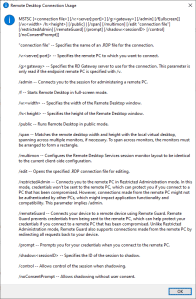
MSTSC.exe helptext
I created this small batch file:
:: start last RDP session (or new one with command-line parameters) full-screen
:: see https://interworks.com/blog/ijahanshahi/2012/01/02/mstsc-commands-and-creating-custom-remote-desktop-shortcut/
mstsc /f %*
It is based on [Wayback] MSTSC Commands and Creating a Custom Remote Desktop Shortcut | InterWorks, which has the helptext for MSTSC.exe (which stands for MicroSoft Terminal Services).
Later I found out a way easier method to get that helptext is to run MSTSC.exe /?, which shows a nice dialog:
[Window Title]
Remote Desktop Connection Usage

[Content]
MSTSC [] [/v:<server[:port]>] [/g:] [/admin] [/f[ullscreen]] [/w: /h:] [/public] | [/span] [/multimon] [/edit "connection file"] [/restrictedAdmin] [/remoteGuard] [/prompt] [/shadow: [/control] [/noConsentPrompt]]

"connection file" -- Specifies the name of an .RDP file for the connection.

/v:<server[:port]> -- Specifies the remote PC to which you want to connect.

/g: -- Specifies the RD Gateway server to use for the connection. This parameter is only read if the endpoint remote PC is specified with /v.

/admin -- Connects you to the session for administering a remote PC.

/f -- Starts Remote Desktop in full-screen mode.

/w: -- Specifies the width of the Remote Desktop window.

/h: -- Specifies the height of the Remote Desktop window.

/public -- Runs Remote Desktop in public mode.

/span -- Matches the remote desktop width and height with the local virtual desktop, spanning across multiple monitors, if necessary. To span across monitors, the monitors must be arranged to form a rectangle.

/multimon -- Configures the Remote Desktop Services session monitor layout to be identical to the current client-side configuration.

/edit -- Opens the specified .RDP connection file for editing.

/restrictedAdmin -- Connects you to the remote PC in Restricted Administration mode. In this mode, credentials won't be sent to the remote PC, which can protect you if you connect to a PC that has been compromised. However, connections made from the remote PC might not be authenticated by other PCs, which might impact application functionality and compatibility. This parameter implies /admin.

/remoteGuard -- Connects your device to a remote device using Remote Guard. Remote Guard prevents credentials from being sent to the remote PC, which can help protect your credentials if you connect to a remote PC that has been compromised. Unlike Restricted Administration mode, Remote Guard also supports connections made from the remote PC by redirecting all requests back to your device.

/prompt -- Prompts you for your credentials when you connect to the remote PC.

/shadow: -- Specifies the ID of the session to shadow.

/control -- Allows control of the session when shadowing.

/noConsentPrompt -- Allows shadowing without user consent.

[OK]
–jeroen
Posted in Batch-Files, Development, Power User, Remote Desktop Protocol/MSTSC/Terminal Services, Scripting, Software Development, Windows | Leave a Comment »
Posted by jpluimers on 2021/12/28
It still seems that WMIC is the quickest way to get CPU information on the console:
T510-PSO C:\bin\rdp> wmic cpu get name,CurrentClockSpeed,MaxClockSpeed
CurrentClockSpeed  MaxClockSpeed  Name
2667               2667           Intel(R) Core(TM) i5 CPU       M 560  @ 2.67GHz

T510-PSO C:\bin\rdp> wmic path win32_Processor get Name,NumberOfCores,NumberOfLogicalProcessors
Name                                             NumberOfCores  NumberOfLogicalProcessors
Intel(R) Core(TM) i5 CPU       M 560  @ 2.67GHz  2              4
Actually, wmic cpu is shorthand for wmic path win32_Processor, so this works fine:
T510-PSO C:\bin\rdp> wmic cpu get name,CurrentClockSpeed,MaxClockSpeed,NumberOfCores,NumberOfLogicalProcessors
CurrentClockSpeed  MaxClockSpeed  Name                                             NumberOfCores  NumberOfLogicalProcessors
2667               2667           Intel(R) Core(TM) i5 CPU       M 560  @ 2.67GHz  2              4
The reason is that cpu is an alias:
T510-PSO C:\bin\rdp> wmic alias cpu list brief
FriendlyName  PWhere              Target
CPU           Where DeviceID='#'  Select * from WIN32_PROCESSOR
Via:
–jeroen
Posted in Batch-Files, Console (command prompt window), Development, Power User, Scripting, Software Development, T510, ThinkPad, Windows | Leave a Comment »
Posted by jpluimers on 2021/12/27
The cool thing about the Chocolatey NirLauncher install, is that it not just installs the launcher in the path, but all the NirSoft tools.
I wanted it in the path initially because I needed InsideClipboard to do some investigation (I wrote a similar tool ages ago, but could not readily find the source or executable, but InsideClipboard is better anyway).
This is cool, as I now can start any of the NirSoft tools from the cmd prompt, including [WayBack] NirLauncher itself, [WayBack] InsideClipboard and [WayBack] NirCmd (so I can now set the sound volume to 25% by running nircmd setsysvolume 16000)
To install:
choco install --yes NirLauncher
An older WayBack link notes a few important issues about anti-virus tools:
Read the rest of this entry »
Posted in Chocolatey, NirSoft, Power User, Windows, Windows 10 | Leave a Comment »
Posted by jpluimers on 2021/12/27
To help my Twitter timeline clean I run odd messages through: [WayBack] Botometer® by OSoMe:
Botometer® (formerly BotOrNot) checks the activity of Twitter accounts and gives them a score based on how likely they are to be bots. Higher scores are more bot-like. Brought to you by the Observatory on Social Media (OSoMe) at Indiana University.
Next to just analysing one account, it can also analyse the followers of friends of an account.
Note that you need to give Twitter Permissions to BotOMeter, which you can easily revoke from their site as well, see [WayBack] FAQ: Botometer® by OSoMe.
Next to be more versatile, I also found BotOMeter to be more precise than [WayBack] Bot Sentinel Dashboard ‹ Bot Sentinel:
Bot Sentinel is a free platform developed to automatically detect political trollbots and untrustworthy accounts. Bot Sentinel utilizes machine learning and artificial intelligence to identify and track disruptive Twitter users.
Quite a few are now on the mule or block list.
Note that both work better with English than with non-English language, but even with non-English, both are quite good.
A review is on [WayBack] A Review of Popular Bot Checkers – Unhack The Vote.
–jeroen
Posted in Power User, SocialMedia, Twitter | Leave a Comment »
Posted by jpluimers on 2021/12/27
Experiences if Dutch people using Amazon prime on various European sites over time (thread starts in 2017) [WayBack] Amazon Prime in Nederland – Shopping Forum – GoT.
It is quite a historic overview on what Amazon has done and changed with Amazon prime.
–jeroen
Posted in LifeHacker, Power User | Leave a Comment »
Posted by jpluimers on 2021/12/24
I had a few non English Windows 10 systems that I wanted to keep the license for, but otherwise have a clean Windows 10 English install on.
Some links; hopefully I can later make more notes.
Read the rest of this entry »
Posted in Power User, Windows, Windows 10 | Leave a Comment »
Posted by jpluimers on 2021/12/24
One of the problems in our house is that all PVC conduits embedded in the walls and floors have concrete in them.
It means that when you pull out a cable, you can never get a cable back in (I tried that with the phone cables), and that empty PVC conduits cannot be used at all.
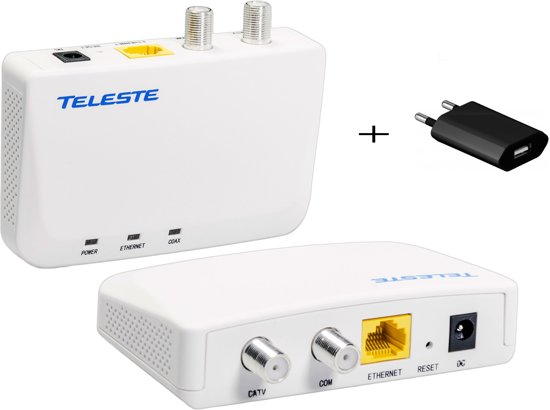
This might be an option to get ethernet to the places that have coax wiring (like the TV outlets)
[WayBack] bol.com | EOC05 MoCa Teleste 1G Internet over coax adapter + USB adapter (2020)
–jeroen
Posted in Ethernet, LifeHacker, Network-and-equipment, Power User | Leave a Comment »
Posted by jpluimers on 2021/12/23
In case I ever need this on ESXi:
- Put first ESX host into maintenance mode, or disable automatic DRS.
- Migrate functioning VMs onto other hosts.
- SSH into ESX service console.
cd /vmfs/volumesls -l:
[root@esx1 volumes]# ls -l
drwxrwxrwt    1 root        1260 Nov 27 11:58 474c4a74-b4cc8c53-6e29-000423c3e840
drwxrwxrwt    1 root         980 Nov 27 08:49 474c4aa2-772bdc66-e441-000423c3e840
drwxrwxrwt    1 root        1260 Nov 27 11:58 474c955b-527b5a13-1417-000423c3e840
lrwxr-xr-x    1 root          35 Nov 29 13:36 snap-00000002-VMFS11 -> 474c955b-527b5a13-1417-000423c3e840
lrwxr-xr-x    1 root          35 Nov 29 13:36 VMFS11 -> 474c4a74-b4cc8c53-6e29-000423c3e840
lrwxr-xr-x    1 root          35 Nov 29 13:36 VMFS13 -> 474c4aa2-772bdc66-e441-000423c3e840
- Note (or copy) the new UUID(s) of the datastore(s) on which the inaccessible VMs live. You may need to look in the VMFS themselves to be sure which VMs live where.
cd /etc/vmware/hostdcp vmInventory.xml vmInventory.xml-save- Edit
vmInventory.xml and change the UUID for the inaccessible VMs to the correct UUID for their datastores. (If unsure which VMs are in which datastore, look in each datastore to ensure you have the right UUID for each VM).
- Save
vmInventory.xml and exit the editor.
- To make ESX re-read
vmInventory.xml:
[root@esx1 hostd]# service mgmt-vmware restart

Stopping VMware ESX Server Management services:

VMware ESX Server Host Agent Watchdog [ OK ]

VMware ESX Server Host Agent [ OK ]

Starting VMware ESX Server Management services:

VMware ESX Server Host Agent (background) [ OK ]

Availability report startup (background) [ OK ]
- Verify all VMs are properly accessible.
- Bring the ESX host out of maintenance mode and/or return DRS to original settings.
Sample vmInventory.xml file with UUID paths for VMs in an NFS and a VMFS datastore:
[root@esx1 hostd]# more vmInventory.xml
<ConfigRoot>
  <ConfigEntry id="0006">
    <objID>112</objID>
    <vmxCfgPath>/vmfs/volumes/9f801592-14465f39/WinNFS8/WinNFS8.vmx</vmxCfgPath>
  </ConfigEntry>
  <ConfigEntry id="0027">
    <objID>608</objID>
    <vmxCfgPath>/vmfs/volumes/46e5a3bf-2d233fa0-1546-0014220f1381/houwin2003sp2-8/houwin2003sp2-8.vmx</vmxCfgPath>
  </ConfigEntry>
</ConfigRoot>
Note about restarting the VMware Management stack through service mgmt-vmware restart:
- [Wayback]
service mgmt-vmware restart may not restart hostd in ESX/ESXi (1005566)
- [Wayback] Solved: Re: Difference between
services.sh restart and Restart Mgmt Servcies from DCUI on v5.1 ?… – VMware Technology Network VMTN
ESXi Management agent can be restarted in couple of ways
DUCI
- Connect to ESXi Host
- Press
F2, provide the credentials (Login using root)
- Go to Trouble shooting , Navigate to Restart ,Management Agents
Local Console or ssh
- Method 1 : No Down time to VMs
/sbin/services.sh restart
will restart all the management agents, hostd, ntpd, sfcbd, slpd, wsman, vodb
- Method 2 :Run following commands,
/etc/init.d/hostd restart
/etc/init.d/vpxa restart
- Method 3 :
service mgmt-vmware restart
service vmware-vpxa rest
If Automatic Startup/shutdown is enabled on VMs , virtual machine may restart.
…
little addition: You can also use the dcui via ssh.
Just enter dcui in your ssh session. Then you can restart the management agents like on the local console.
To quit hit Ctrl+C
Running VMs won’t be affected
- For troubleshooting ESXi connectivity issue, restart the management agents on your ESXi host. Warning: If LACP is configured on the vSAN network, do not restart[Wayback] Restarting the Management agents in ESXi (1003490)
Restart Management agents in ESXi Using Direct Console User Interface (DCUI):
- Connect to the console of your ESXi host.
- Press F2 to customize the system.
- Log in as root.
- Use the Up/Down arrows to navigate to Troubleshooting Options > Restart Management Agents.
- Press Enter.
- Press F11 to restart the services.
- When the service restarts, press Enter.
- Press Esc to log out.
Note: You can also restart services using the Host Client. In Host Client, select Host >> Manage >> Services and select the service to restart.
Restart Management agents in ESXi Using ESXi Shell or Secure Shell (SSH):
- Log in to ESXi Shell or SSH as root.For Enabling ESXi Shell or SSH, see Using ESXi Shell in ESXi 5.x and 6.x (2004746).
- Restart the ESXi host daemon and vCenter Agent services using these commands:
/etc/init.d/hostd restart/etc/init.d/vpxa restart
Alternatively:
- To reset the management network on a specific VMkernel interface, by default
vmk0, run the command:esxcli network ip interface set -e false -i vmk0; esxcli network ip interface set -e true -i vmk0Note: Using a semicolon (;) between the two commands ensures the VMkernel interface is disabled and then re-enabled in succession. If the management interface is not running on vmk0, change the above command according to the VMkernel interface used.
- To restart all management agents on the host, run the command:
services.sh restart
Caution:
- If LACP is enabled and configured, do not restart management services using services.sh command. Instead restart independent services using the
/etc/init.d/module restart command.
- If the issue is not resolved, and you are restarting all the services that are a part of the services.sh script, take a downtime before proceeding to the script.
- If NSX is configured in the environment, do not run the /sbin/services.sh restart command because this will restart all services on the ESXi host. If you need to restart the management agents on the ESXi host, restart
vpxa, host.d, and fdm individually. If you also need to run the /sbin/services.sh restart command because restarting each management agent does not work, then migrate all the VMs off the ESXi host and put the host in maintenance mode if possible.
- If you are unsure that NSX for vSphere is installed on an ESXi host, run this command to verify:
esxcli software vib list –rebooting-image | grep esx-*
Look for the following VIBs to determine if NSX is installed on the ESX host:
vsip-esx
esx-vxlan
- If using shared graphics in a View environment (VGPU, vDGA, vSGA), do not use
services.sh. This will shut down the xorg service which is responsible for graphics at the guest OS level. By ripping the graphics out of the guest OS you will in term cause the crash of your VDI workload using the shared graphics. Ensure you are using shared graphics to only restart hostd, and vpxa if you are not in maintenance mode.
When editing the inventory fails
If all else fails and all VMs need to be re-registered: [Wayback] Virtual machines appear as unknown in Inventory on host and invalid in vCenter Server (1031605)
- vSphere Client direct to host show virtual machine(s) as unknown.
- The vSphere Client connected to vCenter Server shows virtual machine(s) as invalid.
- No errors on storage or on vmkwarning.
- All the virtual machines on the host are functional and responding.
To resolve this issue:
For ESXi 3.5, 4.x, 5.x, 6.x
- Log in to the VMware ESX/ESXi host as the root user. For more information on VMware ESXi 4.1 and ESXi 5.x Technical Support Mode, see Using Tech Support Mode in ESXi 4.1 and ESXi 5.x (1017910)
- To list all running virtual machines and their corresponding VMIDs, run these commands:
vim-cmd vmsvc/getallvms
cd /etc/vmware/hostd/
- Make a copy of vmInventory.xml file by running this command:
cp vmInventory.xml vmInventory.xml.bak
- Stop the vpxa and hostd services by running these commands:
/etc/init.d/vpxa stop
/etc/init.d/hostd stop
- Rename the vmInventory.xml file by running this command:Note: This action unregisters all virtual machines from the host.mv vmInventory.xml vmInventory_xml.bak
- Start the vpxa and hostd services by running these commands:
/etc/init.d/vpxa start
/etc/init.d/hostd start
- Log in to vSphere Client and verify that the virtual machine Inventory is now displayed as blank.
- Use this command to register every virtual machine back to Inventory on the host:
vim-cmd solo/registervm full_path_of_VMXFor Example: vim-cmd solo/registervm /vmfs/volumes/datastore_name/VM_directory/VM_name.vmx
–jeroen
Posted in ESXi6, ESXi6.5, ESXi6.7, ESXi7, Power User, Virtualization, VMware, VMware ESXi | Leave a Comment »


 The Wiert Corner - irregular stream of stuff