I had a curious error despite the build not having any failures on VirusTotal:
You have nirlauncher v1.23.42 installed. Version 1.23.43 is available based on your source(s).
nirlauncher not upgraded. An error occurred during installation:
 Operation did not complete successfully because the file contains a virus or potentially unwanted software.

nirlauncher package files upgrade completed. Performing other installation steps.
The upgrade of nirlauncher was NOT successful.
nirlauncher not upgraded. An error occurred during installation:
 Operation did not complete successfully because the file contains a virus or potentially unwanted software.
choco upgrade throwing virus error during nirsoft 1.23.43 update
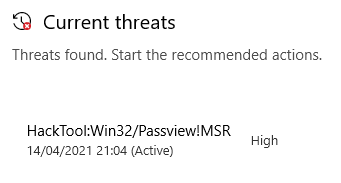
When upgrading, this briefly is visible in the Windows Security view “Virus & thread protection”:
I think the easiest way to list all VMs is the vim-cmd vmsvc/getallvms command, but it has a big downside: the output is a mess.
The reason is that the output:
has a lot of columns (Vmid, Name, Datastore, File, Guest OS, Version, Annotation),
more than 500 characters per line (eat that 1080p monitor!),
and potentially more than one line per VM as the Annotation is a free-text field that can have newlines.
Example output on one of my machines:
This file contains hidden or bidirectional Unicode text that may be interpreted or compiled differently than what appears below. To review, open the file in an editor that reveals hidden Unicode characters. Learn more about bidirectional Unicode characters
5 PPB Local_Virtual Machine_v4.0 [EVO860_500GB] VM/PPB-Local_Virtual-Machine_v4.0/PPB Local_Virtual Machine_v4.0.vmx centos64Guest vmx-11 PowerPanel Business software(Local) provides the service which communicates
with the UPS through USB or Serial cable and relays the UPS state to each Remote on other computers
via a network.
It also monitors and logs the UPS status. The computer which has been installed the Local provides
graceful,
unattended shutdown in the event of the power outage to protect the hosted computer.
As an alternative, you could use esxcli vm process list, but that gives IDs that are way harder to remember:
This file contains hidden or bidirectional Unicode text that may be interpreted or compiled differently than what appears below. To review, open the file in an editor that reveals hidden Unicode characters. Learn more about bidirectional Unicode characters
Version looks like vmx-# where # is an unsigned integer
Annotation is multi-line free-form so potentially can have lines starting like being Vmid, but the chance that a line looks exactly like a non-annotated one is very low
So let’s find a grep or sed filter to get just the lines without annotation continuations. Though in general I try to avoid regular expressions as they are hard to both write and read, but with Busybox there is no much choice.
I choose sed, just in case I wanted to do some manipulation in addition to matching.
This means far less escaping than basic regular expressions, capture groups are supported as well as character classes (so [[:digit:]] is more readable than [0-9]), and the + is supported to match once or more (so [0-9]+ means one or more digits, as does [[:digit:]]+, but [d]+ or \d+ don’t ). Unfortunately named capture groups are not supported (so documenting parts of the regular expression like (?<Vmid>^[[:digit:]]+) is not possible, it will give you an error [Wayback] Invalid preceding regular expression).
But first a few of the sed commandline options and their order:
vim-cmd vmsvc/getallvms | sed -n -E -e '/(^[[:digit:]]+)/p'
-n outputs only matching lines that have a p print command.
-E allows extended regular expressions (you can also use -r for that)
-e adds a (in this case extended) regular expression
'/(^[[:digit:]]+)/p' is the extended regular expression embedded in quotes
/ at the start indicates that sed should match the regular expression on each line it parses
/p at the end indicates the matching line should be printed
Parentheses ( and ) surround a capture group
^[[:digit:]]+ matches 1 or more digits at the start of the line
The grep command is indeed much shorter, but does not allow post-editing:
I came up with the below sed regular expression to filter out lines:
starting with a Vmid unsigned integer
having a [Datastore] before the File
have a Guest OS identifier after File
have a Version matching vmx-# after File where # is an unsigned integer
optionally has an Annotation after Version
vim-cmd vmsvc/getallvms | sed -n -E -e  "/^([[:digit:]]+)(\s+)((\S.+\S)?)(\s+)(\[\S+\])(\s+)(.+\.vmx)(\s+)(\S+)(\s+)(vmx-[[:digit:]]
+)(\s*?)((\S.+)?)$/p"
A longer expression that I used to fiddle around with is at regex101.com/r/A7MfKu and contains named capture groups. I had to nest a few groups and use the ? non-greedy (or lazy) operator a few times to ensure the fields would not include the spaces between the columns.
Output from “vim-cmd vmsvc/getallvms” is really challenging to process. Our normal approaches such as awk column indexes, character index, and regular expression are all error prone here. The character index of each column varies depending on maximum field length of, for example, VM name. And the presence of spaces in VM names throws off processing as awk columns. And VM name could contain almost any character, foiling regex’s.
Printing capture groups
The cool thing is that it is straightforward to modify the expression to print any of the capture groups in the order you wish: you convert the match expression (/match/p) into a replacement expression (s/match/replace/p) and print the required capture groups in the replace part. A short example is at [Wayback] regex – How to output only captured groups with sed? – Stack Overflow.
There is one gotcha though: Busybox sed only allows single-digit capture group numbers, and we have far more than 9 capture groups. This fails and prints 0 after the output of capture group 1 instead of printing capture group 10, similar for 2 after group 1 instead of printing group 12:
Every now and then it is useful to be able to do maintenance work from the ESXi console addition to the ESXi web-user interface.
I know there are many sites having this information, but many of them forgot to format the statements with code markup, so parameters with two dashes -- (each a WaybackUnicode Character ‘HYPHEN-MINUS’ (U+002D)) now have become an [Wayback] Unicode Character ‘EN DASH’ (U+2013) which is incompatible with most console programs, especially the ESXi ones (as they are Busybox based to minimise footprint).
Note you can use this small site (which runs in-browser, so does not phone home) to get the unicode code points for any string: [Wayback] What Unicode character is this ?.
Links like below (most on the vmware.com domain) have this EN DASH and make me document things on my blog instead of trying code directly from blogs or forum posts:
So below are three commands I use that have to do with the maintenance mode (the mode that for instance you can use to update an ESXi host to the latest patch level).
Check the maintenance mode (which returns Enabled or Disabled):
esxcli system maintenanceMode get
Enable maintenance mode (which returns nothing when succeeded, and Maintenance mode is already enabled. when failed):
esxcli system maintenanceMode set --enable true
Disable maintenance mode (which returns nothing when succeeded, and Maintenance mode is already disabled. when failed):
esxcli system maintenanceMode get
Some examples, especially an the various output possibilities (commands in bold, output in italic):
# esxcli system maintenanceMode getDisabled
# esxcli system maintenanceMode set --enable false
Maintenance mode is already disabled.
# esxcli system maintenanceMode set --enable true
# esxcli system maintenanceMode getEnabled
# esxcli system maintenanceMode set --enable trueMaintenance mode is already enabled.
# esxcli system maintenanceMode set --enable false
# esxcli system maintenanceMode getDisabled
I made these scripts for this:
esxcli-maintenanceMode-show.sh:
#!/bin/sh
esxcli system maintenanceMode get
esxcli-maintenanceMode-enter.sh:
#!/bin/sh
esxcli system maintenanceMode set --enable true
esxcli-maintenanceMode-exit.sh:
#!/bin/sh
esxcli system maintenanceMode set --enable false
Secrets gehören nicht in Source. Keine SSL Keys, keine Datenbank Passworte, und auch sonst nichts.
In Source gehört Code, der Secrets aus einem Secrets Service (Vault et al) holt, oder, wenn man einige Jahre hinterher ist, aus Files, die von hierasecrets gebaut werden.
Auch zum Testen gehören keine Secrets in den Code. auch hier können Testkeys wie in Production provisioniert werden und nach dem Test verworfen werden (wenn man will)
Die Option, Secrets im Code zu haben muss im Code Review angemeckert werden.
Willkommen in 2021, willkommen zu Operational Excellence.
Even if you include a double quotes "sh" in a Google search to force only sh (in the early days this was the Thompson shell, but nowadays usually a Bourne shell or derivative) results, almost all unix like scripting examples you find are based on bash (the Bourne again shell), so I was glad I dug a bit deeper into what the actual Busybox shell is.
I wanted to know which shell Busybox uses and what capabilities it has, as ESXi ships with this very slimmed down set of tools (called applets in Busybox speak).
 * Copyright (c) 1997-2005 Herbert Xu <herbert@gondor.apana.org.au>
 * was re-ported from NetBSD and debianized.
...
//config:   The most complete and most pedantically correct shell included with
//config:   busybox. This shell is actually a derivative of the Debian 'dash'
//config:   shell (by Herbert Xu), which was created by porting the 'ash' shell
//config:   (written by Kenneth Almquist) from NetBSD.
nx like systems have a shell hell similar to Windows DLL hell: there are too many, and their differences and be both subtle and frustrating. To get a feel, browse through Source: Comparison of command shells – Wikipedia (yes, some shells from other operating environments like DOS, OS/2, VMS and Windows, but the majority is nx).
Since ash is sufficiently different from bash (for example [Wayback] ash – exit code for a piped process), I always want to know what shell code (which often comes from bash as it is so ubiquitous) will work.
A manual page of it is at [Archive.is] ash(1) [minix man page]. There you see the age: back then, “exit status” is used where nowadays many people would use “exit code”. It does not explain how to check for specific exit codes.
#!/bin/sh# A Tidier approach
check_errs(){# Function. Parameter 1 is the return code# Para. 2 is text to display on failure.if["${1}"-ne "0"];then
echo "ERROR # ${1} : ${2}"# as a bonus, make our script exit with the right error code.
exit ${1}fi}### main script starts here ###
grep "^${1}:"/etc/passwd >/dev/null 2>&1
check_errs $?"User ${1} not found in /etc/passwd"
USERNAME=`grep "^${1}:" /etc/passwd|cut -d":" -f1`
check_errs $?"Cut returned an error"
echo "USERNAME: $USERNAME"
check_errs $?"echo returned an error - very strange!"
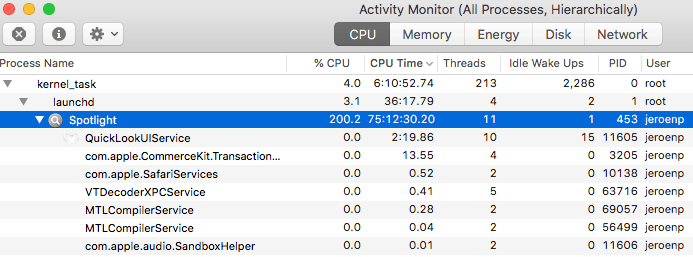
First I thought this was about using 4K resolution and chrome, but later I realized that it wasn’t just Chrome disliking high resolutions Spotlight was using a tremendous amount of CPU, not just while Chrome was running:










 The Wiert Corner - irregular stream of stuff