The Wiert Corner – irregular stream of stuff

Jeroen W. Pluimers on .NET, C#, Delphi, databases, and personal interests

  • My badges

  • Twitter Updates

  • My Flickr Stream

  • Pages

  • All categories

  • Enter your email address to subscribe to this blog and receive notifications of new posts by email.

    Join 1,860 other subscribers

Archive for the ‘ThinkPad’ Category

Detailed specifications – ThinkPad T510, T510i, W510 – NL

Posted by jpluimers on 2021/07/12

For my link archive: [WayBack] Detailed specifications – ThinkPad T510, T510i, W510 – NL

Related:

Vaguely related:

–jeroen

Posted in Hardware, Power User, T510, ThinkPad | Leave a Comment »

Thinkpad T510 BIOS 1.52-1.21 Update Bootable CD

Posted by jpluimers on 2021/03/01

From [WayBack] BIOS Update (Bootable CD) for Windows 8 (32-bit, 64-bit), 7 (32-bit, 64-bit), Vista (32-bit, 64-bit), XP – ThinkPad T510, T510i – NL

  • [WayBack] 6muj31uc.txt

    • README for BIOS Update Bootable CD
    • Checksum Tips
      • MD5:6bfd66ac9c965564dd7a7f0d82fb6b5a
      • SHA1:0d5a32fe87d4cdaf76ffd99242b5b861cd6aa2e2
      • SHA-256:1fc76a773dab23e7031ebf603bc9a69bc971305dc846392955f28296a18df147
    • 1.52
    • 29 Oct 2012
    • 24.4 KB
  • [WayBack] 6muj31uc.iso

    • BIOS Update Bootable CD
    • Checksum Tips
      • MD5:3d28e678eb014dd627341e06b8053c9f
      • SHA1:25a8e89a62b60637287475a0092265e24aa0e0e3
      • SHA-256:7bd4bba75a0c4fcb1d77a5fbb648e13ec90f3375915719d97a4c3380923a355f
    • 1.52
    • 29 Oct 2012
    • 15.4 MB

Version 1.52
BIOS: 1.52 / ECP: 1.21

  • [Important] Added support for Microsoft Windows 8.
  • (New) Added support for the function to disable & unconfigure AMT via WMI.
  • (New) Updated CompuTrace ROM.

–jeroen

Posted in Power User, T510, ThinkPad | Leave a Comment »

Operant Conditioning by Software Bugs – Embedded in Academia

Posted by jpluimers on 2020/07/21

Good to remember both these:

[WayBack] Operant Conditioning by Software Bugs – Embedded in Academia which means when using a system, you subconsciously start behaving around it’s issues. This also happens when you the software you wrote the software for such a system: you hardly test the things that you broke.

The magic SysReq key on Linux systems running on PC-hardware allows you to sync/mount read-only/shutdown a system by keyboard (and many more options – see the Wikipedia list below). Do not forget to enable this as it is disabled by default. And remember that many laptops forego the SysReq key (as do Mac systems).

The order while holding Alt-SysReq down is S,U,B…

Both via [WayBack] Kristian Köhntopp – Google+

–jeroen

Read the rest of this entry »

Posted in *nix, *nix-tools, Development, Keyboards and Keyboard Shortcuts, Power User, Software Development, ThinkPad | Leave a Comment »

ThinkPad USB Keyboard With TrackPoint – Overview

Posted by jpluimers on 2020/07/13

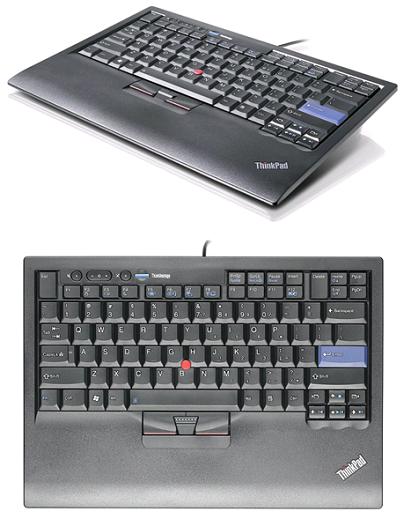
I wish this keyboard was still on the market [WayBackThinkPad USB Keyboard With TrackPoint – Overview.

Known as 55Y9053, 55Y9003 and 57Y4641 (and a few others like  the English/EUR 55Y9042 if you count the various localised layouts at [WayBack] ThinkPad USB Keyboard with TrackPoint – Service parts), it was one of the best keyboards made apart from the big delete key (that was better in the predecessor, but that one lacked windows keys: [WayBack] Lenovo ThinkPad USB Keyboard Review | NotebookReview).

It is about the same as the Thinkpad25, which added a touchpad: [WayBack] The 25th-anniversary ThinkPad: Every laptop should add some retro appeal | Ars Technica Review: A seven-row keyboard? Matte screen? TrackPoint? The all-business black body? Swoon

--jeroen

Posted in History, Power User, ThinkPad, UltraNav keyboards | Leave a Comment »

I’d probably take a W520 over it, but Lenovo Thinkpad T420: Another excellent, inexpensive Linux laptop | Open-Source Routing and Network Simulation

Posted by jpluimers on 2018/05/25

Reading the below, I’d probably go for the W520. Both series are the final ones having a 7-row keyboard.

I recently purchased a used Lenovo Thinkpad T420 laptop to replace the Lenovo Thinkpad T400 I was previously using as my main platform for researching open-source network simulators and emulators. …

Source: [WayBack]Lenovo Thinkpad T420: Another excellent, inexpensive Linux laptop | Open-Source Routing and Network Simulation

Do not get the T420s as it is the slim-line version which is harder to upgrade and for some users gives thermal issues.

The T420 has only USB2, the W520 has USB3, better screen, faster processors and allows more memory (32 gigabyte for quad core processors).

Related:

Read the rest of this entry »

Posted in Power User, ThinkPad, UltraNav keyboards | Leave a Comment »

David Hill – of ThinkPad design fame – is going beyond “Black Paint” – via: Rewiring | Lenovo

Posted by jpluimers on 2017/06/29

David Hill – of ThinkPad design fame – is going beyond “Black Paint”. It means he will be far less involved with [WayBackThinkPad: Industrial design, more with other design and – very important – his loved ones.

[WayBackRewiring | Lenovo:

Today I’m announcing my “rewiring”. I want to broaden my view and create the opportunity to do more in the field of design.

–jeroen

Via Petr Vones.

Posted in History, Power User, ThinkPad | Leave a Comment »

InitialKeyboardIndicators registry setting to fix NumLock in a certain state.

Posted by jpluimers on 2016/09/30

There are odd things with the InitialKeyboardIndicators registry setting. Technet only documents bitflag value 2.

According to the docs it should be a bitflag, but sometimes you encounter InitialKeyboardIndicators value 2147483648 (0x80000000) especially as part of the .DEFAULT profile at HKEY_USERS\.DEFAULT\Control Panel\Keyboard.

The problem I had was having these symptoms:

  1. while logging in locally, I manually turned of the NumLock (as I have a 46W6740 UltraNav keyboard without a numeric keypad)
  2. after logging in locally, it magically turned itself on even with InitialKeyboardIndicators=0 in my local profile at HKEY_CURRENT_USER\Control Panel\Keyboard.
  3. after logging in locally and turning it off, future local logons would keep it off
  4. after logging in remotely, it would magically turn itself on while logged in
  5. after having logged in remotely, the local logon console would have it turned on again

After reading Num Lock problem: Strange number in InitialKeyboardIndicators in Registry, I set both values to 0.

Now that it is 0 in both at HKEY_USERS\.DEFAULT\Control Panel\Keyboard and HKEY_CURRENT_USER\Control Panel\Keyboard, symptoms 4-5 still hold. Strange.

It is not the same problem as Num Lock state not retained after resume from Hybrid Shutdown in Windows 8 and Windows Server 2012.

If it persist, I might just put a script in: [Partially Solved: re-wired keyboard lol] Registry key “InitialKeyboardIndicators” NEVER keeps NumLock ON + ScrollLock ON (6) at startup and reverts back to NumLock ON (2).

–jeroen

Read the rest of this entry »

Posted in Conference Topics, Conferences, Event, Keyboards and Keyboard Shortcuts, KVM keyboard/video/mouse, Power User, ThinkPad, UltraNav keyboards, Windows | Leave a Comment »

optional Windows Update “Synaptics driver update for Synaptics Composite USB HID Device” breaks some UltraNav USB keyboards

Posted by jpluimers on 2016/06/27

About a year ago, I ran into the optional Windows Update “Synaptics driver update for Synaptics Composite USB HID Device”.

It basically breaks the UltraNav/TrackPoint functionality of some USB keyboards like my 31P9304 USB TrackPoint keyboard (also known as SK-8835)

I bumped into this on another system as well, so I was glad I found this on an asian site: 联想ThinkPad|ThinkCentre|ThinkStation服务与驱动下载常见问题.

Below is the English translation of which the most important is the workaround: Install the Windows Vista driver from the Lenovo support page.
http://www.lenovo.com/support/site.wss/document.do?sitestyle=lenovo&lndocid=MIGR-66917

Read the rest of this entry »

Posted in Keyboards and Keyboard Shortcuts, Power User, ThinkPad, UltraNav keyboards | Leave a Comment »

ThinkPad X201: fixing the “black screen” (without mouse pointer) after upgrading to Windows 10

Posted by jpluimers on 2016/06/10

After this Windows 10 boot screen the display goes blank without a mouse cursor.

After this Windows 10 boot screen the display goes blank without a mouse cursor.

So you upgraded your X201 from Windows 7 to Windows 10 even though it’s not in the listed on the Lenovo supported models page.

Now it gets through the boot screen, flashes the CapsLock/NumLock LEDS, blanks the screen (no mouse cursor) and continues booting without any visual feedback apart from the HDD LED flashing until it is finished booting

Since Windows 10 by default does not enable the F8 option any more, you need some more severe measures.

BIOS update

The first was to get the BIOS up to date. At the time of writing that was 1.40-1.15 from BIOS Update Bootable CD for Windows 8 (32-bit, 64-bit), 7 (32-bit, 64-bit), Vista (32-bit, 64-bit), XP – ThinkPad – Lenovo Support (US):

Then I had to burn the ISO. Which was a bit picky because most of my infrastructure is VM based and none of the physical machines had a DVD or CD-drive any more. Luckily I found a LiteOn SLW 831SX which Windows detects as Slimtype DVDRW SLW-831S USB Device. ImgBurn worked with that (elevated to Administrative mode that is: it requires that both for burning and grabbing an ISO image).

Upgrading the BIOS went fine, but the symptoms stayed.

Removing/re-inserting battery

Removing the battery for a while, then reinserting was suggested at one of the sites.  It didn’t help.

Force into Repair Mode

Then I read this:

If the system can’t load the necessary configuration more than two times, the system will  direct the display to Windows RE(Recovery environment).

Source: Windows 10 – How to enter Safe Mode if I can’t boot the system successfully?

They also have: Windows 10 – If I can’t enter the system, how can I restore the Windows 10 laptop or PC to default settings?

This very easy to do:

Prepairing Automatic Repair

Prepairing Automatic Repair

  1. Keep the power button down to power off the machine
  2. Power up the machine
  3. Wait for the boot screen to appear, then
    1. Keep the power button down to power off the machine
  4. Power up the machine
  5. Wait for the boot screen to appear, then
    1. Keep the power button down to power off the machine
  6. Wait for the “Prepairing Automatic Repair” to finish
  7. Wait for the “Diagnosing your PC” to finish
  8. Wait for the “Automatic Repair” to appear, then
    1. Wiggle with the mouse to get a mouse cursor
  9. Press the “Advanced Options” button
  10. Choose “Troubleshoot”
  11. Choose “Advanced Options”
  12. Choose “Startup Settings”
  13. Choose “Restart”
  14. Wait for the reboot and “Startup Settings” to appear (note: no mouse cursor)
  15. Hit F5 for “Enable Safe Mode with Networking”
  16. Wait for it to reboot twice.

This didn’t work as well as I hoped as now I was at the failure point as well.

But now at least I had a starting point to trip Windows into booting any way I wanted. I now only had to find which function key would get me into a state where I could see what was going on.

And the good things: The “Diagnosing your PC” only required one ‘manual power down” to appear.

  • F9 – Disable automatic restart after failure
  • F8 – Disable early launch anti-malware protection
  • F7 – Disable driver signature enforcement
  • F6 – Enable Safe Mode with Command Prompt
  • F5 – Enable Safe Mode with Networking
  • F4 – Enable Safe Mode
  • F3 – Enable low-resolution video
  • F2 – Enable boot logging
  • F1 – Enable debugging

F3 finally got me to the VIDEO_DRIVER_INIT_FAILURE (BSOD STOP 0x000000B4) which indicated the machine was so hosed that I had to to a clean install.

–jeroen
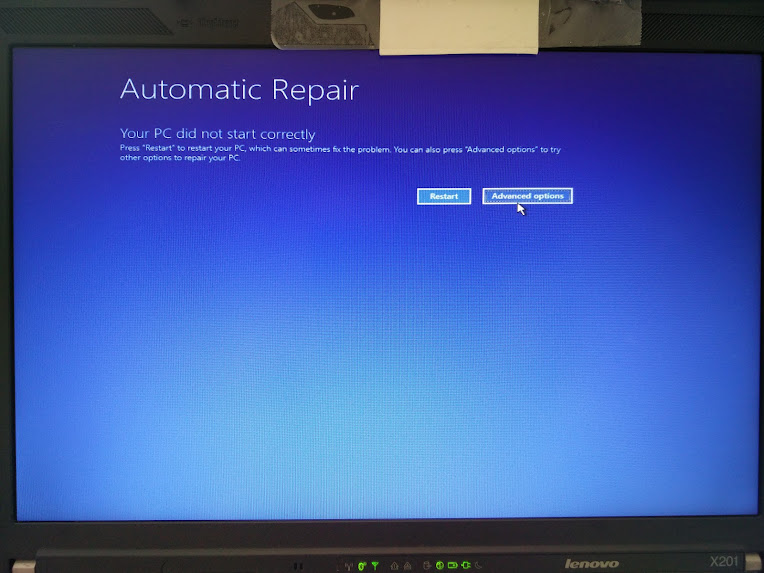
Automatic Repair - wiggle with the mouse and you have a cursor too!

Automatic Repair – wiggle with the mouse and you have a cursor too!

–jeroen

Images via:

Posted in BIOS, Boot, Power User, ThinkPad, UEFI, Windows, Windows 10, Windows 7, X201 | Leave a Comment »

Reminder to self: SKU numbers for the ThinkPad UltraNav USB keyboards with horizontal Enter key and 6 rows of keys

Posted by jpluimers on 2015/12/14

IBM/Lenovo stopped producing ThinkPad UltraNav keyboards with 7 rows of keys a while ago. It stopped me from buying ThinkPad machines (together with the screen issues), but I still use the external USB UltraNav keyboards which are harder and harder to get.

So here some SKU/FRU/PN/EAN that seem to have a horizontal enter key and US layout.

Read the rest of this entry »

Posted in Keyboards and Keyboard Shortcuts, Power User, ThinkPad, UltraNav keyboards | Leave a Comment »