The Wiert Corner – irregular stream of stuff

Jeroen W. Pluimers on .NET, C#, Delphi, databases, and personal interests

  • My badges

  • Twitter Updates

  • My Flickr Stream

  • Pages

  • All categories

  • Enter your email address to subscribe to this blog and receive notifications of new posts by email.

    Join 1,862 other subscribers

Archive for the ‘Virtualization’ Category

VMware ESXi 6.5: “Failed – An error occurred during host configuration.” when starting the NTP service

Posted by jpluimers on 2020/08/10

I tried repeating VMware KB: Configuring Network Time Protocol (NTP) on ESX/ESXi hosts using the vSphere Client in ESXi 6.5 using the web-client (the steps are very similar, see [WayBack] How to configure ESXi 6.5 Network Time Protocol (NTP) via Host Client? | ESX Virtualization).

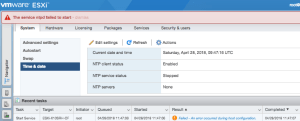
It failed with the non-descriptive “Failed – An error occurred during host configuration.”:

Viewing the details isn’t of much help as you do not get extra information:

Read the rest of this entry »

Posted in ESXi6.5, Power User, Virtualization, VMware, VMware ESXi | Leave a Comment »

Not sure why, but ESXi 6.5 changed “uuid.location”, “uuid.bios” and “ethernet0.generatedAddress” after moving it to a different datastore

Posted by jpluimers on 2020/08/03

When rearranging storage locations, I had to move a few VMs to different data stores.

So I removed them from the inventory, moved them to another datastore, then re-added them as a set.

Besides getting new VM IDs (which I expected), ESXi 6.5 U1 also managed to change the below fields (which I did not expect) without a warning like “did you move or copy” which you get when moving VMs around on VMware Fusion (Mac OS X) and VMware Workstation/Player (Windows).

The bold values were changed from:

uuid.location = "56 4d 6f 23 aa 92 bf 2b-16 d9 9a 4b 95 4d e7 8e"
uuid.bios = "56 4d 02 3c ea 9e dc 12-18 4f a4 64 c1 f7 f0 fe"
ethernet0.generatedAddress = "00:0c:29:f7:f0:fe"

To:

uuid.location = "56 4d 4c e8 a3 81 c6 db-d6 f2 7f 32 0d fe 2e 29"
uuid.bios = "56 4d 4c e8 a3 81 c6 db-d6 f2 7f 32 0d fe 2e 29"
ethernet0.generatedAddress = "00:0c:29:fe:2e:29"

The bold-italic values correspond to the changed MAC address.

This caused the VMs (which were suspended before the move) to loose their MAC bound static DHCP addresses after the lease time expired: since the new MAC addresses were not statically bound, they got fresh ones causing all sorts of connection problems.

Trying to assign back the original MAC address in the Web UI by hand gets you this error when the virtual machine starts (not when you save the MAC address):

Invalid MAC address specified.
xx:xx:xx:xx:xx:xx is not a valid static Ethernet address. It conflicts with VMware reserved MACs for other usage.

What I did was

  1. suspend the machines.
  2. bring ESXi into maintenance mode,
  3. changed the values back,
  4. moved ESXI out of maintenance mode,
  5. then unsuspended the VMs one by one
    now I did get the “I moved it” versus “I copied it” question

For this particular machine, the uuid.location was still changed, but now uuid.bios and ethernet0.generatedAddress were now left in tact:

uuid.location = "56 4d 4c e8 a3 81 c6 db-d6 f2 7f 32 0d fe 2e 29"
uuid.bios = "56 4d 02 3c ea 9e dc 12-18 4f a4 64 c1 f7 f0 fe"
ethernet0.generatedAddress = "00:0c:29:f7:f0:fe"

On another VM that I moved between data stores, after confirming the “I Moved It”, the migration went OK, so I am not sure about the cause. In that case the before/after situation were these (only the bold values were changed):

uuid.location = "56 4d d5 e2 79 b4 a6 76-aa 13 3d 18 e5 4d c0 00"
uuid.bios = "56 4d 38 d7 9c a0 98 24-3c e4 79 00 54 5d 35 ef"
vc.uuid = "52 91 00 37 03 ed 87 34-ec 06 ba 28 f6 85 b4 29"

uuid.location = "56 4d 88 e6 a0 17 bb 01-cb 8c e3 ce fa e8 05 61"
uuid.bios = "56 4d 38 d7 9c a0 98 24-3c e4 79 00 54 5d 35 ef"
vc.uuid = "52 91 00 37 03 ed 87 34-ec 06 ba 28 f6 85 b4 29"

Conclusion

The uuid.bios directly affects the generatedAddress of the network adapters. Initially it is related to the uuid.location, but does not need to be.

When migrating, keep the old data for comparison: compare the .vmx files after starting the migrated machine, and correct the uuid.bios and various ethernet#.generatedAddress values when needed.

Besides the well known 00:50:56:XX:YY:ZZ MAC address range there is also 00:0c:29:XX:YY:ZZ.

Background reading

–jeroen

Posted in ESXi6.5, Power User, Virtualization, VMware, VMware ESXi | Leave a Comment »

Using telnet from the VMware 5.x and 6.x ESXi shell: use nc

Posted by jpluimers on 2020/08/03

The short answer is: you can’t use telnet. But you can use alternatives, obviously. For instance, to troubleshoot some iSCSI connectivity problems, you would be used to doing something as this. ~ # telnet 10.0.2.3 3260 -ash: telnet: not found Instead, you can use netcat to test the connectivity. ~ # nc -z 10.0.2.3 3260 […]

Source: [Archive.is/WayBackUsing telnet from the VMware 5.x ESXi shell

The VMware knowledgebase mentions a few other alternatives as well (of which telnet obviously does not work):

–jeroen

Posted in ESXi5.1, ESXi5.5, ESXi6, ESXi6.5, Power User, Virtualization, VMware, VMware ESXi | Leave a Comment »

When using a e1000 virtual network adapter under VMware, use the “Intel PRO/1000 MT Server (82545EM)” under Virtual Box

Posted by jpluimers on 2020/04/17

Every now and then I need to run existing VMware based disk under a different virtualisation environment.

In my case, the target was VirtualBox, and the source used a e1000 virtual network adapter.

You find the required settings to migrate to VirtualBox by running this inside the directory of your VMware virtual machine:

grep ethernet *vmx

It gives output like this:

ethernet0.present = "TRUE"
ethernet0.virtualDev = "e1000"
ethernet0.networkName = "VM Network on LAN"
ethernet0.addressType = "generated"
ethernet0.generatedAddress = "00:0c:29:cc:cc:cc"
ethernet0.pciSlotNumber = "32"
ethernet0.generatedAddressOffset = "0"

This is in fact an “Intel 82545EM Gigabit Ethernet NIC” adapter, which VirtualBox calls “Intel PRO/1000 MT Server (82545EM)”.

Another compatible pair is the VMware vlance or “AMD 79C970 PCnet32- LANCE NIC” which VirtualBox calls “AMD PCNet PCI II (Am79C970A)”

First note:

Often the virtual operating system still recognises it as a different adapter. Sometimes you can prevent this by also copying the MAC address (as VirtualBox by default uses a MAC address like 080027CCCCCC.

If it is still wrong, then read [WayBack] PredictableNetworkInterfaceNames: the various ways of assigning network interface names in virtualisation environments tend to mismatch. To fix this, I had to rename /etc/sysconfig/ifcfg-ens32 to the nee interface name I found via if -a.

Second note:

VMware supports two special virtual networks that are accessible from the host: vmnet1 (host-only) and vmnet8(NAT) : both are accessible from the host as VMware installs special network adapters:

  • vmnet1 is the host-only network where the host can talk to the VMs and vice versa, but the hosts cannot talk to the outside world
  • vmnet8 is the NAT network where the host can talk to the VMs and vice versa, but the hosts can talk to the outside world

Some background info at:

Read the rest of this entry »

Posted in Power User, VirtualBox, Virtualization, VMware | Leave a Comment »

Some links that should me help shrinking the virtual disk files of Windows VMs

Posted by jpluimers on 2020/04/03

With virtual disks, at least these three levels are involved:

  • partition or volume (often called drive) size
  • virtual disk size
  • virtual disk backing store size

When talking about shrinking disks, they usually explain about below steps, assuming there is a 1:1:1 mapping of the above and backing store of the disk is dynamically growing:

  1. defragment the files on a partition/volume
  2. zero-fill the non-used space
  3. shrink the virtual disk assuming it is a dynamically growing one

For various reasons, virtualisation environments can have pre-allocated virtual disks ensuring the space on the backing store is firmly reserved.

One such occasion can be in VMware (often required for instance with vSphere/ESXi/ESX based infrastructure, but can also be used in Workstation/Fusion/Player) or Virtual Box in fixed disk mode (default there is dynamic).

Here are some links that should me help shrink in those situations:

More on conversion:

–jeroen

PS: a useful tip by Joe C. Hecht on shrinking:

Oh… On shrinking VM Disks, I make a new growable disk, then use a utility to “smart copy” the partions to the new disk (then replace the disk files in the VM). The “smart copy” just copies the file system – IE what is used (I use an old copy of Paragon Hard Drive Manager). It works out a lot better than writing “zeros”. I then make a compressed image of the whole VM using  rar5 compression with a 1GB dictionary size. I then have batch files that can unrar the VM’s on a moments notice (from a collection of over 300).

Posted in Fusion, Power User, VirtualBox, Virtualization, VMware, VMware ESXi, VMware Workstation | Leave a Comment »

ESXi: Failed to reconfigure virtual machine… There are insufficient licenses to complete this operation.

Posted by jpluimers on 2020/02/21

Failed to reconfigure virtual machine W81Entx64-vs2017. There are insufficient licenses to complete this operation.

Searching for “There are insufficient licenses to complete this operation.” memory did not reveal much, so at first I thought I had a memory issue.

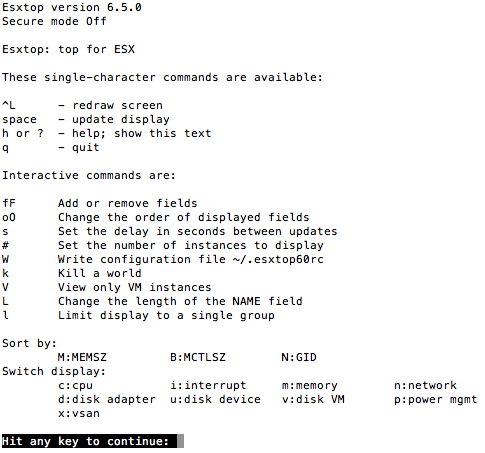
A quick look at esxtop in memory (m) mode indicated that was totally fine:


BTW: esxtop is a fantascit tool, with truckloads of information, so you should definitely read these:

Then something occurred to me:

The cause was that I tried to update the memory of an ESXi Windows VM which I thought I had shut-down from within Windows, but actually bumped an error message during the shutdown.

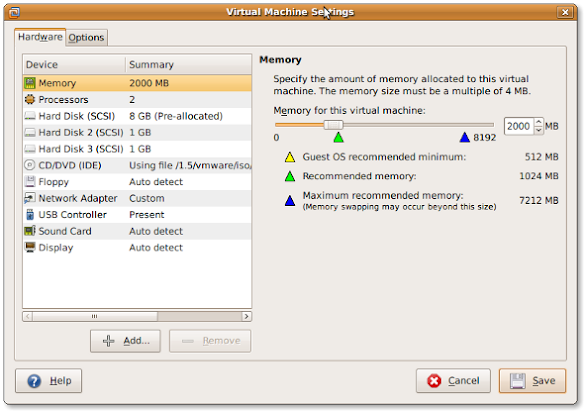
Shutting down properly (shutdown -s -t 0 in Windows), then increasing the memory worked fine:

Virtual machine W81Ent64-vs2017 was successfully reconfigured.

ESXi cannot increase the memory of a live system, hence the license error as per [WayBack] VMware Hot-Add: How and When to Use it:

One of the most common questions I receive on the daily management of virtual machines is if you should turn on hot-add features and why doesn’t VMware turn them on by default. The answer is very clear.

What are the requirements for Hot-add/Hot-plug:

  • Your virtual machines need to run at minimum hardware version 7.
  • Hot-add/Hot-Plug is not compatible with Fault Tolerance
  • vSphere Advanced, Enterprise or Enterprise plus.
  • Only hot-add is possible. You cannot “hot-remove” RAM or vCPUs.
  • Hot-Add/Hot-plug must be supported by the VM operating system!
  • Guest-OS licensing limitations need to be monitored and taken into consideration. You are changing the number of vCPUs/RAM!

–jeroen

Posted in ESXi6.5, Power User, Virtualization, VMware, VMware ESXi | Leave a Comment »

Always use SCSI for your VM guest disks – Jeroen Wiert Pluimers – Google+

Posted by jpluimers on 2020/01/20

Rephrased from [WayBackJeroen Wiert Pluimers – Google+:

If you install a virtual machine, ensure the disk controller and disks are SCSI based.

This has many advantages, including:

  • speed (usually the SCSI drivers can be paravirtualised)
  • hot addition of new disks

It holds for virtually any virtualization platform including all non-ancient (less than ~10 year old) versions of:

  • VMware (Workstation, Viewer, but I expect this also to work on vSphere, ESXI, Fusion)
  • Hyper-V
  • KVM (and therefore Proxmox)
  • VirtualBox

Based on my notes in the above link and the links below:

Note this isn’t just for Linux guests/hosts: Most guests (including Windows) can do a SCSI bus re-scan and detect new SCSI devices.

The trick here is that the guest must already have a virtual SCSI controller (adding that will require a reboot of the guest).

Then adding a new SCSI disk on that controller from any host (Windows, Mac, ESXi, vSphere) should work fine.

–jeroen

Posted in ESXi4, ESXi5, ESXi5.1, ESXi5.5, ESXi6, ESXi6.5, Fusion, Hyper-V, KVM Kernel-based Virtual Machine, Power User, Proxmox, View, VirtualBox, Virtualization, VMware, VMware ESXi, VMware Workstation | Leave a Comment »

VMware Converter downloads

Posted by jpluimers on 2019/08/02

Since the VMware site is a maze, so below are some download and information links.

[WayBack] Upgraded to 6.1.1. build-3533064 – cannot restore from Acronis TrueImage TIB files… |VMware Communities -> you need 6.0 or earlier for that:

Support notice

VMware vCenter Converter Standalone 6.0 is the last release of the product to support third-party backup images and virtual machines as sources for conversion. This capability will be discontinued in the next release. If you use this capability, you should start planning your transition.

Interoperability

Third-party backup images and virtual machines – to be discontinued. See Support notice.

  • Acronis True Image Echo 9.1 and 9.5, and Acronis True Image Home 10 and 11 (.tib)
  • Symantec Backup Exec System Recovery (formerly LiveState Recovery) 6.5, 7.0, 8.0, and 8.5, and LiveState Recovery 3.0 and 6.0 (.sv2i format only)
  • Norton Ghost version 10.0, 12.0, and 14.0 (.sv2i format only)
  • Parallels Desktop 2.5, 3.0, and 4.0 (.pvs and .hdd). Compressed disks are not supported
  • Parallels Workstation 2.x (.pvs). Compressed disks are not supported. Parallels Virtuozzo Containers are not supported.
  • StorageCraft ShadowProtect Desktop, ShadowProtect Server, ShadowProtect Small Business Server (SBS), ShadowProtect IT Edition, versions 2.0, 2.5, 3.0, 3.1, and 3.2 (.spf)
  • The Microsoft VHD format for the following sources:
    • Microsoft Virtual PC 2004 and Microsoft Virtual PC 2007 (.vmc)
    • Microsoft Virtual Server 2005 and 2005 R2 (.vmc)

For conditions and limitations about converting Backup Exec System Recovery, ShadowProtect, and Consolidated Backup images, see the VMware vCenter Converter Standalone User’s Guide.

Edit 20210810:

–jeroen

Read the rest of this entry »

Posted in Power User, Virtualization, VMware, VMware Converter | Leave a Comment »

Logging to syslog on a VMware ESXi machine

Posted by jpluimers on 2019/07/29

Since “esxi write entry to syslog” didn’t return results on how to add new syslog entries, only how to configure syslog.

It was much easier than I hoped for:

logger TEST

With a default configuration this then ends up in /var/log/syslog.log:

grep TEST /var/log/syslog.log

2019-07-29T10:48:31Z root: TEST

Now I know the command, I found

–jeroen

Posted in Power User, Virtualization, VMware, VMware ESXi | Leave a Comment »

ESXi Embedded Host Client

Posted by jpluimers on 2019/07/15

This version of the ESXi Embedded Host Client is written purely in HTML and JavaScript, and is served directly from your ESXi host and should perform much better than any of the existing solutions.

Installing went smooth:

# esxcli software vib install -v https://download3.vmware.com/software/vmw-tools/esxui/esxui-signed-6360286.vib -f
Installation Result
Message: Operation finished successfully.
Reboot Required: false
VIBs Installed: VMware_bootbank_esx-ui_1.23.0-6360286
VIBs Removed: VMware_bootbank_esx-ui_1.21.0-5724747
VIBs Skipped:

Source: ESXi Embedded Host Client

–jeroen

Posted in ESXi6.5, Power User, Virtualization, VMware, VMware ESXi | Leave a Comment »