The Wiert Corner – irregular stream of stuff

Jeroen W. Pluimers on .NET, C#, Delphi, databases, and personal interests

  • My badges

  • Twitter Updates

  • My Flickr Stream

  • Pages

  • All categories

  • Enter your email address to subscribe to this blog and receive notifications of new posts by email.

    Join 1,861 other subscribers

Archive for the ‘ESXi6.5’ Category

The curious Kabri | How to force VMware to generate a new MAC address for a virtual machine

Posted by jpluimers on 2021/08/06

[WayBack] The curious Kabri | How to force VMware to generate a new MAC address for a virtual machine

  1. Shut down the Guest OS.
  2. Open up the .vmx file.
  3. Delete the following lines (that begin with…):
    ethernet0.addressType
    uuid.location =
    uuid.bios =
    ethernet0.generatedAddress =
    ethernet0.generatedAddressOffset =
  4. Boot up the Guest OS again, and it should generate new details in the vmx file (I’d check afterwards to be doubly sure).

In my experience, start with the bold values.

If the address is the same, fiddle with ethernet0.generatedAddressOffset

Be careful with the other values, as it might force your OS to think so much hardware has changed, that license keys have become invalid.

Via: [WayBack] Re-generate MAC addresses for VMs |VMware Communities

Related:

–jeroen

Posted in ESXi6, ESXi6.5, ESXi6.7, Power User, Virtualization, VMware, VMware ESXi | Leave a Comment »

ESXi 6.7 and up: embedded busybox wget understands https (finally!)

Posted by jpluimers on 2021/07/16

At last, somewhere around ESXi 6.7, the built-in BusyBox tool wget started to support the https protocol.

Yay!

Which means that workarounds in these answers are not needed any more:

It was a big BusyBox version bump (from 1.22.x to 1.29.x)  between ESXI 6.5 and 6.7, especially since 1.26.x versions (that introduced wget) have been available way before ESXi 6.5 came out: [WayBack] BusyBox.

From an ESXi 6.5U2 host

[root@ESXi-X10SRH-CF:/tmp] wget https://www.example.org
wget: not an http or ftp url: https://www.example.org
[root@ESXi-X10SRH-CF:/tmp] wget --help
BusyBox v1.22.1 (2018-07-23 19:34:04 PDT) multi-call binary.

Usage: wget [-csq] [-O FILE] [-Y on/off] [-P DIR] [-U AGENT] URL...

Retrieve files via HTTP or FTP

    -s  Spider mode - only check file existence
    -c  Continue retrieval of aborted transfer
    -q  Quiet
    -P DIR  Save to DIR (default .)
    -O FILE Save to FILE ('-' for stdout)
    -U STR  Use STR for User-Agent header
    -Y  Use proxy ('on' or 'off')

[root@ESXi-X10SRH-CF:/tmp] vmware -l
VMware ESXi 6.5.0 Update 2

From an ESXi 6.7U2 host

[root@ESXi-X9SRI-3F:/tmp] wget https://www.example.org
Connecting to www.example.org (93.184.216.34:443)
index.html           100% |******************************************************************************************|  1270  0:00:00 ETA
[root@ESXi-X9SRI-3F:/tmp] wget --help
BusyBox v1.29.3 (2018-11-02 15:37:50 PDT) multi-call binary.

Usage: wget [-c|--continue] [--spider] [-q|--quiet] [-O|--output-document FILE]
    [--header 'header: value'] [-Y|--proxy on/off] [-P DIR]
    [-S|--server-response] [-U|--user-agent AGENT] URL...

Retrieve files via HTTP or FTP

    --spider    Only check URL existence: $? is 0 if exists
    -c      Continue retrieval of aborted transfer
    -q      Quiet
    -P DIR      Save to DIR (default .)
    -S          Show server response
    -O FILE     Save to FILE ('-' for stdout)
    -U STR      Use STR for User-Agent header
    -Y on/off   Use proxy
[root@ESXi-X9SRI-3F:/tmp] vmware -l
VMware ESXi 6.7.0 Update 2

–jeroen

Posted in ESXi6.5, ESXi6.7, Power User, Virtualization, VMware, VMware ESXi | Leave a Comment »

Automatically shutting down an ESXi 6.7+ server from a CyberPower UPS using the PowerPanel Business Edition 4.x

Posted by jpluimers on 2021/07/09

Unlike the name PowerPanel Business Edition, this is a free tool. It allows you to manage your CyberPower UPS and to shutdown various systems, including an ESXi host.

It took CyberPower from version 3.3 to version 4.0 of the PowerPanel software to support ESXi 6.7. Reason was that VMware ESXi 6.5 was the latest version supporting vMA:

Below the steps to get PowerPanel 4.x up and running on ESXi 6.7+.

First of all, you have to ensure your CyberPower is connected to ESXi via USB.

Then you need to download and install the CyberPower virtual appliance “PowerPanel Business”

When the appliance runs, you have to virtually plugin the USB.

Finally configure the virtual appliance.

Read the rest of this entry »

Posted in CP1500EPFCLCD, CyberPower, ESXi6.5, ESXi6.7, Power User, UPS, Virtualization, VMware, VMware ESXi | Leave a Comment »

Keeping your ESXi infrastructure up-to-date: Subscribe to VMware ESXi Patch Tracker RSS Feed

Posted by jpluimers on 2021/06/29

[WayBack] Subscribe to VMware ESXi Patch Tracker RSS Feed has all the post-feedburner (see below) RSS links in a nice table:

Subscribe to VMware ESXi Patch Tracker RSS Feed

For popular web based readers:
Feedly [All] [6.7] [6.5] [6.0] [5.5] [5.1] [5.0]
My Yahoo! [All] [6.7] [6.5] [6.0] [5.5] [5.1] [5.0]
netvibes [All] [6.7] [6.5] [6.0] [5.5] [5.1] [5.0]
For manual subriptions with other web based or offline readers copy-and-paste these links:
manual [All] [6.7] [6.5] [6.0] [5.5] [5.1] [5.0]

Post-feedburner

Parts of feedburner have been deprecated since 2012: FeedBurner – Wikipedia.

There are all sorts of reports of feedburner being unstable, for instance:

–jeroen

Posted in ESXi5, ESXi5.1, ESXi5.5, ESXi6, ESXi6.5, ESXi6.7, Power User, Virtualization, VMware, VMware ESXi | Leave a Comment »

How to rename a VM through SSH on ESXi ? |VMware Communities

Posted by jpluimers on 2021/06/28

From [WayBack] How to rename a VM through SSH on ESXi ? |VMware Communities (numbering and code highlighting mine):

Kindly find the below:

  1. Backup the virtual machine
  2. Power down the virtual machine
  3. Remove the virtual machine from the vSphere host inventory
  4. Open an SSH console session to the vSphere host
  5. Navigate to the storage directory containing the virtual machine: For example: cd /vmfs/volumes/<datastore_name>/<original_vmname>
  6. Rename the primary .vmdk configuration files: vmkfstools -E "<original_vmname>.vmdk" "<new_vmname>.vmdk"
  7. Rename the .vmx configuration file: mv "original_vmname.vmx" "new_vmname.vmx"
  8. Edit the virtual machine .vmx configuration file (Be sure to properly update the directory and file name of the .vswp swap file reference): vi "new_vmname.vmx"
  9. Rename any remaining files in the virtual machine’s folder as needed:
    1. Rename the .vmxf configuration file: mv "original_vmname.vmxf" "new_vmname.vmxf"
    2. Rename the .nvram configuration file: mv "original_vmname.nvram" "new_vmname.nvram"
    3. Rename the .vsd configuration file: mv "original_vmname.vsd" "new_vmname.vmsd"
  10. Rename the virtual machine folder: Move up one directory level to the parent folder ( cd .. ) then rename the virtual machine directory: mv "original_directory" "new_directory"
  11. Add the newly-named virtual machine to the host’s inventory (the newly renamed .vmx configuration file)
  12. Power on the newly renamed virtual machine
  13. Answer “I moved it” to the virtual machine question prompt (not “I copied it”)
  14. Review the virtual machine and all files/folders to make sure it is named as desired and functioning properly

Note: There are other methods to allow for renaming, but this method is fairly quick and easy. It should work on all editions of vSphere from free to Enterprise Plus.

The “Answer question” prompt where you should selected “I moved it”:

->

Prompt with symlink names in the path

On a site note, I need to figure uit how to set the ESXi shell prompt to show the current path like pwd does (with symlink names in it instead of the followed symlink targets):

[root@ESXi-X9SRI-3F:~] cd /vmfs/volumes/EVO860_250GB/
[root@ESXi-X9SRI-3F:/vmfs/volumes/5c9bd516-ef1f6d4c-f1b1-0025907d9d5c] pwd
/vmfs/volumes/EVO860_250GB

The ESXi shell is based on busybox, in fact it uses the ash variety:

[root@ESXi-X9SRI-3F:/vmfs/volumes/5c9bd516-ef1f6d4c-f1b1-0025907d9d5c] `readlink -f \`which readlink\`` | grep ^BusyBox
BusyBox v1.29.3 (2018-11-02 15:37:50 PDT) multi-call binary.
BusyBox is copyrighted by many authors between 1998-2015.
[root@ESXi-X9SRI-3F:/vmfs/volumes/5c9bd516-ef1f6d4c-f1b1-0025907d9d5c] type chdir
chdir is a shell builtin

This seemed to work fine:

[root@ESXi-X9SRI-3F:/vmfs/volumes/5c9bd516-ef1f6d4c-f1b1-0025907d9d5c] PS1="[\u@\h:`pwd`] "
[root@ESXi-X9SRI-3F:/vmfs/volumes/EVO860_250GB] 

But in faxt fails, as it only takes a pwd value once, and not every time the prompt is evaluated:

[root@ESXi-X9SRI-3F:/vmfs/volumes/EVO860_250GB] cd ..
[root@ESXi-X9SRI-3F:/vmfs/volumes/EVO860_250GB] pwd
/vmfs/volumes
[root@ESXi-X9SRI-3F:/vmfs/volumes/EVO860_250GB] 

So I need to re-visit these links:

–jeroen

Posted in *nix, *nix-tools, BusyBox, ESXi6, ESXi6.5, ESXi6.7, Power User, Virtualization, VMware, VMware ESXi | Leave a Comment »

esxi what is my ip – Google Search

Posted by jpluimers on 2021/06/25

[Archive.is] esxi what is my ip – Google Search:

esxcli network Commands
Command Description
network ip dns server remove Remove a DNS server from the list of DNS servers to use for this ESXi host.
network ip get Get global IP settings
network ip interface add Add a new VMkernel network interface.
network ip interface ipv4 get Get IPv4 settings for VMkernel network interfaces.

60 more rows

More columns and rows of that table in

[WayBack] vSphere Documentation Center: vSphere 5 Command Line Documentation > vSphere Command-Line Interface Documentation > vSphere Command-Line Interface Reference: esxcli network Commands

Not much has changed since, so this still works:

[root@ESXi-X9SRI-3F:/] esxcli network ip interface ipv4 get
Name  IPv4 Address   IPv4 Netmask   IPv4 Broadcast  Address Type  Gateway       DHCP DNS
----  -------------  -------------  --------------  ------------  ------------  --------
vmk0  192.168.71.94  255.255.255.0  192.168.71.255  DHCP          192.168.71.1      true
[root@ESXi-X9SRI-3F:/] network ip interface ipv6 get
Name  IPv6 Enabled  DHCPv6 Enabled  Router Adv Enabled  DHCP DNS  Gateway
----  ------------  --------------  ------------------  --------  -------
vmk0          true           false                true     false  ::

If the box has IPv6 configured, the last command would have shown the IPv6 vmdk information as well.

–jeroen

Posted in ESXi5, ESXi5.1, ESXi5.5, ESXi6, ESXi6.5, ESXi6.7, Power User, Virtualization, VMware, VMware ESXi | Leave a Comment »

VMware VMRC: connect to a remote console without the vSphere Client

Posted by jpluimers on 2021/06/21

Interesting tool: https://www.vmware.com/go/download-vmrc.

Back when scheduling this post in 2019, this was the most recent version: [WayBack] Download VMware vSphere: Download VMware Remote Console 10.0.4

From [WayBack] ovf – How to connect ESXi vm console from ESXi host console – Stack Overflow:

Example of vmrc.exe command :

"C:\Program Files (x86)\VMware\VMware Remote Console\vmrc.exe" vmrc://<ESXi host username>@<ESXi host IP>/?moid=<VM ID>

Basically it uses the vmrc scheme to start a connection to the remote screen for a specific MoRef ID. On ESXi, this is actually the VM ID that you get from vim-cmd vmsvc/getallvms. In that sense this is very similar to getting a single screenshot for the VM from the ESXi host by using the https://%5BHOST%5D:%5BPORT%5D/?id=%5BVM-MOREF%5D like described in ESXi and VMware Workstation: quick way of getting Console screenshots in PNG format; some URLs on your ESXi machine.


In MacOS, starting VMware Remote Console is slightly different as you have to start it through a URI using using the vmrc scheme from either a browser or with the open command on the console.

The reason is that there is no vmrc binary on MacOS.

  • [WayBack] Using VMware’s Standalone Remote Console for OS X with free ESXi | Der Flounder:

    vmrc://@[HOST]:[PORT]/?moid=[VM-MOREF]

    • HOST = the hostname or IP address of the ESXi server
    • PORT = the HTTPS port of the ESXi server, which is usually 443

    open 'vmrc://@server_name_here:port_number_here/?moid=vmid_number_here'

  • [WayBack] Standalone VMRC now available for Mac OS X:

    just provide the following URI which will prompt for your ESXi credentials

    vmrc://@[HOST]:[PORT]/?moid=[VM-MOREF]

    Once you have generated the VMRC URI, you MUST launch it through a web browser as that is how it is passed directly to the Standalone VMRC application. In my opinion, this is not ideal especially for customers who wish to automatically generate this as part of a VM provisioning workflow to their end users and not having to require a browser to launch the Standalone VMRC application. If you have some feedback on this, please do leave a comment.

    In the mean time, a quick workaround is to use the “open” command on Mac OS X along with the VMRC URI which will automatically load it into your default browser and launch the Standalone VMRC application for you.

    open 'vmrc://@192.168.1.60:443/?moid=vm-18'

On one of my test systems, for VMID 3 (see below), this comes down to this:

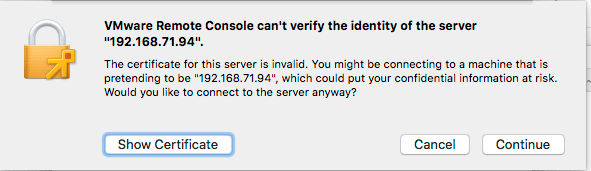
open 'vmrc://@192.168.71.94:443/?moid=3'

Note you have to accept the ESXi self generated TLS certificate once on MacOS:
After this, these processes were started (note there is no vmrc like on Windows):

± ps -ax | grep -i "\(vmware\|vmrc\)"
65239 ?? 0:04.15 /Applications/VMware Remote Console.app/Contents/MacOS/VMware Remote Console
65343 ?? 0:00.01 /Applications/VMware Remote Console.app/Contents/Library/services/VMRC Services 3 4
65360 ?? 0:00.16 /Applications/VMware Remote Console.app/Contents/Library/vmware-usbarbitrator
65363 ?? 0:00.01 /Applications/VMware Remote Console.app/Contents/Library/services/VMware USB Arbitrator Service 3 4
65393 ?? 0:01.29 /Applications/VMware Remote Console.app/Contents/Library/vmware-remotemks -@ vmdbPipeHandle=42; vm=_7FD2A461E8E0_3; gui=true -H 44 -R -P 2 -# product=256;name=VMware Remote Console;version=10.0.1;buildnumber=5898794;licensename=VMware Remote Console;licenseversion=10.0; -s libdir=/dev/null/Non-existing DEFAULT_LIBDIRECTORY
65872 ttys001 0:00.00 grep -i \(vmware\|vmrc\)

VM IDs (or VM-MOREFs)

You get the VM IDs using the vim-cmd vmsvc/getallvms command; they appear in the left column:

[root@ESXi-X9SRI-3F:/] vim-cmd vmsvc/getallvms
Vmid         Name                                 File                               Guest OS       Version   Annotation
1      Lampje             [EVO860_250GB] Lampje/Lampje.vmx                       opensuse64Guest    vmx-14              
3      X9SRI-3F-W10P-NL   [EVO860_250GB] X9SRI-3F-W10P-NL/X9SRI-3F-W10P-NL.vmx   windows9_64Guest   vmx-14    

Note that in practice, this is much harder so I wrote a script for that which you can find in VMware ESXi console: viewing all VMs, suspending and waking them up: part 1.

bundle files

I did not know about bundle files, but they seem to be sh scripts that precede a binary: [WayBack] What is a .bundle file and how do I run it? – Super User.

Inspecting such a files, shows it starts with this code:

#!/usr/bin/env bash
#
# VMware Installer Launcher
#
# This is the executable stub to check if the VMware Installer Service
# is installed and if so, launch it.  If it is not installed, the
# attached payload is extracted, the VMIS is installed, and the VMIS
# is launched to install the bundle as normal.

# Architecture this bundle was built for (x86 or x64)
ARCH=x64

if [ -z "$BASH" ]; then
   # $- expands to the current options so things like -x get passed through
   if [ ! -z "$-" ]; then
      opts="-$-"
   fi

   # dash flips out of $opts is quoted, so don't.
   exec /usr/bin/env bash $opts "$0" "$@"
   echo "Unable to restart with bash shell"
   exit 1
fi

–jeroen

Posted in Apple, ESXi6, ESXi6.5, ESXi6.7, Mac OS X / OS X / MacOS, macOS 10.12 Sierra, macOS 10.13 High Sierra, Power User, Virtualization, VMware, VMware ESXi, Windows, Windows 10, Windows 7, Windows 8, Windows 8.1 | Leave a Comment »

CloudKey ESXi Appliance – Google Search

Posted by jpluimers on 2021/06/07

Via [Archive.is] CloudKey ESXi Appliance – Google Search:

–jeroen

Posted in *nix, Cloud Key, ESXi6, ESXi6.5, ESXi6.7, Internet, Network-and-equipment, Power User, Unifi-Ubiquiti, Virtualization, VMware, VMware ESXi | Leave a Comment »

VMware ESXi: VMware Tools Installed but not running

Posted by jpluimers on 2021/06/04

Sometimes you get this situation on a Windows VM, usually after a reboot but not logging on:

Networking No network information
VMware Tools Installed but not running

“Windows” “VMware Tools” “Installed but not running” – Google Search mostly gives results about the VMware tools installation ISO being malformed, the registry not being correct, or having Linux as guest:

In practice though, there is a really good change that your default power settings allow Windows to go to sleep after some time of activity. The Windows VM then really sleeps, including services and network adapters. Then VMware ESXi thinks the machine has no VMware tools running:

I have noticed this on ESXi 6.5 and 6.7 with both Windows 7 and Windows 10. It is broader though, as others have seen this in ESXi 5.x as well: [WayBack] VMware Communities : All Content – VMware ESXi 5.

Verifying sleep is enabled

This little trick shows you the various possible sleep states:

C:\>powercfg /availablesleepstates
The following sleep states are available on this system: Standby ( S1 )
The following sleep states are not available on this system:
Standby (S2)
        The system firmware does not support this standby state.
Standby (S3)
        The system firmware does not support this standby state.
Hibernate
        Hibernation has not been enabled.
Hybrid Sleep

Disabling sleep

If you search for “sleep” in the [WayBack] Powercfg command-line options | Microsoft Docs, you have a hard time finding these:

/change or /X

Modifies a setting value in the current power scheme.

Syntax:

/change  setting  value

Arguments:

setting
Specifies one of the following options:

  • monitor-timeout-ac
  • monitor-timeout-dc
  • disk-timeout-ac
  • disk-timeout-dc
  • standby-timeout-ac
  • standby-timeout-dc
  • hibernate-timeout-ac
  • hibernate-timeout-dc
value
Specifies the new value, in minutes.

Examples:

powercfg /change monitor-timeout-ac 5

in order to disable sleep, you hav disable the standby timeouts (suffix -ac means “Plugged in” and -d means “On battery”) by setting their values to 0 (zero) minutes as UAC elevated Administrator:

powercfg /change standby-timeout-ac 0
powercfg /change standby-timeout-dc 0

This is far less than in WayBack – FutureMark forums – windows 7 – how do i disable SLEEP mode via command line ? (via [WayBack] Disable Sleep mode using powercfg – it.megocollector.com), but this is really all you need, as it correctly disables sleeping:

Later I found that [WayBack] windows 7 – How to disable sleep mode via CMD? – Super User also shows this shorter solution.

Note you need to run those on as UAC elevated user, which you can check for using the net session trick in [WayBack] windows – Batch script: how to check for admin rights – Stack Overflow.

–jeroen

Posted in Conference Topics, Conferences, ESXi6.5, ESXi6.7, Event, Power User, Virtualization, VMware, VMware ESXi | Leave a Comment »

Downloading files with wget on ESXi · random writes

Posted by jpluimers on 2021/05/31

Reminder to self to check if wget on ESXi now finally supports https downloading: [WayBack] Downloading files with wget on ESXi · random writes.

In the mean time, ESXi 6.7 Update 2 and up seems to support this; so the below workaround might only be needed for ESXi 6.7 update 1 and below.

[WayBack] VMware ESXi: help downloading large ISO – Server Fault

I will likely not do this, as by now all my ESXi boxes should have been recent enough.

I will keep the article because of the BusyBox commands section below.

If so, I might finally try and write a Python wrapper for this, as I know that Python 3 on ESXi supports https, but the ESXi BusyBox does not have a built-in cURL.

Some links and notes I might need by then:

BusyBox commands

Another cool thing in the above blog post is that it shows how to dump the BusyBox built in commands.

I ran it for ESXi 6.7 with a slight trick to get the full path (using back-ticks and escaped back-ticks) and content.

Since ESXi is BusyBox based, the commands that are in /bin are not actually binaries, but each command is a symlink to the BusyBox binary. BusyBox then knows the original name of the command, so it can deduct what part to execute. This makes for a very space efficient storage scheme.

The various bits of the tricks to get the location of the BusyBox binary, so the --list parameter can be passed to it:

  • The which wget gives the full path of wget.
  • The ls -l `which wget` shows the full path of wget and the symlink target (but there is no way for ls to only show the symlink target).
  • The readlink -f `which wget` shows the full path of where /bin/wget points to: the BusyBox binary.

The main trick consists of backtick evalution, and knowing that ls cannot get you just the symlink target, but readlink can:

Now the back-tick escapes, because you cannot nest back-ticks:

  • The `readlink -f \`which wget\`` executes the BusyBox binary without arguments.
  • The `readlink -f \`which wget\`` --list executes the BusyBox binary with the --list parameter.

Note I do not like the cat --help (see [WayBack] How do I check busybox version (from busybox)? – Unix & Linux Stack Exchange) way of getting the BusyBox version, as that gets echoed to stderr.

This is the output:

Read the rest of this entry »

Posted in *nix, *nix-tools, cURL, ESXi6, ESXi6.5, ESXi6.7, Power User, Virtualization, VMware ESXi, wget | Leave a Comment »