The Wiert Corner – irregular stream of stuff

Jeroen W. Pluimers on .NET, C#, Delphi, databases, and personal interests

  • My badges

  • Twitter Updates

  • My Flickr Stream

  • Pages

  • All categories

  • Enter your email address to subscribe to this blog and receive notifications of new posts by email.

    Join 1,860 other subscribers

Archive for the ‘Windows’ Category

“This app can’t run on your PC – To find a version for your PC, check with the software publisher.”

Posted by jpluimers on 2020/06/19

I had a problem running wmic. It was no a Dutch Windows 10, but the same will happen with any locale, so in English the error looks like this:

This app can't run on your PC

To find a version for your PC, check with the software publisher.

After which you get this on the command-line:

Access is denied.

In the Dutch version, the error is called this:

Deze app kan niet worden uitgevoerd op uw pc

Vraag bij de software-uitgever na of er een versie bestaat voor uw pc.

After which you get this on the command-line:

Toegang geweigerd.

Apparently, an executable is now an app, and PC is uppercase in English, but not in Dutch. I digress.

The un-cool thing is that [WayBack] Process Monitor – Windows Sysinternals | Microsoft Docs showed no Access Denied message at all.

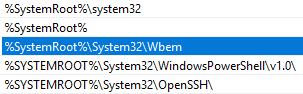
What happened however, was that there was an empty %SystemRoot%\System32\wmic.exe, which gets executed because %SystemRoot%\System32 is earlier on the path than C:\Windows\System32\wbem\WMIC.exe.

Note that %SystemRoot% seems to be the new %windir%.

You can reproduce this by doing this on a command prompt window:

cd %temp%

rem > wmic.exe

wmic

The rem will create an empty wmic.exe. Because on Windows, the current directory is always on the path, it tries to execute the empty wmic.exe, which causes the error.

Do not run an administrative in the default %SystemRoot%\System32 directory

The actual cause was a combination of this:

  1. When running cmd as Administrator, it starts in %SystemRoot%\System32
  2. %SystemRoot%\System32 is early on the path
  3. Copy/Paste through a remote desktop connection is unreliable
  4. I copied a big bunch of output from the RDP session to my host to write some documentation
  5. I copied a new command from the host to run in the Administrative cmd
  6. What got pasted instead was the output, which created these empty files (which has some typos, I know) because output is of the form C:\path>filename:

    C
    conrol
    control
    defrag
    del
    Disable-ComputerRestore
    exit
    Get-ComputerRestorePoint
    net
    powercfg
    powershell
    powrcfg
    SystemProperties.exe
    vssadmin
    wmic
    wmic.exe

  7. I did not notice these files were created in  %SystemRoot%\System32

–jeroen

Posted in Power User, Windows, Windows 10 | Leave a Comment »

“windows 10” cannot manually set time – Google Search

Posted by jpluimers on 2020/06/12

On my research list: a Windows 10 machine with automatic time settings being 2 hours off.

I tried setting time and time zone, but the new Windows 10 UI did not let me.

List to start

–jeroen

Posted in Power User, Windows, Windows 10 | Leave a Comment »

hardlink – How can I find hard links on Windows? – Super User

Posted by jpluimers on 2020/06/08

Cool:

use command:

fsutil hardlink list MyFileName.txt

It lists all hardlinks to file with name MyFileName.txt.

Source: [WayBackhardlink – How can I find hard links on Windows? – Super User

More information at [WayBack] Fsutil hardlink | Microsoft Docs on

fsutil hardlink create <NewFileName> <ExistingFileName>
fsutil hardlink list <Filename>

–jeroen

Posted in Power User, Windows, Windows 10, Windows 7, Windows 8, Windows 8.1 | Leave a Comment »

“wmic” “access denied” “local administrator” “windows 10” – Google Search

Posted by jpluimers on 2020/06/05

On my research list: find out why a Local Administrator on Windows 10 Professional x64 did get “access denied” just when executing wmic:

–jeroen

Posted in Power User, Windows | Leave a Comment »

Jeroen Pluimers on Twitter: “Hi dpi is a mess, not just on Windows. It will take considerable time to overcome the decades long Pixel mess we’ve been coming from (:”

Posted by jpluimers on 2020/05/26

Two years later, it is a reminder to look at my statement again: [WayBackJeroen Pluimers on Twitter: “Hi dpi is a mess, not just on Windows. It will take considerable time to overcome the decades long Pixel mess we’ve been coming from (:”

–jeroen

Posted in Apple, Development, Mac OS X / OS X / MacOS, Power User, Software Development, Windows | Leave a Comment »

When NTFS shrink fails, despite using the default settings from the shrink dialog

Posted by jpluimers on 2020/05/25

Sometimes an NTFS shrink still fails, even though you use the built in Windows defragmentation tools, of SysInternals contig tool.

The best you can do is to follow the steps in:

  1. run diskmgmt.msc to try shrinking the disk, then often it is already in the error message: “You can’t shrink a volume beyond the point where any unremoveable files are located see the defrag event in application log for detailed information about the operation when it has completed.”
  2. use eventvwr.exe and look at the Windows Logs for the most recent Application entries that has Source set to defrag

Those defrag entries usually tell about the last file that could not be moved.

You can use wevtutill to query events on the commandline.

Note that contrary to [WayBack] WEVTUTIL – Windows CMD – SS64.com documentation, the option /rd cannot be expanded to /reversedirection , as you will get an error “invalid option reversedirection” – Google Search.

For querying the above defrag event, use this command line (replace /format:XML with /format:text for more readable but also more verbose output):

wevtutil query-events Application /count:2 /format:XML /rd:true /query:"*[System[(EventID=259)]]"

On Windows 10, this is often caused by “System Protection” which locks files under C:\Recovery, but I have also seen $BITMAP, $MFT and $DATA entries.

System protected drives

To view which drives are currently used for system protection (this opens the “System Properties” dialog focussed on the “System Protection” tab):

SystemPropertiesProtection.exe

To disable it for one drive:

Disable-ComputerRestore -Drive "C:"

To enable it for one drive:

Enable-ComputerRestore -Drive "C:"

There seems to be no easy one-command PowerShell way to view the drives have ComputerRestore enabled, as this does not show drive letters:

PowerShell Get-ComputerRestorePoint ^| Format-List

The above gives more detailed output than a plain PowerShell Get-ComputerRestorePoint

Deleting restore points

PowerShell does not have a built-in option to delete restore points, but vssadmin has, but calls them “shadows”.

First list them:

vssadmin list shadows

Then delete them (but be aware this will not prompt for confirmation because of the /quiet):

vssadmin delete shadows /for=C: /quiet

You can also delete them for all drives (this will not prompt for confirmation either):

vssadmin delete shadows /all /quiet

Stopping the volume shadow copy service:

net stop vss

Managing hibernation and page file

Hibernation:

powercfg.exe /hibernate off

powercfg.exe /hibernate on

Page file:

wmic pagefile list /format:list
AllocatedBaseSize=2944

CurrentUsage=0
Description=C:\pagefile.sys
InstallDate=20181018215808.683376+120
Name=C:\pagefile.sys
PeakUsage=0
Status=
TempPageFile=FALSE

wmic computersystem where name="%computername%" get AutomaticManagedPagefile
AutomaticManagedPagefile
TRUE

wmic computersystem where name="%computername%" set AutomaticManagedPagefile=False
Updating property(s) of '\\MYCOMPUTER\ROOT\CIMV2:Win32_ComputerSystem.Name="LAPTOPUW08"'
Property(s) update successful.

wmic computersystem where name="%computername%" get AutomaticManagedPagefile
AutomaticManagedPagefile
FALSE

wmic.exe pagefileset where name="C:\\pagefile.sys" delete
Deleting instance \\MYCOMPUTER\ROOT\CIMV2:Win32_PageFileSetting.Name="C:\\pagefile.sys"
Instance deletion successful.

Sometimes the deletion does not work (see below for workaround):

wmic pagefile list /format:list

AllocatedBaseSize=2944
CurrentUsage=0
Description=C:\pagefile.sys
InstallDate=20181018215808.683376+120
Name=C:\pagefile.sys
PeakUsage=0
Status=
TempPageFile=FALSE

Do not do this:

wmic pagefile delete
Deleting instance \\MYCOMPUTER\ROOT\CIMV2:Win32_PageFileUsage.Name="C:\\pagefile.sys"
ERROR:
Description = Provider is not capable of the attempted operation

wmic pagefileset set name="c:\\pagefile.sys",InitialSize=0,MaximumSize=0
No Instance(s) Available.

Sometimes it still fails, so then you have to use the UI:

  1. Run SystemPropertiesAdvanced.exe
  2. Under Performance, click on Settings
  3. Click the Advanced tab
  4. Under Virtual memory, click the Change button
  5. Ensure Automatically manage page file size for all drives is disabled
  6. Ensure No paging file is selected
  7. Click the Set button
  8. Confirm you really want no page file
  9. Press on the three OK buttons to fully leave the Advanced System Properties dialog.
  10. Reboot

After resizing the disk, reverse the steps:

  1. Run SystemPropertiesAdvanced.exe
  2. Under Performance, click on Settings
  3. Click the Advanced tab
  4. Under Virtual memory, click the Change button
  5. Ensure Automatically manage page file size for all drives is enabled
  6. Confirm you really want no page file
  7. Press on the three OK buttons to fully leave the Advanced System Properties dialog.
  8. Reboot

Bitmap file

Sometimes the file blocking the resize is the NTFS "\$BitMap::$DATA", which few defragmentation tools can move as it is the MFT Bitmap.

Background reading

–jeroen

Posted in CommandLine, Console (command prompt window), Development, Power User, PowerShell, PowerShell, Scripting, Software Development, Windows | Leave a Comment »

Authssh from Windows

Posted by jpluimers on 2020/05/22

Running autossh from Windows is still on my list, so here are a few links:

–jeroen

Posted in Communications Development, Development, Internet protocol suite, Power User, SSH, TCP, Windows | Leave a Comment »

“cushion treemap” delphi – Google Search

Posted by jpluimers on 2020/05/06

For my link archive below a few links from “cushion treemap” delphi – Google Search.

The reason: I like Sequoiaview a lot, but it has a few issues (of which I wrote in SequoiaView Homepage) and lacks a few things too.

WinDirStat is nice, but could be a lot cleaner. Both lack one feature I’d love to have: light-weight automatic updating on NTFS volumes.

Everything does the latter, but does not do graphical output as it is focused on being a blindingly fast indexing and searching tool (I like it a lot so there is even a category on my blog for it: Everything by VoidTools).

It would be cool if both could be hooked together, which would require a cushion treemap in Delphi and an API to access the Everything database.

So here are links that might help with the first:

–jeroen


Posted in Delphi, Development, Everything by VoidTools, Power User, Software Development, Windows | Leave a Comment »

Cool hacking stuff…

Posted by jpluimers on 2020/05/06

Boy, it is indeed a game of walls and ladders:

–jeroen

Posted in CommandLine, Development, Power User, PowerShell, PowerShell, Scripting, Software Development, Windows | Leave a Comment »

Finding back license keys on Windows

Posted by jpluimers on 2020/05/01

Every now and then, I tend to misplace software license keys so they are only on the system I’ve installed it on.

Too bad, virus scanners (including the built in Windows one) tend to get more picky on which of the below tools get automatically deleted, so I’ve listed quite a few of them, including some posts with more links:

Note some of the PowerShell scripts fail on some of the installations I tried. Not sure why yet.

–jeroen

Posted in Power User, Windows | Leave a Comment »